
Stripe account
By navigating to 'Full Pay' → 'Settings' in your WordPress dashboard, you can access the 'Stripe account' section.
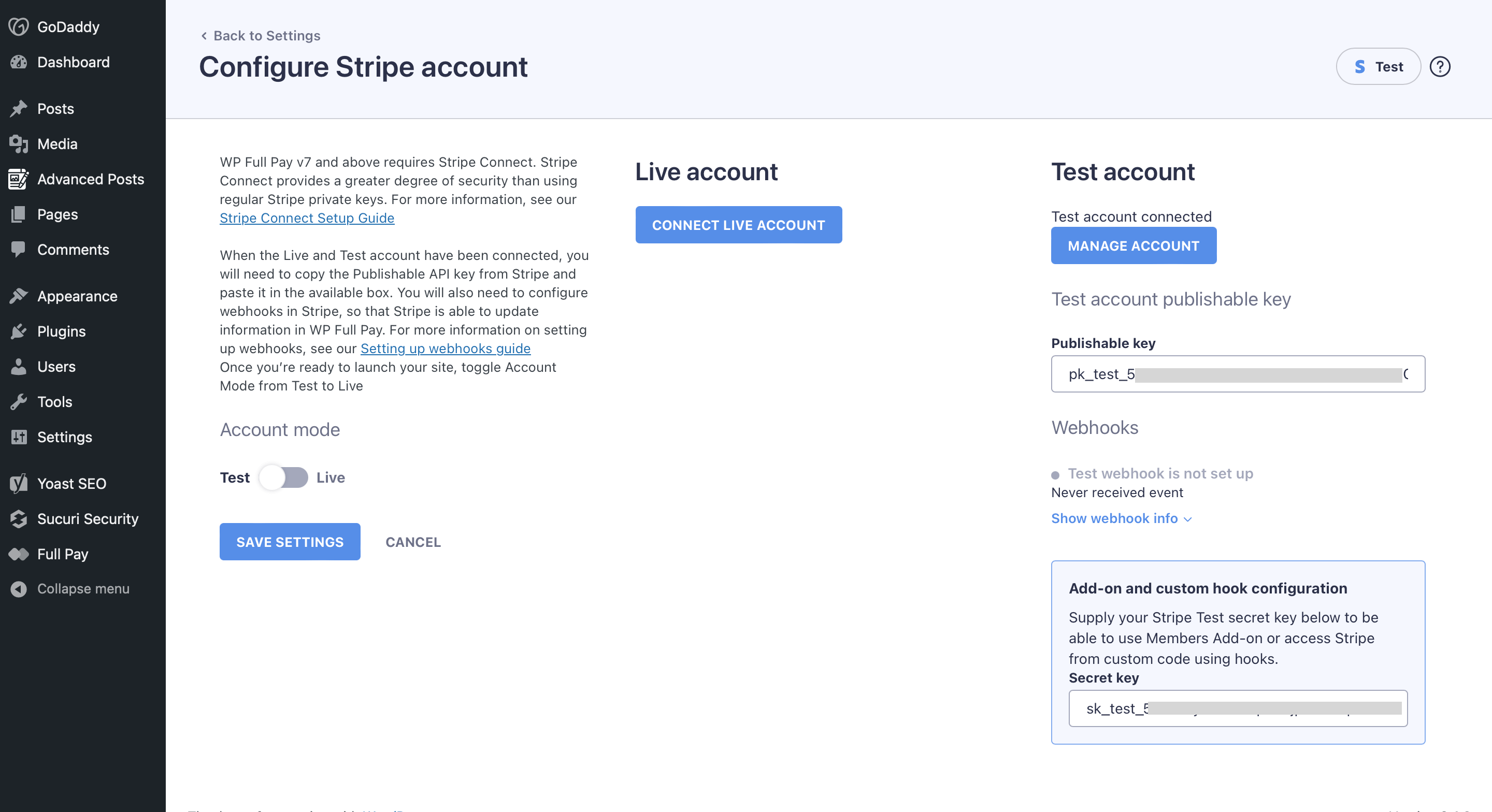
Here, you can switch between test and live modes to safely test transactions before going live and establish webhooks for real-time event notifications.
Setting up webhooks ensures that your Stripe integration is finely tuned to handle transactions securely and efficiently.
Let's break down the key actions you can perform here:
Connect your Stripe account: Simply, you can click on the 'Connect with Stripe' button to authorize the connection between Full Pay and your Stripe account.
If the connection status shows Your account is not yet ready, Stripe does not report the account connected for the selected Account Mode as fully set up. WP Full Pay checks the account status with Stripe each time you open this page, so the notice can appear even when the Stripe Dashboard looks complete — for example, while Stripe is verifying information, has paused payouts, or has requested more information by a deadline. To resolve it:
- Click Update Account Information to open Stripe and provide any information Stripe still requires. Stripe may need time to review what you submit; the notice disappears once Stripe reports the account as ready.
- In the Stripe Dashboard, check for pending verification, requests for more information, or paused payouts, and complete what Stripe lists.
- Make sure you are checking the same Stripe account that is connected to WP Full Pay, and that the selected Account Mode (Test or Live) matches the environment you are checking.
- If you connected the wrong Stripe account, reset the connection and connect the correct one.
Switch between account modes: In 'Test' mode, you can perform transaction trials without processing real payments, ensuring everything runs smoothly. Once you're ready, you can switch to 'Live' mode to start accepting actual payments.
Manage API keys: The API keys link Full Pay with your Stripe account, enabling secure transaction processing. Securely input your Stripe 'Publishable' and 'Secret' keys in their respective fields.
Set up webhooks: Webhooks are crucial for synchronizing Stripe events with your website. Setting up webhooks allows Full Pay to receive updates about transactions, such as successful payments or subscriptions. Learn how to set up webhooks.
Testing your setup: It's essential to test your setup in 'Test' mode to prevent any issues in the live environment. By switching to the 'Test' mode, you can perform various transactions to see how the system handles payments, subscription sign-ups, cancellations, and more.
Going live: Before going live, double-check that all settings, including webhooks and API keys, are correctly configured. Remember, in 'Live' mode, all transactions are real and will be processed accordingly.
Confirm an existing Stripe connection
An existing Stripe Connect connection may need confirmation for this site. You may see Please confirm your Stripe connection or a corresponding prompt for your test connection. This applies to WP Full Pay's free and Pro plugins, not connections made with manual API keys or the Members add-on. Confirmation retains your existing Stripe account. You only need to disconnect the affected mode first if you want to connect a different account.
Unconfirmed connections stop taking payments from January 7, 2027 (UTC). Before confirming, update WP Full Pay on every site using the same Stripe account. After confirmation, older versions of WP Full Pay on other sites stop working with that account.
- In your WordPress dashboard, open Full Pay → Settings → Stripe account, or click Confirm now in the dashboard notice.
- Find the confirmation prompt for the affected Test or Live connection and click Confirm with Stripe.
- Sign in to Stripe using the account identified in that prompt and complete the confirmation.
- Complete any other connection's confirmation separately if prompted.
If you sign in to a different Stripe account
Each confirmation prompt identifies the saved Stripe account ID and includes Disconnect live mode or Disconnect test mode. Its controls apply to the mode named in the prompt, even when another Account Mode is selected or you are on the Webhooks tab.
If Stripe returns you to a message saying you signed in to a different account, your saved Stripe account has not been replaced and that connection remains unconfirmed.
Click Confirm with Stripe again and sign in to the account identified by the ID shown in the prompt.
If you cannot sign in to that account or no longer use it, click the prompt's Disconnect live mode or Disconnect test mode button and confirm the disconnection in the dialog.
Disconnecting from this prompt clears only that mode's connection on this site. It does not offer the access-removal checkbox or remove WP Full Pay's access in Stripe. To connect another account, select the matching Account Mode and use Connect with Stripe. Forms using the disconnected mode cannot take payments until you reconnect. See Resetting Stripe connection for more details.