
Creating a save card form
In this guide, you can find a step-by-step guide about create and customize a save card form.
In this article
What is a save card form?
A save card form refers to a feature that allows your customers to securely store their credit or debit card information for future use.
You can download WP Full Pay plugin for free, create the forms and test Stripe transactions on your WordPress site.
Creating a save card form in 6 easy steps
We recommend going through the following steps:
- Switch to test API mode
- Create form
- Insert form shortcode into a page
- Test-drive form
- Customize form
- Switch to live API mode
1. Switch to test API mode
This tutorial assumes that you’ve already configured your Stripe API keys. If you haven't, you can refer to our article to learn more about how to configure Stripe API keys.
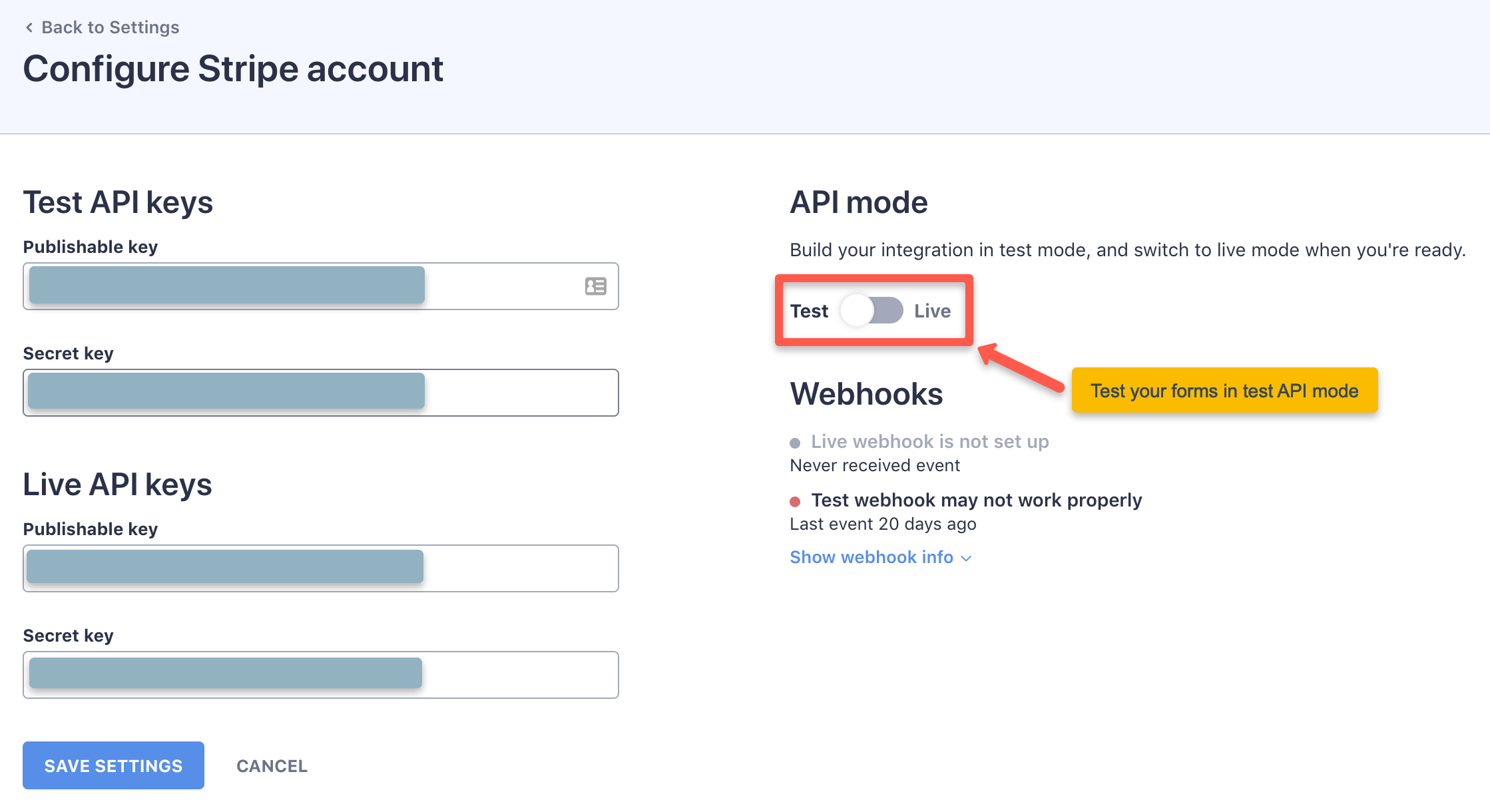
You can switch to test mode on the Full Pay → Settings → Stripe account page in WP admin:
2. Create form
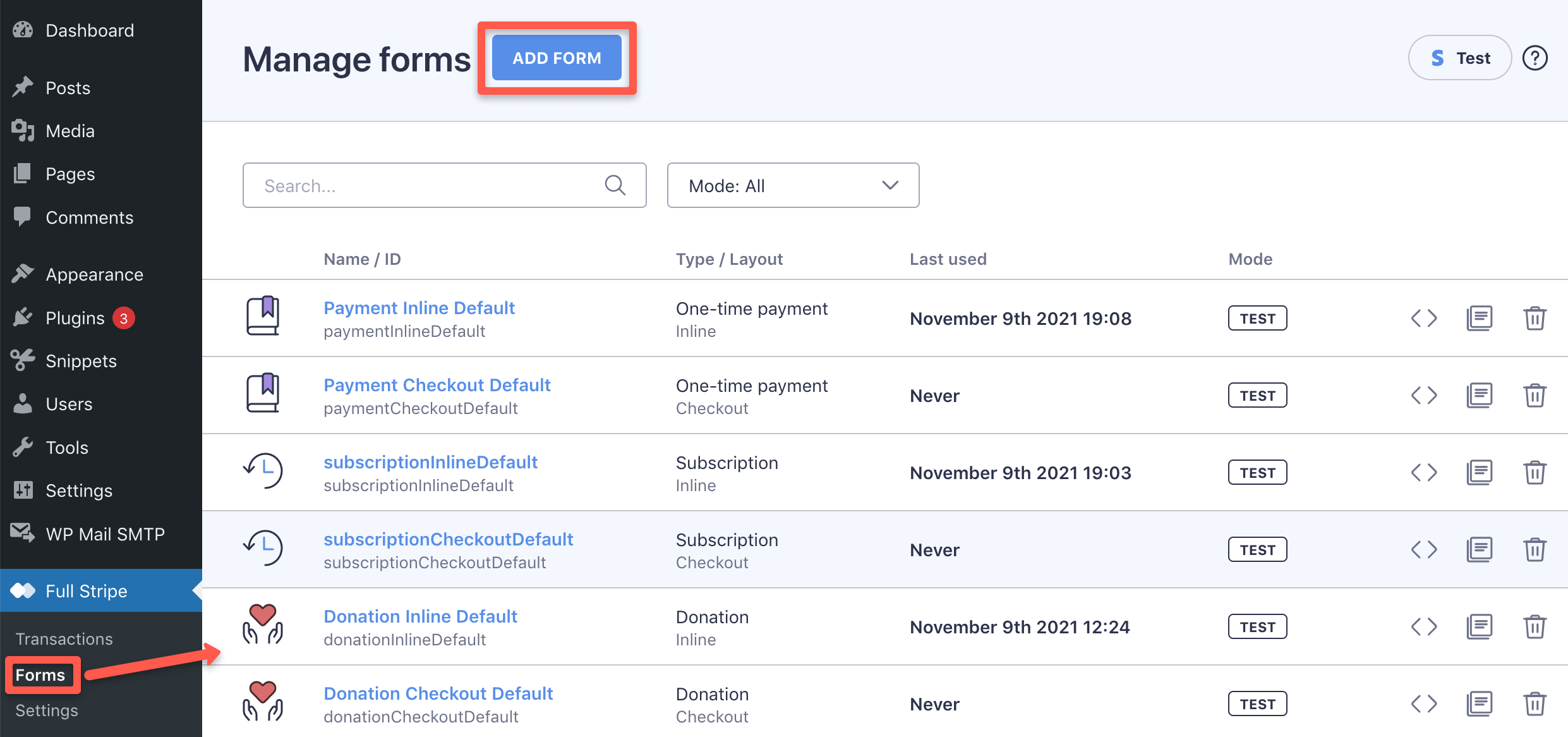
You can create a save card form on the Full Pay → Payment Forms page in WP admin, by pressing the “Add form” button:
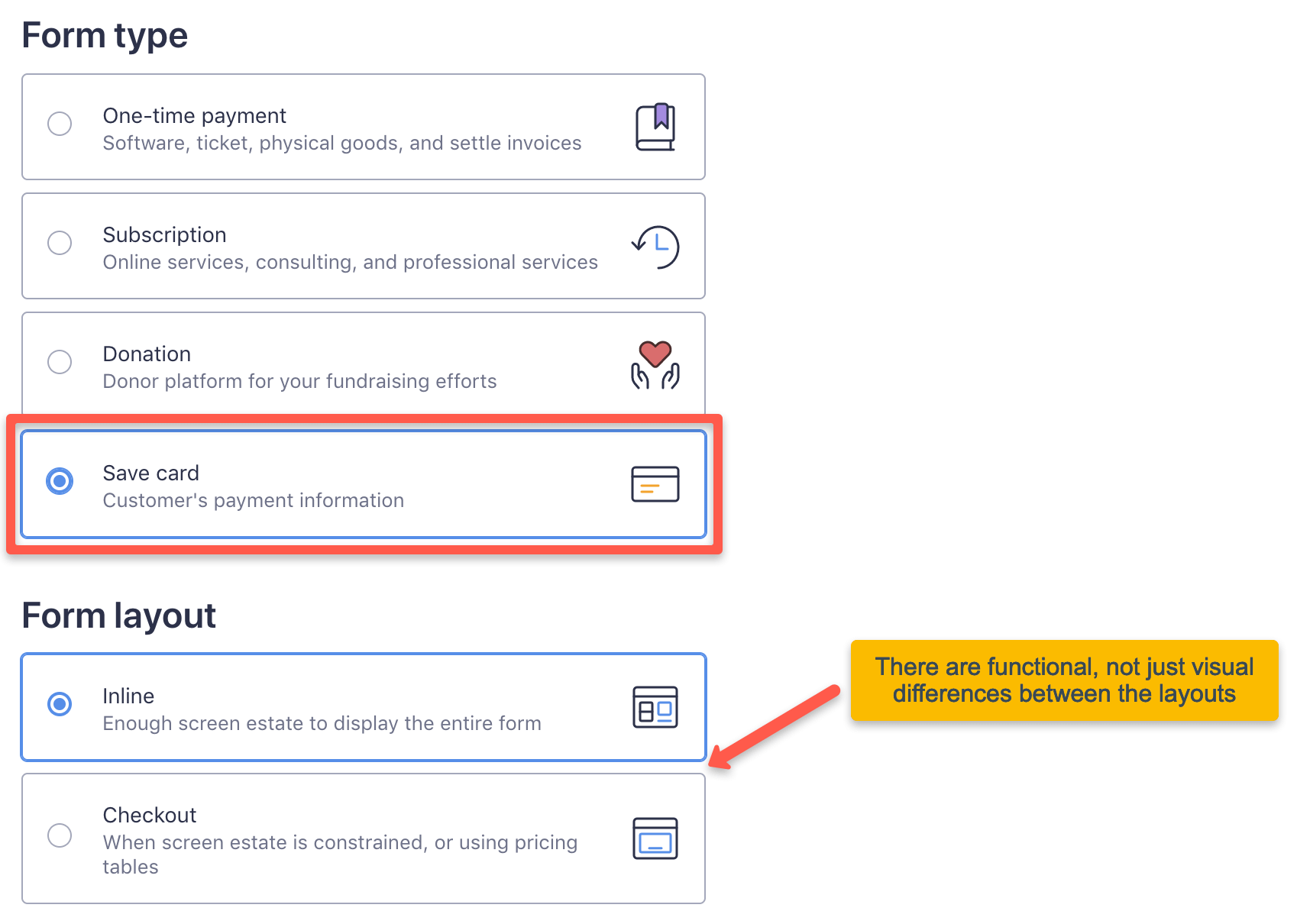
On the next page, select Save card as the form type, enter form name and display name, select a form layout, and press the “Create & edit form” button:
Inline forms VS Checkout forms
Refer to our article to learn more about the difference between inline and checkout form layouts.
3. Insert form shortcode into a page
You can obtain the form shortcode on the Full Pay → Payment Forms page.
How to use shortcodes?
Refer to our article to learn more about how to use shortcodes.
4. Test-drive form
Once the form shortcode is inserted into a page, you can open the page, and test your form.
The form is fully-functional in test mode, and you can save cards using test cards to simulate every possible outcome.
5. Customize form
Now that the form is up and running, you can customize the form if needed:
- Create a Thank you page
- Configure email notifications
- Change labels or translate the plugin labels
- Customize the form with CSS
- Add Stripe badge to the payment page
- Create a Customer portal page
- Change the "Cardholder's name" label or turn off Link
6. Switch to live API mode
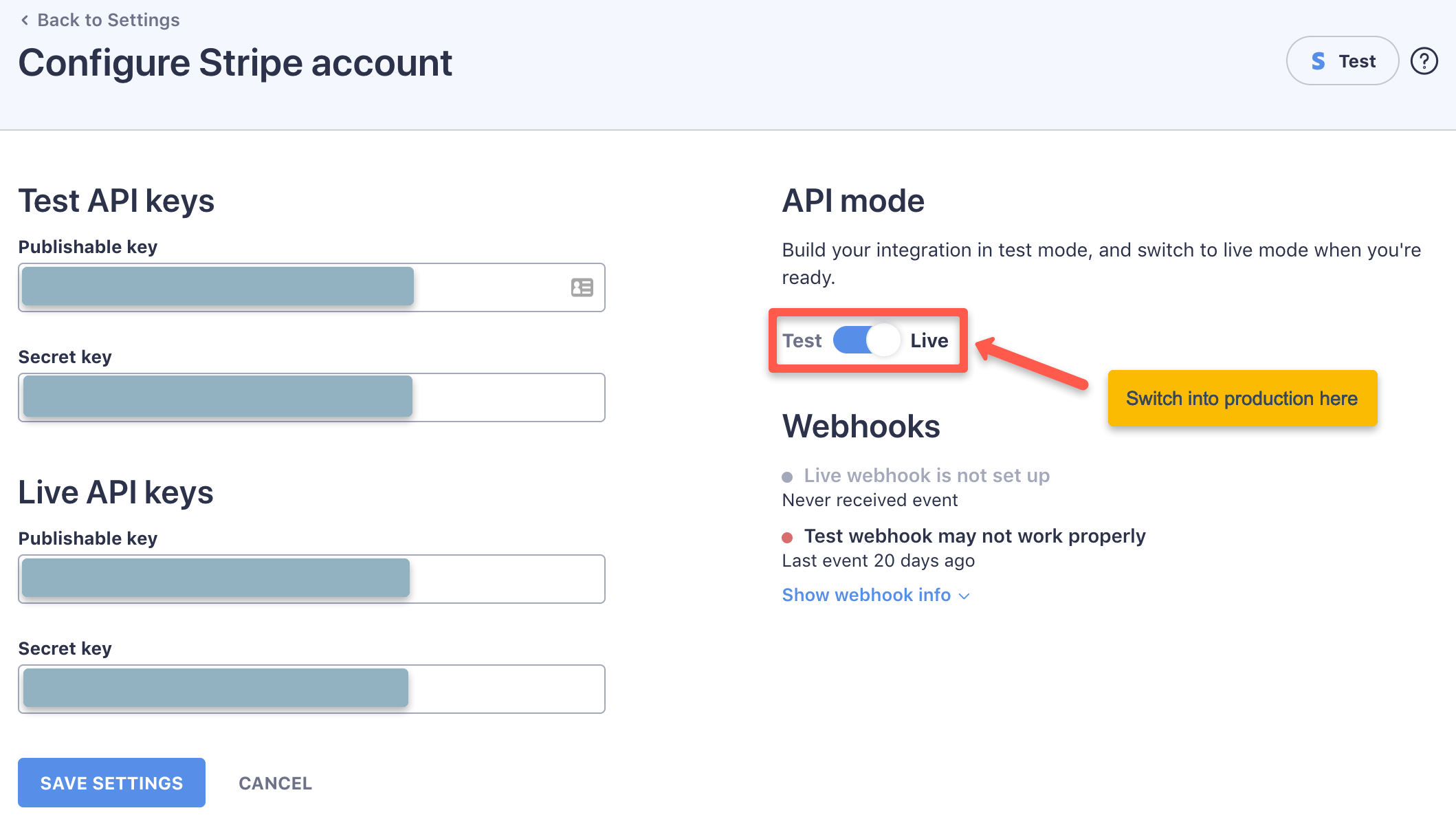
When you’re ready to go into production, you can flip the switch on the Full Pay → Settings → Stripe account page in WP admin:
Customizing the Save Card form
The Cardholder's name label is changed through translation. Inline Save Card forms also have a Stripe Link control in the form editor.
Changing the "Cardholder's name" label
On inline Save Card forms, the Cardholder's name field is generated by WP Full Pay itself, not by Stripe. There is no per-form setting for this label, so you change it the same way you change any other plugin text — by translating the plugin string.
You have two ways to do this:
- Use a translation plugin (recommended). Install a translation-management plugin such as Loco Translate, open WP Full Pay in it, and edit the Cardholder's name string. The plugin reads the exact source text for you, so you do not have to type it by hand.
- Create a translation file. Follow the steps in Translating the plugin to other languages to add your wording in a
.po/.motranslation file.
📝 Note: This label is not part of the Stripe Payment Element, so it cannot be changed from the Stripe Dashboard. It is always a WP Full Pay plugin string.
If you are comfortable editing code, you can also override this single label with a gettext filter. Add the following to your child theme's functions.php file or a code snippets plugin, replacing the Italian example with your own wording:
add_filter( 'gettext', function ( $translated, $text, $domain ) {
    if ( 'wp-full-stripe-free' === $domain && 'Cardholder’s name' === $text ) {
        return 'Nome del titolare della carta';
    }
    return $translated;
}, 20, 3 );
⚠️ Important: The source label uses a typographic apostrophe (’), not a straight one ('), and the text domain is wp-full-stripe-free. If either does not match exactly, the filter will not apply — which is why translating the plugin string is the more reliable option.
Replacing the text with CSS is possible as a last resort, but it only hides the original label visually — it does not update it for screen readers or in every layout, so translate the string instead whenever you can.
Disabling Link on a Save Card form
Link lets returning customers use details saved with Stripe. To disable it on one inline Save Card form:
- In your WordPress dashboard, open Full Pay → Payment Forms and edit the inline Save Card form.
- On the Payment tab, set Stripe Link to Disabled and save the form.
- Test the published form to check that Link no longer appears. Other payment methods enabled in Stripe remain available.
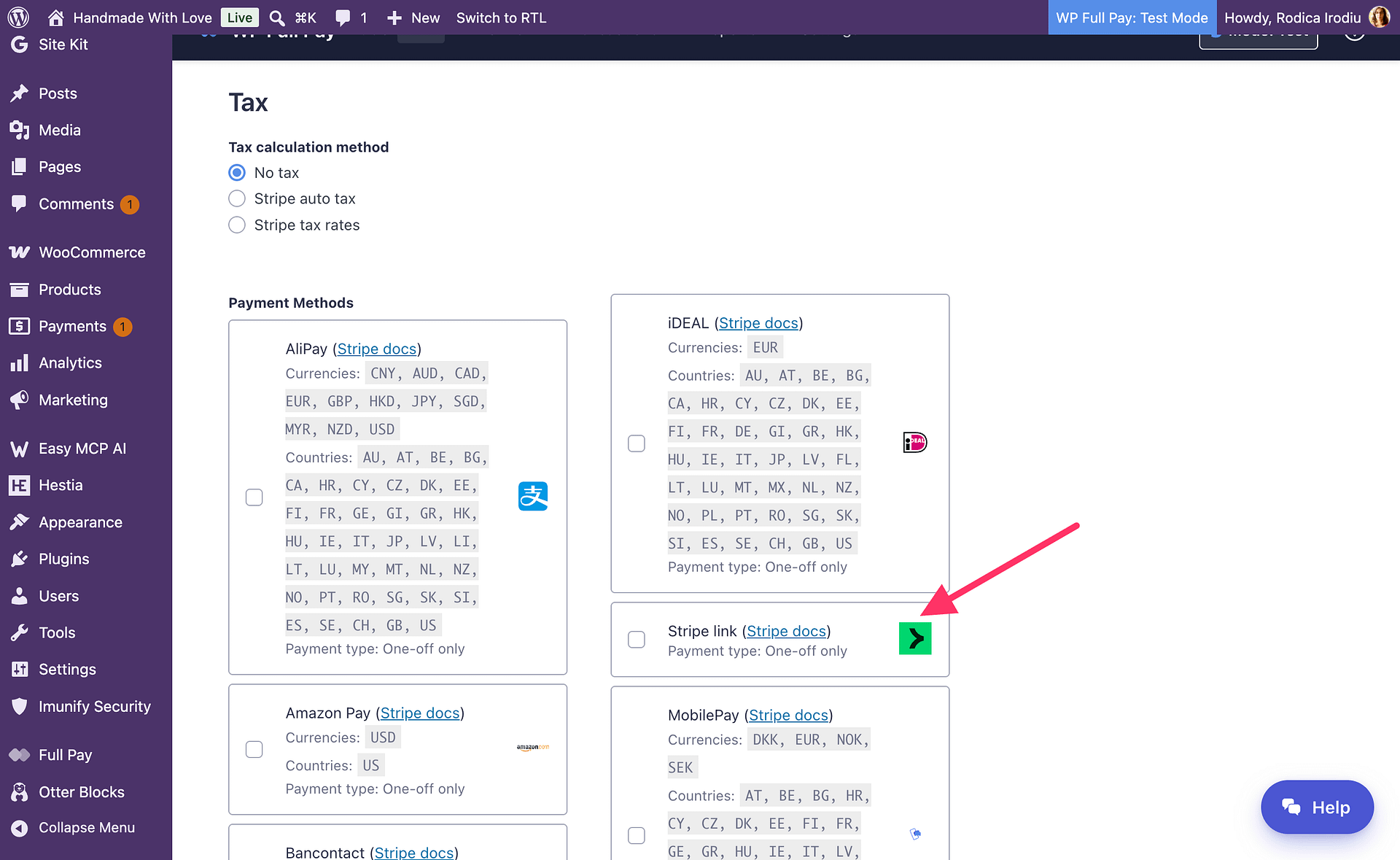
📝 Note: Link is enabled by default on inline Save Card forms, subject to its availability in Stripe. The separate Link toggle does not add the one-time Payment form's full payment method selector to Save Card forms. To control Link in your Stripe configuration, including for Checkout Save Card forms, open Payment methods in your Stripe Dashboard and select Default under WP Full Pay configurations. See Managing payment methods for the full steps.