Security
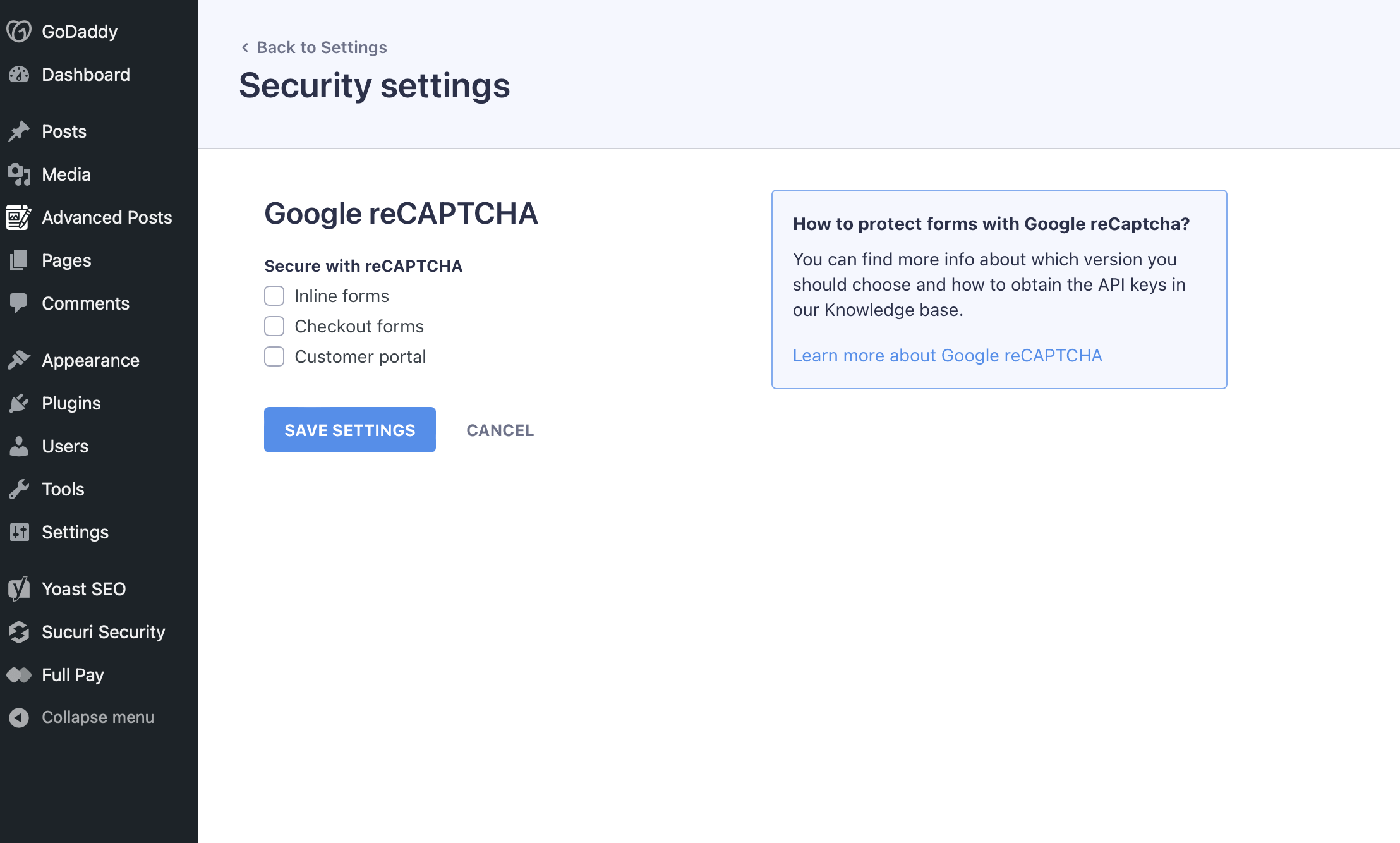
In the 'Settings → Security' settings, you can configure Google reCAPTCHA to protect your site's forms from spam and automated abuse.
You have the option to apply reCAPTCHA to inline forms, checkout forms, and the customer portal, each enhancing the security of different user interaction points on your website.
You can enhance the security of your site by enabling reCAPTCHA for different types of forms:
- Inline forms: allows you to integrate reCAPTCHA directly into forms that are embedded on your pages, providing a seamless user experience while protecting against spam and automated abuse.
- Checkout forms: allows you to add an extra layer of security to your payment processing forms to prevent fraudulent transactions and ensure that payments are made by real users.
- Customer portal: allows you to secure the areas where customers manage their accounts, safeguarding against unauthorized access and enhancing overall account security.
How to configure Google reCaptcha?
Supported reCAPTCHA key type
WP Full Pay supports Google reCAPTCHA v2 keys only.
You can use either of these reCAPTCHA v2 modalities:
- I'm not a robot checkbox
- Invisible reCAPTCHA badge
reCAPTCHA v3 and reCAPTCHA Enterprise keys are not compatible with WP Full Pay.
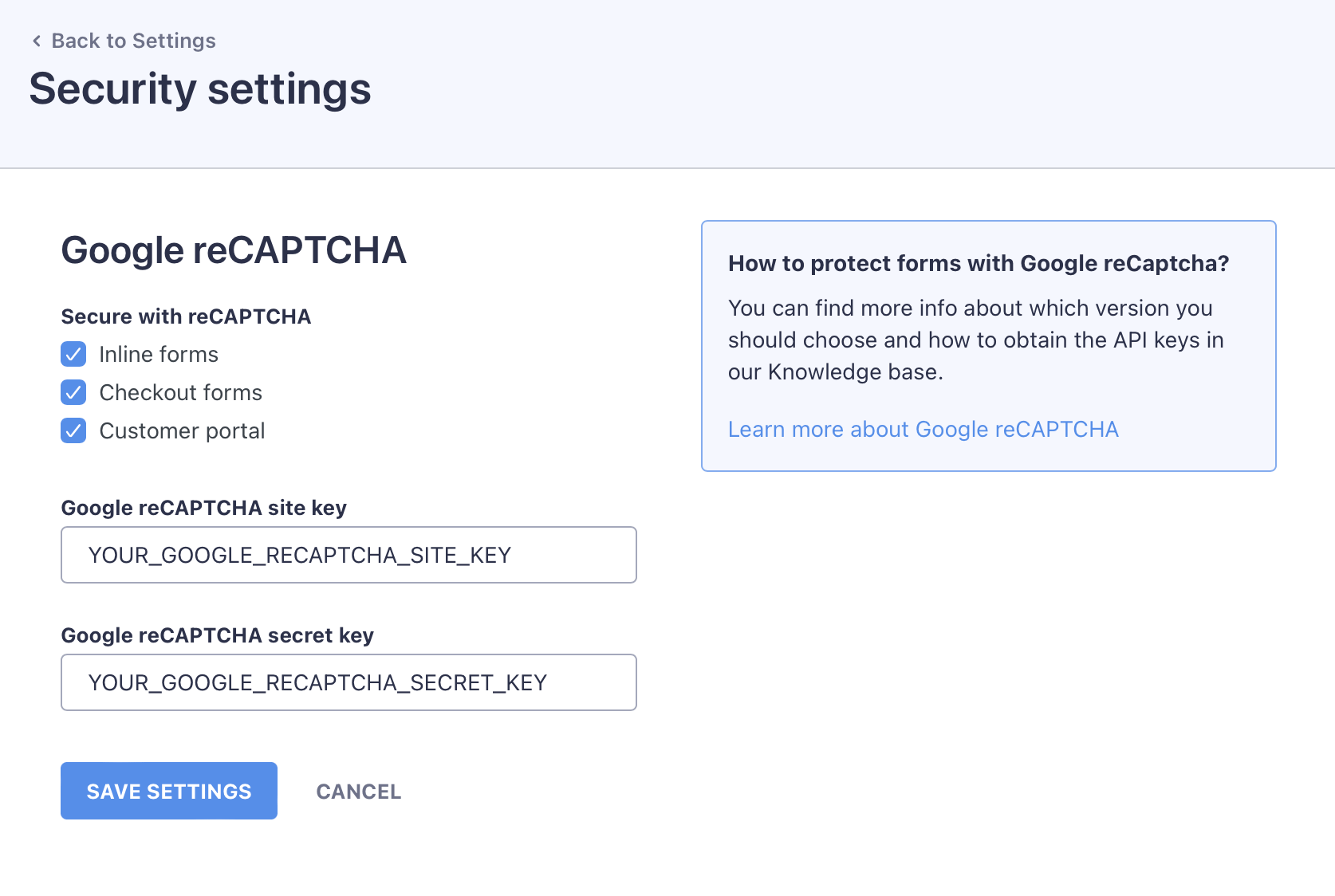
- Select the forms you want to secure
- Paste the Google reCAPTCHA API keys
- Hit the Save settings to save the changes.
How to generate Google reCAPTCHA API keys?
Refer to the linked article to generate and set up compatible reCAPTCHA v2 API keys for your payment forms.
Fix the "Invalid key type" error
If your form shows ERROR for site owner: Invalid key type, the configured keys are usually reCAPTCHA v3 or Enterprise keys, which are not supported by WP Full Pay.
To fix this:
- Create a new Google reCAPTCHA registration using reCAPTCHA v2.
- Copy the new Site key and Secret key.
- In your WordPress dashboard, go to Full Pay → Settings → Security.
- Replace both existing keys with the new reCAPTCHA v2 keys.
- Click Save settings.
- Retest the affected form.
For the full illustrated setup procedure, see Register your website for Google reCAPTCHA.