Authorize and Capture: Enable Pay-Later Payments in WP Full Pay
WP Full Pay supports Stripe’s Authorize and Capture workflow, also known as Pay Later or Delayed Capture. This feature lets you authorize a customer’s payment now and capture (charge) it later from your Stripe Dashboard.
In this article
How the feature works
With Authorize and Capture enabled, the customer’s card is authorized when they submit the payment form, but the amount is not immediately charged.
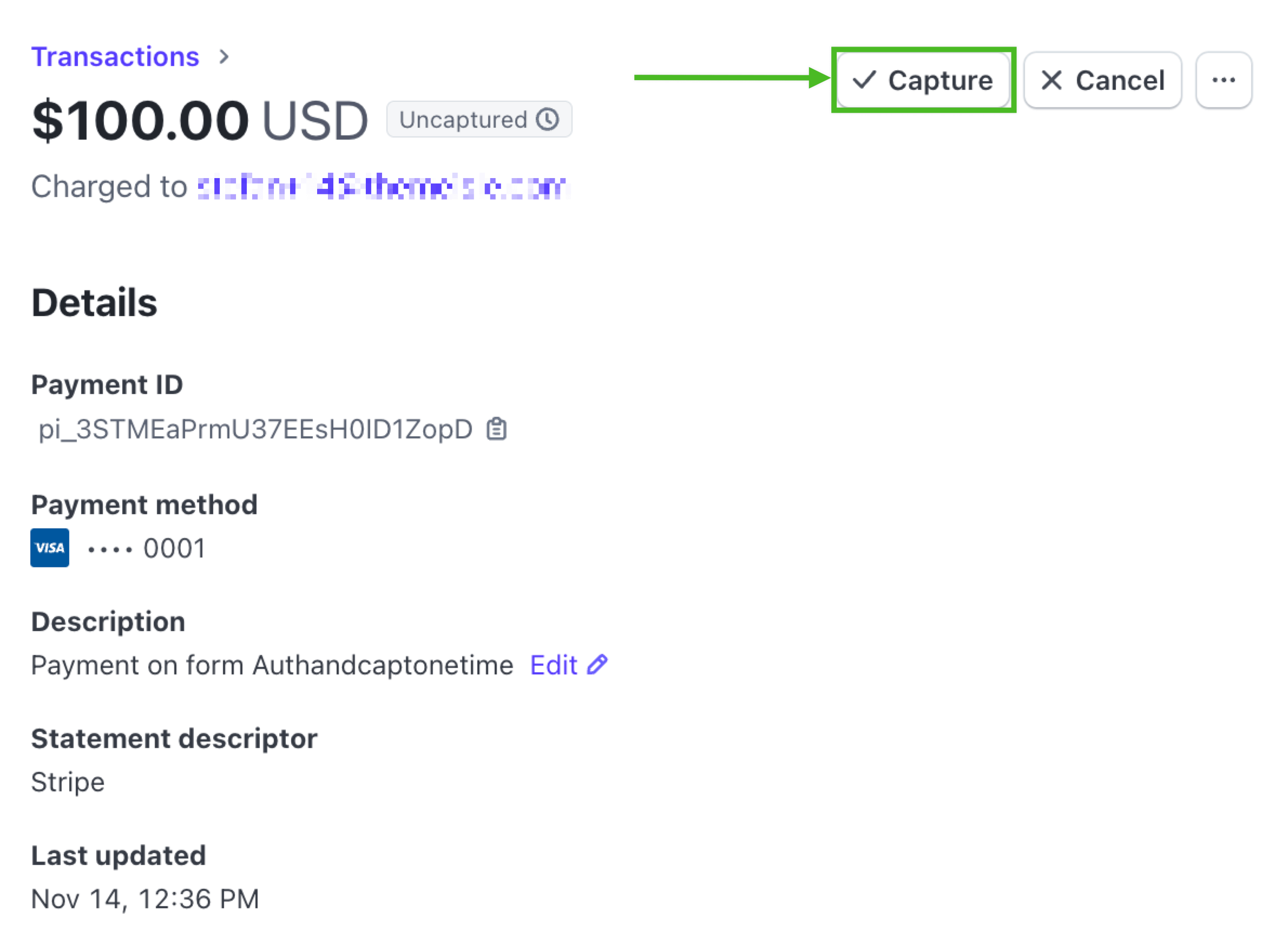
Instead, the payment appears in Stripe as Uncaptured, and you can manually capture it at a later time with a single click.
Enabling the option in WP Full Pay
When creating a new payment form in WP Full Pay:
- Go to Full Pay → Payment Forms → Add Form.
- Choose the one-time payment form type. Authorize and Capture is available on payment forms only, not subscription forms.
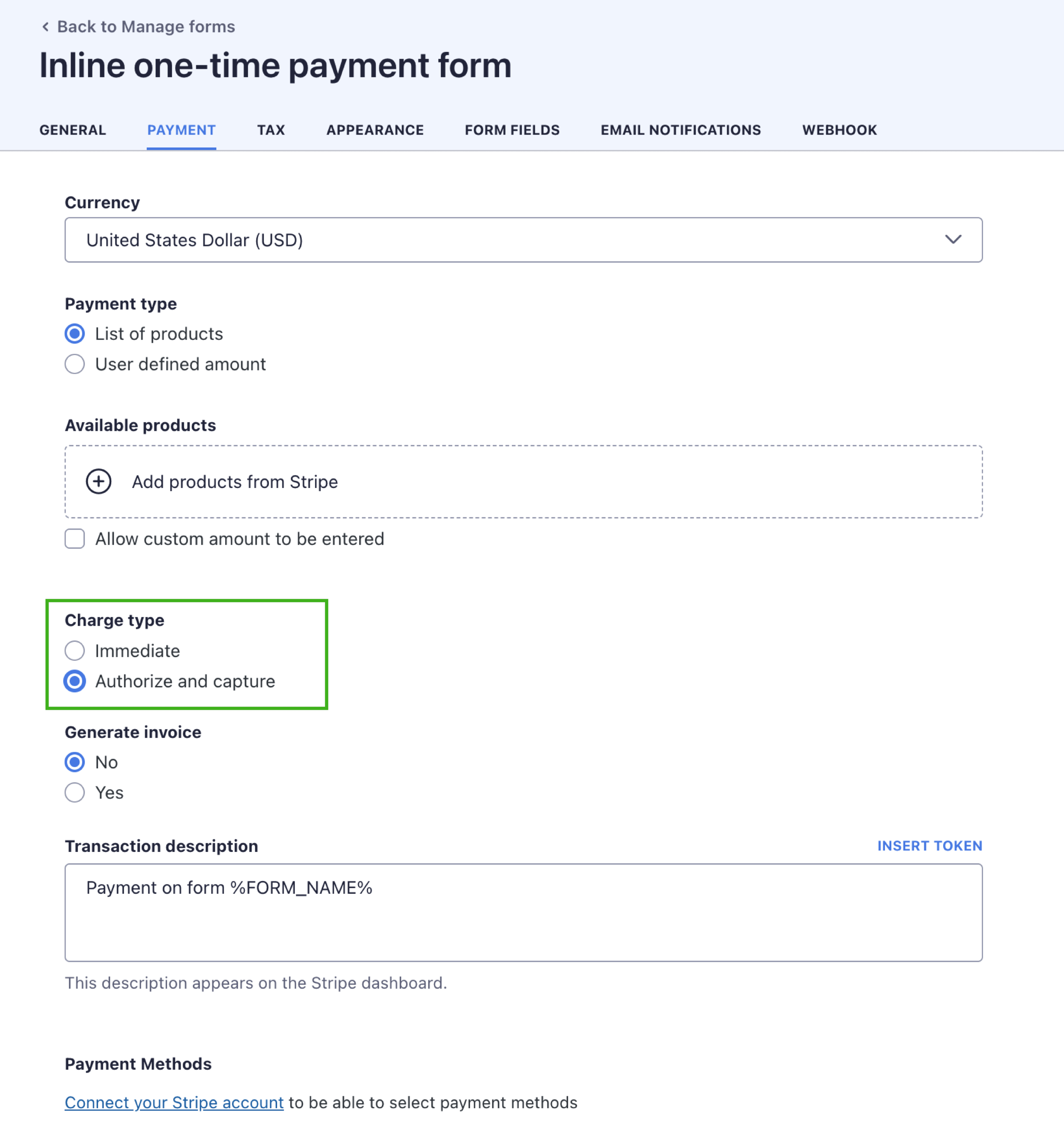
- On the Payment & Tax tab, select Authorize and Capture as the Charge type.
Important: You can also change the Charge type on an existing form from the Payment & Tax tab of the Edit Form screen.
What happens after the customer submits the form
Once a customer fills out the form and clicks Make payment, the payment shows in Stripe as:
- Status: Uncaptured
- Available action: Capture
To complete the charge, open the payment in Stripe and click the Capture button.