
Installing WP Full Pay (2025)
In this article, we're looking at how to install and update the WP Full Pay plugin that you purchased from our website.
In this article
Minimum requirements
Learn about required applications, extensions and with respective versions at WP Full Pay minimum requirements.
Installation
#1 Download the plugin
The plugin is packaged as a .zip file, and you can download it from your Customer portal or from wp.org.
(You can find your login credentials from your confirmation email)
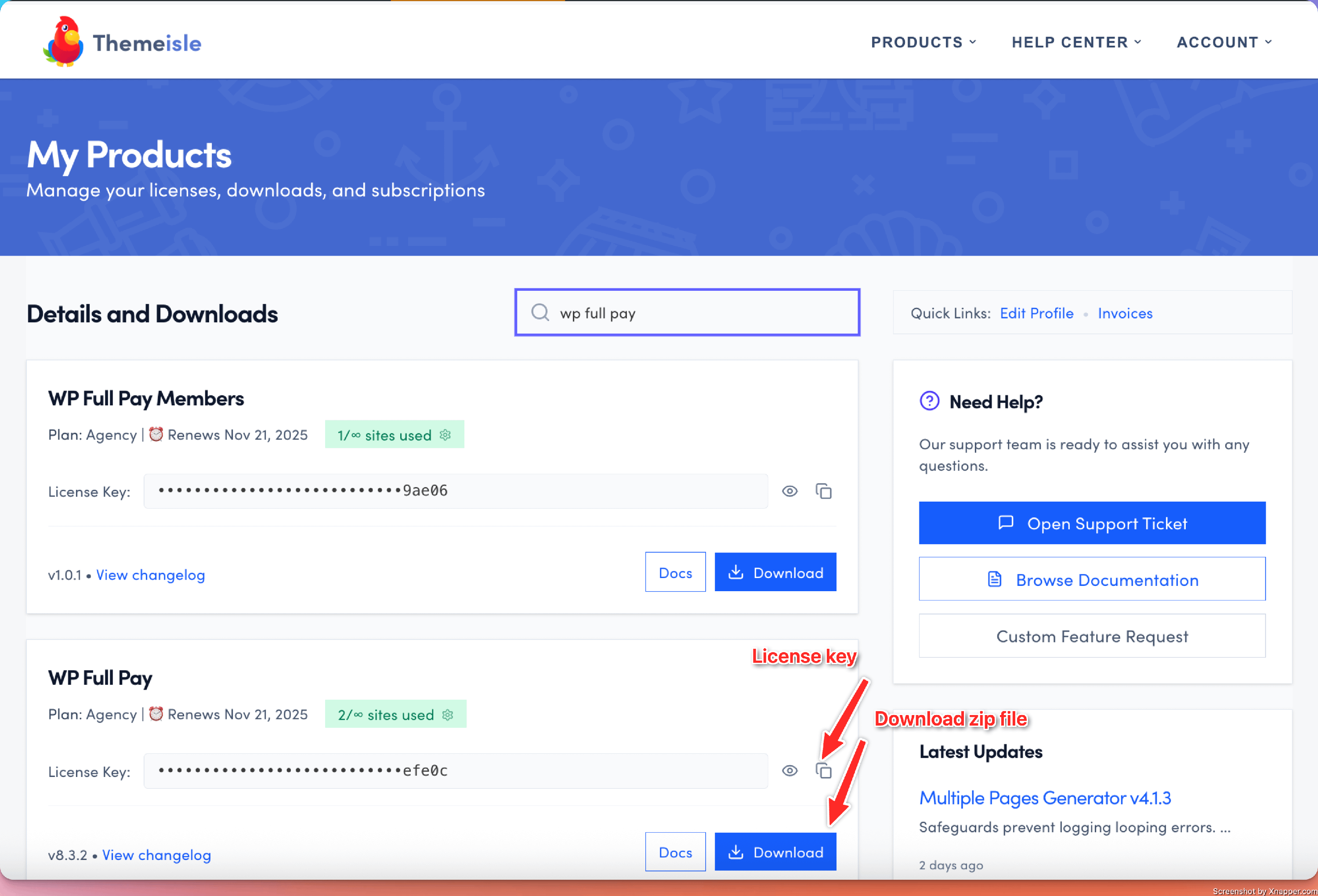
#2 Install in WordPress
To install the plugin in WP admin, follow these steps:
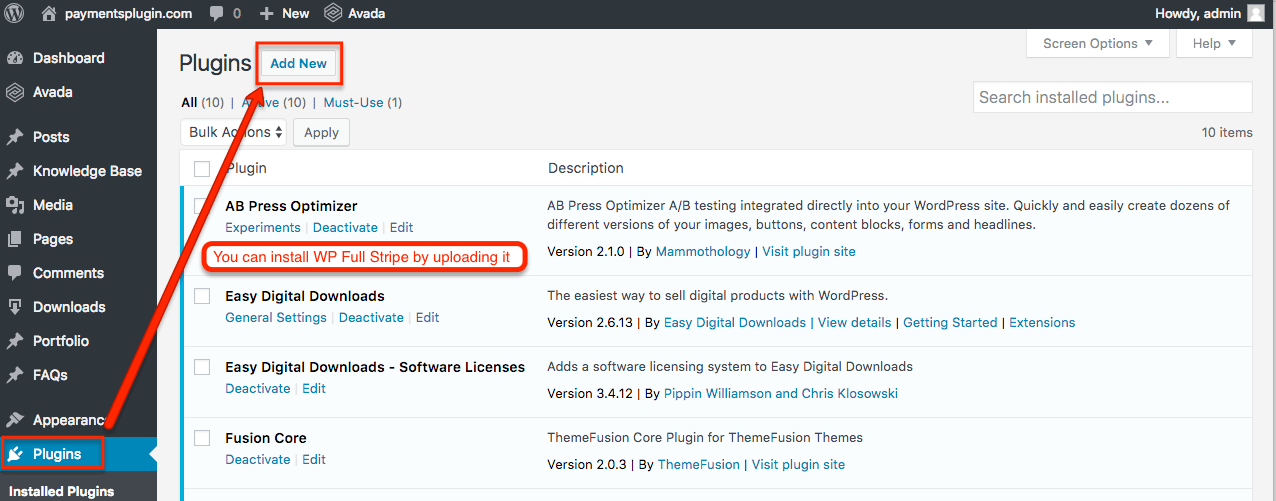
- Press the Add new button on the Plugins page.
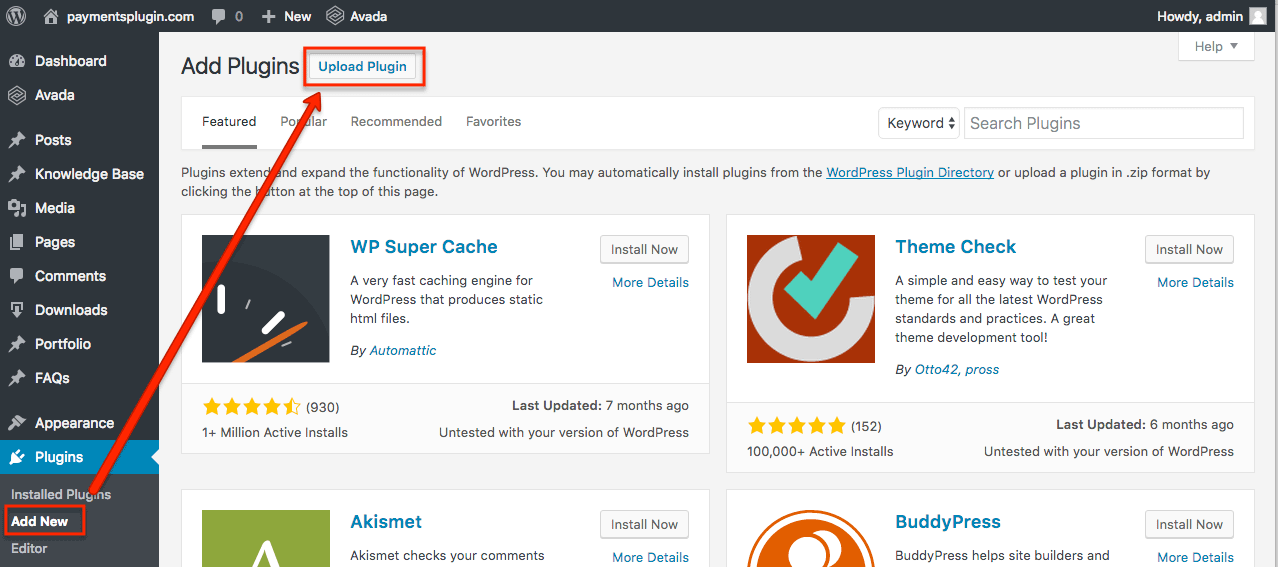
- Press the Upload plugin button on the Add plugins page.
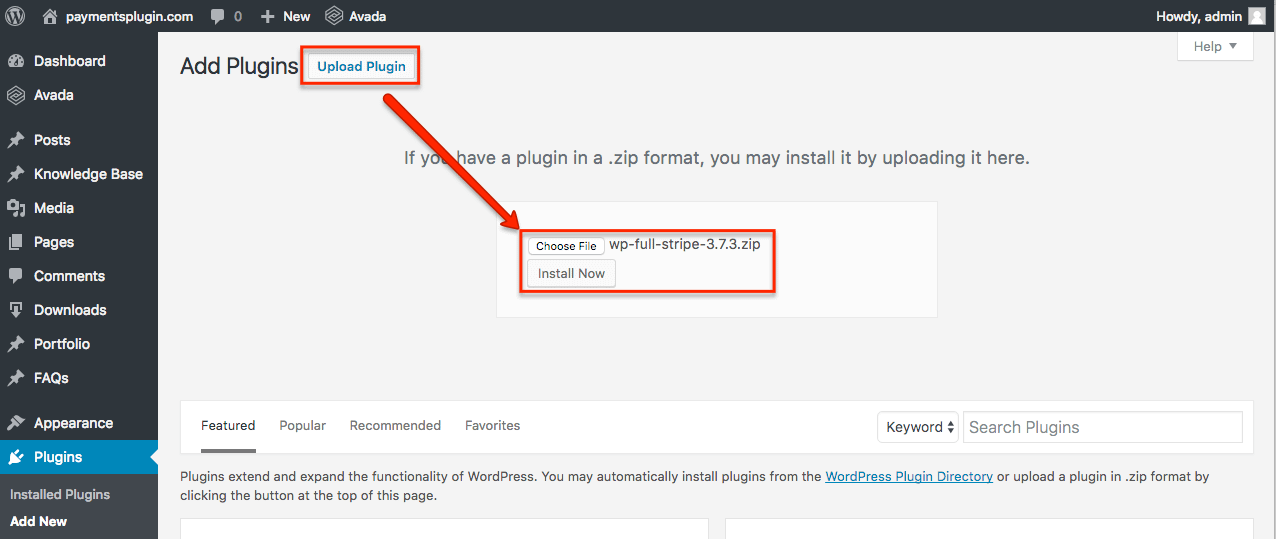
- Browse the .zip file from your computer.
- Press the Install now button.
- When the installation is finished, press the Activate plugin button.
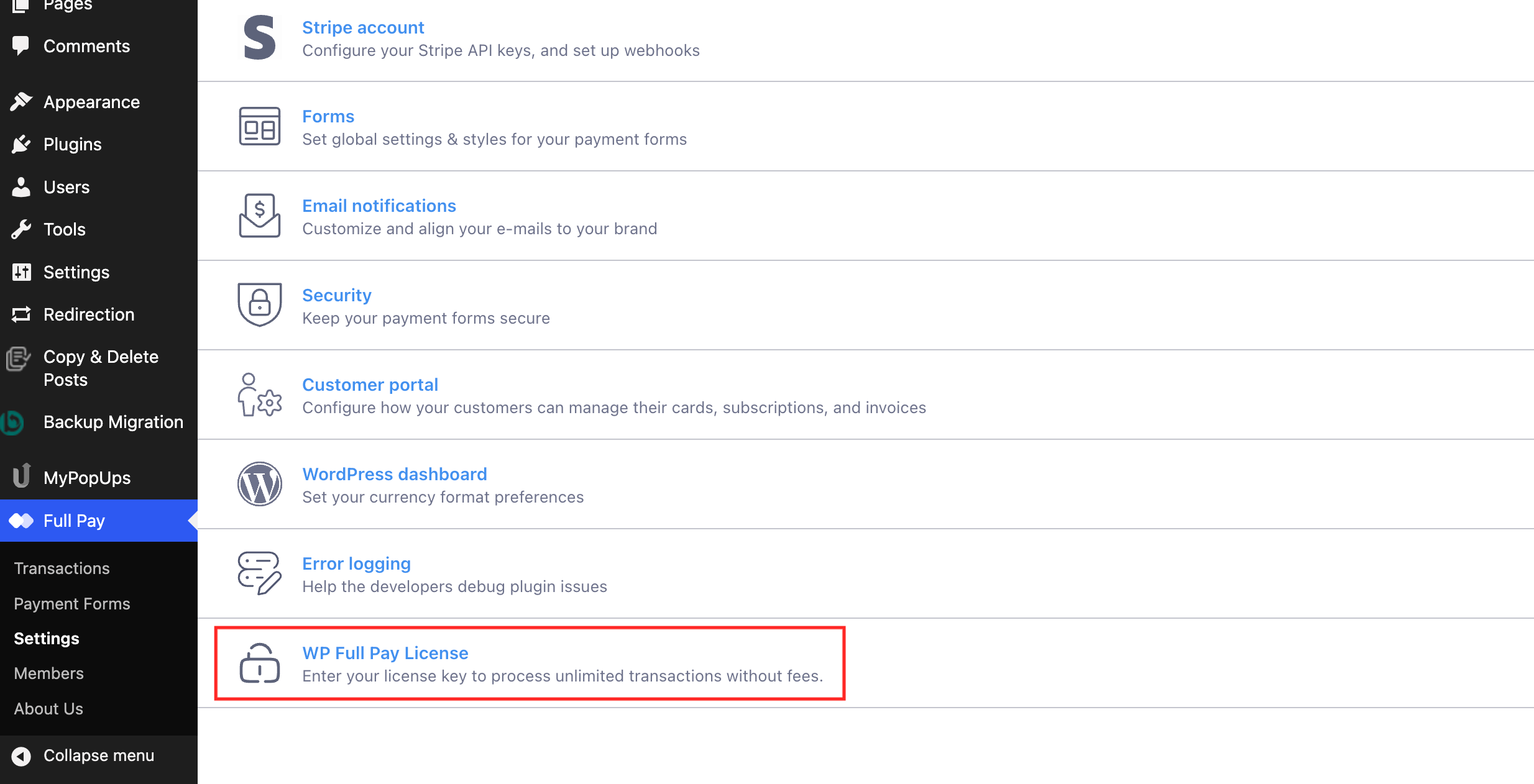
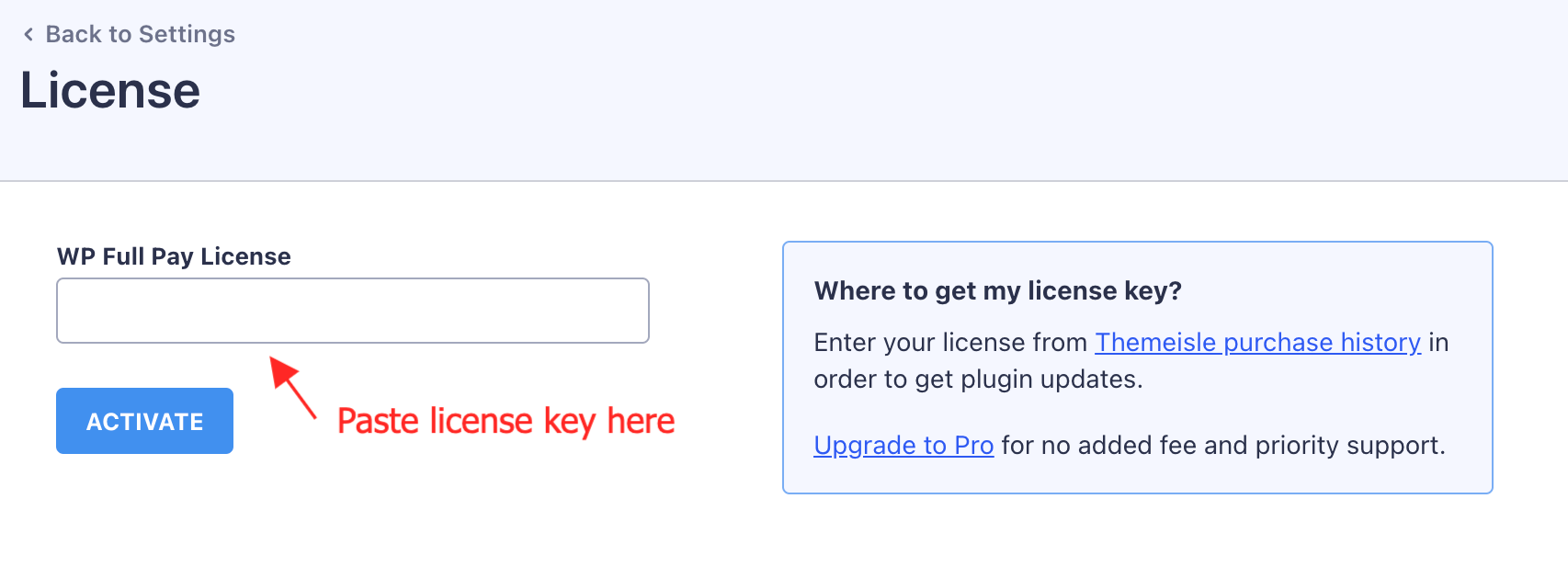
- Enter the license key, and activate your license.
Pro tip - Network activation on WordPress Multisite
You can also network-activate the plugin if you bought a Basic, Plus or Pro license
Let's see the installation procedure with screenshots:
1) Press the Add new button on the Plugins page
2) Press the Upload plugin button on the Add plugins page
3)-4) Browse the .zip file from your computer and press the Install now button
5) Activate the plugin

6) Activate your license
Updating the plugin
Auto update
WP Full Pay integrates seamlessly with WordPress auto updates. Plugin updates show up automatically on the "Plugins" page in WP admin.
You can click on "View version details" to see what's new and "Update now" to install the update.

Manual update
You can update the plugin manually at any time, no data will be lost.
Follow these steps:
- Deactivate the current version
- Uninstall the current version
- Install the new version (see the "Install in WordPress" section above)
Next step:
We suggest