
How to Design a Template Page in FSE Themes using Otter Blocks?
The Themeisle FSE themes are fully compatible with the Otter Blocks plugin, which allows you to create the perfect pages for your website, taking advantage of Otter's features. This guide uses the Raft theme, but the steps are the same for the other FSE themes.
In this article
📝 Note: This guide assumes you have installed Otter.
Design the Template
Create a new page or post and open it.
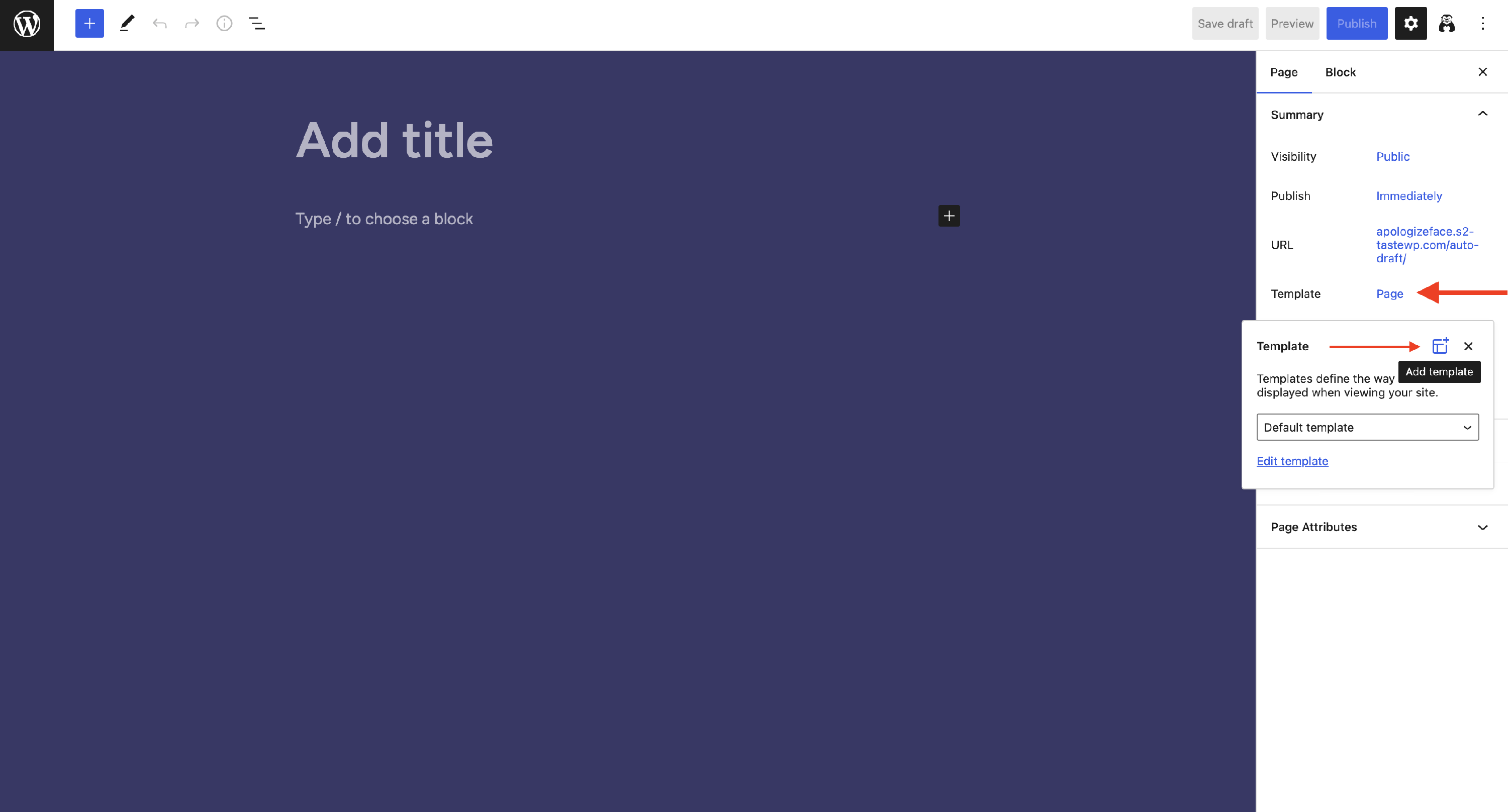
In the Page tab, go to Template and click the template name.
Click the Add template button.
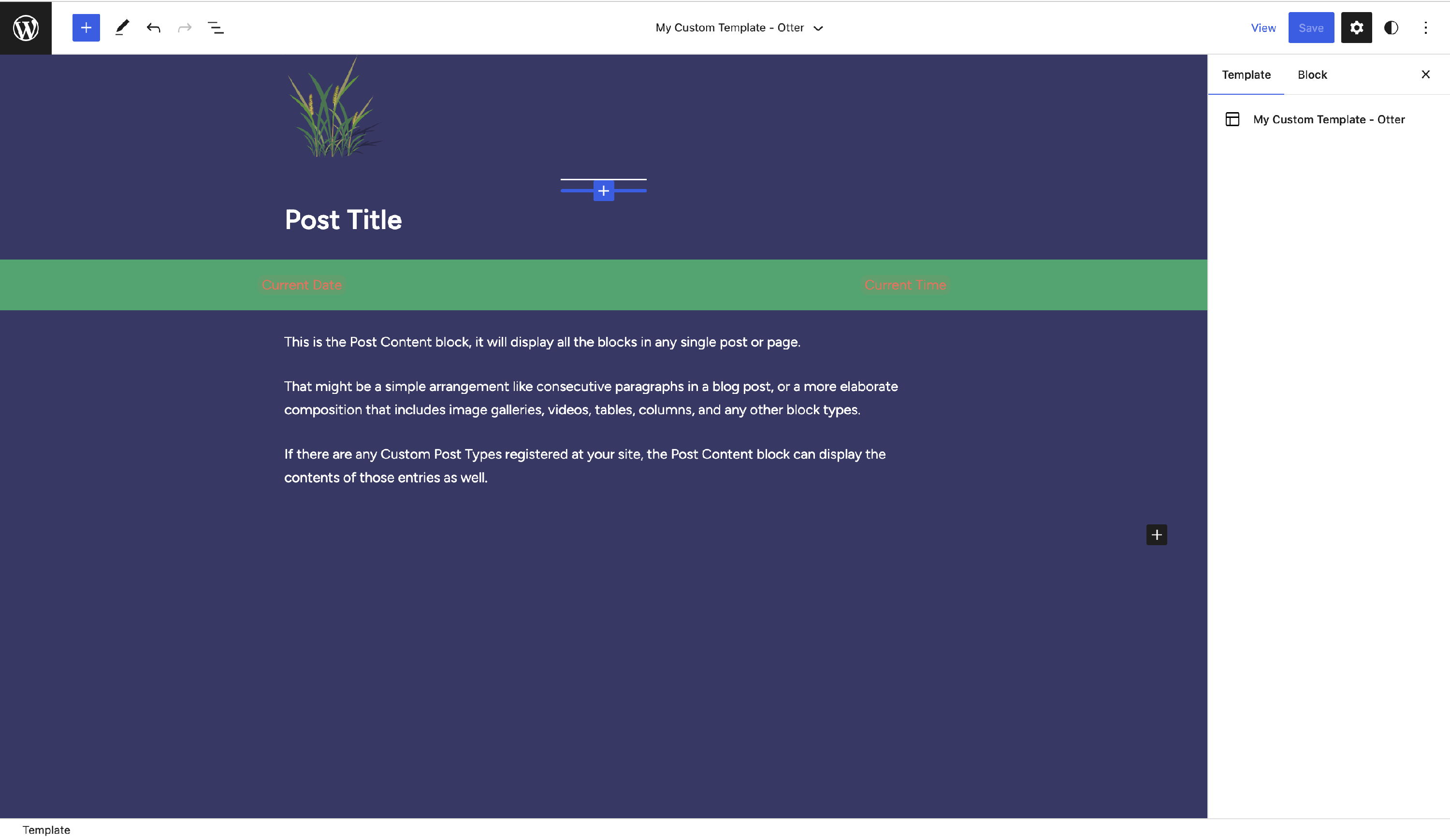
Enter a descriptive name and click Create. The template editor opens.
Here you can insert Otter blocks as you would for regular pages, or use Otter dynamic values to import content automatically.
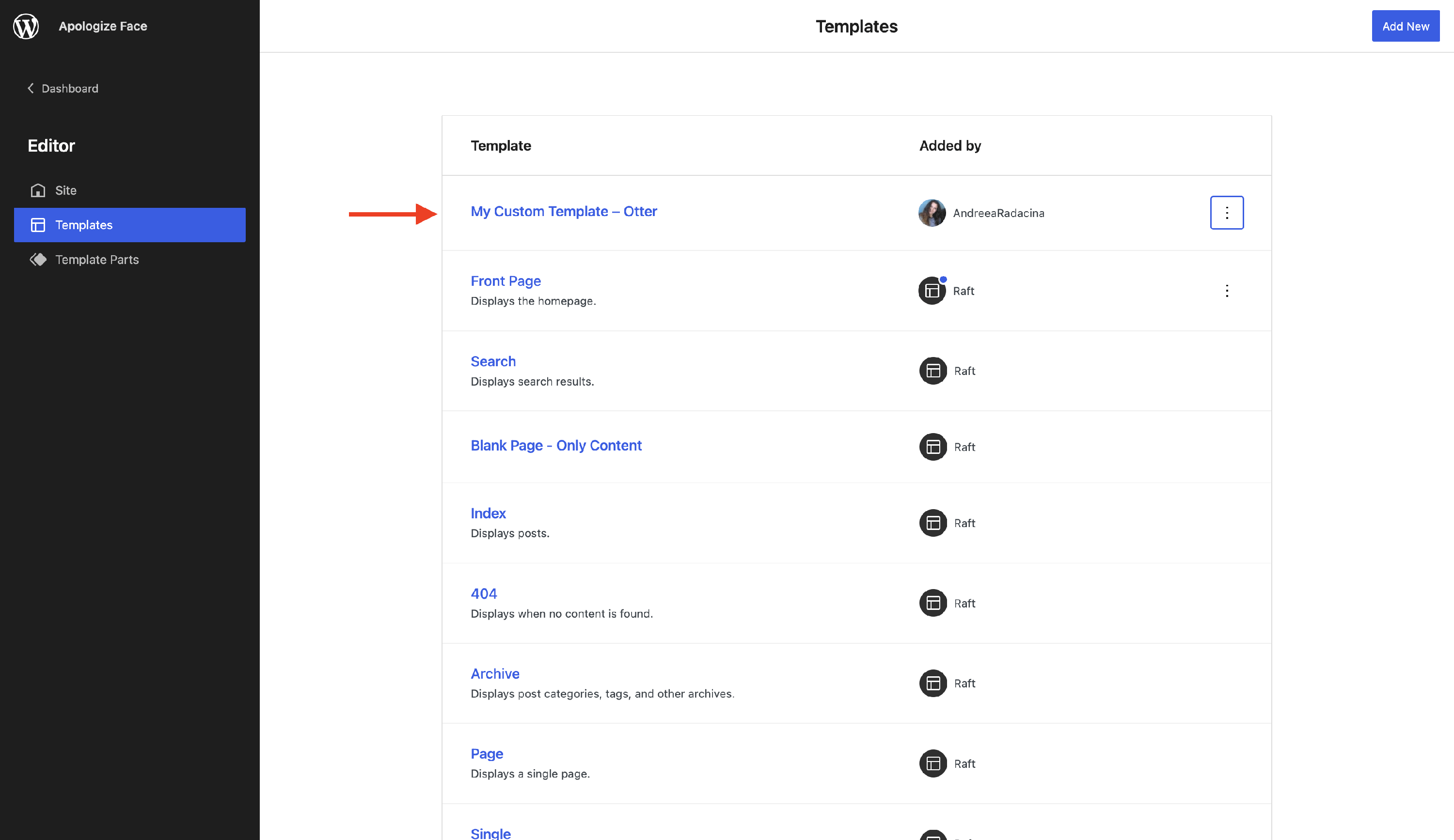
Publish the template. It then appears under the Templates area.
Use the Template
To use the template you designed, open the post or page you want.
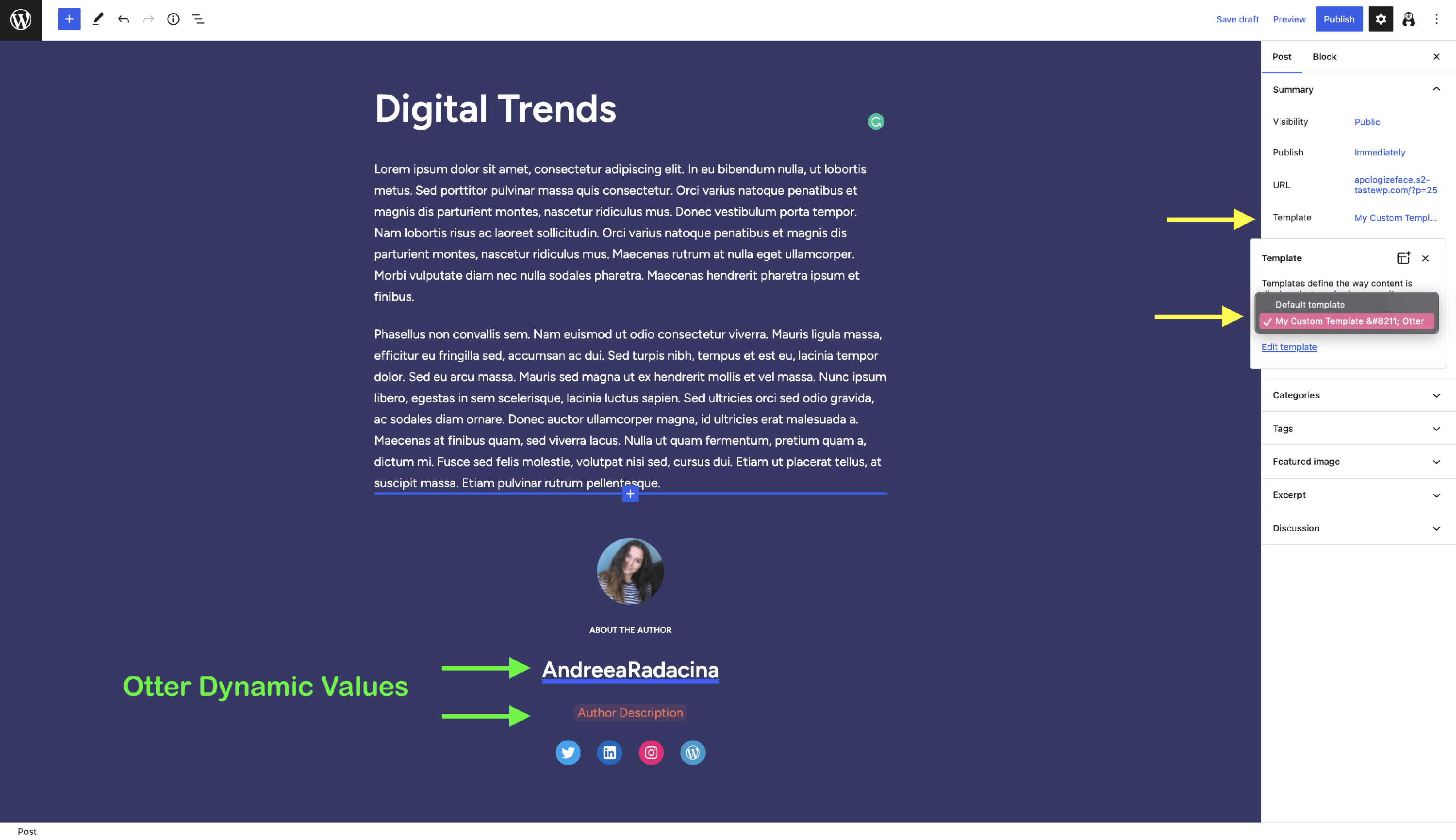
In the right sidebar, under Post / Page, go to Template.
Select the template you created from the dropdown.
Result
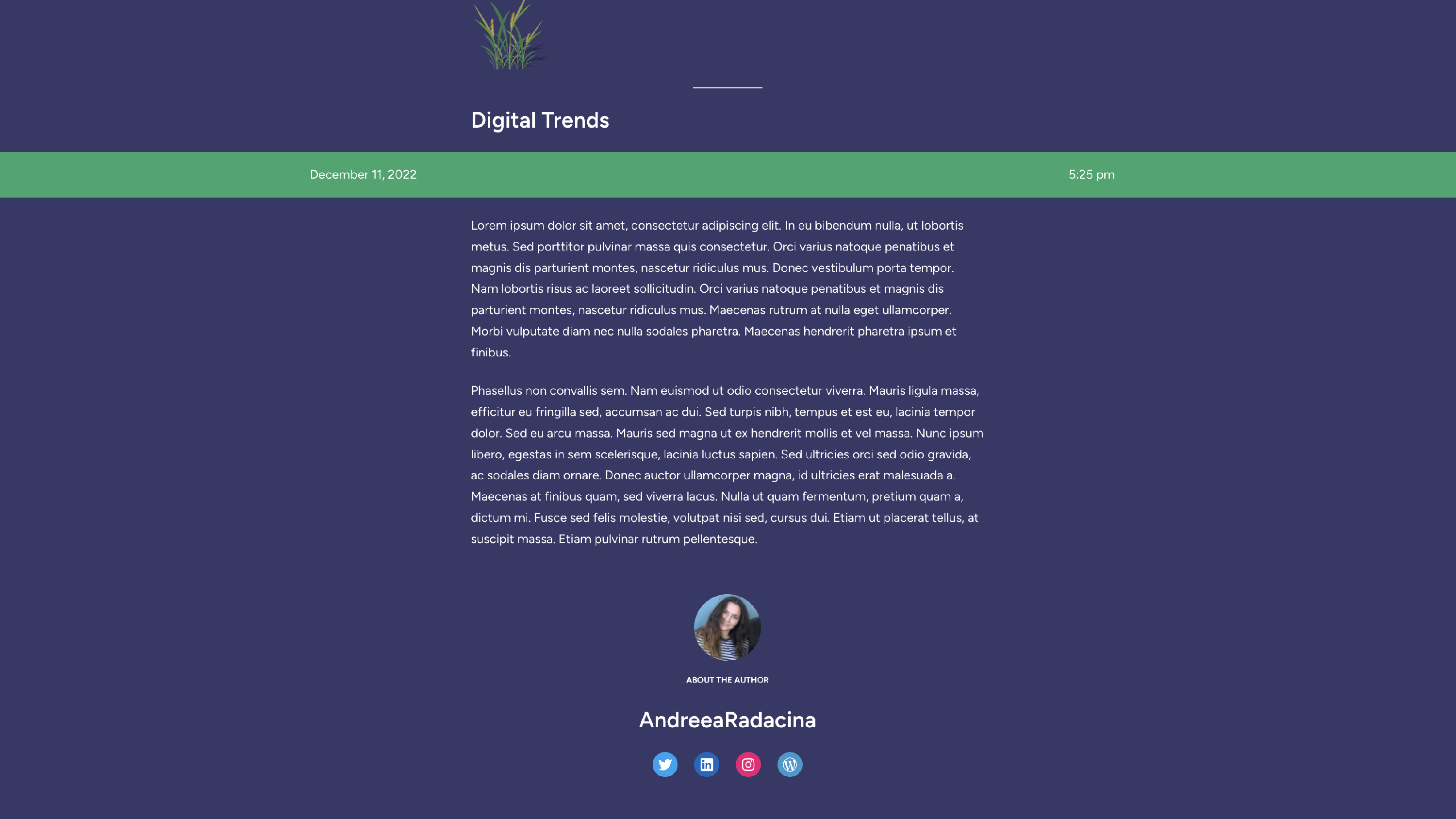
As the screenshot below shows, the dynamic content is replaced, and the post has the same configuration as the template.
Useful Resources
To design the perfect template page, here are some useful links for Otter's features: