Raft - FSE theme
Raft is a full-site-editing compatible theme that provides a clean start and a solid base in conjunction with the Otter Blocks plugin. It works smoothly with Gutenberg and the most popular page builders (Elementor, Brizy, Beaver Builder, or the Block Editor).
In this article
📝 Note: A demo of this theme is available, allowing you to explore its features firsthand before making a decision. Test it out and see if it fits your needs perfectly in the Raft demo. Raft Pro is also available.
Download and Install
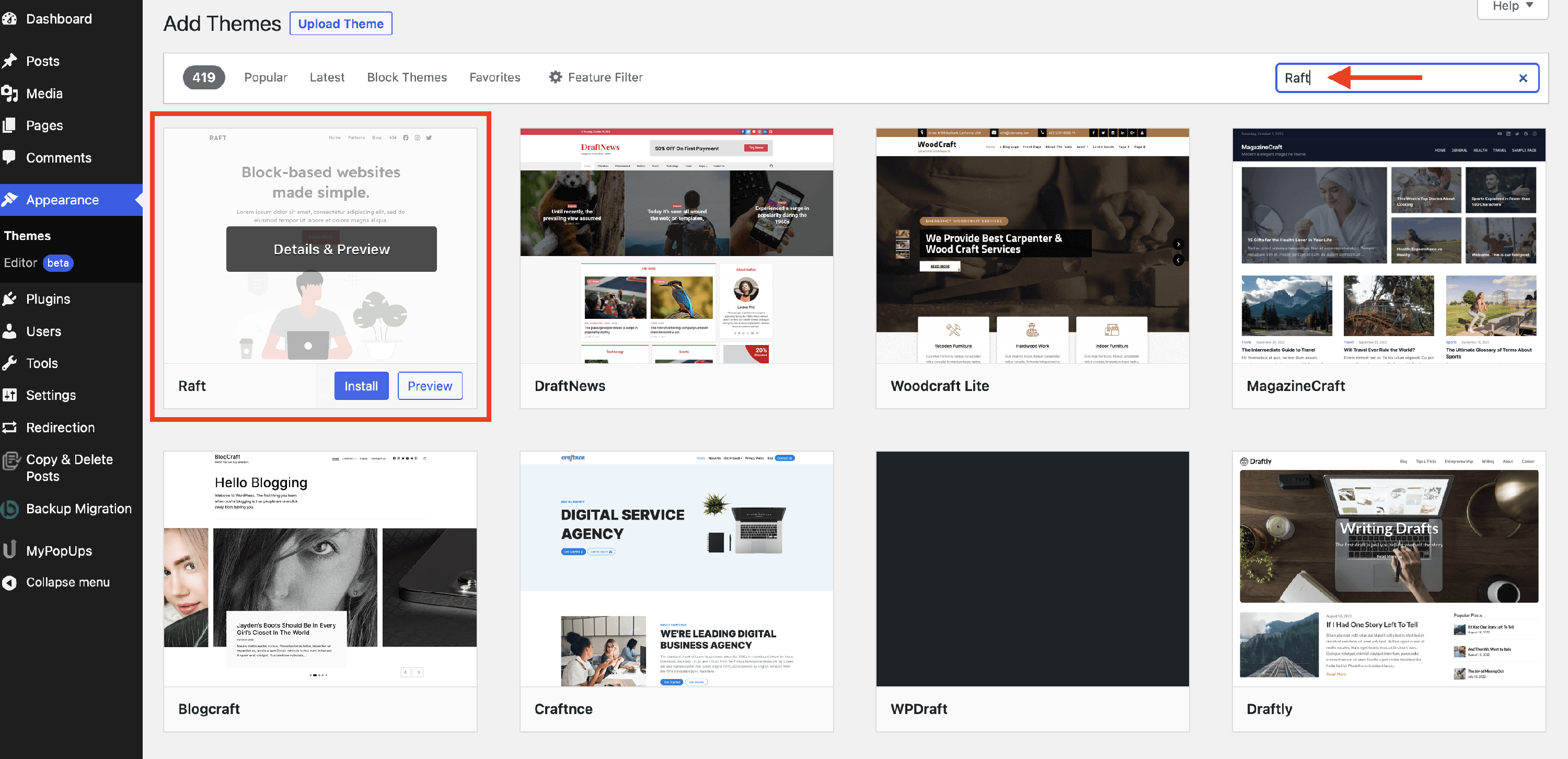
Navigate to the WordPress Dashboard > Appearance > Themes.
Click the Add New button and search for Raft.
When it appears, click Install.
Click Activate.
💡 Tip: For a better website-building experience, install the Otter Blocks plugin too.
Customizing the Pages
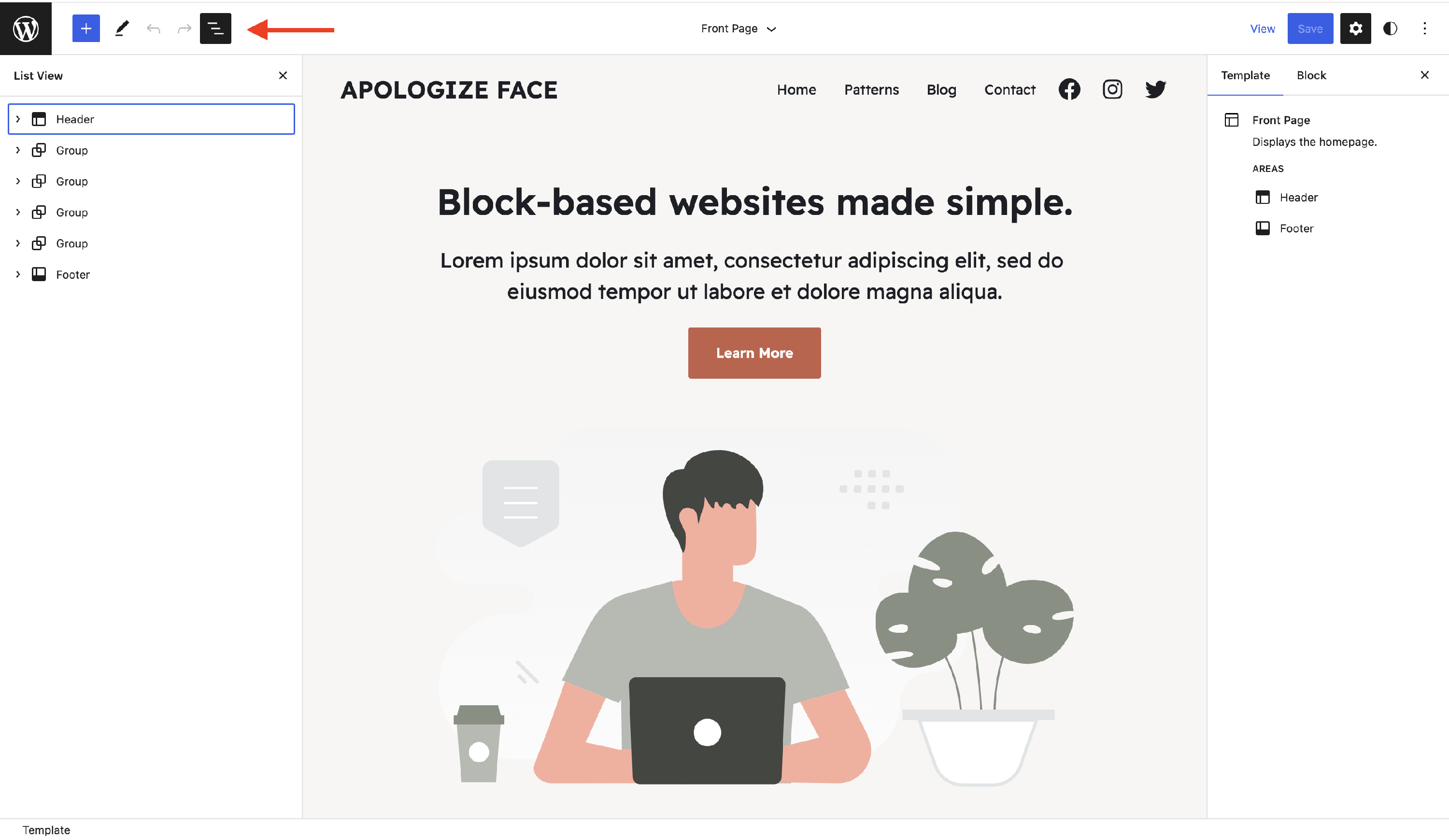
To start customizing your website's pages, go to Appearance > Editor.
Once the editor opens, hover over each section and make the changes you want. To see the sections more easily, use the burger icon at the top of the page:
📝 Note: The editor used here is Gutenberg, the default WordPress editor.
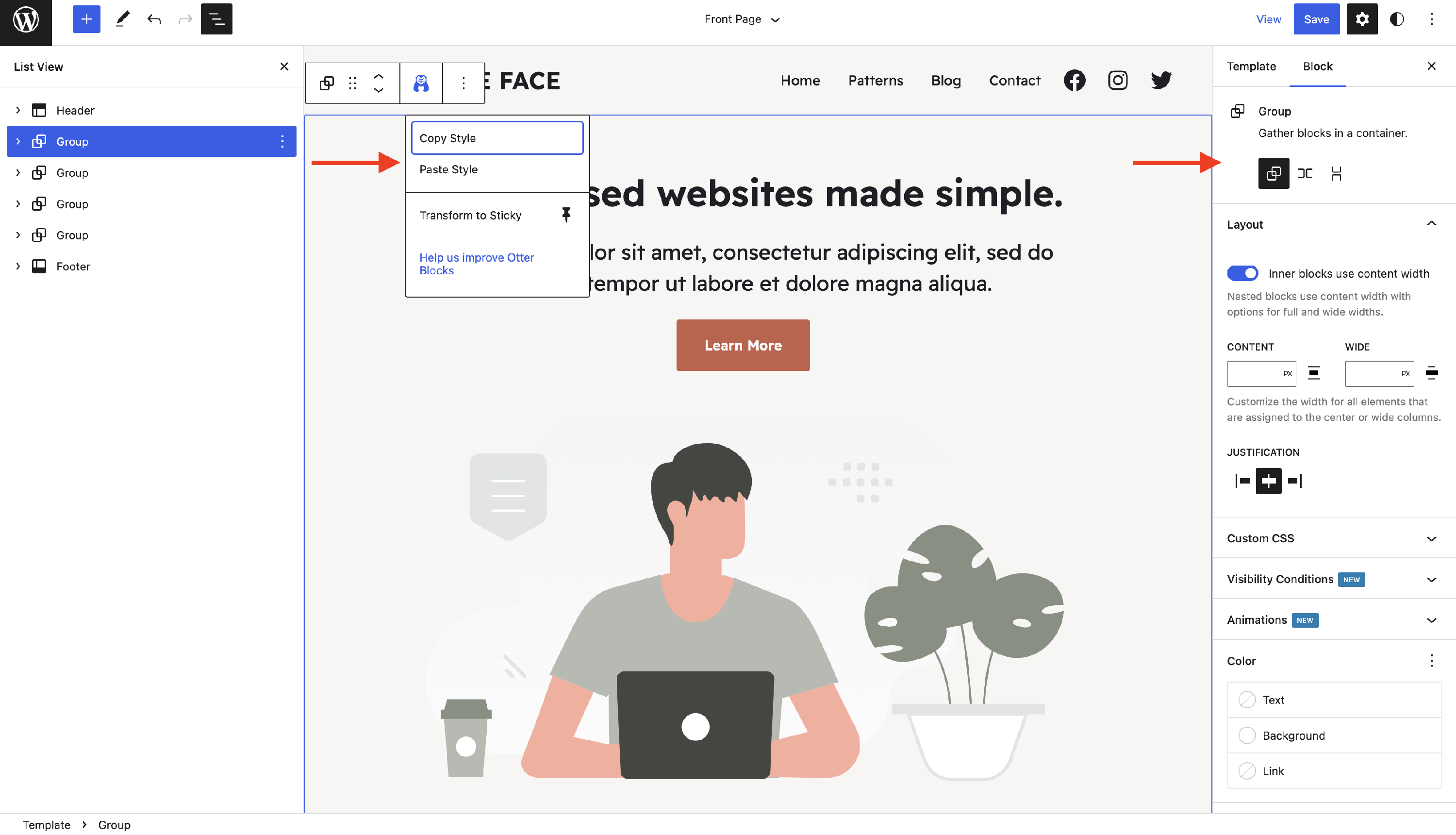
When you click an area, its available settings appear in the right sidebar. If you have installed Otter, you can also make the blocks sticky or copy and paste style to save time:
Header
The header becomes accessible if you select it inside the Template tab:
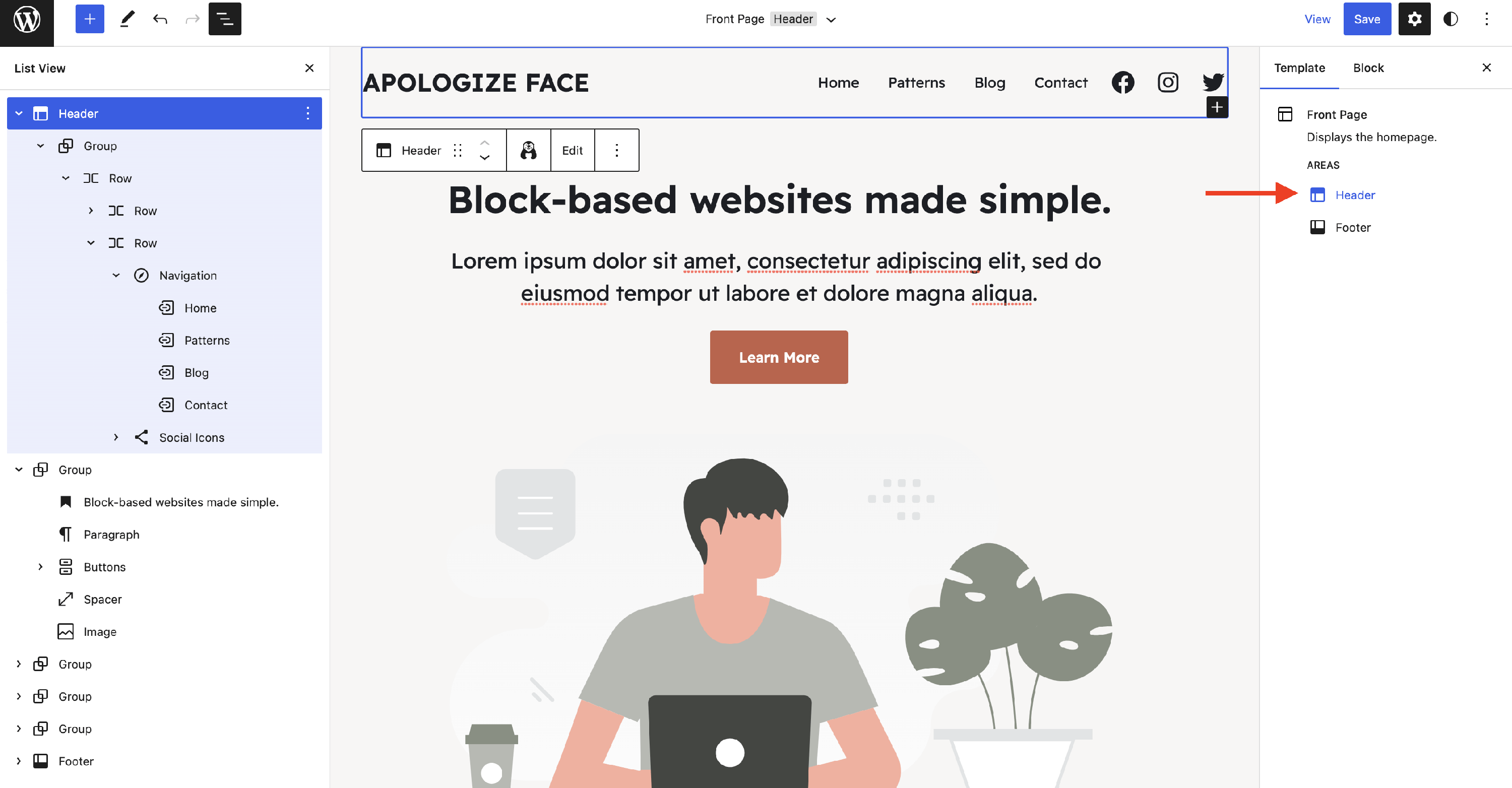
To separate the header from the rest of the page and have a compact view, click the Edit button.
📝 Note: To learn about using the site icon instead of the site title, see this guide.
Adding a new menu item
To add a new menu item, click the Navigation block, then the plus icon. You can insert a new link, choose its behavior (open in a new tab), or transform it into custom objects (site logo, social icon, search).
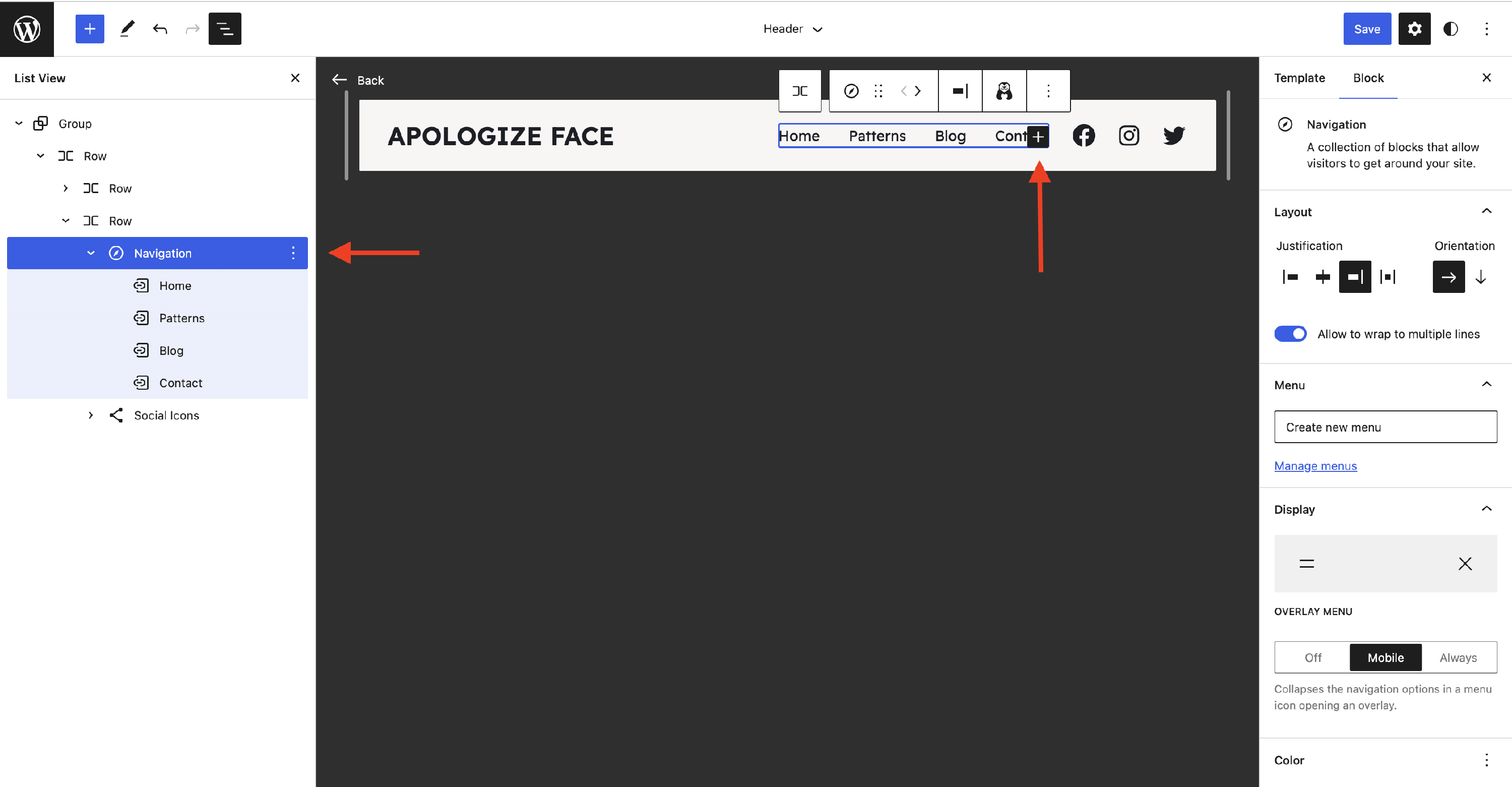
📝 Note: Submenu items can be added for each menu item. To learn how, see this guide.
Icons for menu items
To select an icon for menu items, click the Menu Icons button and select an icon from the dropdown:
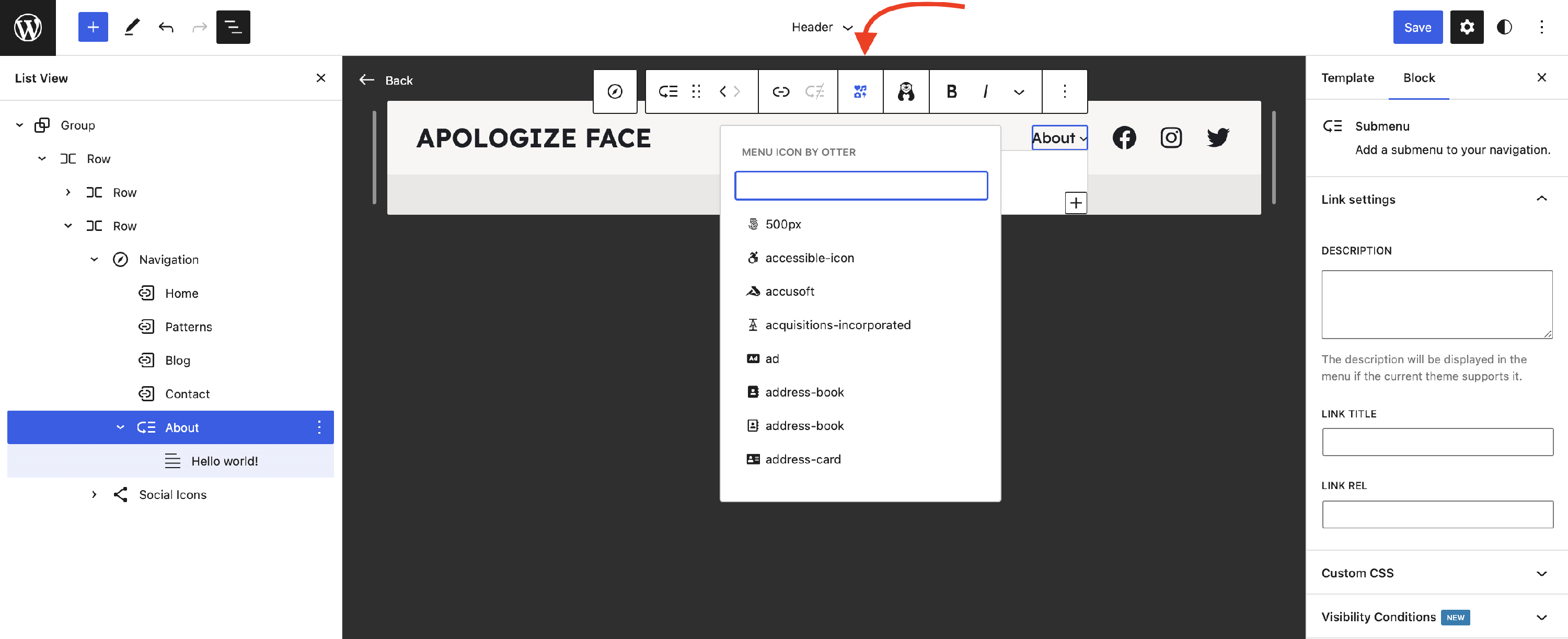
📝 Note: The icons appear only if you have installed the Otter Blocks plugin.
Footer
To open the footer, switch to the Template tab and select the footer from there:
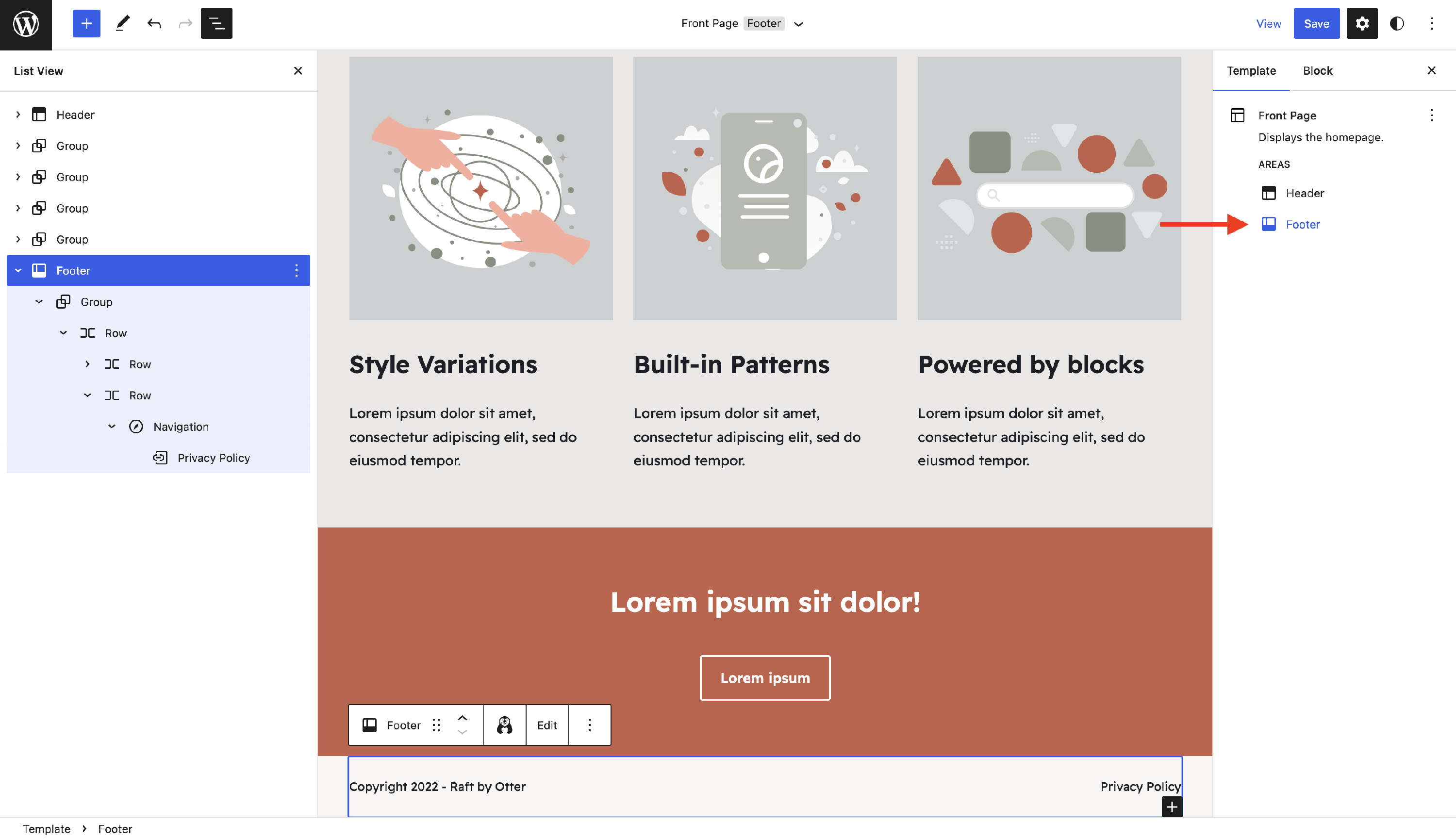
You can insert new items or add icons for them as you did for the header.
Templates
To open a template, click the 🔽 icon and browse all the templates:
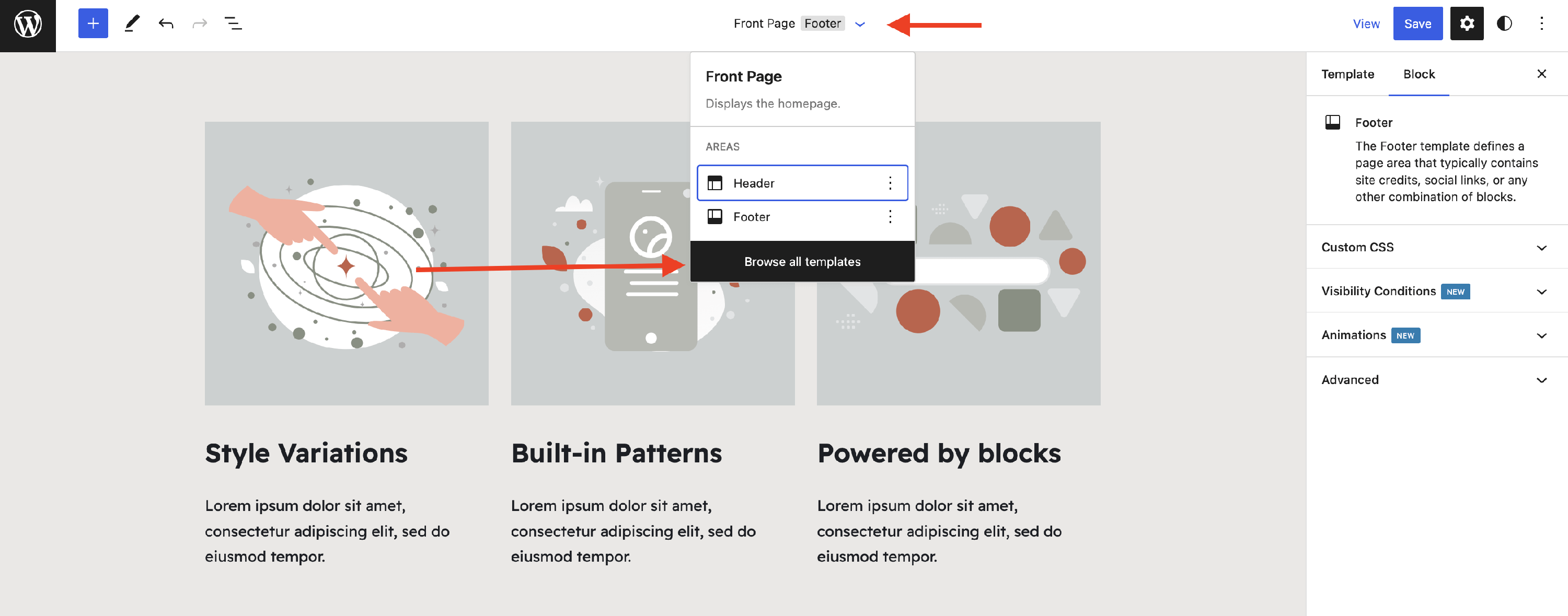
From there, you can select an existing template and modify it, or add a new one:
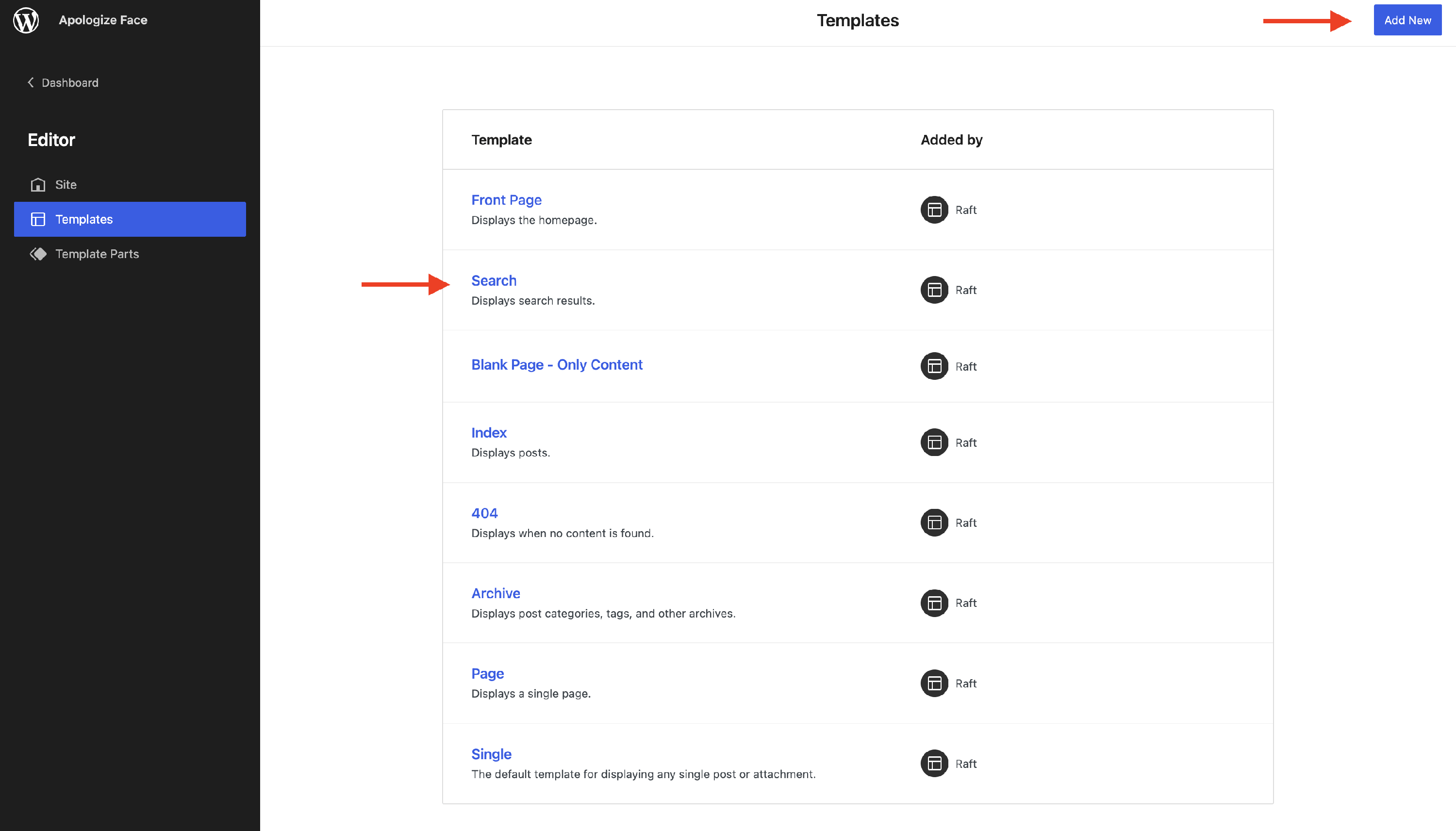
📝 Note: To learn how to design your own template pages and import them afterward, see this guide.
Template Parts
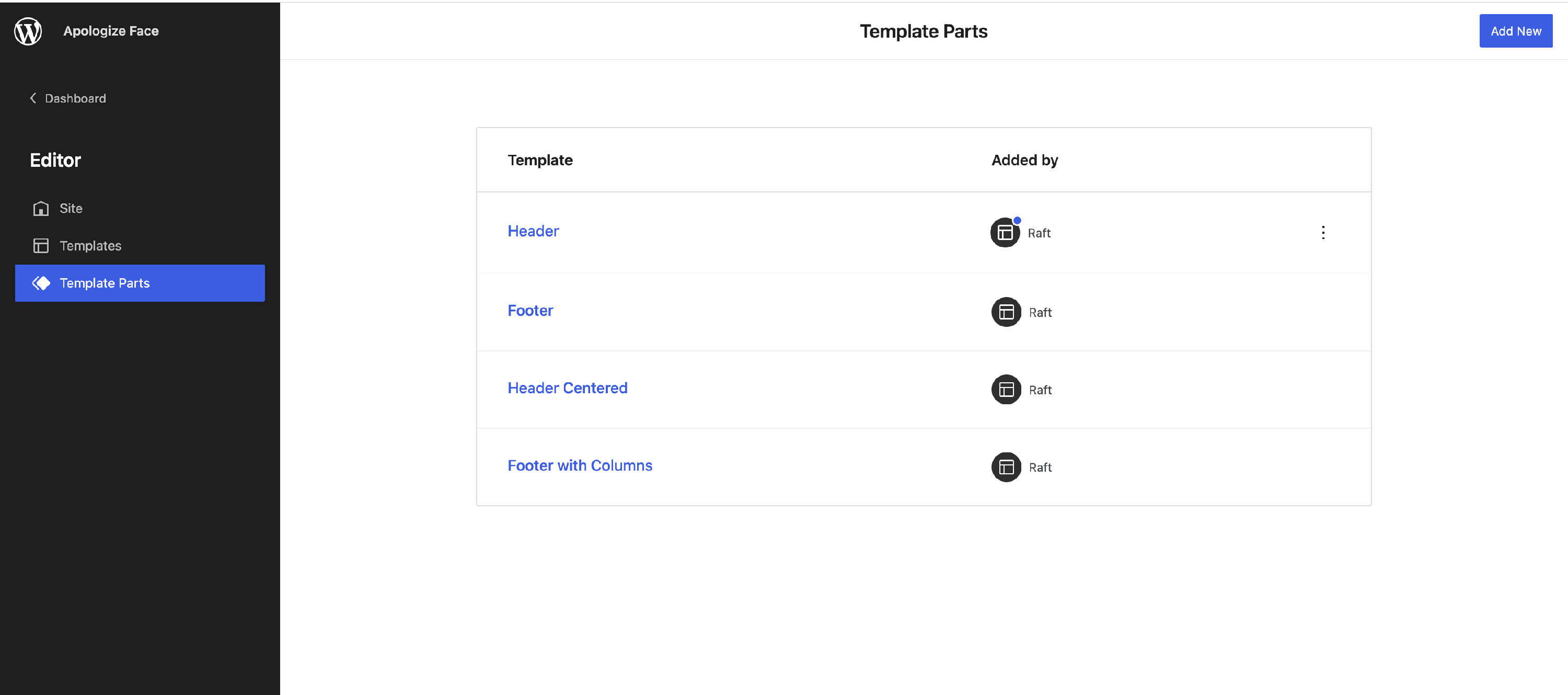
The template parts contain variations of the header and footer. There you can also add new ones if you wish:
Patterns
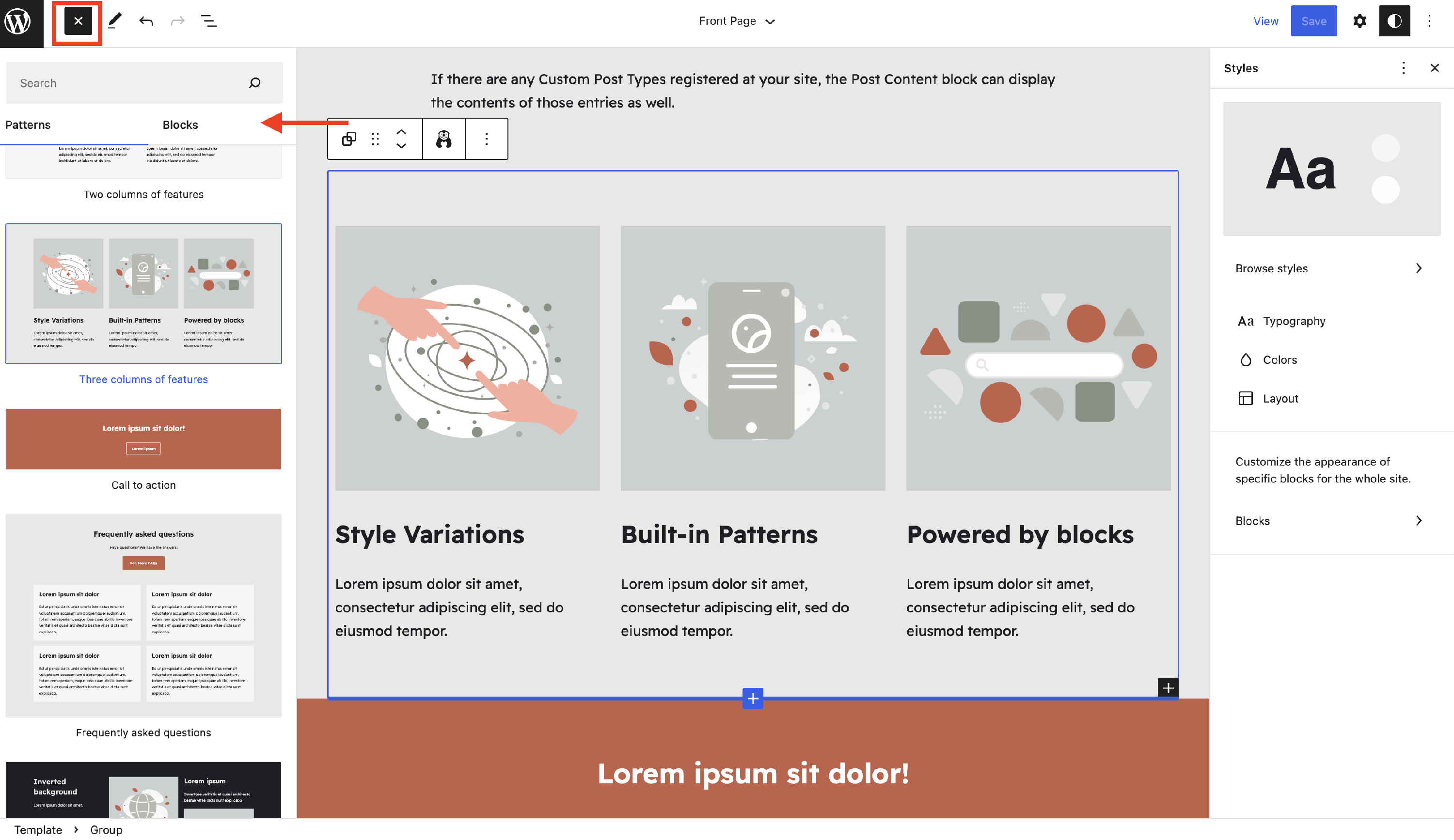
Raft and Otter bring an increasing pattern collection that you can use to design the perfect website. To use it:
Click the plus icon next to the WP logo.
Open the Patterns tab.
Changing Styles
The general appearance of the website can be changed inside the Styles tab, which you can open by clicking the styles icon:
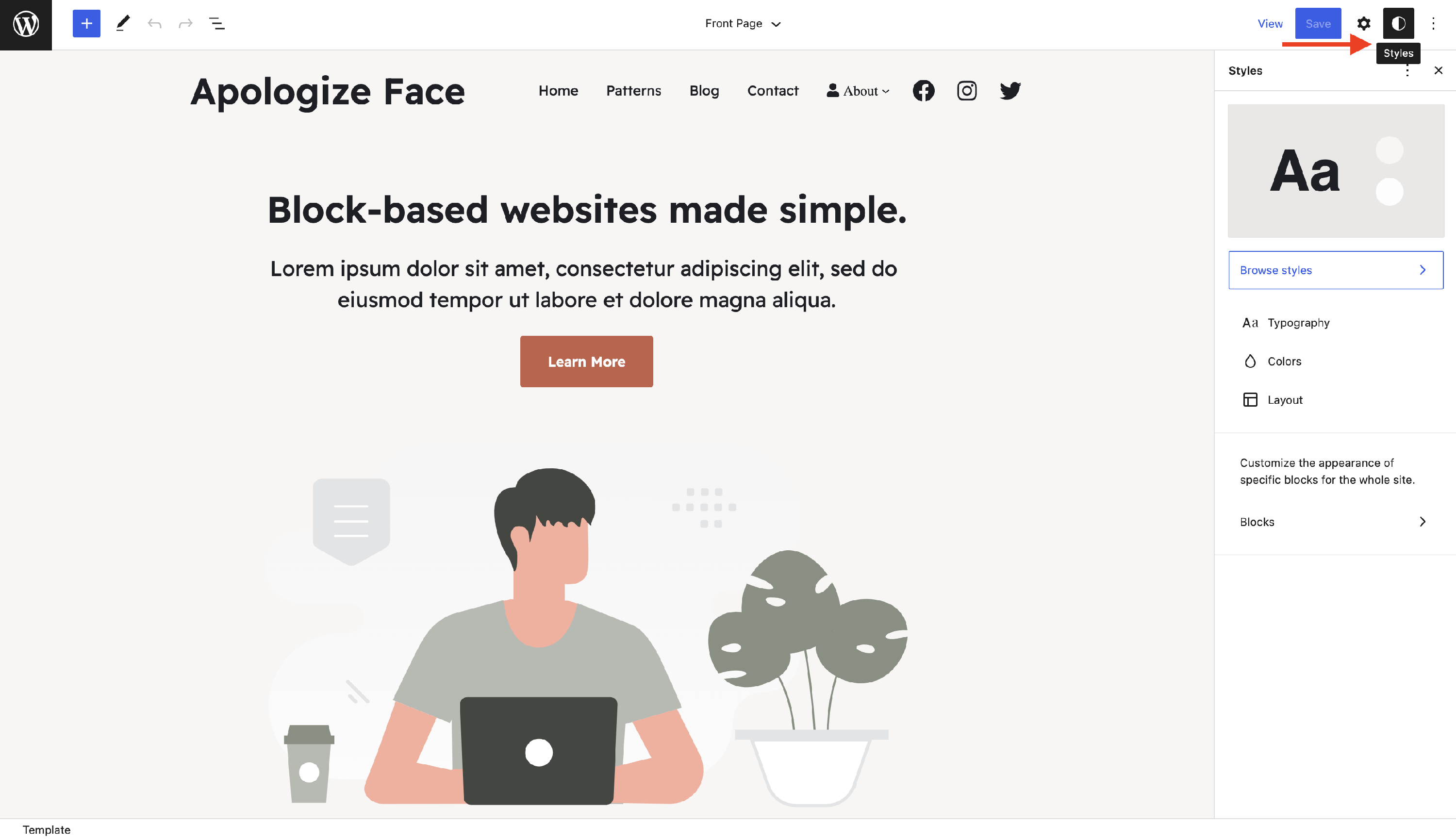
From there, you can browse the available styles, change the typography of different elements, adjust the colors (the current ones are inherited from the chosen style), or adjust the layout (setting the width of the content area).
📝 Note: These changes are applied site-wide. They work as global defaults.
Raft Pro
A premium add-on for the Raft theme is available. Raft Pro adds extra block patterns, block styles, block variations, style variations, Pro templates, and WooCommerce support on top of the free Raft theme.