
Jaxon - FSE Theme
Jaxon is a minimalistic full-site editing theme, incorporating a selection of design patterns and multiple style options suitable for various purposes such as e-commerce shops, blogs, small businesses, portfolio sites, and more. It works smoothly with the WordPress Block Editor (Gutenberg).
In this article
📝 Note: A demo of this theme is available, allowing you to explore its features firsthand before making a decision. Test it out and see if it fits your needs perfectly in the Jaxon demo.
Download and Install
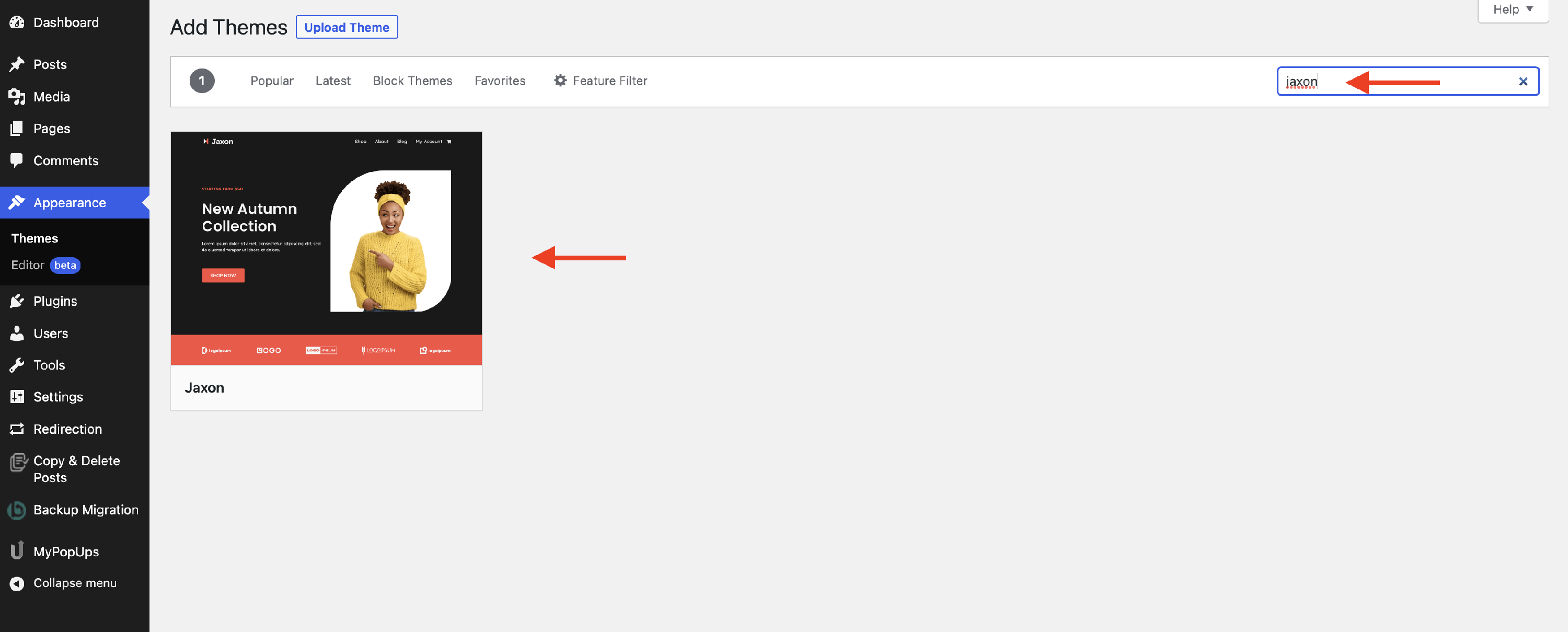
Navigate to the WordPress Dashboard > Appearance > Themes.
Click the Add New button and search for Jaxon.
When it appears, click Install.
Click Activate.
💡 Tip: For a better website-building experience, install the Otter Blocks plugin too.
Site Editor
After you install the theme, a new panel called Editor (beta) appears under Appearance. Click it to open the FSE editor, which looks similar to the Gutenberg editor:
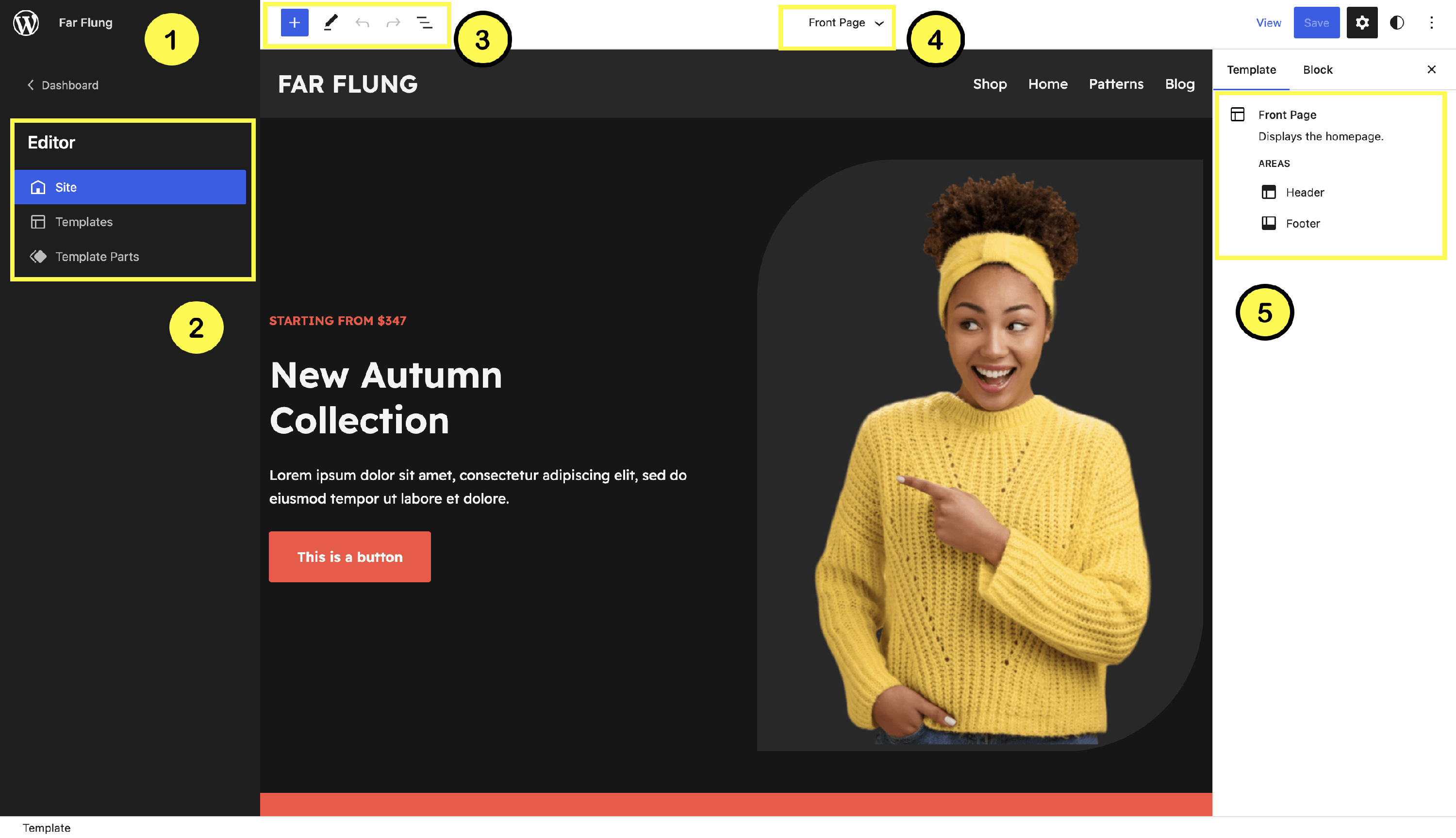
- 1 = site icon (or WordPress icon) - it opens the left sidebar you can see in the screenshot above, allowing you to return to the dashboard to switch to the editing areas (Editor).
- 2 = editor - allows you to switch between the website's parts (site = current page, templates, or template parts).
- 3 = familiar Gutenberg buttons (➕ = for adding a new block, the pencil = for editing a block, back and forward arrows to undo or redo changes, and the list view for checking the hierarchy of blocks).
- 4 = current template that you are editing. You can open other templates from there by clicking the dropdown menu.
- 5 = information about template and block settings.
You can start editing and adding new blocks to your pages using these tools.
Templates
Templates help create a structure for your website's posts, pages, or other page types. To open the templates, go to Dashboard > Appearance > Editor > Templates:
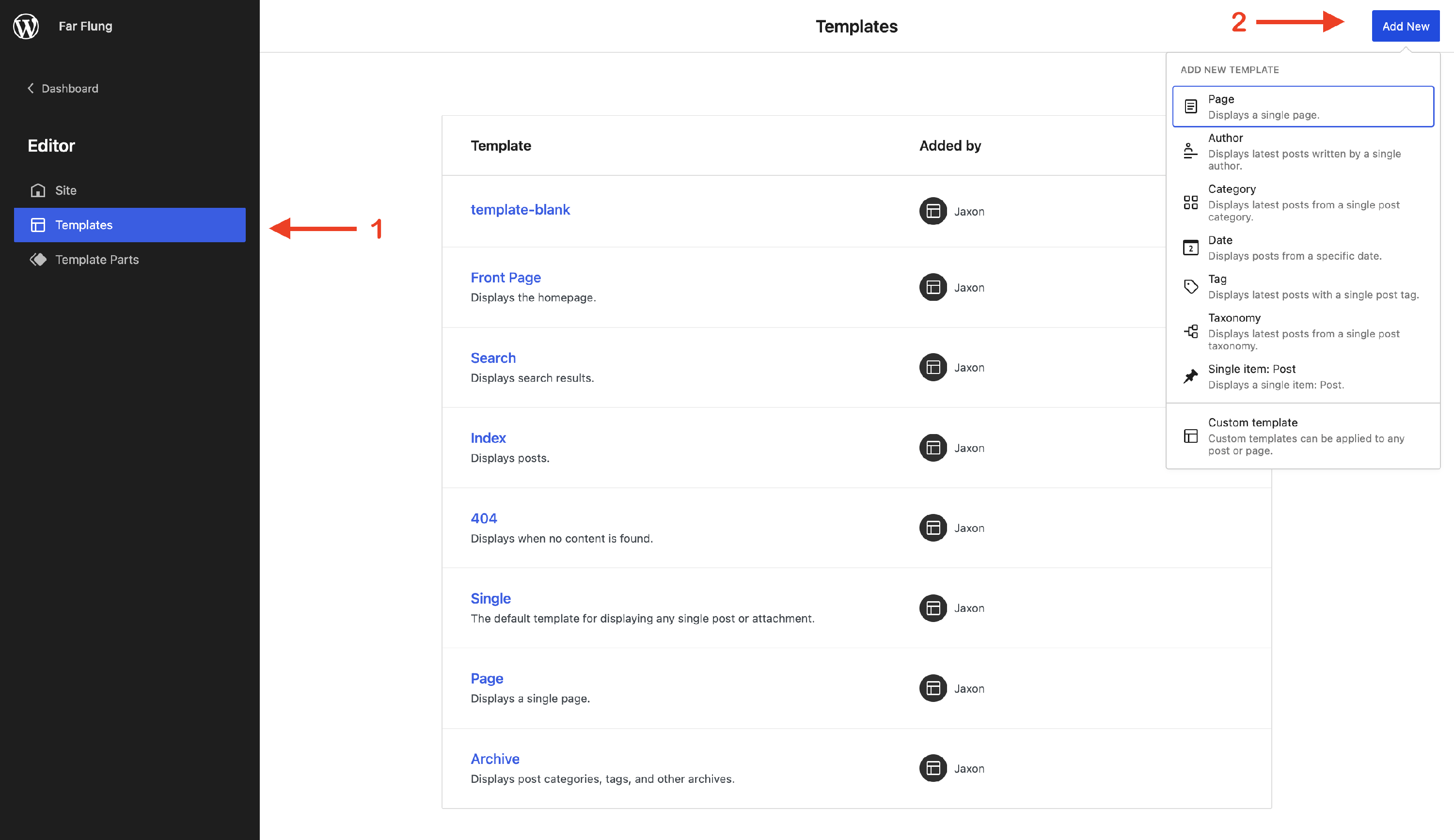
In addition to the primary templates in the list, you can add new ones with the button at the top right. The available template types are:
- page - structure that can be applied to specific pages on the website.
- authors - structure that can be applied to posts created by a specific author on the website.
- category - structure that can be applied to posts from a specific category.
- date - structure that can be applied to posts, depending on the date.
- tag - structure that can be applied to posts depending on the tag.
- taxonomy - structure that can be applied to posts depending on the taxonomy term.
- single item: Post - create post-specific templates.
Template Parts
The template parts refer to the header and footer and can be found under Dashboard > Appearance > Editor > Template Part, but you can also add others:
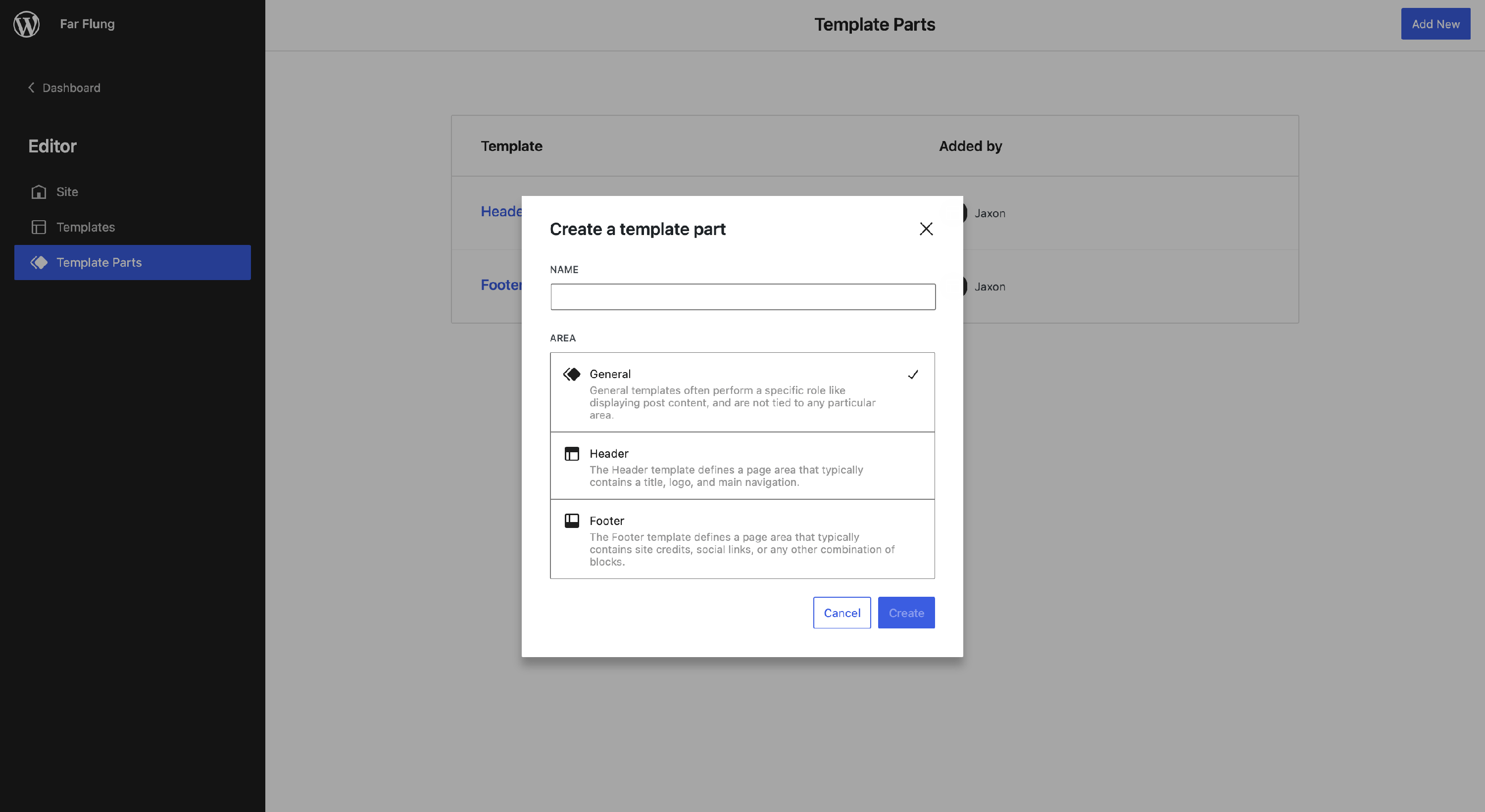
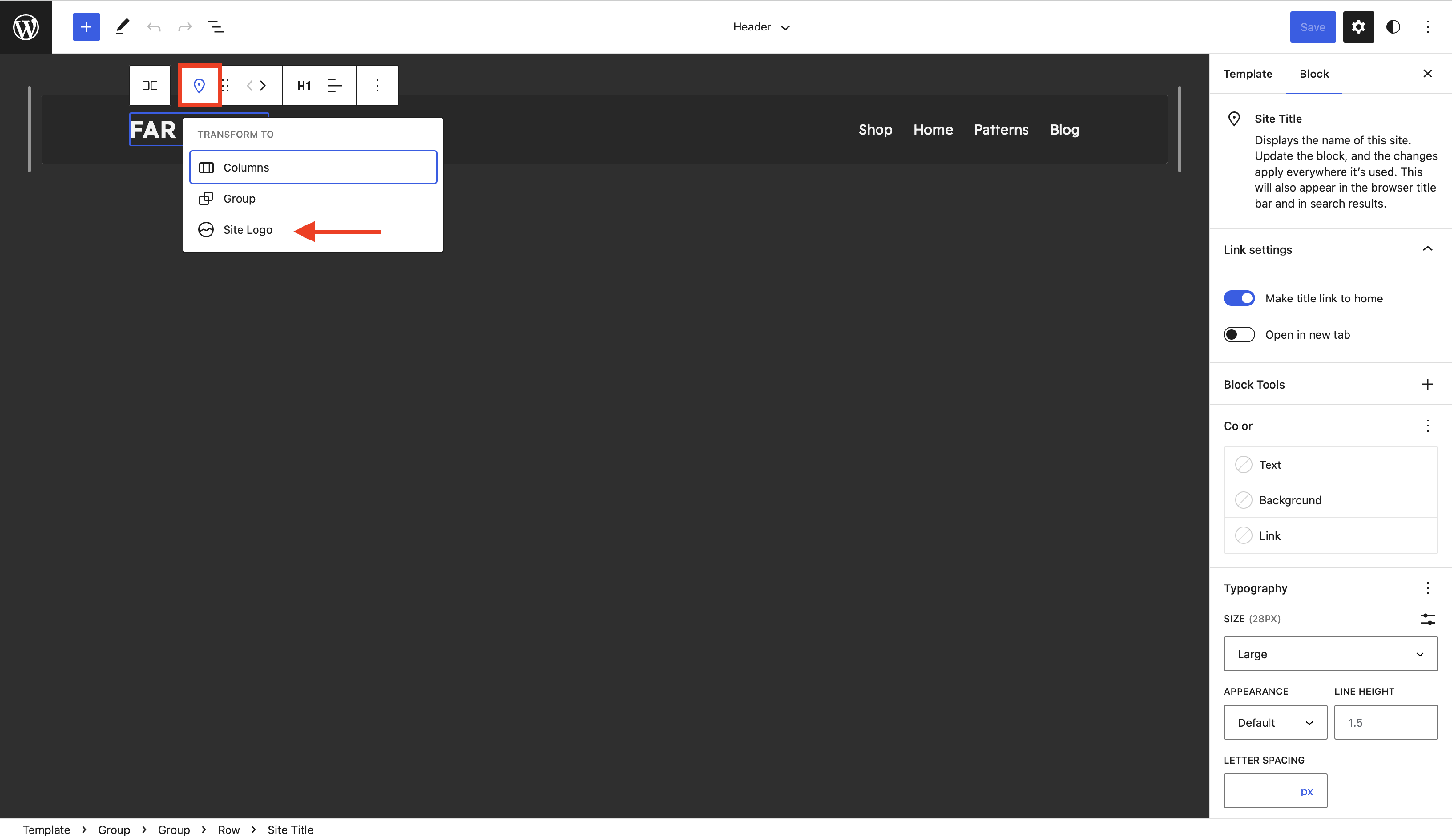
Inside the Header area, you can control the navigation, insert new menu items, and edit the site title:
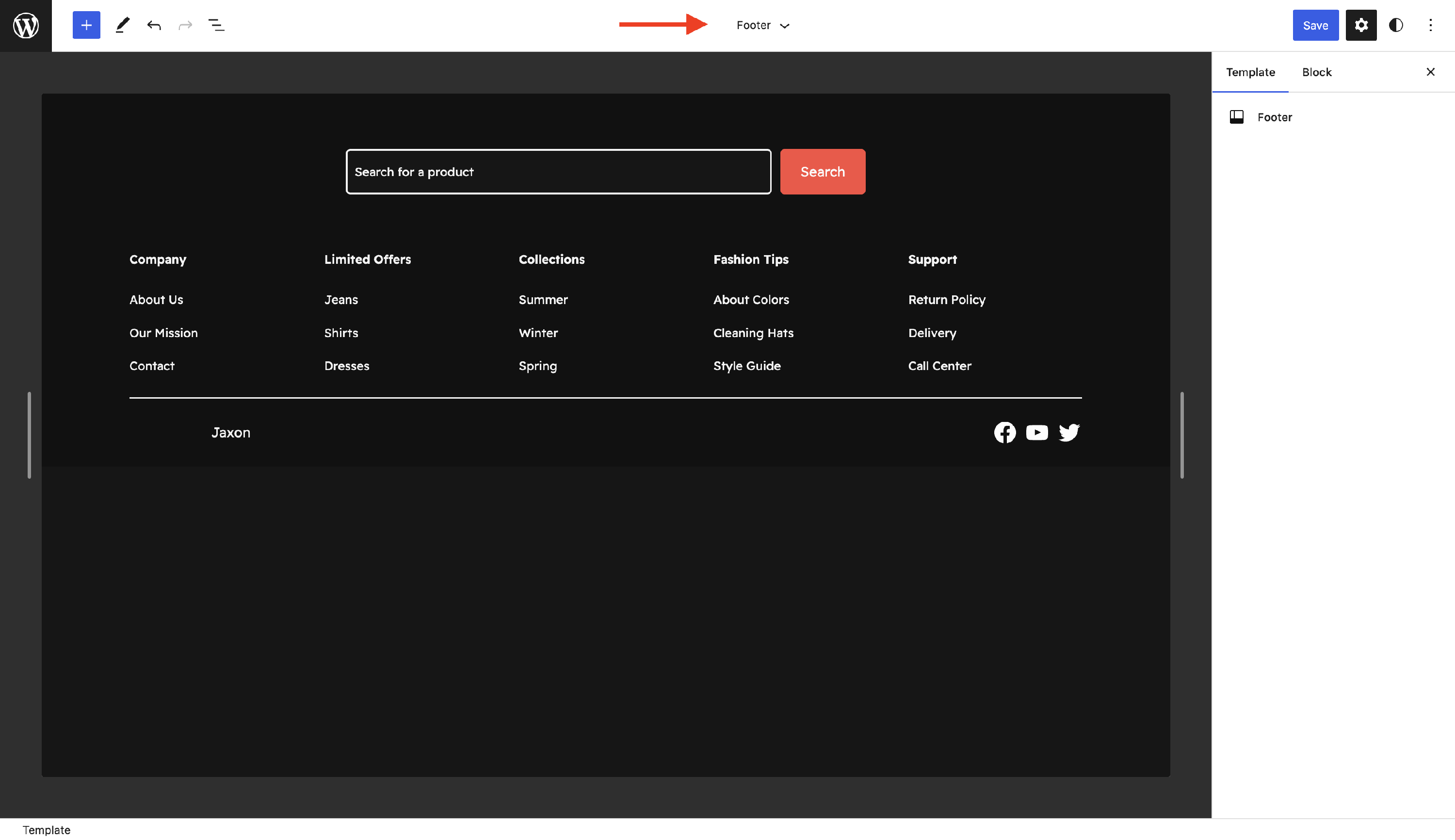
Similarly, if you open the Footer template part, you can customize it as you wish:
Patterns
Jaxon adds a palette of patterns to help you create innovative layouts using predesigned sections. To use them:
Click the ➕ button.
Switch to the Patterns tab.
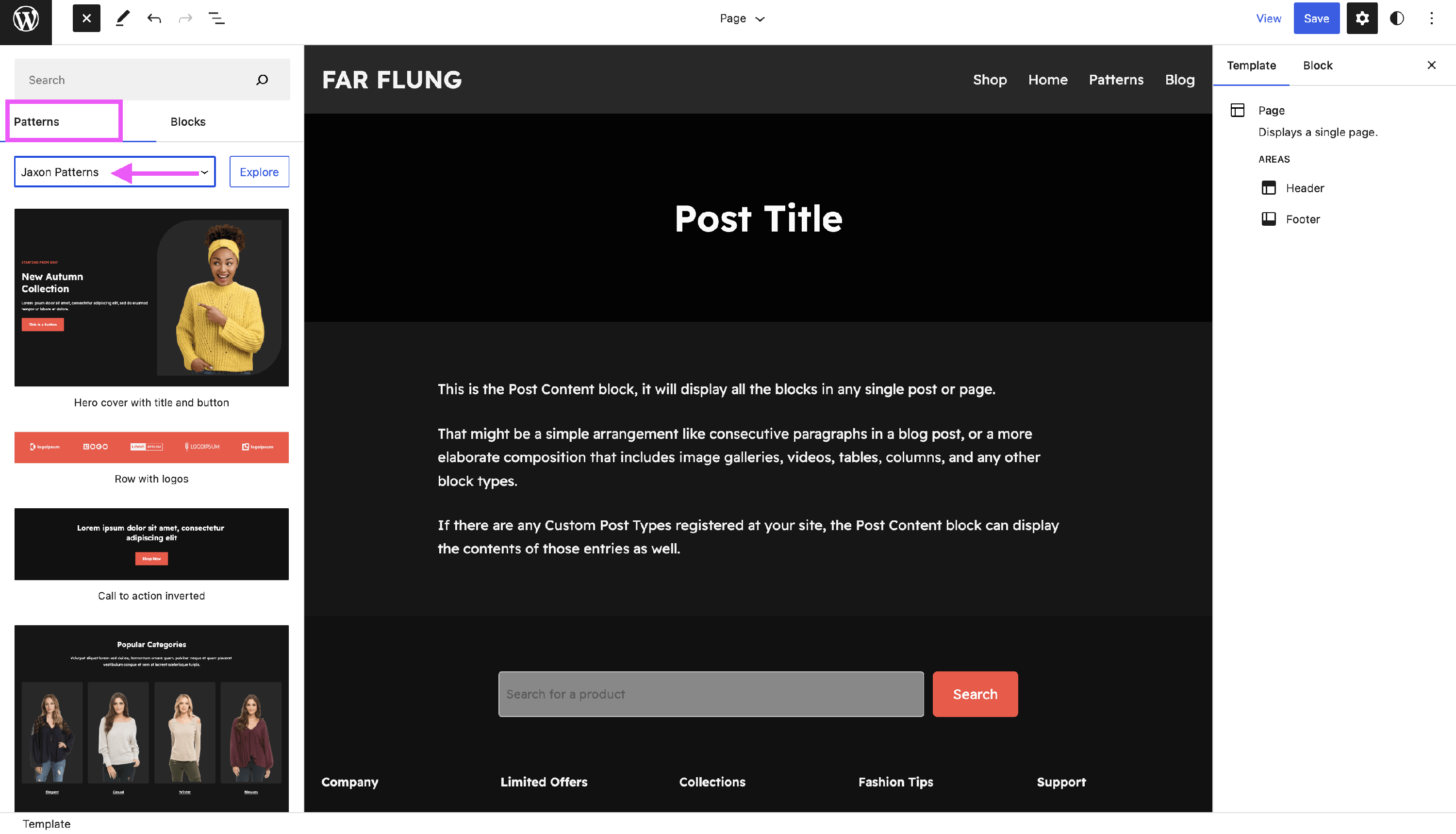
Insert the desired patterns and edit them to suit your needs.
💡 Tip: Because it is a template, it might be helpful to use dynamic content that automatically loads information for each page.
Changing Styles
Click the half-half circle to open the style variations, which automatically update your website's design:
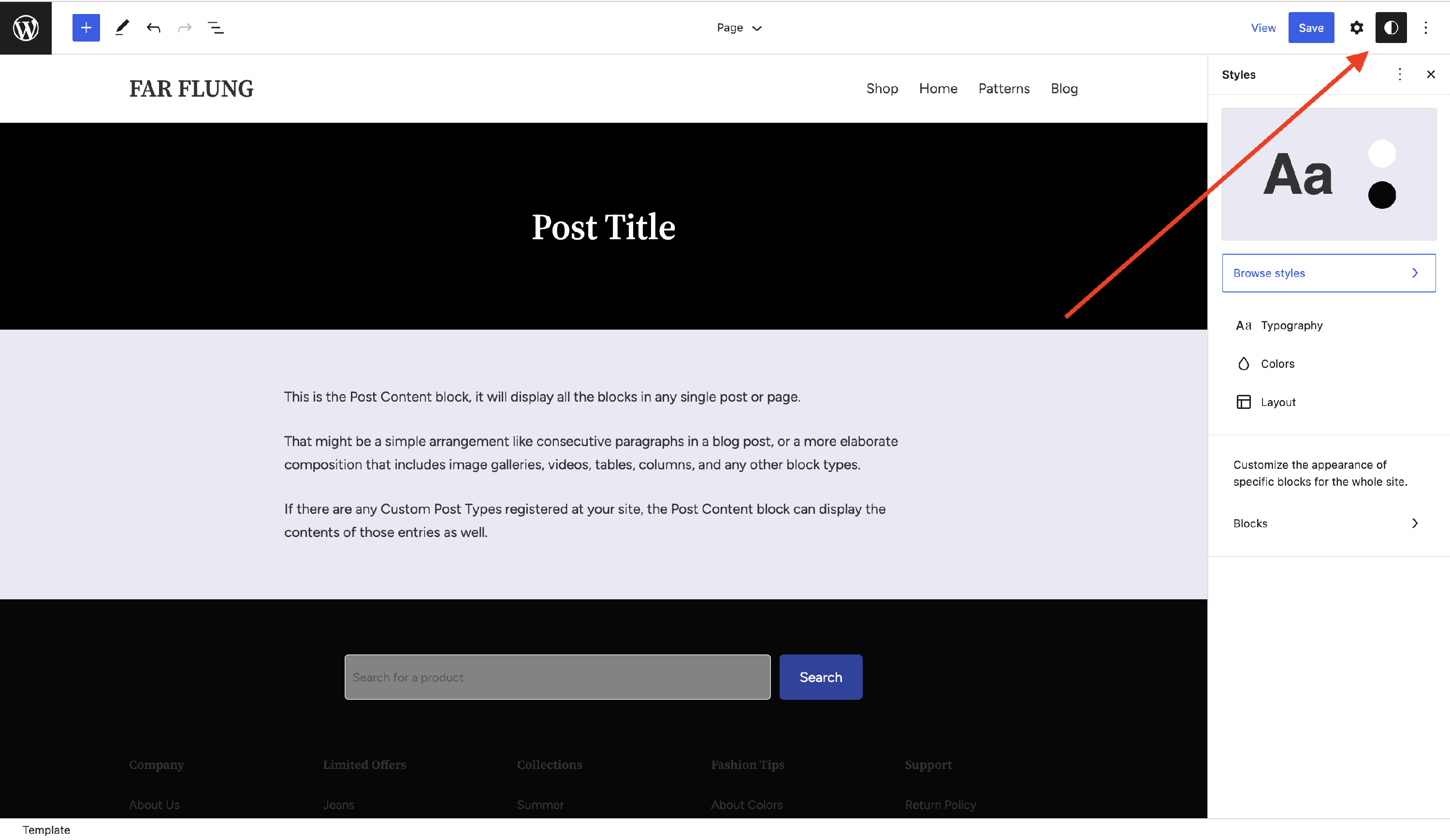
Here you will find controls for Typography, Colors, Layout, and Blocks, as well as predefined theme styles that you can take advantage of.
The changes that you make here are applied site-wide.
Help and Support
The Help panel helps you find answers and contact support. The footer of the Help form provides:
- Documentation — opens this Jaxon theme guide.
- Community Forum — opens the Jaxon support forum.