How to Create a Custom Template in FSE Themes?
📝 Note: In this article, we have used the Fork FSE theme, but it works the same with all our FSE themes.
A custom template can be applied to the desired posts or pages. In this article we will explain how to create a custom template using dynamic content from Otter Block plugin to suit any page and how to use it for a specific page.
In this article
Creating the Template
1. Navigate to Appearance > Editor > Templates.
2. Click on Add New and select Custom Template.
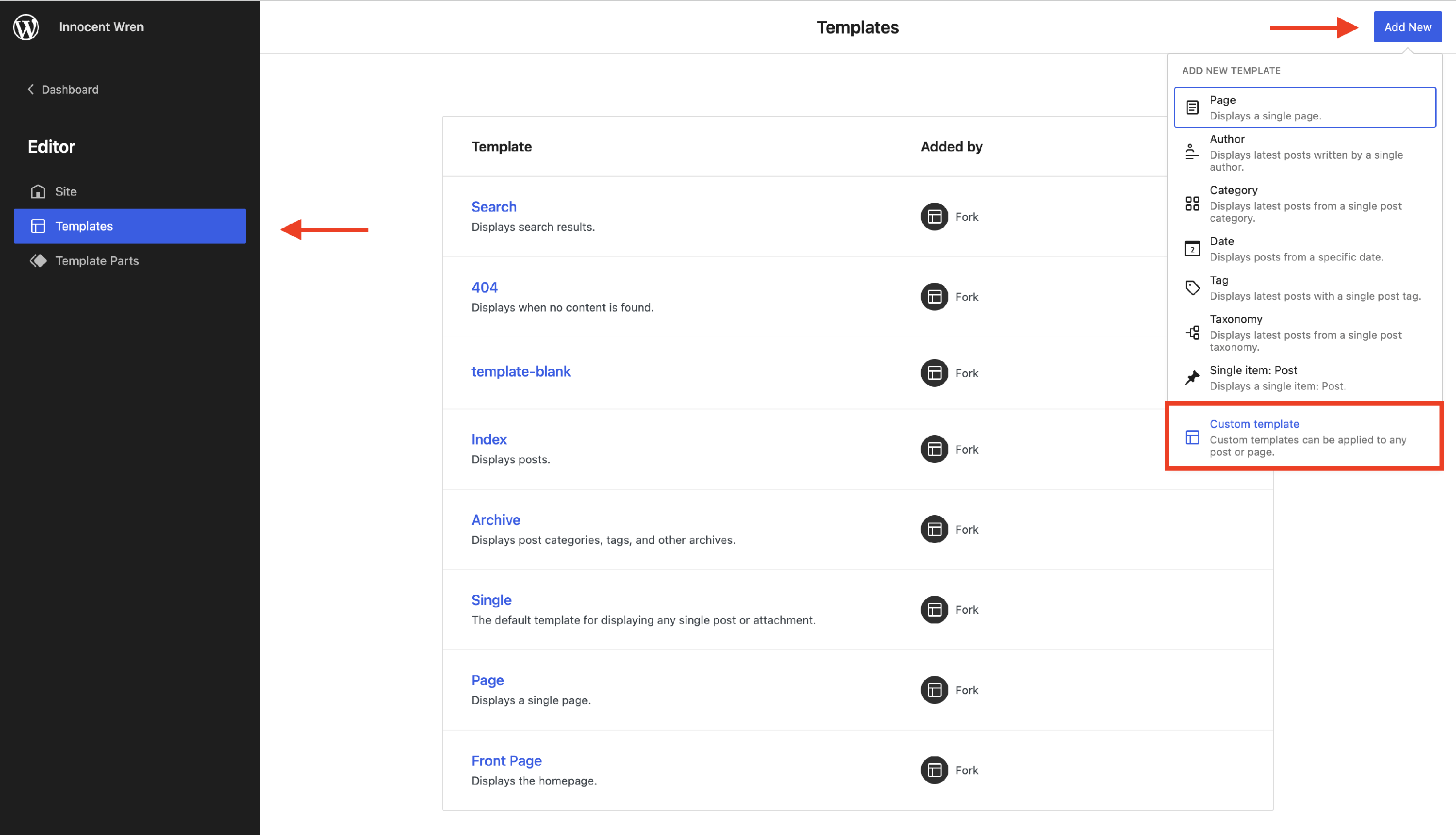
3. Insert a name, and then the editor will open.
Customizing the Template
Start adding dynamic content to the page; take a look at our example:
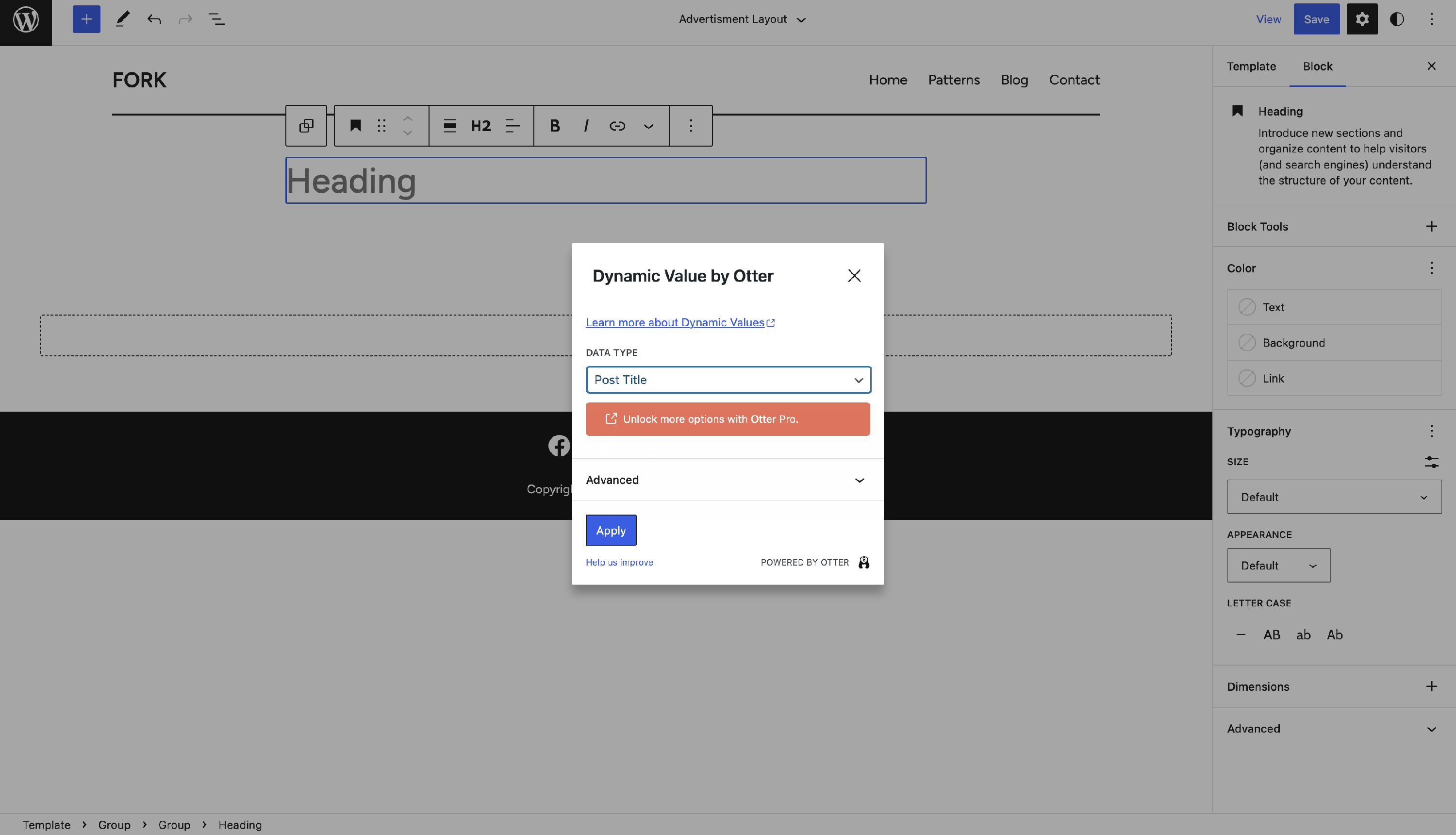
First, insert a dynamic value for the title by adding an Advanced Heading block, clicking the 🔽 icon, and selecting Dynamic Value. From the list, pick the Post Title:
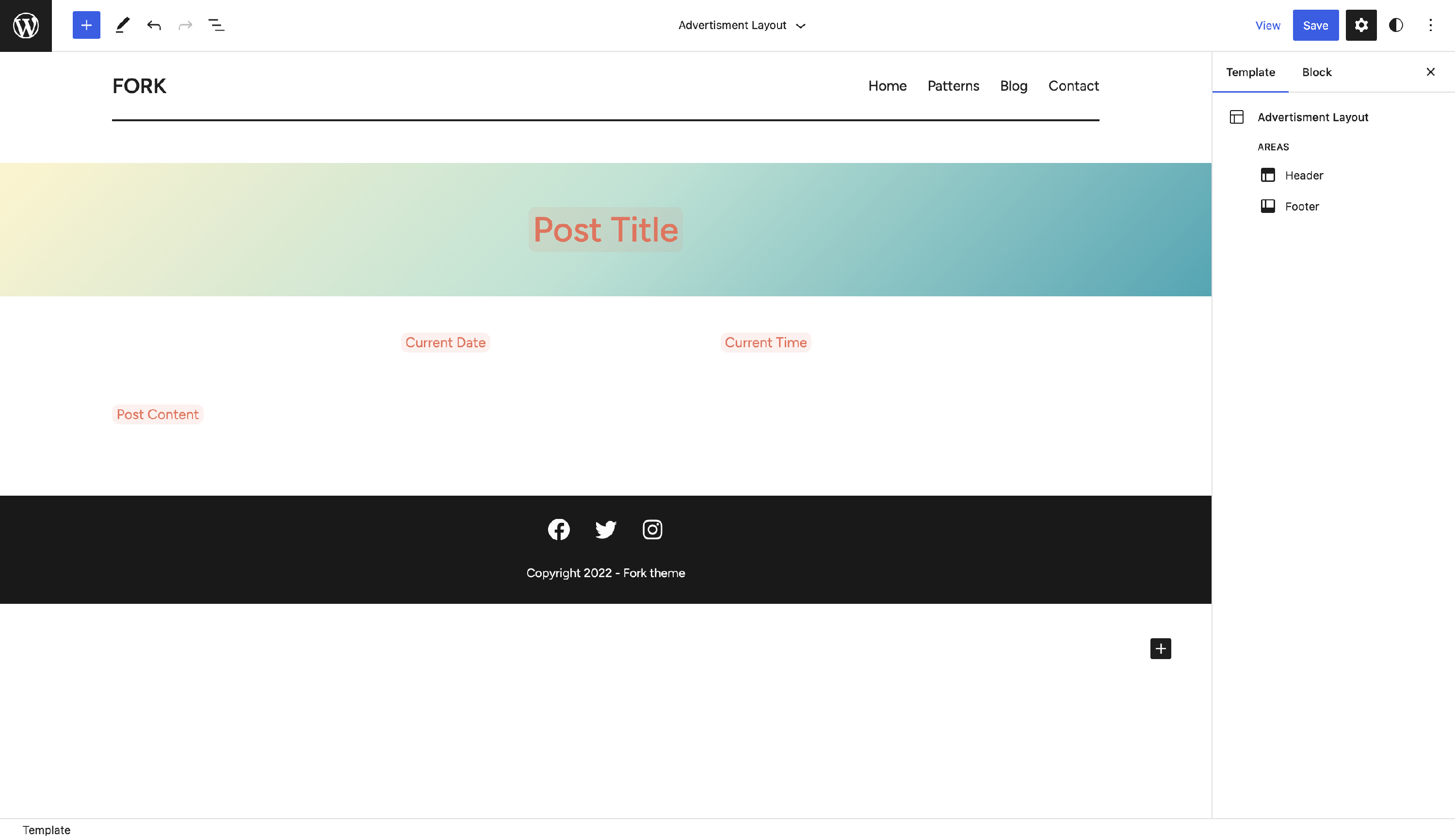
In the same way, we have added a section block with two columns that display Current Date and Time, and lastly, the post content dynamic value:
Using the Custom Template
After creating and customizing it, the last part is to use it for a page.
1. Navigate to Dashboard > Pages.
2. Select a page or create a new one.
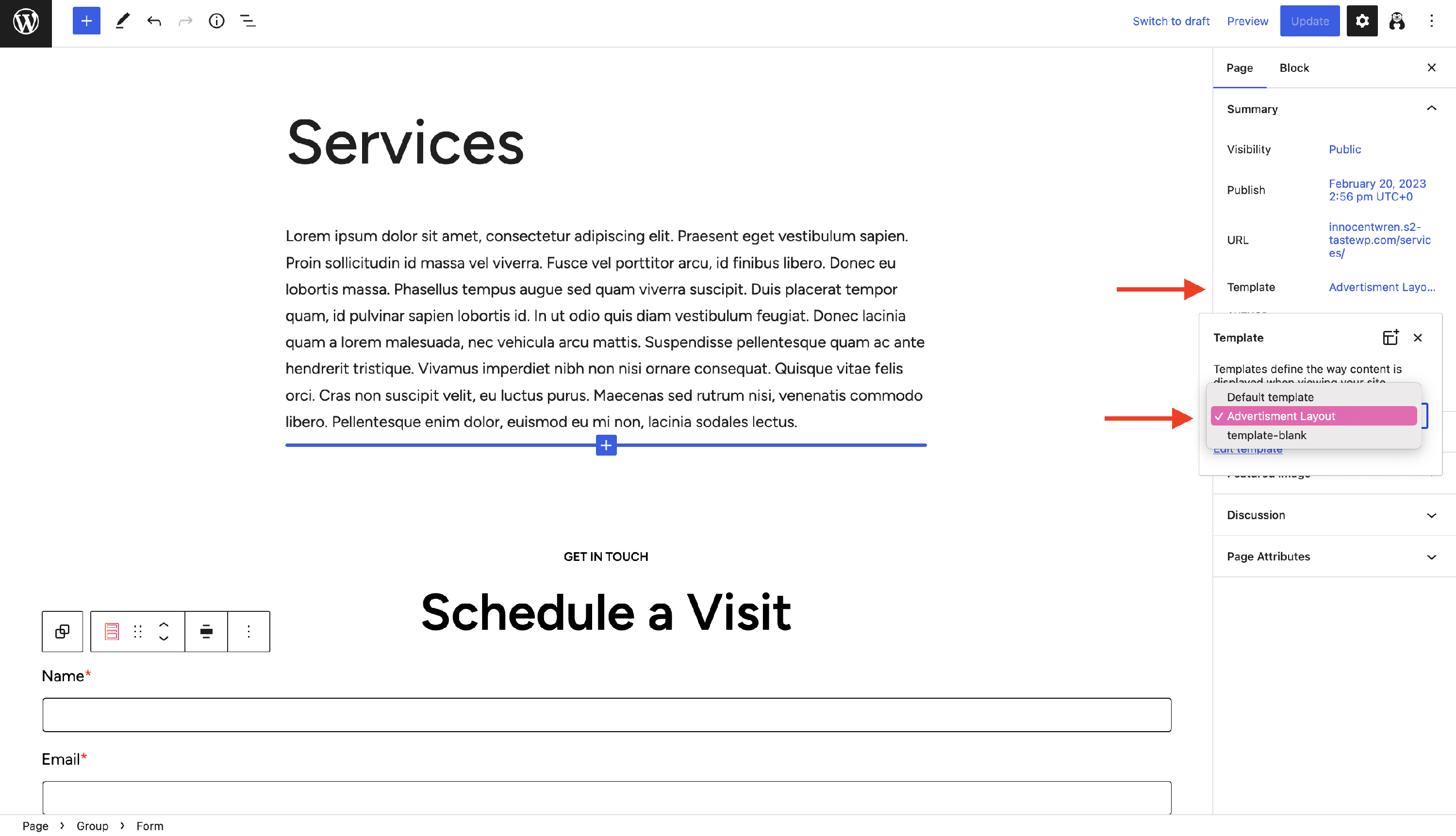
3. In the editor, under Page panel, find the Template field.
4. Click on it and select the created custom template:
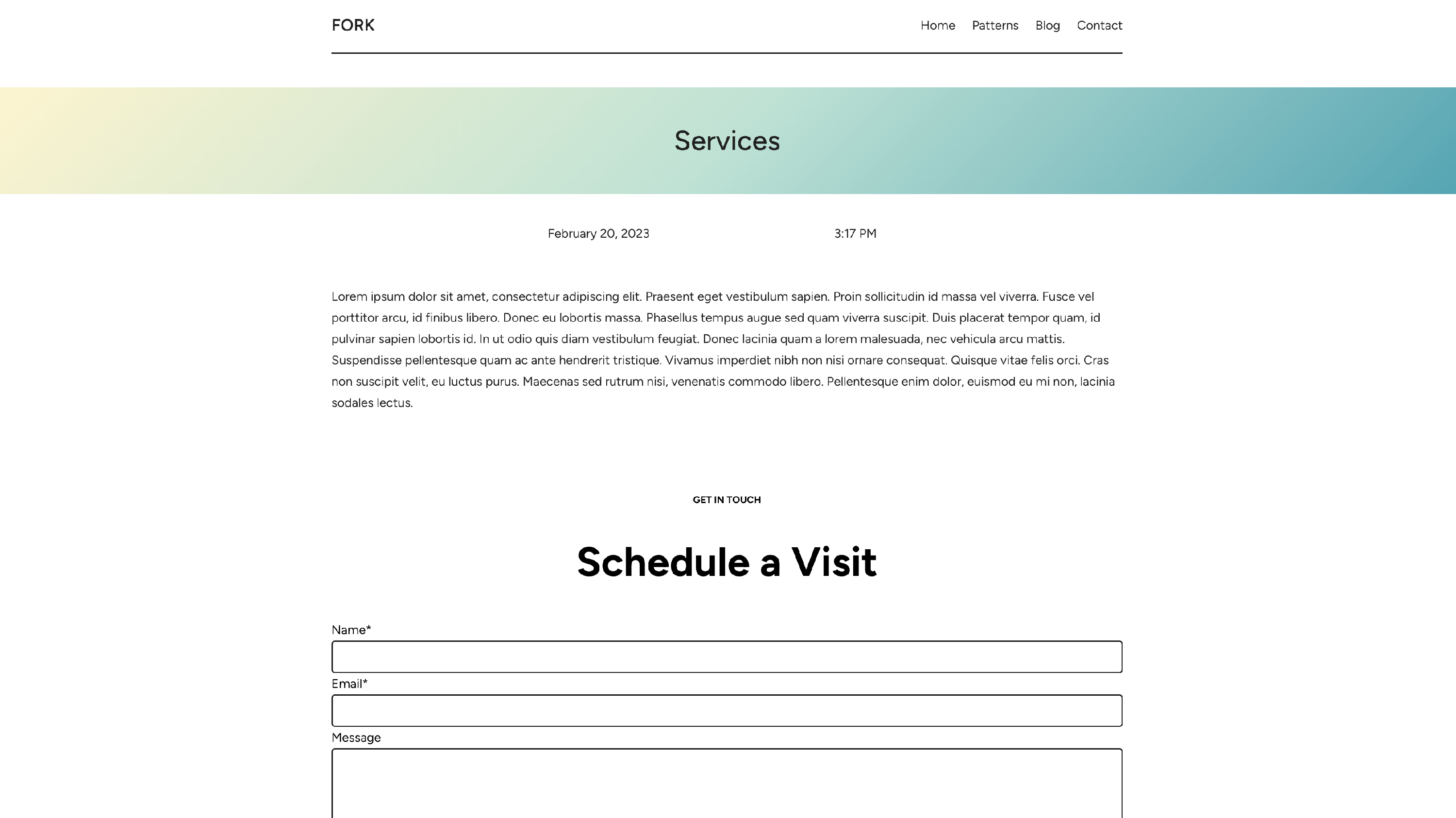
And this is how it will look on the frontend: