
Raft Pro
Raft Pro is the premium add-on for the Raft FSE theme. It extends Raft with additional block patterns, block styles, block variations, style variations, template overrides, and WooCommerce-specific templates for the Site Editor.
In this article
Requirements
Before using Raft Pro, confirm that:
- The Raft theme is installed and active.
- The Raft Pro plugin is installed, activated, and licensed.
- Otter Blocks is installed if you want to use the Pro onboarding templates.
- WooCommerce is installed and active if you want the Pro WooCommerce templates and styling.
⚠️ Important: If the Raft theme is not the active theme, Raft Pro does not load any of its design features. An admin notice appears to remind you to activate the Raft theme.
Installation and activation
Raft Pro is a premium plugin available through your Themeisle account.
- Log in to your Themeisle account.
- Download the Raft Pro plugin ZIP file from the Downloads section.
- In your WordPress dashboard, go to Plugins > Add New Plugin > Upload Plugin.
- Upload the ZIP file and click Install Now.
- After installation, click Activate Plugin.
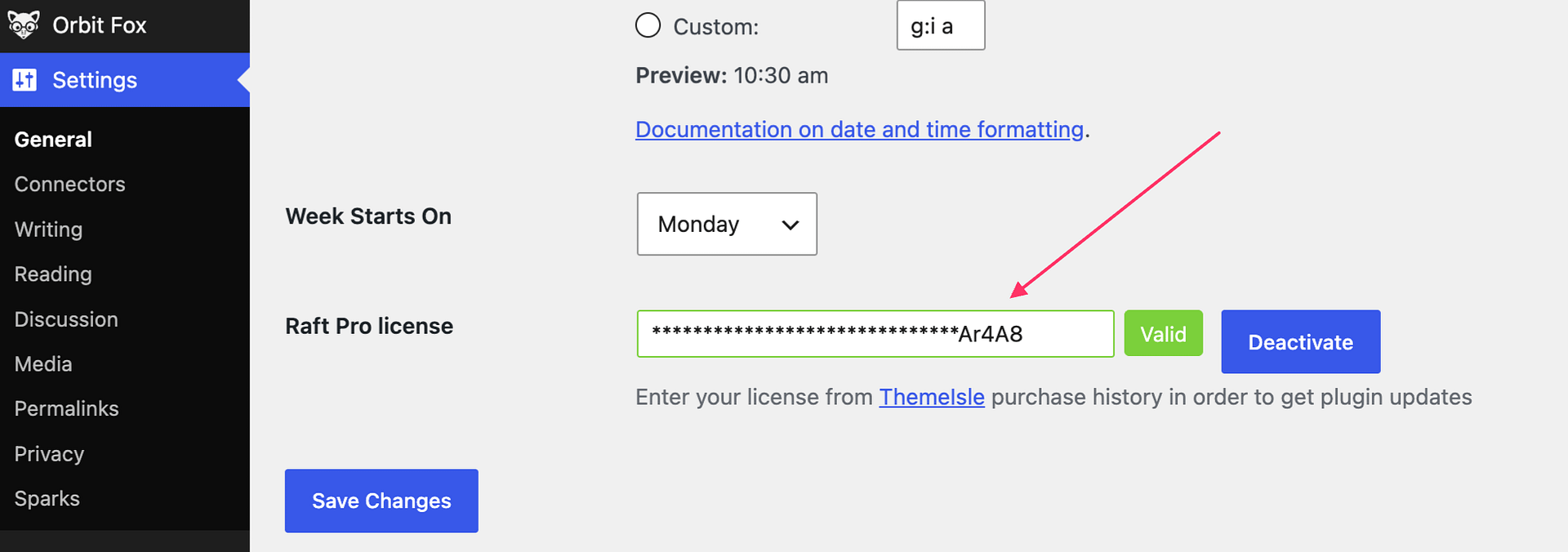
- Go to Settings, find the Raft Pro license field, and enter your license key.
- Click Activate License.
📝 Note: Activate the Raft theme before installing Raft Pro. If Raft is not active when you install Raft Pro, the plugin will show an admin notice prompting you to switch themes.
What Raft Pro adds
When the Raft theme is active, Raft Pro loads the following:
- Block patterns — 17 Pro patterns in the block inserter, added to Raft's existing pattern categories.
- Block styles — extra visual styles for Group, Cover, Quote, Image, Button, and Separator blocks.
- Block variations — Card, Hero stack, Display heading, Lead paragraph, and Eyebrow variations in the inserter.
- Style variations — additional designs in Global Styles, including Noto Serif and Baskervville font families, 4 gradient presets, and 4 shadow presets.
- Templates — Pro 404 and Search templates, plus alternative Header, Footer, and Pre-Footer CTA template parts.
- Onboarding templates — extra starter layouts for the Otter Blocks onboarding wizard.
- WooCommerce templates — Raft-styled overrides for core WooCommerce block templates (only when WooCommerce is active).
Using Pro block patterns
Raft Pro adds 17 patterns to Raft's existing pattern categories in the block inserter. No separate Raft Pro category is created — the patterns appear alongside Raft's free patterns.
To insert a Pro pattern:
- Open the WordPress dashboard.
- Go to Appearance > Editor.
- Open the page or template you want to edit.
- Click the + block inserter icon.
- Open the Patterns tab.
- Browse the Raft categories and click the pattern you want to insert.
Using Pro block styles
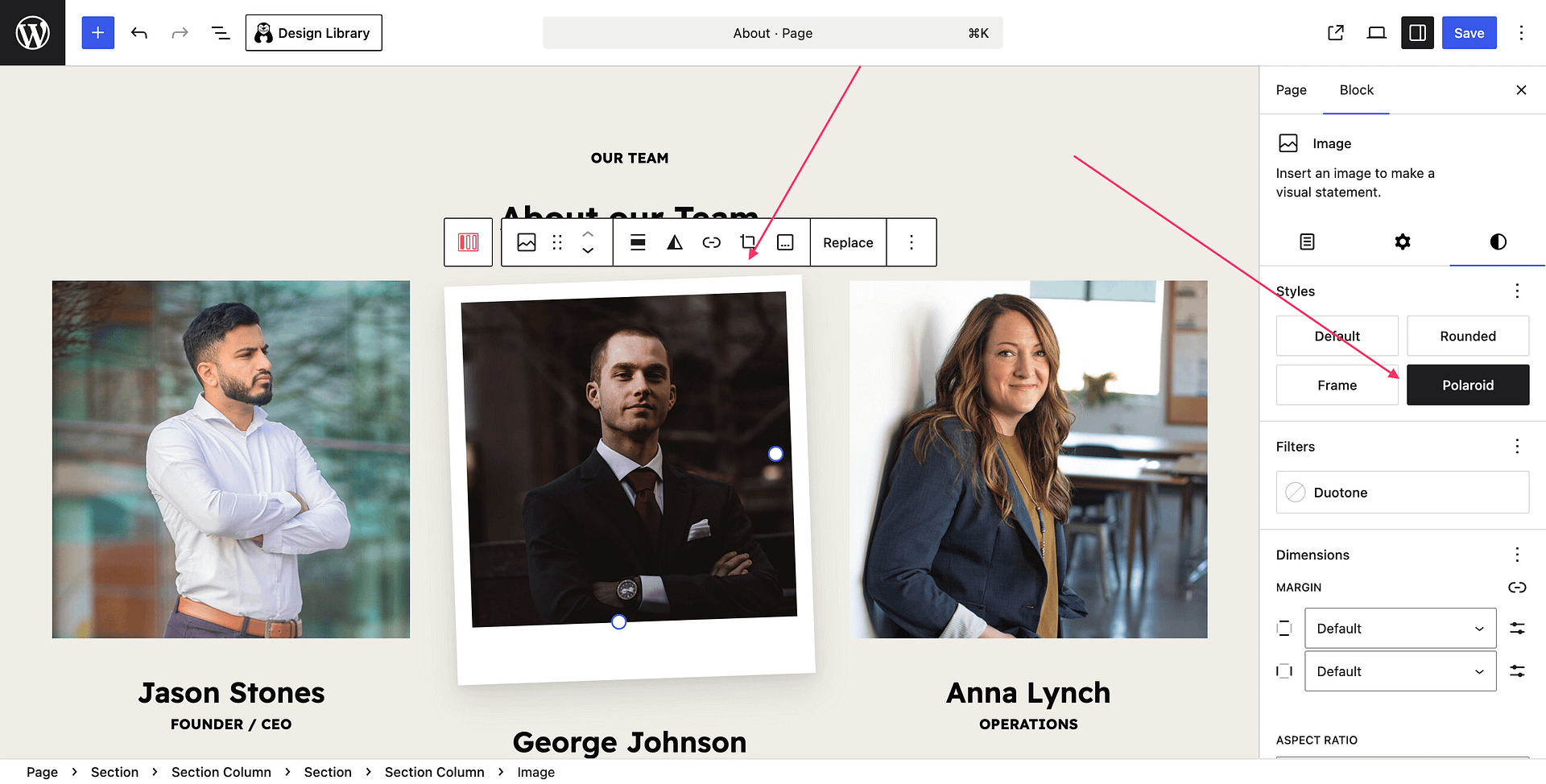
Raft Pro adds extra styling options for the following core blocks: Group, Cover, Quote, Image, Button, and Separator.
To apply a Pro block style:
- Select a supported block in the Site Editor or post editor.
- Open the Styles panel in the right sidebar.
- Choose the Pro style you want to apply.
Using Pro block variations
Raft Pro registers the following block variations in the inserter:
- Card — a rounded Group container with brand-aligned padding.
- Hero stack — a centered vertical stack with generous spacing, ideal for hero copy.
- Display heading — an oversized Heading block with tight letter-spacing for hero sections.
- Lead paragraph — a larger Paragraph block for introductory text.
- Eyebrow — a small Paragraph label for use above headings.
To insert a variation:
- Click the + block inserter icon.
- Search for the variation name (for example, Card or Display heading).
- Click to insert and customize the content.
Using Pro style variations
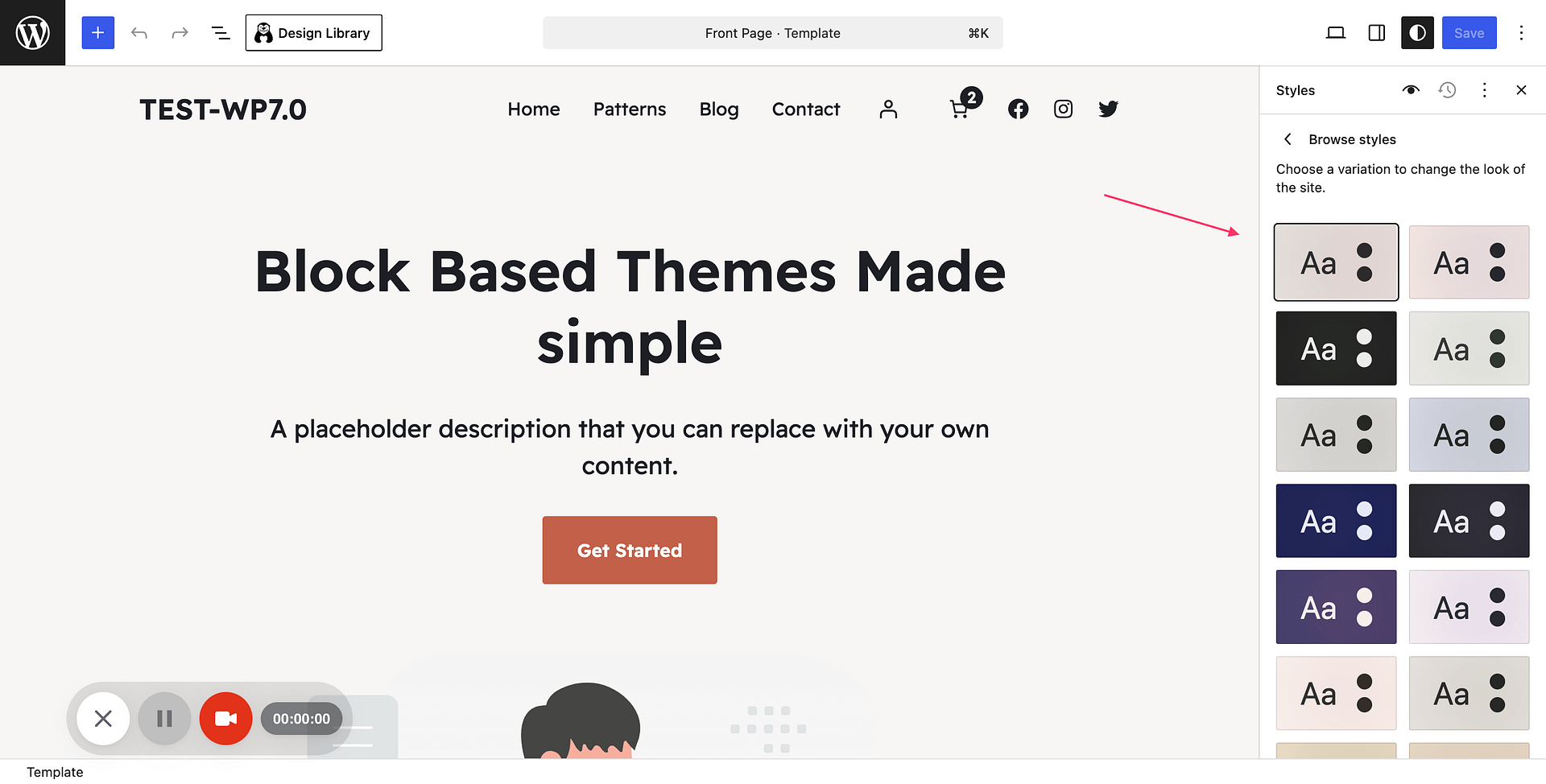
Raft Pro adds extra entries to the Browse styles panel in the Site Editor, along with two additional font families (Noto Serif and Baskervville), four gradient presets, and four shadow presets in Global Styles.
To apply a Pro style variation:
- Go to Appearance > Editor.
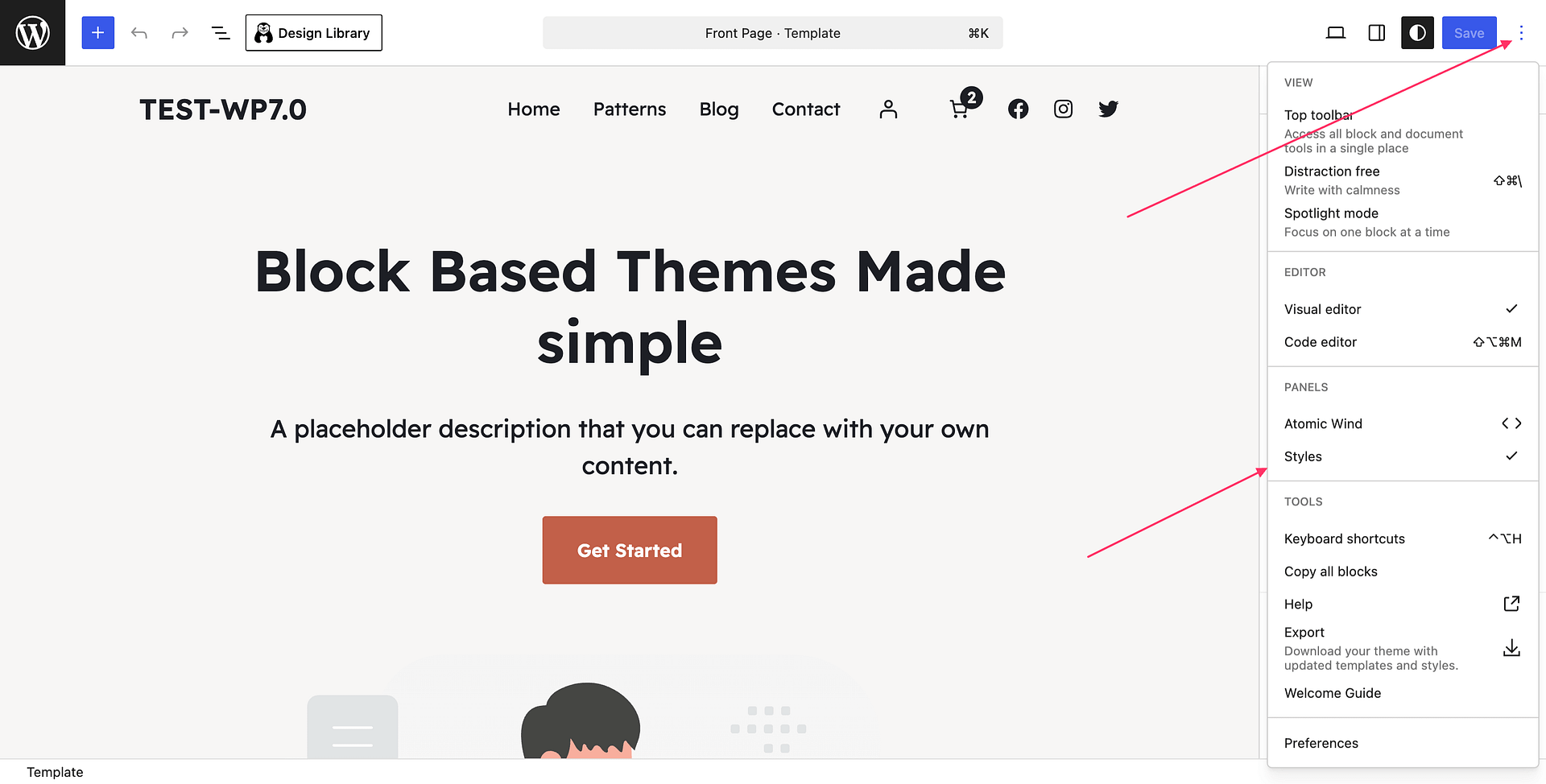
- Click the Styles icon (circle in the top-right toolbar).
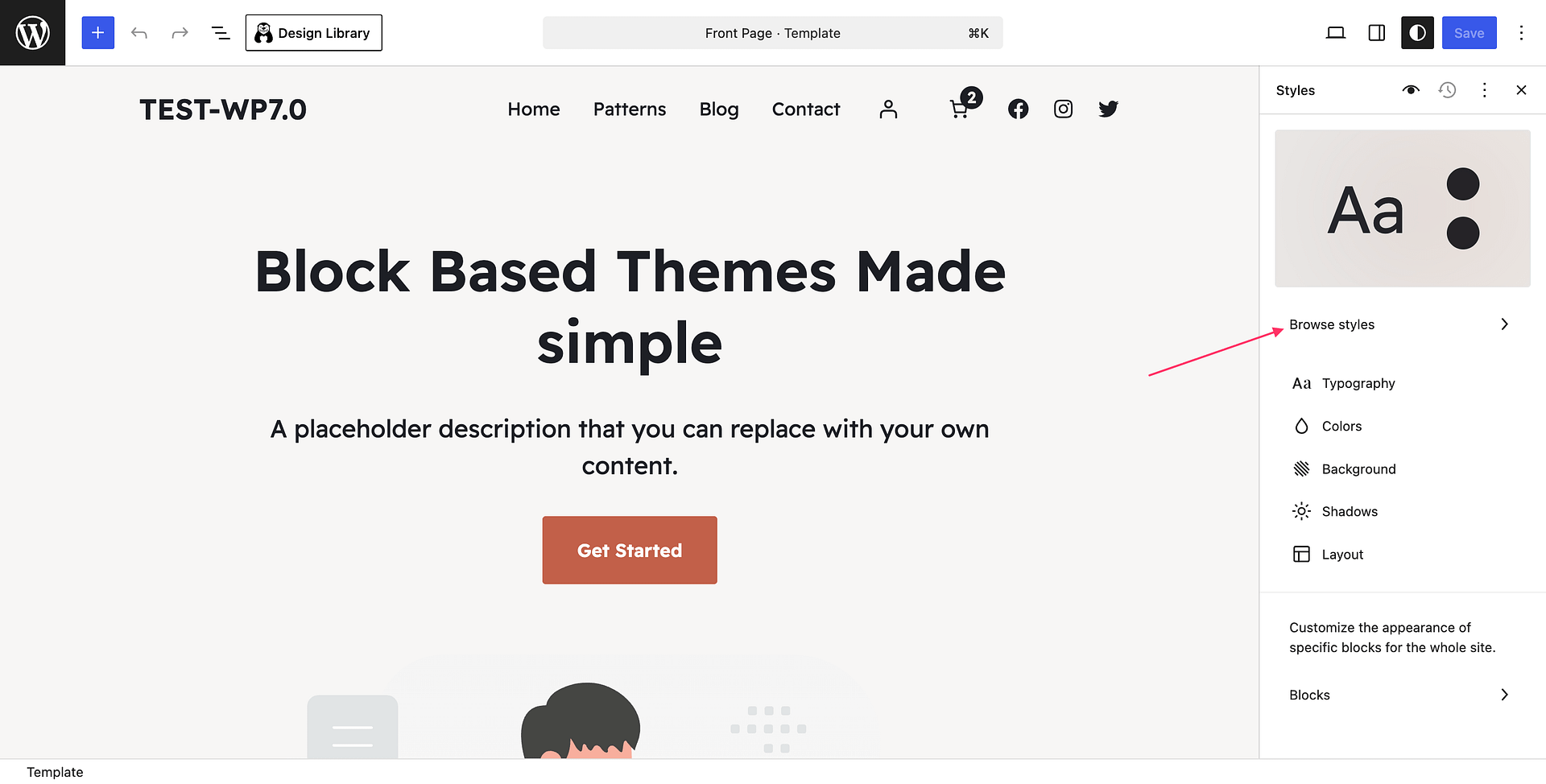
- Click Browse styles.
- Select a Pro style variation from the panel.
- Click Save to apply it site-wide.
Using Pro templates and template parts
Raft Pro replaces the default 404 and Search templates with styled Pro versions, and adds alternative template parts you can choose when editing headers, footers, and page layouts.
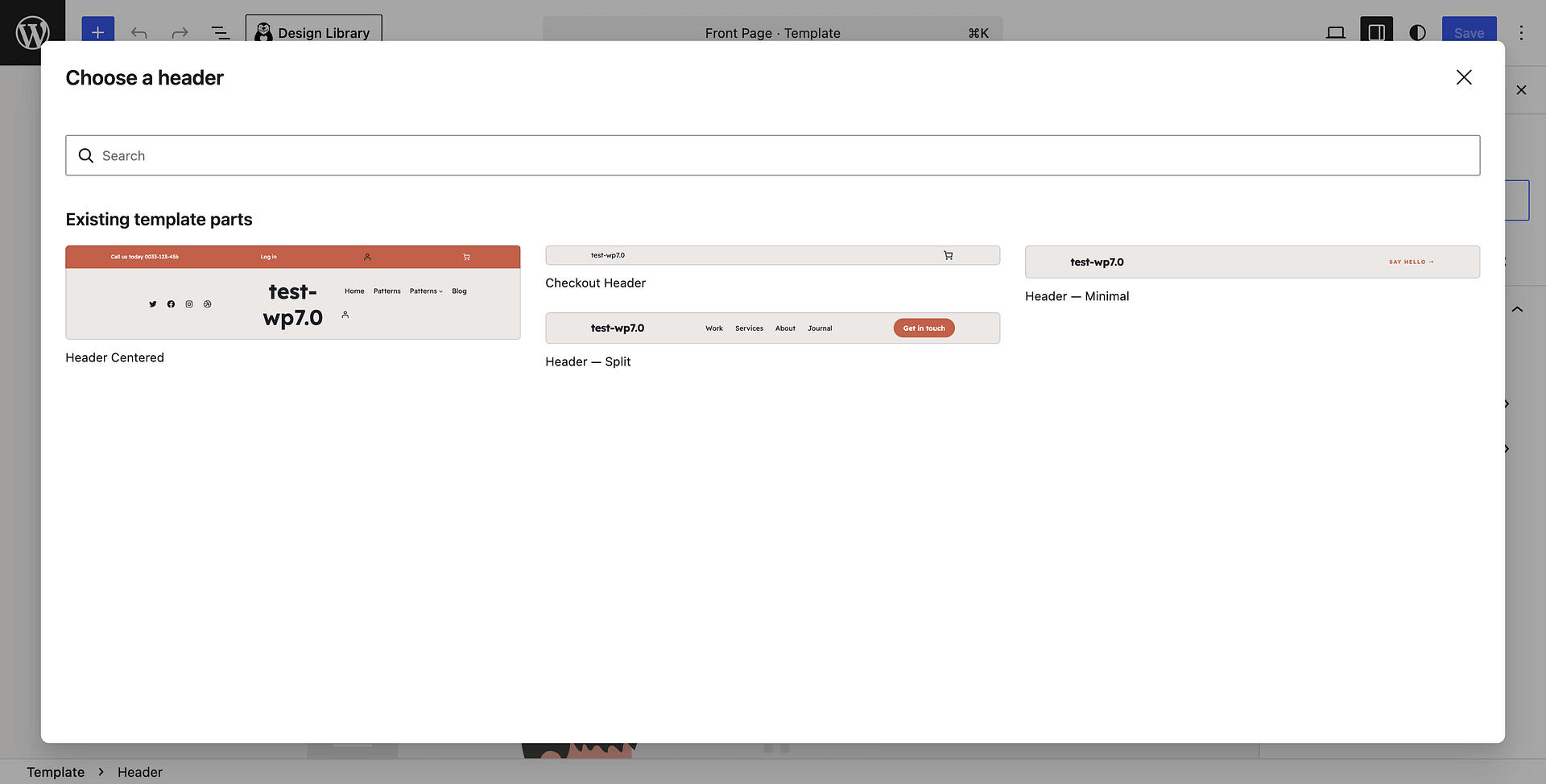
Pro template parts available:
- Header — Split — a two-column split header.
- Header — Minimal — a minimal, centered header.
- Footer — Mega — a multi-column footer.
- Footer — Newsletter — a footer with an inline newsletter signup.
- Pre-Footer CTA — a reusable full-width call-to-action section.
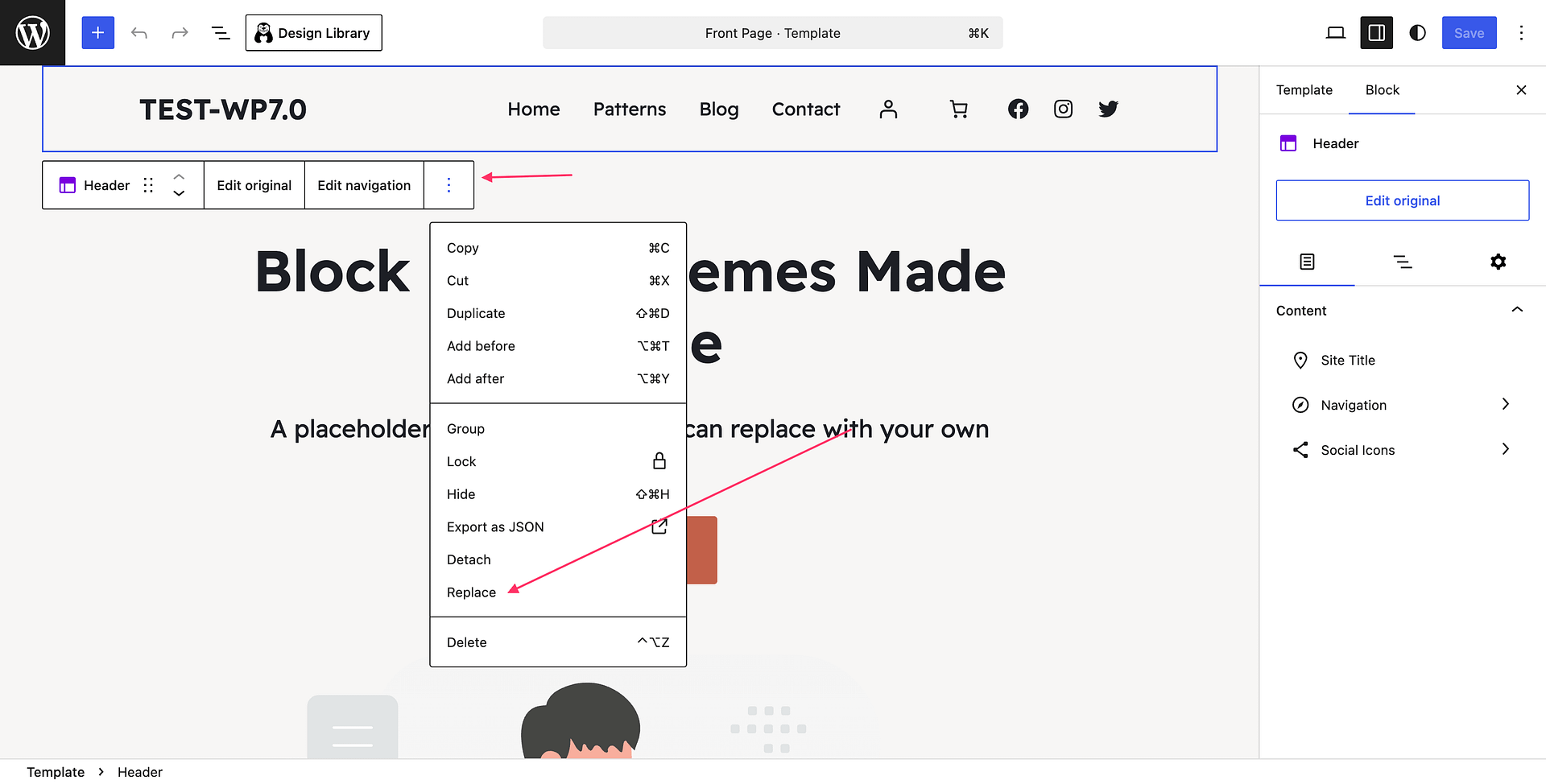
To switch to a Pro template part:
- Go to Appearance > Editor.
- Open the template or page you want to edit.
- Click the existing header or footer block.
- In the block toolbar, click Replace.
- Choose a Pro template part from the list.
Using Pro onboarding templates
When Otter Blocks is installed, Raft Pro adds extra starter layouts to the Raft onboarding wizard:
- Front page — 2 Pro front page layouts.
- Archive — 2 Pro archive layouts (Grid and Rows).
- Single post — 2 Pro single post layouts (Editorial and Bold Cover).
- Page templates — About, Services, Contact, Pricing, Careers, Case Study, and Manifesto.
These appear alongside the free Raft templates during onboarding. You can also apply them at any time through the Otter onboarding flow and then customize them in the Site Editor.
WooCommerce support
When WooCommerce is active, Raft Pro replaces WooCommerce's default block templates with Raft-styled versions for the following pages:
- Single product
- Product catalog (archive)
- Cart
- Checkout
- Order confirmation
- Products by category
- Products by tag
- Product search results
- Mini-cart (template part)
📝 Note: WooCommerce templates are only loaded when WooCommerce is installed and active. If you deactivate WooCommerce, Raft Pro's WooCommerce templates are not loaded.