
Church FSE theme
Church FSE is a modern Full Site Editing WordPress theme perfect for churches and religious organizations. Create an engaging website with ready-to-use patterns for sermons, events, ministries, and donations. The theme features a mobile-optimized design, live streaming support, and a prayer request system. Built with performance and accessibility in mind, Church FSE offers extensive customization through WordPress’s native block editor.
In this article
Download and Install
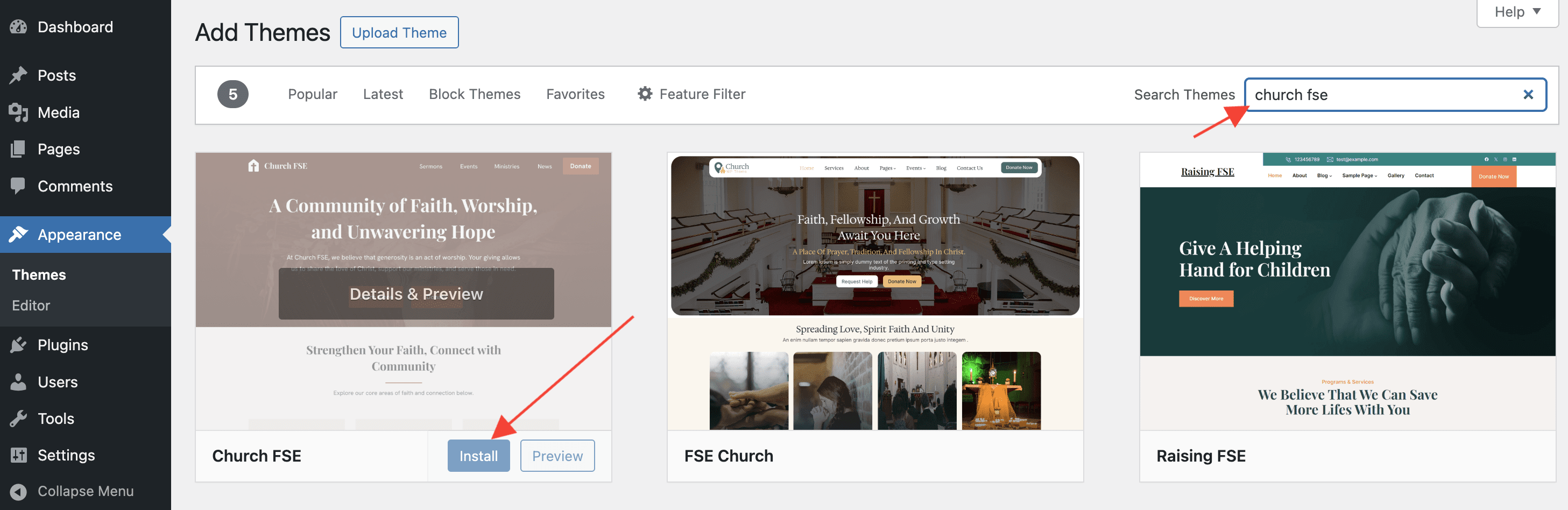
Navigate to the WordPress Dashboard > Appearance > Themes.
Click the Add New button and search for Church FSE.
When it appears, click Install.
Click Activate.
💡 Tip: For a better website-building experience, install the Otter Blocks plugin too.
Customizing the Pages
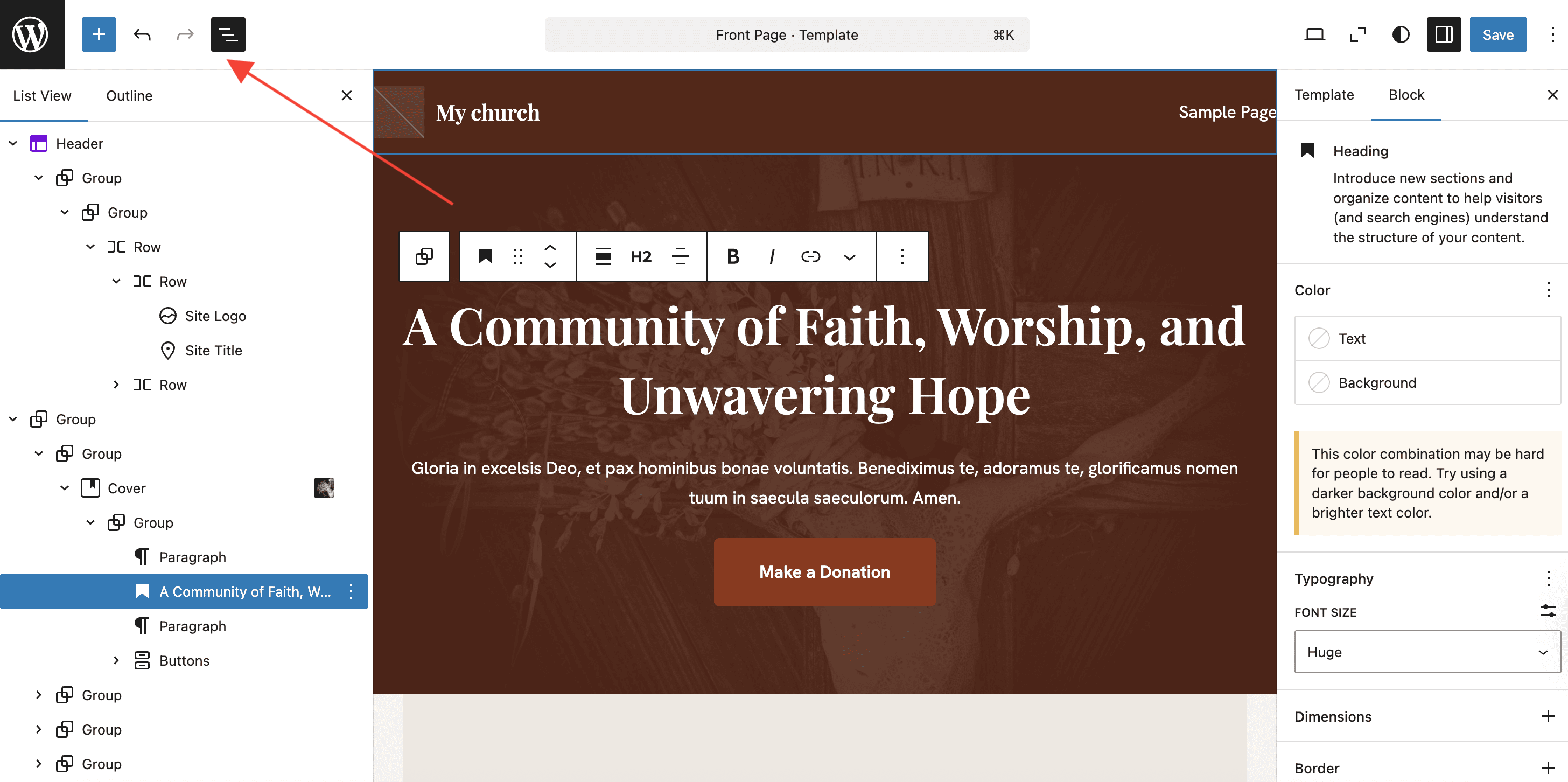
To start customizing your website's pages, go to Appearance > Editor.
Once the editor opens, hover over each section and make the changes you want. To see the sections more easily, use the burger icon at the top of the page.
📝 Note: The editor used here is Gutenberg, the default WordPress editor.
When you click an area, its available settings appear in the right sidebar. If you have installed Otter, you can also make the blocks sticky or copy and paste style to save time.
Header
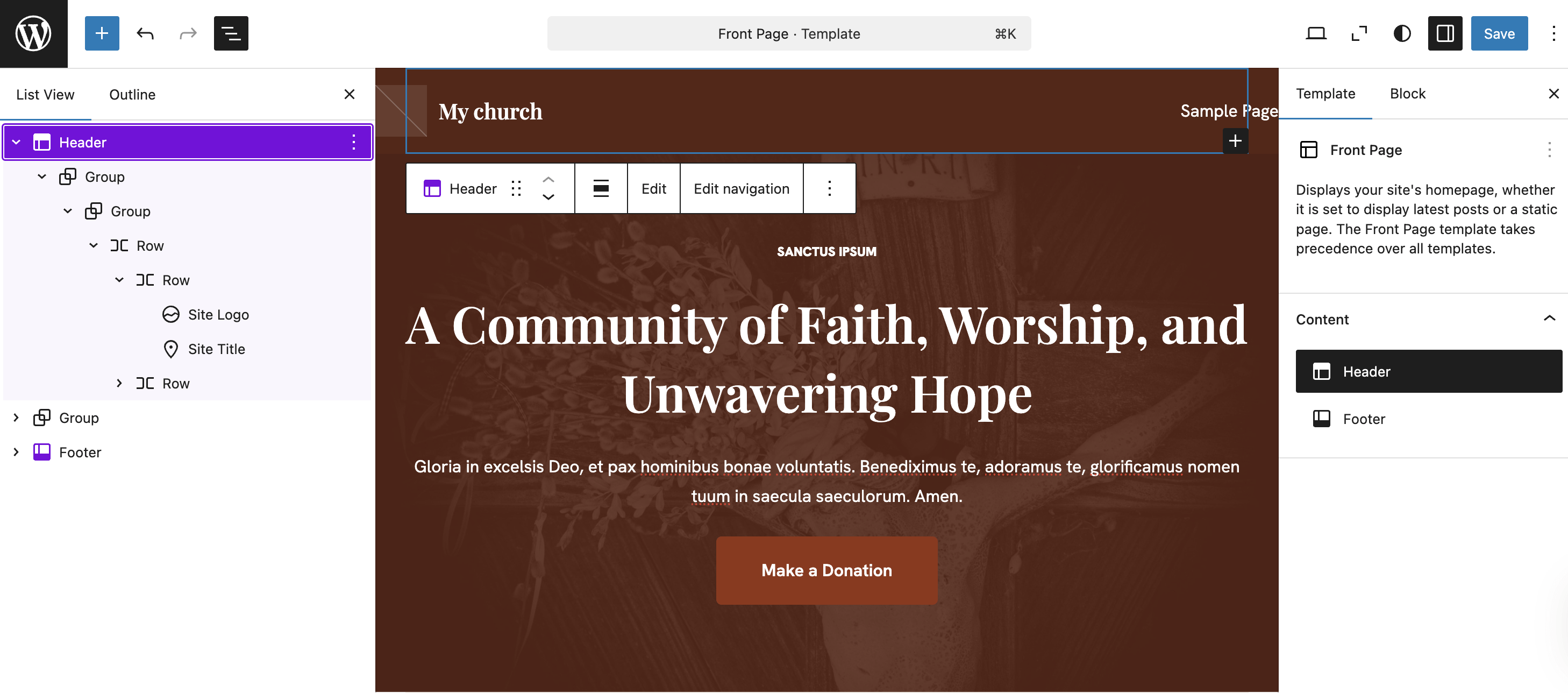
The header becomes accessible if you select it inside the Template tab.
Adding a new menu item
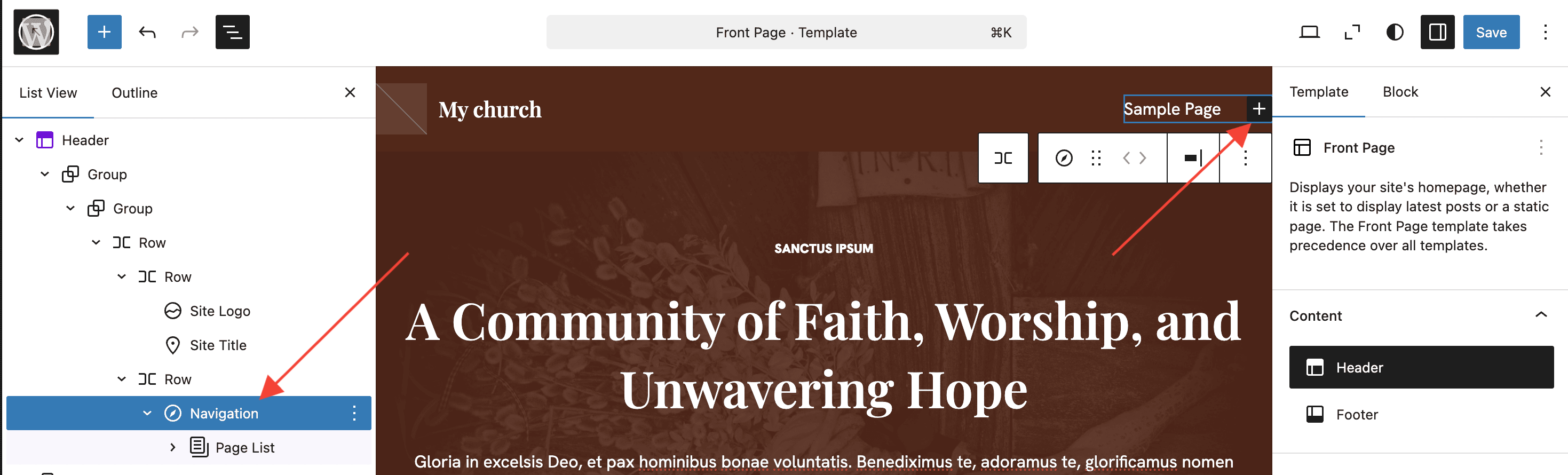
To add a new menu item, click the Navigation block, then the plus icon. You can insert a new link, choose its behavior (open in a new tab), or transform it into custom objects (site logo, social icon, search).
📝 Note: Submenu items can be added for each menu item. To learn how, see this guide.
Footer
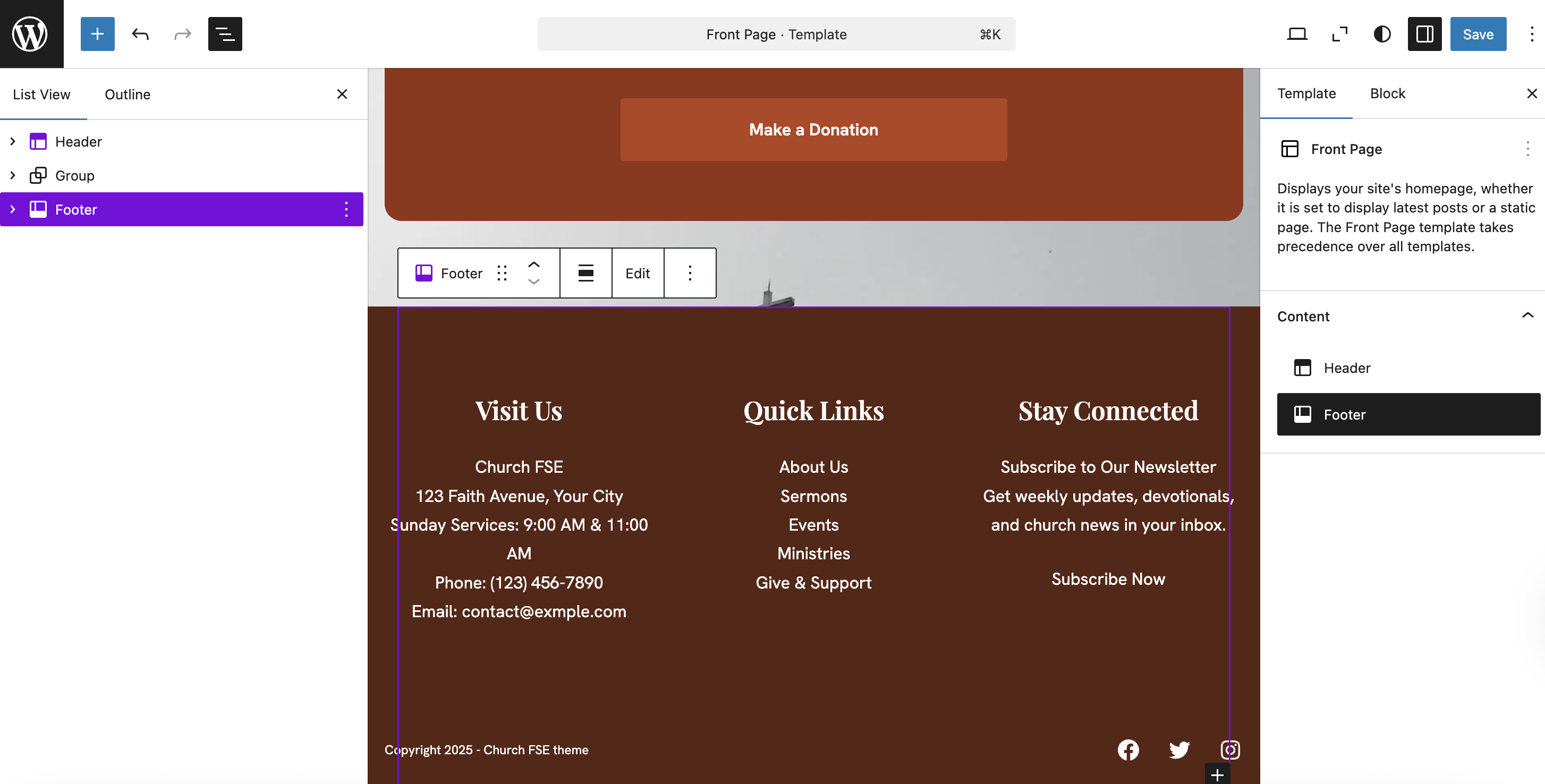
To open the footer, switch to the Template tab and select the footer from there.
Templates
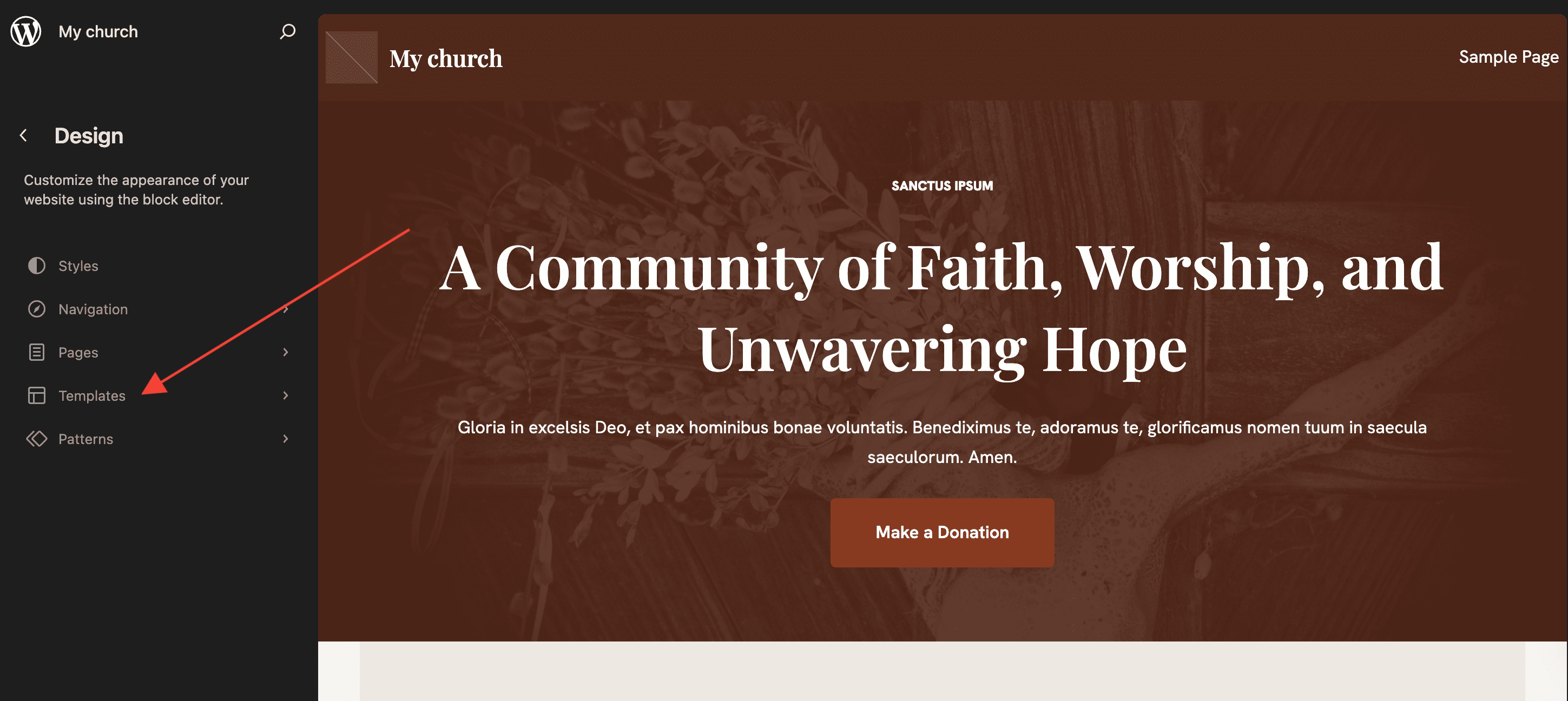
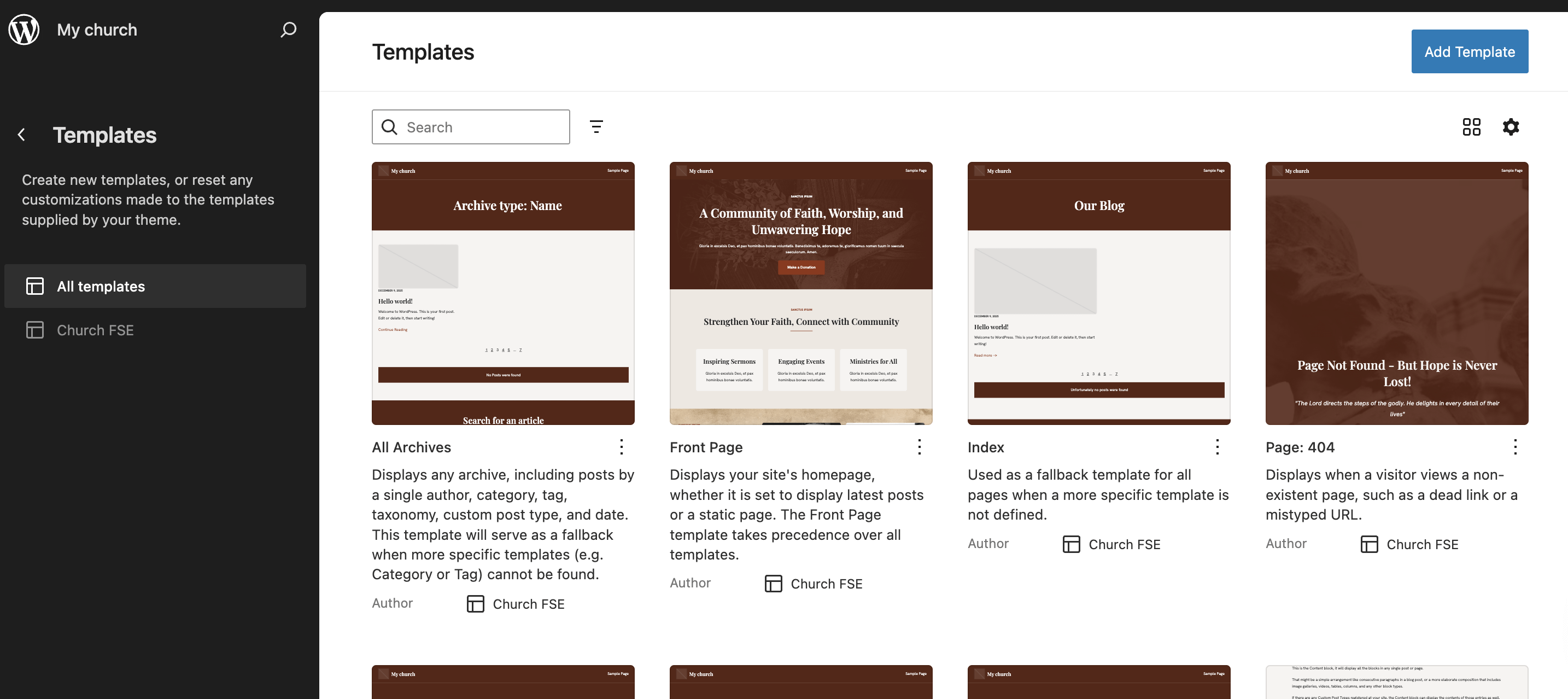
To see, edit, or add new templates, navigate to Appearance > Editor > Templates.
📝 Note: To learn how to design your own template pages and import them afterward, see this guide.
Connect an AI Agent
Connect an AI assistant to your site with Easy MCP AI and its Core tools:
- Install and activate Easy MCP AI.
- Follow the Getting Started with Easy MCP AI guide to connect and authenticate your AI client.
With Church FSE active, you can ask your connected AI assistant to:
- Update the service times in your header.
- Change your site's style.
- Add an events or sermons section to a page.
For example, try these prompts:
Update the service times in my header to Sundays at 9 and 11 AM.
Apply the Church FSE style variation with the calm blue palette.
Add an upcoming events pattern from my theme to the home page, above the footer.
Review changes in WordPress before relying on them.