
How to Search Through Generated Pages in MPG?
MPG is a WordPress plugin that enables unlimited pages to be generated and updated. By default, however, those generated pages cannot be found within your website. If you search for a keyword that is used in the generated pages, it is not part of the result because WordPress looks for physical pages only.
MPG has an option to show generated pages in the default search too, but it needs to be configured separately. This guide explains how to do it.
In this article
Please note that MPG-generated posts or pages appear in the search results only if an MPG shortcode is used in the title of the template set for the current project. If all the generated pages have the same title, they won't appear in the search results at all. You need to generate pages with different names by using MPG shortcodes in the title, such as "The capital city of {{mpg_country}} is {{mpg_city}}".
Activate the participation in search
In your project's Advanced settings, turn on the toggle that lets generated pages participate in your site's search:
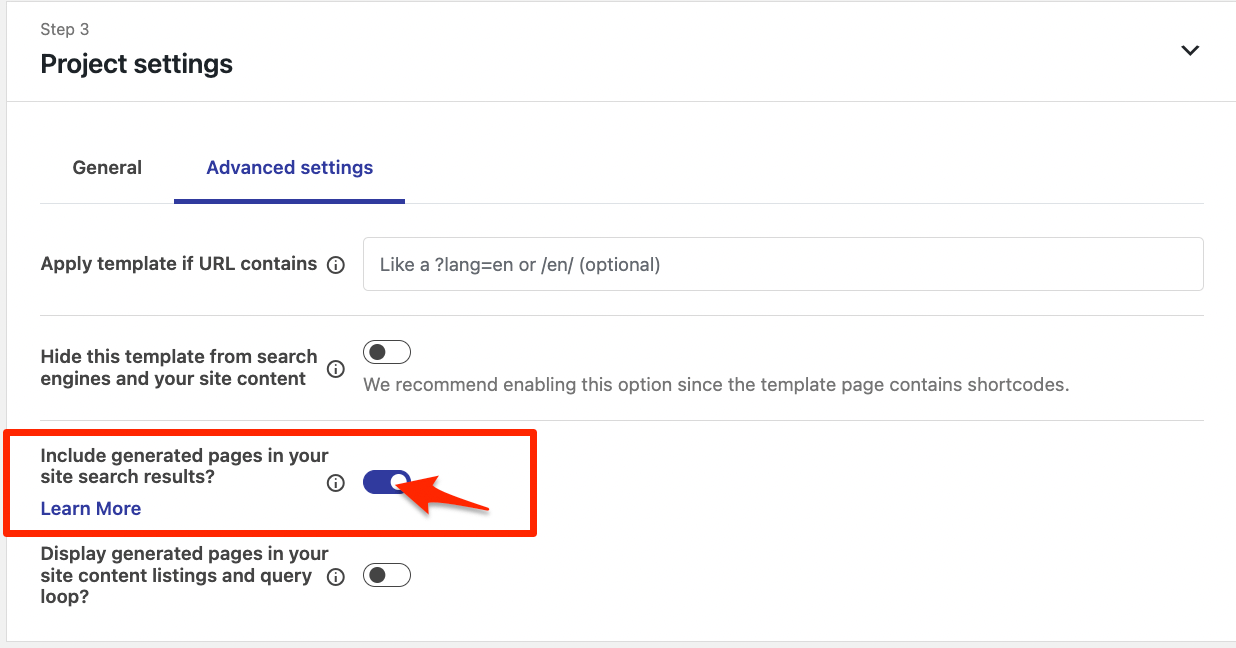
This setting is separate per project.
Remove the template itself from being searchable
It is also recommended to exclude the template itself from being searchable:
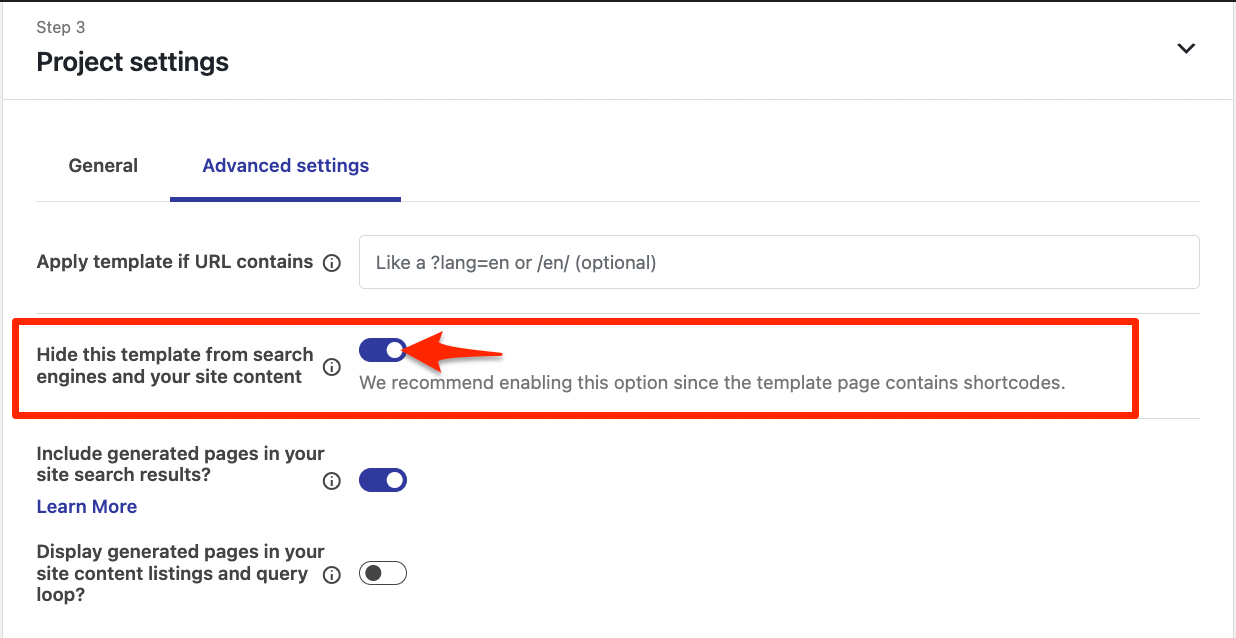
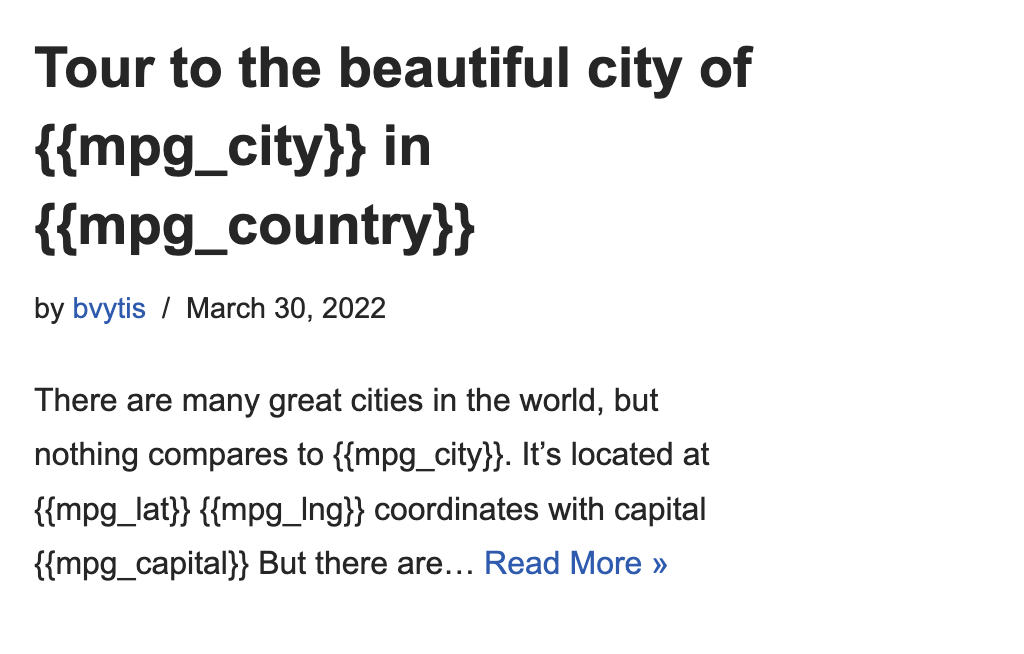
This way your template with tags cannot be found on the website, which prevents results like this:
Configure the search to match your theme's architecture
This is the most important and the most challenging part. The search settings need to match your theme or template. This example uses the structure of the Neve theme.
Go to MPG > Search settings. The page looks like this when opened:
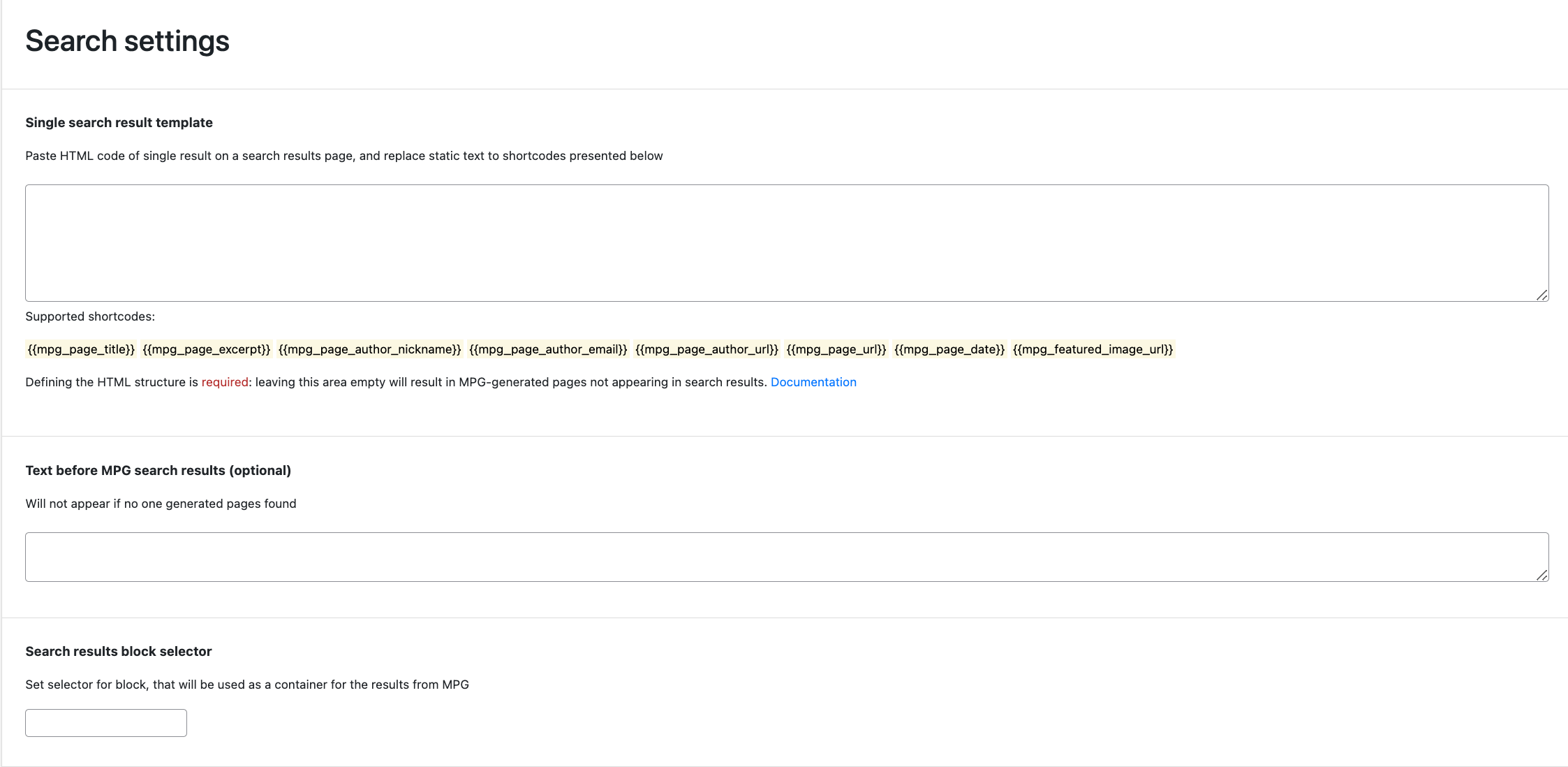
The page includes some tags that you use to dynamically generate results for the search page.
Find the real structure of your current search page. Search for anything on your website that gives some results, either with the search input on your website or by attaching the
?s=sometextquery to your domain. For example, https://themeisle.com/?s=mpg.Inspect the rendered search page. In the Neve theme, the DOM looks like this:
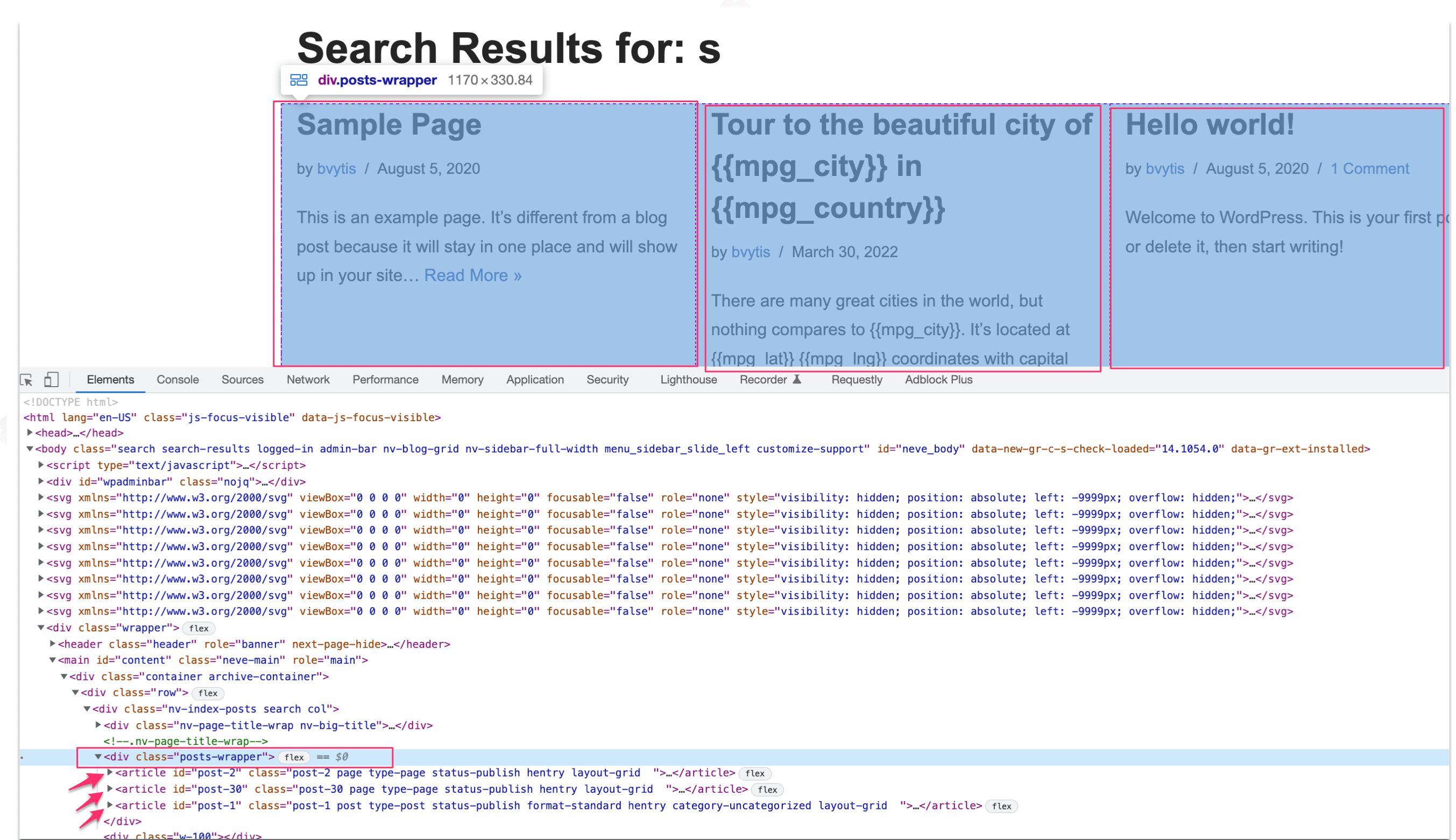
There is a main container with the class .posts-wrapper where everything is rendered, so this is the selector. Enter it in the selector field:
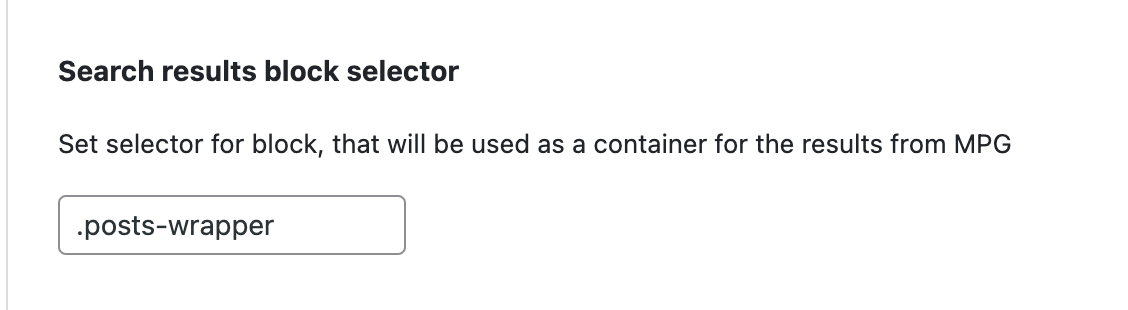
Your theme may use an ID instead of a class. In that case, add
#posts-wrapper, or whatever name your main container has, as the selector.Every result found is rendered as a separate
<article>element. Right-click one of them and select Copy > Copy Element: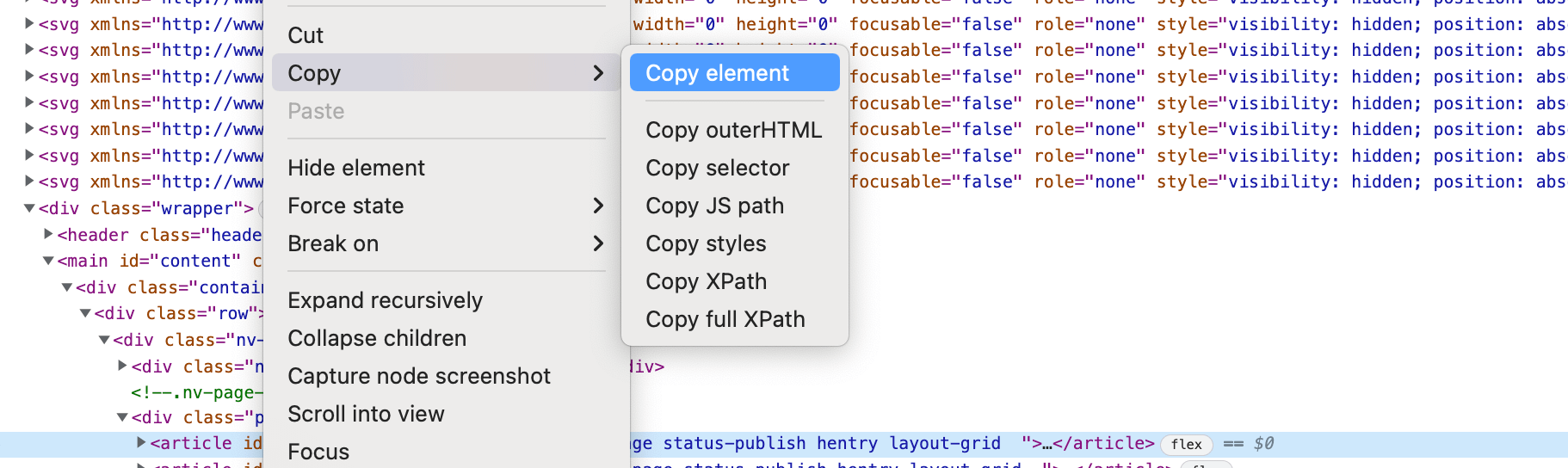
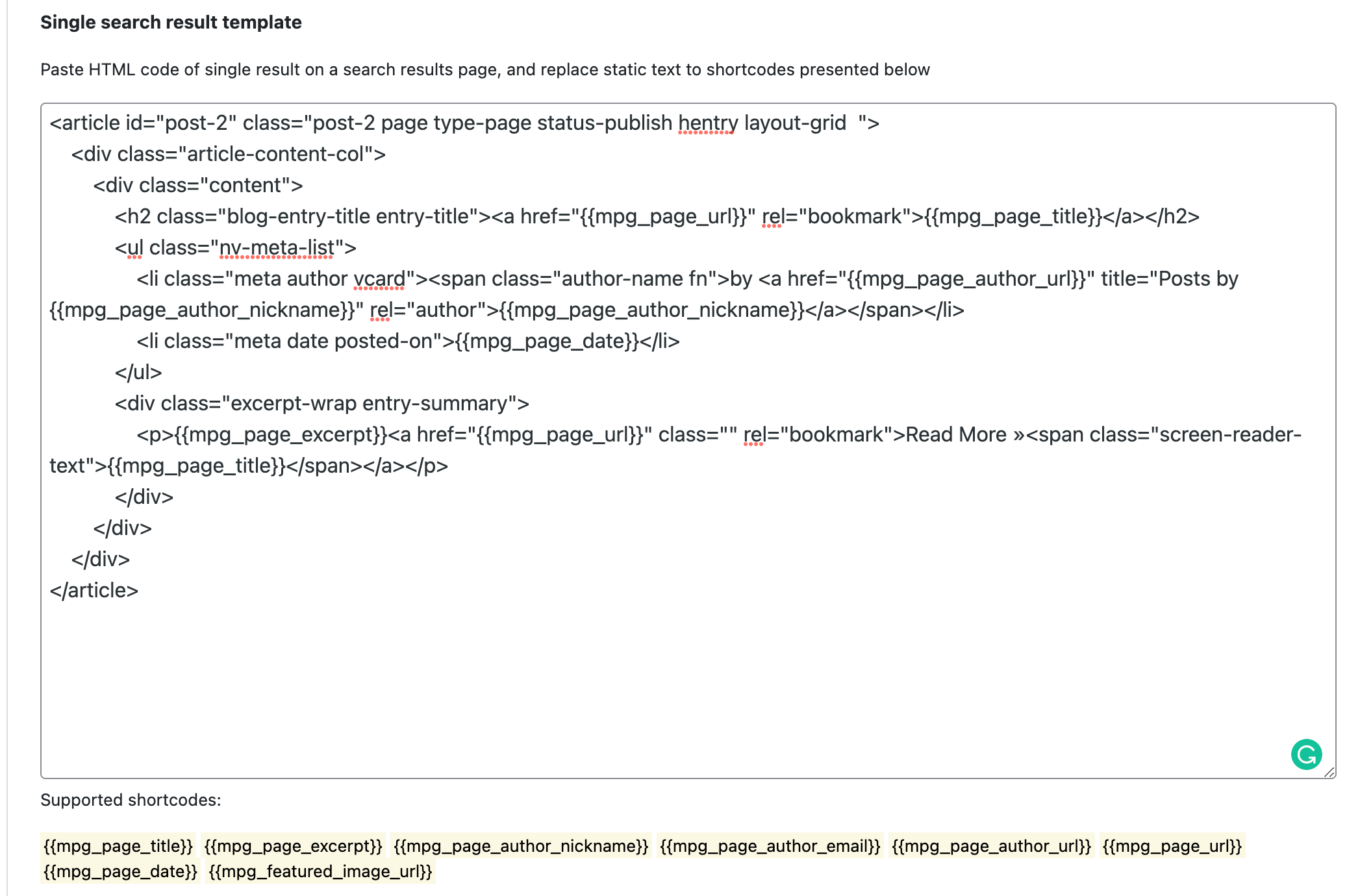
Go back to the MPG Search settings and paste the element there:
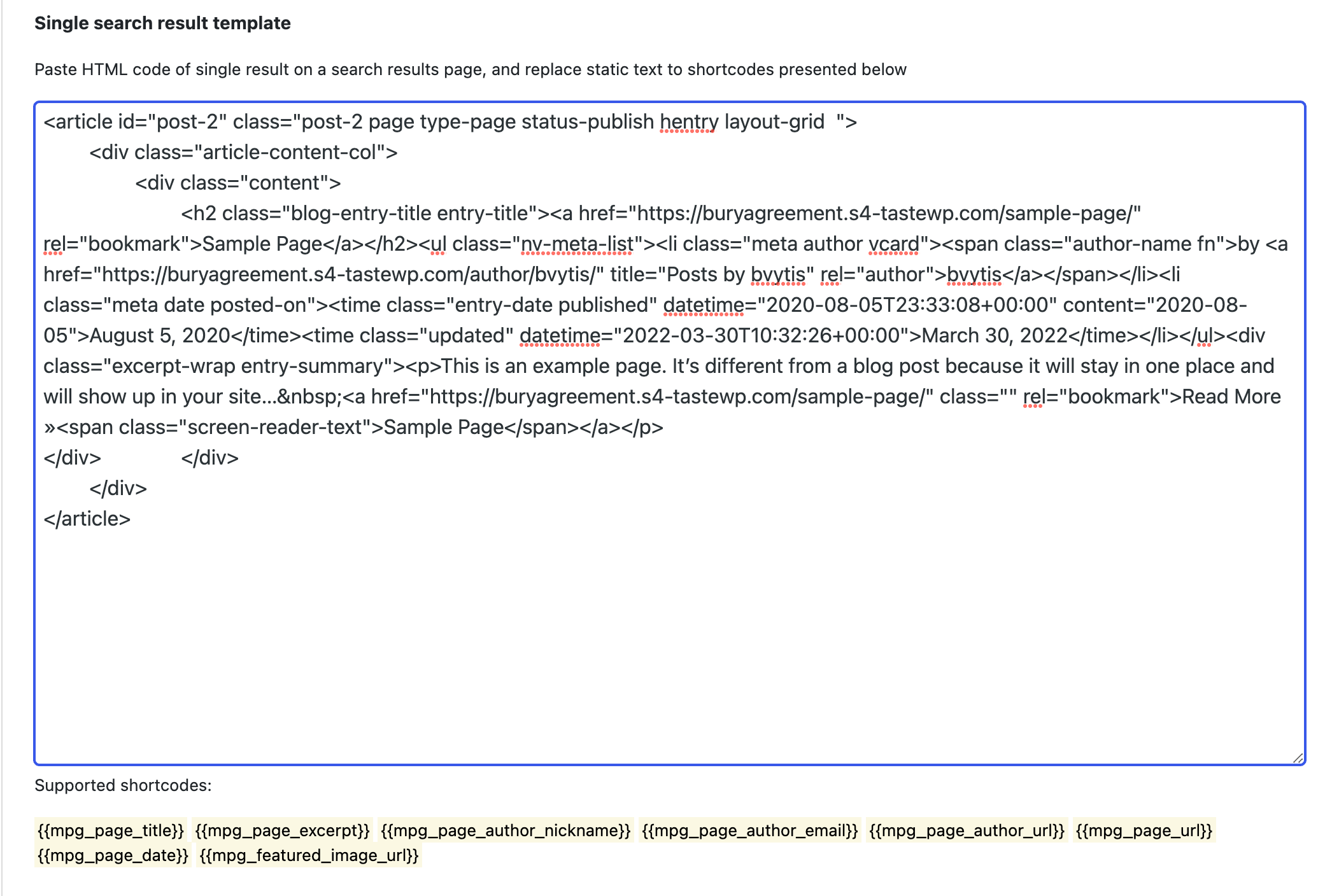
Replace all the hardcoded text with the shortcodes highlighted in yellow below the text area. You don't need to use all of them. Use only those that make sense and that match the structure of your current search page. After removing all hardcoded strings, only the tags remain, and you should have a result similar to this:
You should now be able to find the generated pages when searching on your website.
If the search page shows no results
Most themes, including Neve, do not render the main container if there are no physical results found. If your query doesn't match any physical pages, the search page shows no results at all, because the selector you added is not present on the page.
In that case, create a child theme and modify the search.php template to always render the container used as a selector.
- Get the Neve child theme from How to create a child theme for Neve.
- Take the
search.phpfile from/wp-content/themes/neve/and place it in your child theme.
Then change the content of search.php to this code:
<?php
/**
 *
 * @package Neve
 */

$container_class = apply_filters( 'neve_container_class_filter', 'container', 'blog-archive' );

get_header();

$wrapper_classes = [ 'posts-wrapper' ];
if ( ! neve_is_new_skin() ) {
    $wrapper_classes[] = 'row';
}

?>
    <div class="<?php echo esc_attr( $container_class ); ?> archive-container">
        <div class="row">
            <?php do_action( 'neve_do_sidebar', 'blog-archive', 'left' ); ?>
            <div class="nv-index-posts search col">
                <?php
                do_action( 'neve_page_header', 'search' );
                echo '<div class="' . esc_attr( join( ' ', $wrapper_classes ) ) . '">';
                if ( have_posts() ) {
                    /* Start the Loop. */
                    while ( have_posts() ) {
                        the_post();
                        get_template_part( 'template-parts/content' );
                    }
                    echo '</div>';
                    if ( ! is_singular() ) {
                        do_action( 'neve_do_pagination', 'blog-archive' );
                    }
                } //else {
                  //  get_template_part( 'template-parts/content', 'none' );
               // }
                ?>
                <div class="w-100"></div>
            </div>
            <?php do_action( 'neve_do_sidebar', 'blog-archive', 'right' ); ?>
        </div>
    </div>
<?php
get_footer();