
How to Generate a List of MPG Pages?
One of the biggest advantages of the MPG plugin is the possibility to generate filtered lists of data from your source file. This helps to generate tables of factual content, in-links, and more. The most popular example is a clickable list of all states in a country or all cities in a state.
In this article
To generate a list:
Open your MPG project and click the Shortcode tab at the top of the page.
Scroll down to Generate list.
Set up the filter and criteria for the generated list. For example, if you use the "US cities" template and want a clickable list of all cities in Cuyahoga County, in the state of Ohio, specify the condition as state_name = Ohio AND county_name = Cuyahoga.
The shortcode below is generated, and you can preview it.
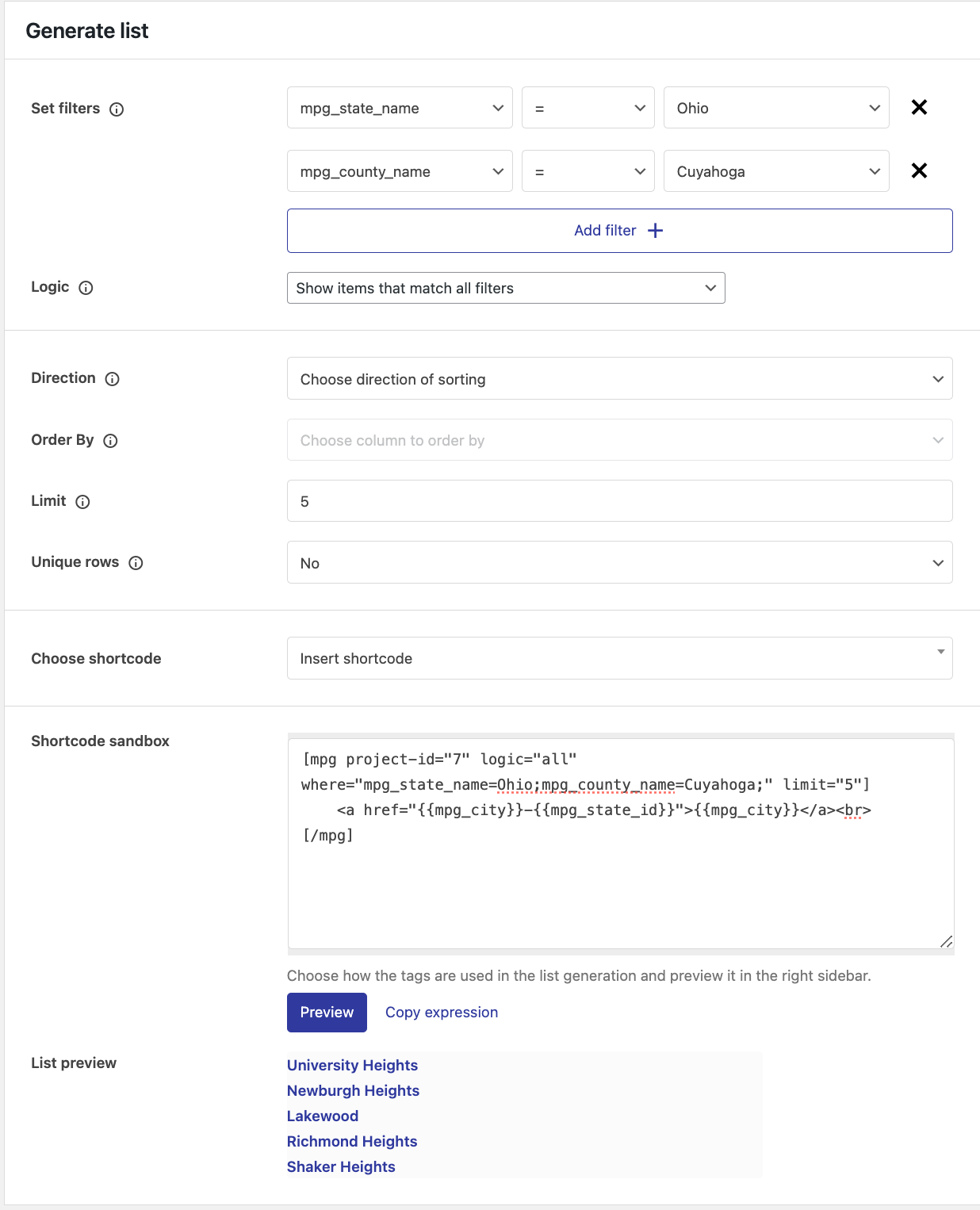
You can customize the list in many ways:
- Limiting the number of generated results using the “Limit” parameter.
- Return results in a random order, ascending or descending using the “Direction” parameter.
- Generating Nested Lists for hierarchical content such as Country > State > City type of pages, where each project generates a list of subsequent filtered results.
- How Do I Split My Generated List into Columns?
List of Attributes
project-id
(required, integer) – uses the project ID from which data is retrieved
Example: project-id="1"
where
(optional, text or shortcode) – uses single or multiple expressions separated by semicolon “;”.
Used to specify filter conditions of the generated list. A static text such as “California”, for example, or a shortcode such as {{mpg_state}}. Regular expression syntaxis can be used in the PCRE format.
Format: where=”mpg_header=value”
- Example 1: where=”mpg_city=Springfield” – returns all rows where column mpg_city contains the value Springfield
- Example 2: where=”mpg_city=^Ca” – returns all rows where column mpg_city contains values starting with “Ca”, such as Canberra
- Example 3: where=”mpg_city=burgh” – returns all rows where column mpg_city contains the value “burgh”, such as Edinburgh
- Example 4: where=”mpg_state={{mpg_state}}” – returns all rows where
mpg_statematches the current page’smpg_statevalue. For example, a page for San Diego (in California) returns rows for California, while a page for Cleveland (in Ohio) returns rows for Ohio. - Example 5:
where="mpg_city=york"finds all rows wherempg_citycontains “york” (asLIKE '%york%'in MySQL). Result – https://prnt.sc/vr0w4g - Example 6:
where="mpg_city=^york$"finds all rows wherempg_cityexactly matches “york”. Result – https://prnt.sc/vr0uh3 - Example 7:
where="mpg_city=^{{mpg_city}}"finds rows wherempg_citystarts with the city in the currently requested URL. The value changes when you visit another generated page.
operator
(optional, string) – available: 'or' (default) and 'and'
Used for specifying additional conditions for where. Examples:
- Example 1: where=”mpg_city=^Ca; mpg_country=Australia” operator=”and” - all rows are selected where mpg_city starts with Ca, while mpg_country in the same row is "Australia".
- Example 2: where=”mpg_socks_size=Medium; mpg_socks_size=Large” operator=”or” - all rows are selected where mpg_socks_size is Medium or Large.
limit
(optional, integer) – Used for limiting the number of returned results. Example use: limit=”5”. If the limit is more than the returned results, the returned lists won't be affected.
order-by
(optional, string) – allows specifying a column from the data source file to sort by. Used paired with the 'direction' attribute.
Example 1: order-by=”mpg_city”
direction
(optional, string) – allows specifying one of the three sorting options:
- asc – for ascending sorting. Requires order-by attribute
- desc – for descending sorting. Requires order-by attribute
- random – randomized sorting
Examples:
- Example 1: order-by=”mpg_city” direction=”asc” – sorts by city names from A to Z
- Example 2: order-by=”mpg_city” direction=”desc” – sorts by city names from Z to A
- Example 3: direction=”random” – randomizes returned values. After each refresh, unless the cache is enabled, a new order is generated.
unique-rows
(optional, string) - possible values: "yes" or "no".
Default value "no"
Use unique-rows="yes" in case, you would like to have no duplicates in the shortcode response.
For example, if the source file contains 100 rows with the city New York and you render a list of cities, the unique-rows="yes" attribute skips the duplicates and renders just the first row instead of 100.
Nesting templates
You can nest templates. For example, create a template for countries. Within each generated page, add a generated list of states or provinces. Within that, add a generated list of cities, then a generated list of mayors, with each page containing the biography of one mayor.
To see how to create links for your generated pages, watch this short tutorial video: