
MPG - The Multiple Page Generator Documentation
The MPG - Multiple Page Generator is a mass page generator that enables users to create unlimited and unique landing pages in bulk under the same domain. This plugin helps to develop and manage thousands of keyword-specific pages, increasing the chances of getting top-ranked by search engines.
To manage MPG projects with an AI assistant, see Use Multiple Pages Generator with AI Assistants.
In this article
- 🗒 instant page generator
- 🌐 SEO friendly
📝 Note: At this moment, we don't have a trial or demo available for this plugin, but we have you covered with our 30-day money-back guarantee in case the upgraded product doesn't meet your expectations.
Download and Install MPG
1. Navigate to WordPress Dashboard > Plugins .
2. Click on the Add New button and type into the Search Bar "MPG".
3. When the plugin appears, click on the Install button and then Activate the plugin.
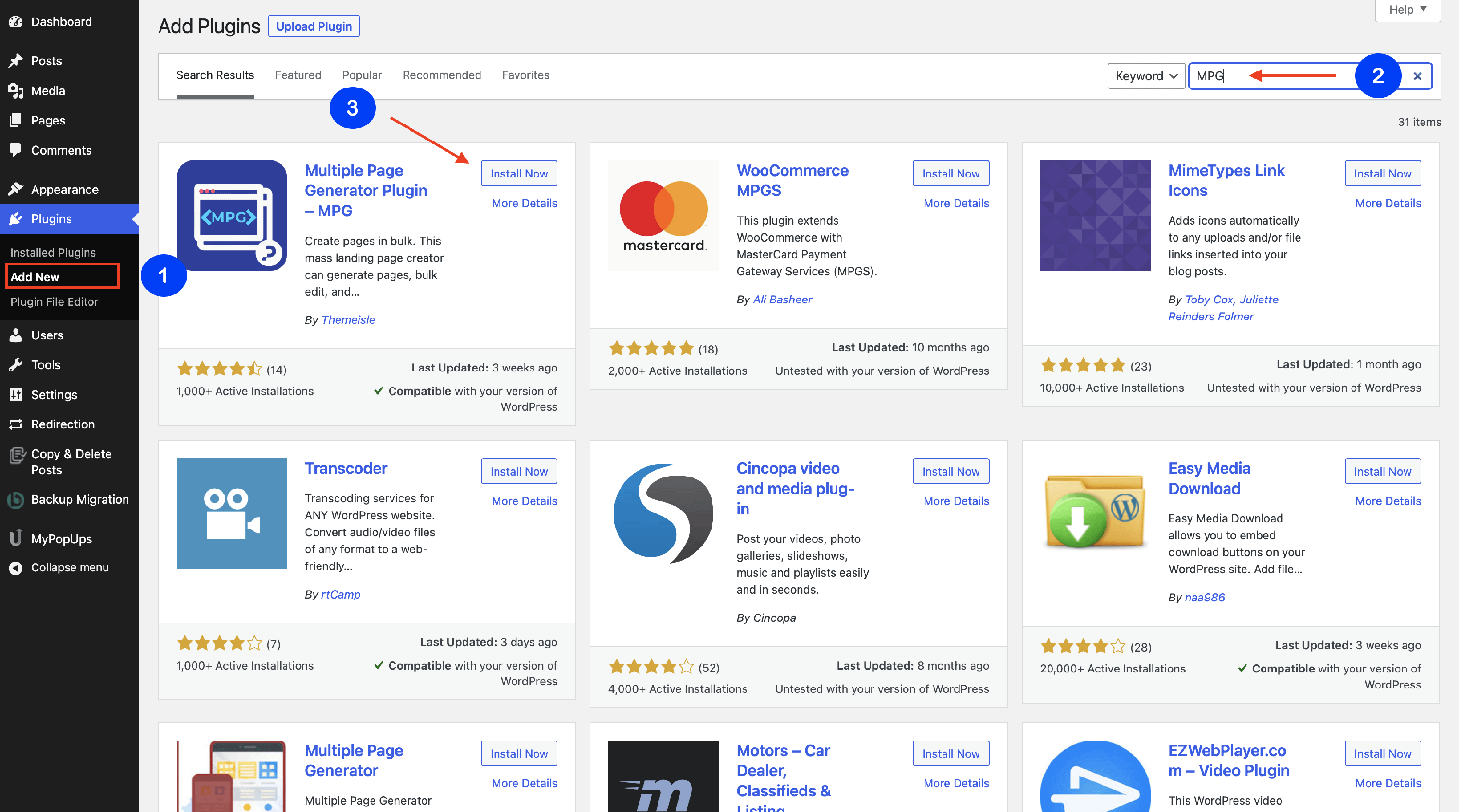
📝 Note: Check this doc for further details about installing the plugin.
Page Generation
The MPG plugin offers two types of page generation: using a template and from scratch.
Using a template
The Dataset Library delivers ready-to-go templates for various domains, such as cities ( World cities and US cities ), services ( Plumbing and Locksmith services ), and other templates requiring a massive generation of pages. Creating a project using a template can be done by following these steps:
1. Navigate to MPG > Create New +.
2. From MPG Setup click on one of the presented templates or use the search field to save some time.
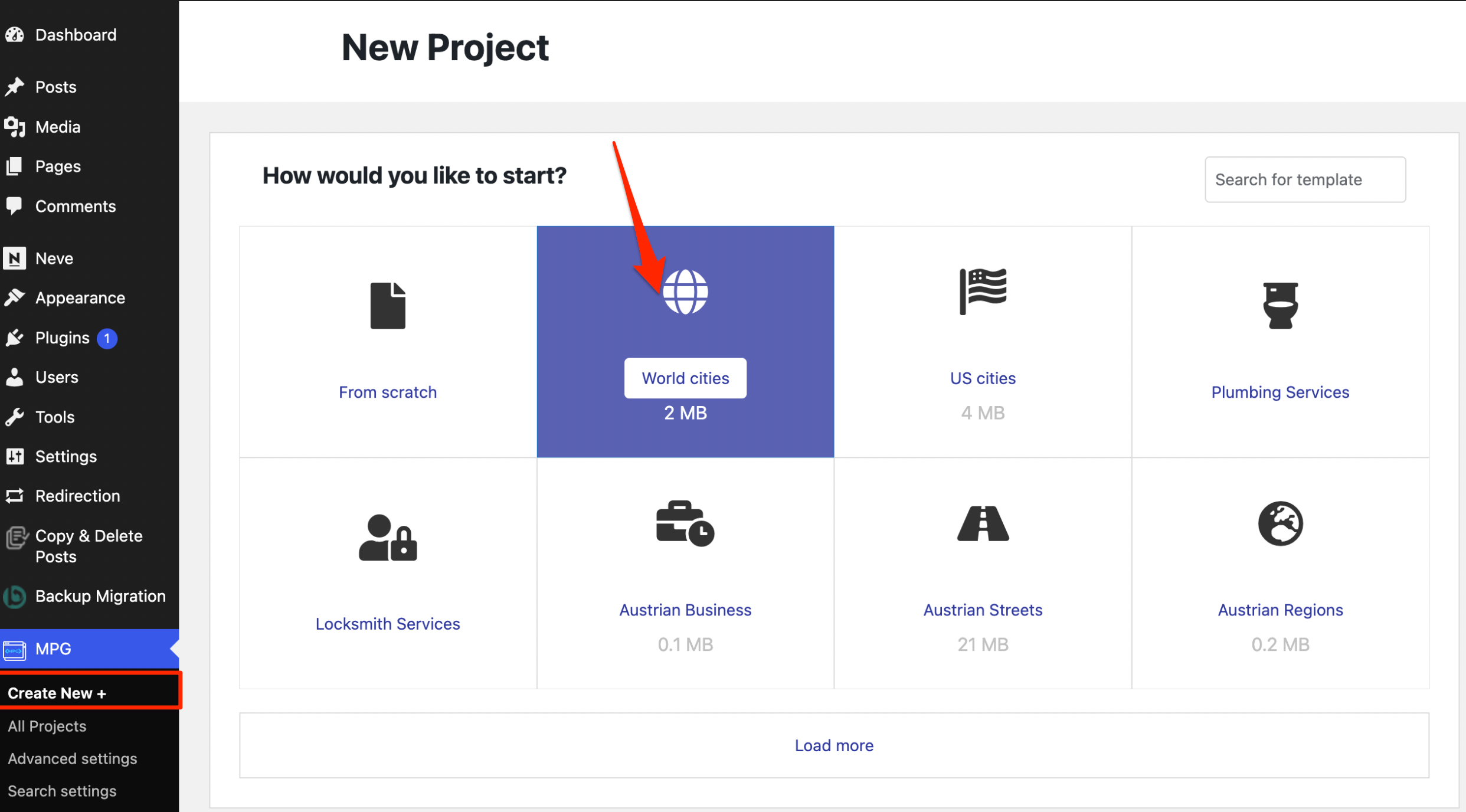
📝 Note: For further details about how to start page generation using a template, check this dedicated doc.
Starting from scratch
Starting from scratch is a very useful option for users whose dataset is in CSV, Excel, or Google Sheets formats. Creating a project on your own can be done by following these steps:
1. Navigate to MPG > Create New +.
2. On the "How would you like to start?" screen, click on the From Scratch option.
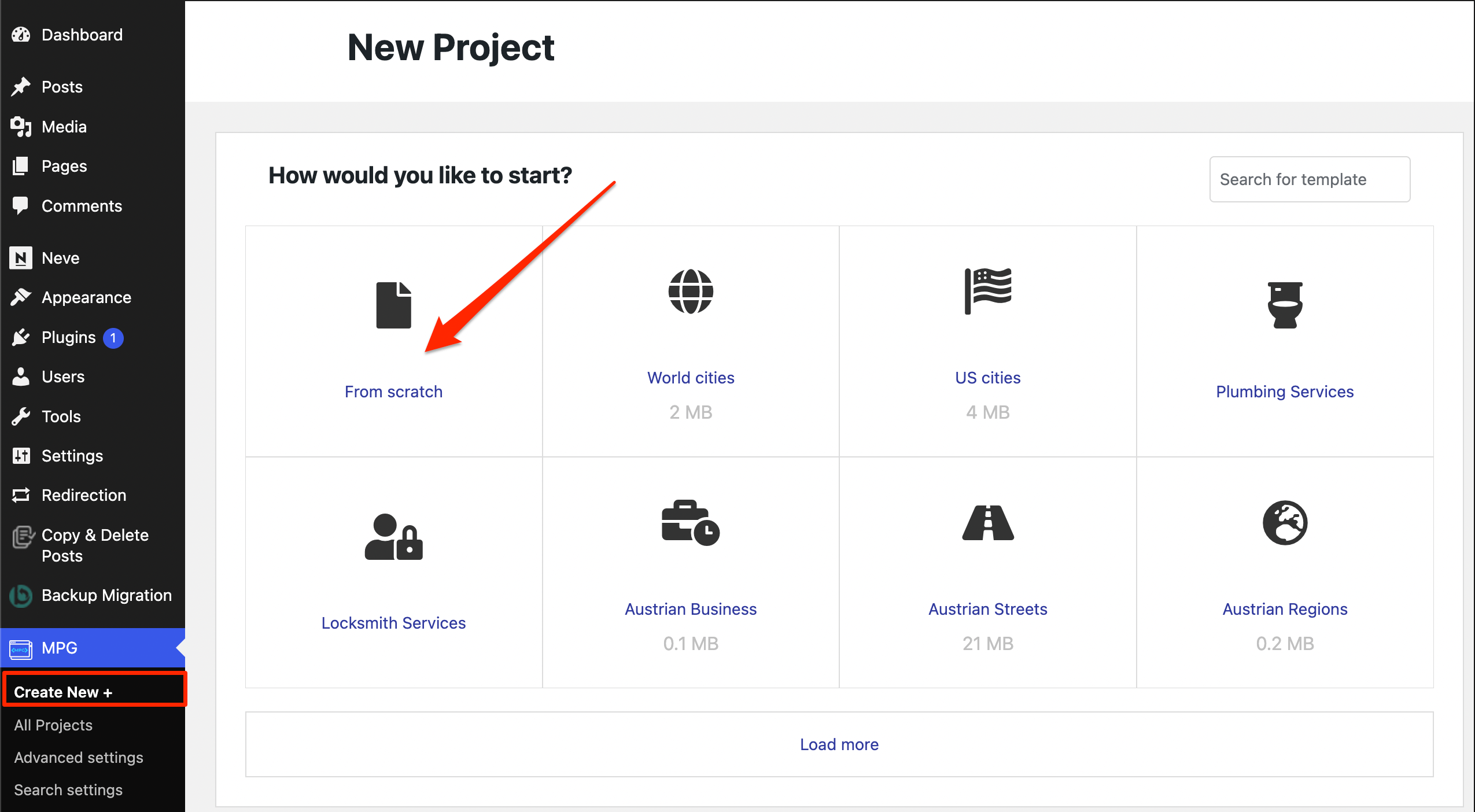
📝 Note: For further details about how to start page generation from scratch, check this dedicated doc.
Project main options
When creating a project, even if it's from scratch or by using a template, MPG offers you a wide palette of options so that you can customize the pages / posts however you desire.
The project is configured in a single Main tab, organized as four numbered steps (Select source, Preview data, Project settings, and Generate URLs).
Project settings
In this step, you can configure the basic settings of the project, like the project name, entity type, template of the pages, and some search filters. When you finish, make sure you Save your changes to unlock the other tabs (Shortcode, Sitemap, Spintax, and Logs).
Select source
The source can be a direct link or an uploaded file, depending on your choice. Click on the Fetch and use button to sync the data, and click on Preview if you want to check how it looks.
Generate URLs
Generating URLs is a very important part of the plugin because it ensures the accessibility of the pages. Here you can establish the format of the URLs and some other settings.
📝 Note: Here is a dedicated doc with detailed explanations of the project options.
📝 Note: There are four other menus with options for the project: Shortcode, Sitemap, Spintax, and Logs. Cache options are located within the Spintax menu.
Removing MPG-generated pages
MPG generates pages dynamically from your project data — it does not create individual entries in the WordPress Pages or Posts screen. To remove generated pages, you delete the MPG project or deactivate the plugin, not the WordPress pages themselves.
Remove one project
To stop generating pages for a specific project while keeping other MPG projects active:
1. Open project settings.
2. In the Main tab, click the Delete template button at the bottom.
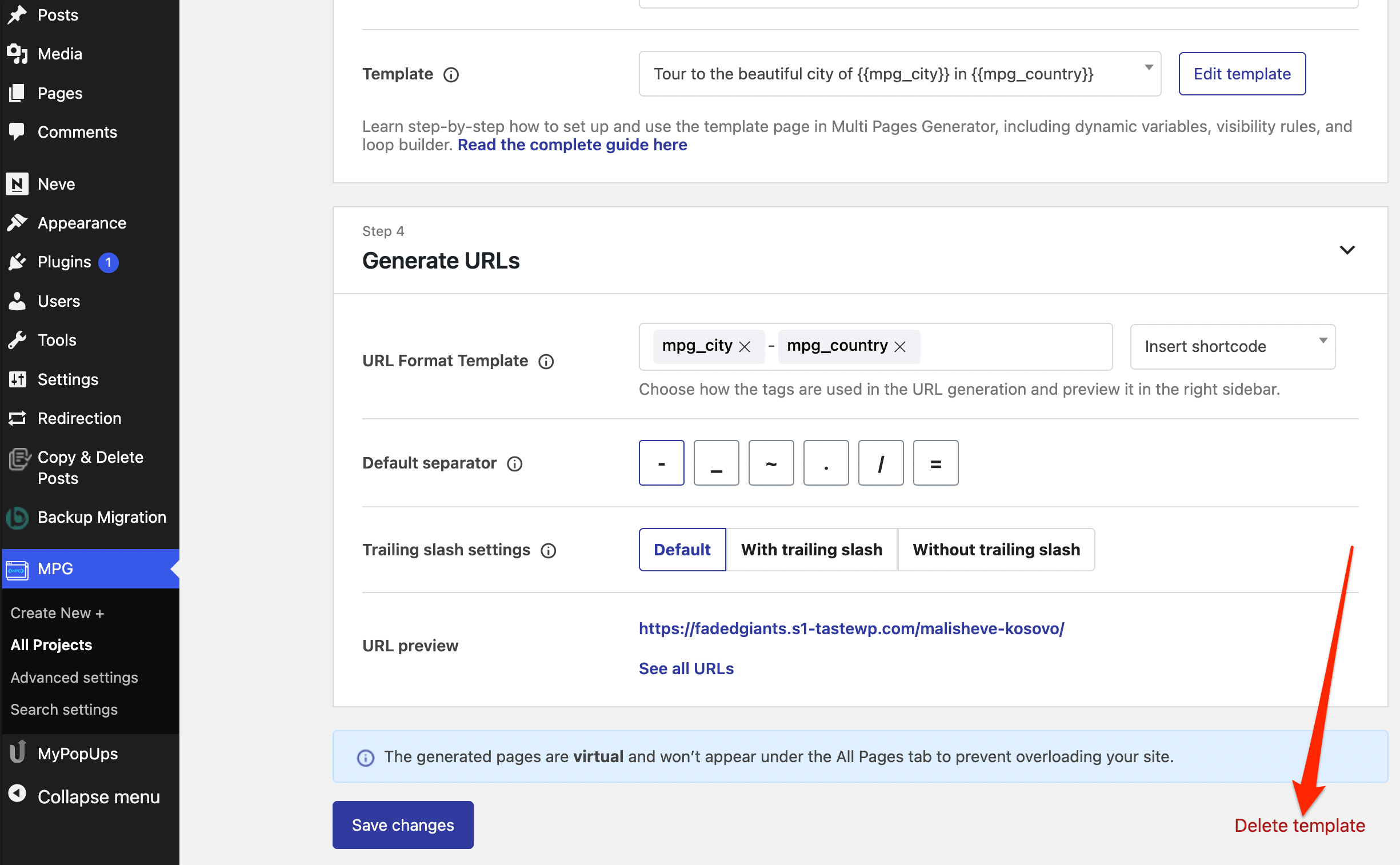
3. Click Yes to confirm.
After deletion, visitors to the generated URLs will receive a 404 (Not Found) response.
📝 Note: The Delete template button is available only after the template is created and saved.
Remove all MPG-generated pages
To stop all MPG-generated URLs on the site at once, deactivate or uninstall the plugin. All generated pages will immediately return 404. For more details, see What happens when you uninstall MPG?.
SEO considerations
After deleting a project or deactivating MPG, affected URLs return a 404 (Not Found) status. This is the standard way to signal that a page no longer exists.
If you want to send a stronger signal to search engines, you can configure a 410 (Gone) status code using a redirect plugin such as Redirection or Yoast SEO Premium. Unlike 404, a 410 response tells crawlers the content is permanently gone and will not return.
Before removing a large set of generated pages, check Google Search Console for traffic and backlinks pointing to those URLs. If pages have significant traffic or backlinks, consider redirecting them to relevant replacement content instead.
MPG Settings
The MPG plugin allows for two types of settings:
| Advanced Settings | Search Settings |
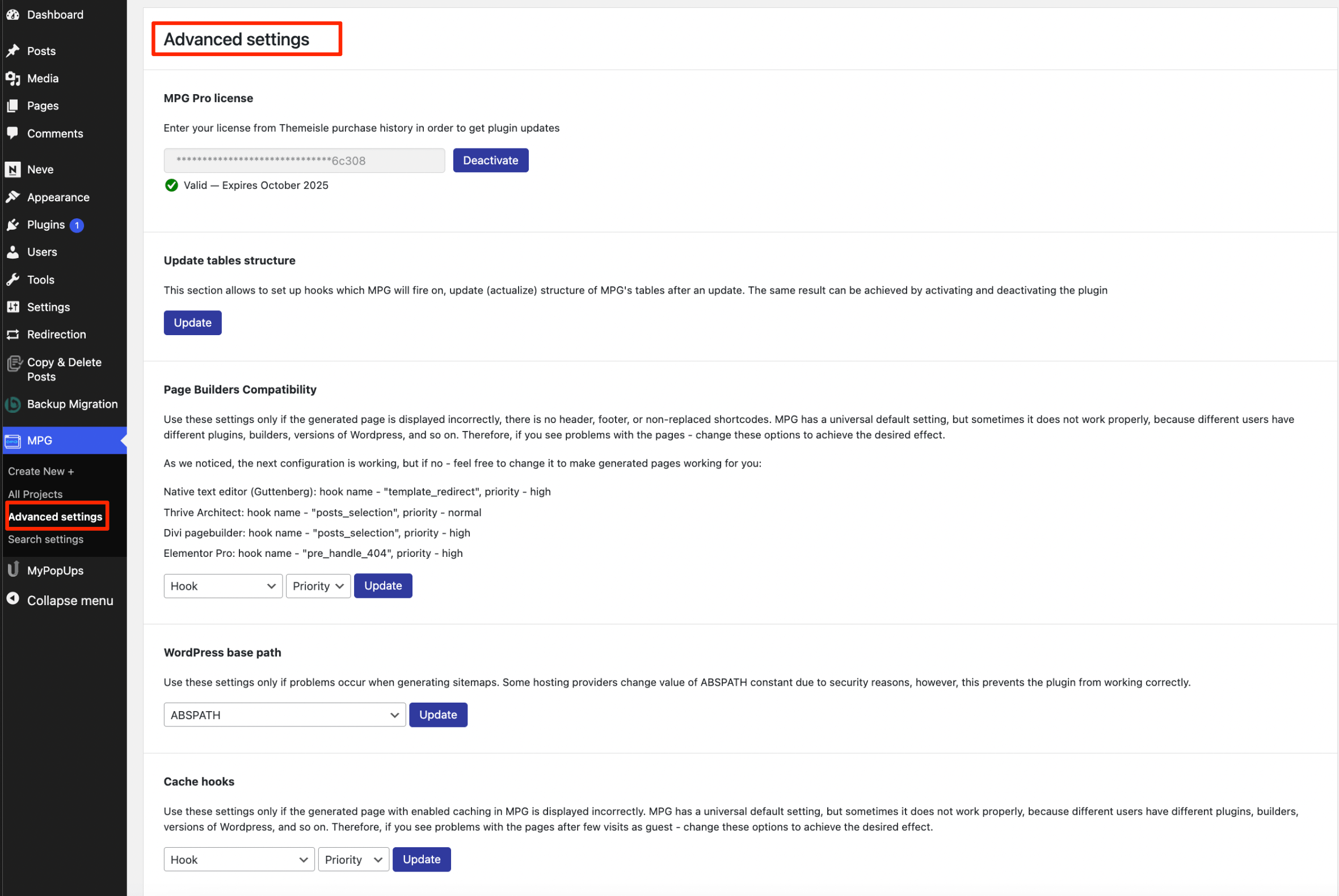
Advanced Settings
MPG Pro license
Update tables structure - allows you to refresh the MPG tables, similar to the disabling / enabling process of the plugin.
Page Builders Compatibility - it's recommended if the generated pages are not displayed correctly ( there is no header, footer, non - replaced shortcodes ).
WordPress base path - recommended if there are problems with the sitemaps, due to the constant change of the ABSPATH used for security reasons.
Search Settings
Here you will find settings that help your website to be found by search engines.
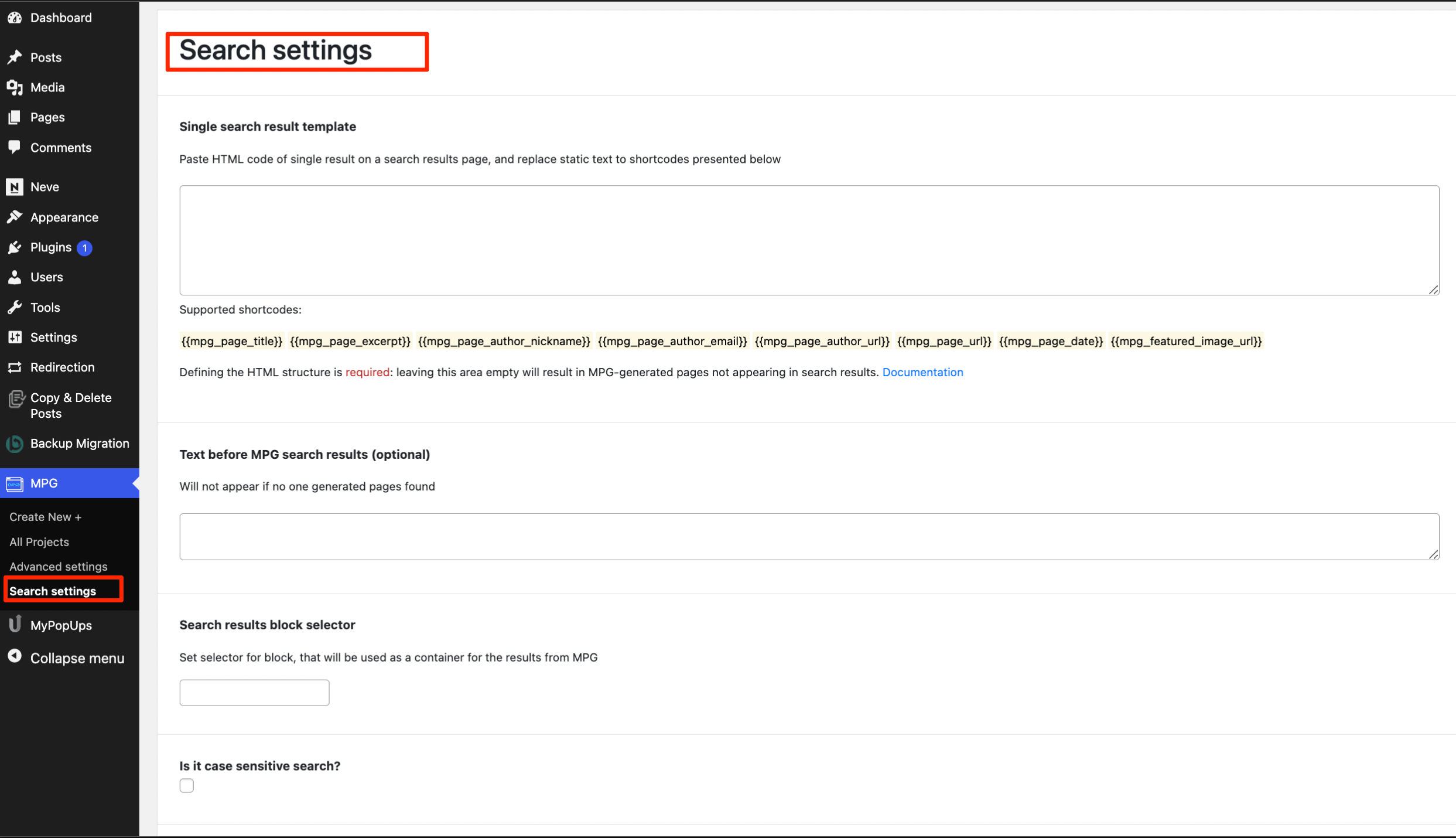
📝 Note: Check this dedicated doc to learn more about how to search through generated pages.
Use Cases
The MPG plugin is useful not only for websites that require a lot of pages, but it represents the key for web developers that want to have pages in bulk under the same domain, strengthening the SEO of the website. By having custom bulk pages, your chances of getting top-ranked by search engines boost.
The most popular use cases of the MPG plugin are:
- Location pages
- Directory websites - lists of firms, websites, and individuals.
- Listing pages - listing other services or providers.
- Affiliate pages - generating pages for the Amazon affiliate program for each individual product or group of products.
- Partner / Vendor pages
- Parts pages - uploading parts catalogs and generating a page for each model number with its specs.
📝 Note: For further details about SEO plugins compatible with the MPG plugin, check this doc.