
MPG Troubleshooting Guide
This guide contains common queries that may help you work with MPG. For more information about the MPG plugin, please refer to the main documentation.
In this article
General requirements
- Make sure you are using the latest version of the plugin.
- If you are using a direct link to the source file, make sure that you share your Google Sheet before using that link. Sometimes, unwanted characters at the end of the link cause an error message stating “Datatable is not defined.”
- Make sure the headers in the source file do not contain any brackets like {{title}}, {{mpg_title}}, [[title]]. Also, there is no need to include the prefix “mpg” in front of the header, as it is automatically added by our plugin. Avoid using header names that contain spaces or the underscore “_” character.
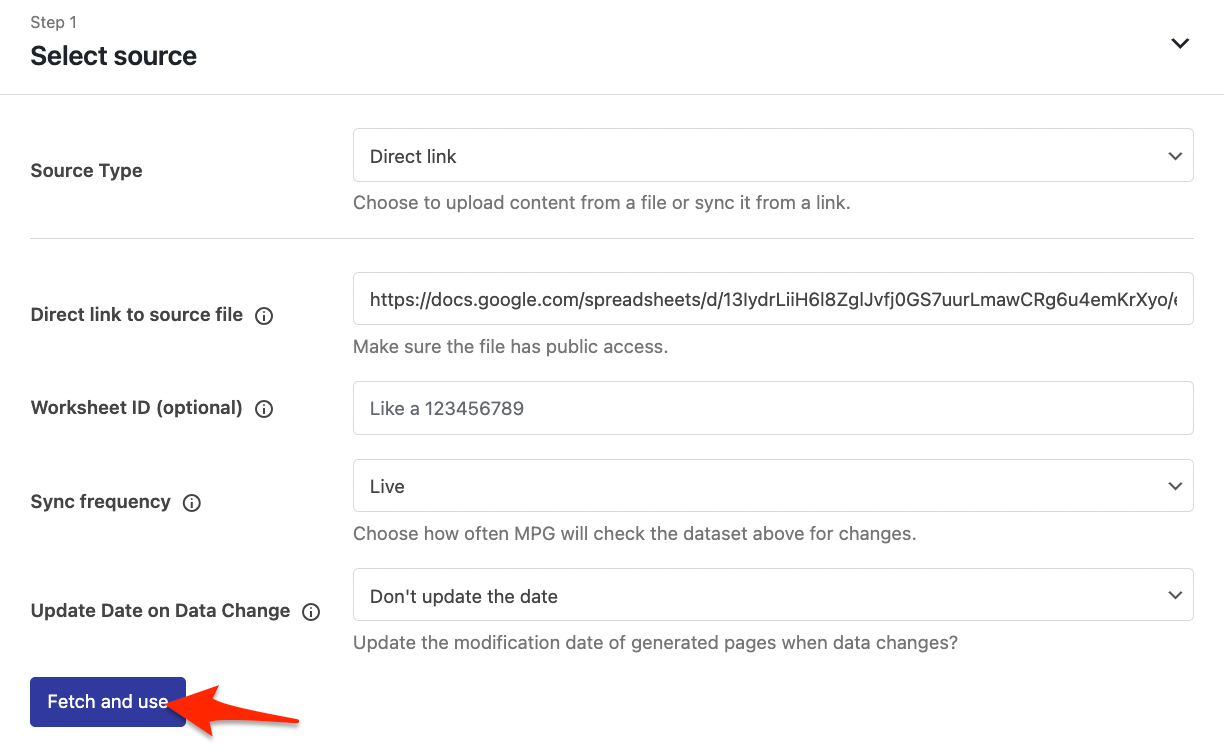
- When replacing or migrating a data source (for example, switching from an Excel file to a Google Sheets link), click Fetch and use afterwards. This reloads the data and refreshes the column headers stored in the project, so added and reordered columns are picked up automatically. If a column that your project used is no longer in the new source, MPG records a warning in the project Logs tab, and any {{mpg_*}} tag or URL part that used it stops rendering until you update it.
Common issues and solutions
Scheduled sync reports "Your project has not properly configured source file" after switching to Upload file
This notification can appear when a project previously used a scheduled Direct link source and now uses Upload file. Scheduled synchronization applies to Direct link sources. If its former scheduled task remains attached after you change the source type, it can still try to run and send this notification even when Preview data shows the uploaded rows correctly.
Uploading the file again does not remove the lingering scheduled task. Clear the schedule through the Direct link controls first:
- Open the affected project through MPG > All Projects, then open Main > Step 1: Select source.
- Change Source Type from Upload file to Direct link to display the scheduling controls.
- Click Unschedule to remove the existing scheduled task.
- Change Source Type back to Upload file without saving the project while Direct link is selected.
- Select the original CSV, XLSX, or ODS file again, wait for Preview data to refresh, and save the project.
A project cannot be saved / URLs disappear from the project
Saving a project rebuilds its internal index. The error message tells you which of the cases below you are dealing with, so read it before changing any settings.
The error says "Can't rebuild project index"
If the notification reads Can't update project by ID. Details: Can't rebuild project index., an earlier rebuild of the same project was interrupted before it could finish, most often because it ran out of PHP memory or exceeded the maximum execution time.
While an index is being built, MPG keeps a rebuild marker on that project. An interrupted rebuild leaves the marker behind, and MPG refuses to start another rebuild until it clears. The marker clears on its own five minutes after the interrupted attempt.
- Wait at least five minutes after the failed attempt.
- Open the project and save it once.
- Refresh the page and confirm the data preview shows your current source file.
If scheduled data fetches fail for the same reason, the project's Logs tab records Index regeneration is already in progress for this project. for each skipped run.
If the message returns after the five-minute wait, the rebuild is being interrupted every time it runs. Raise your PHP limits or split the dataset, as described in [MPG] 500 – Internal Server Error.
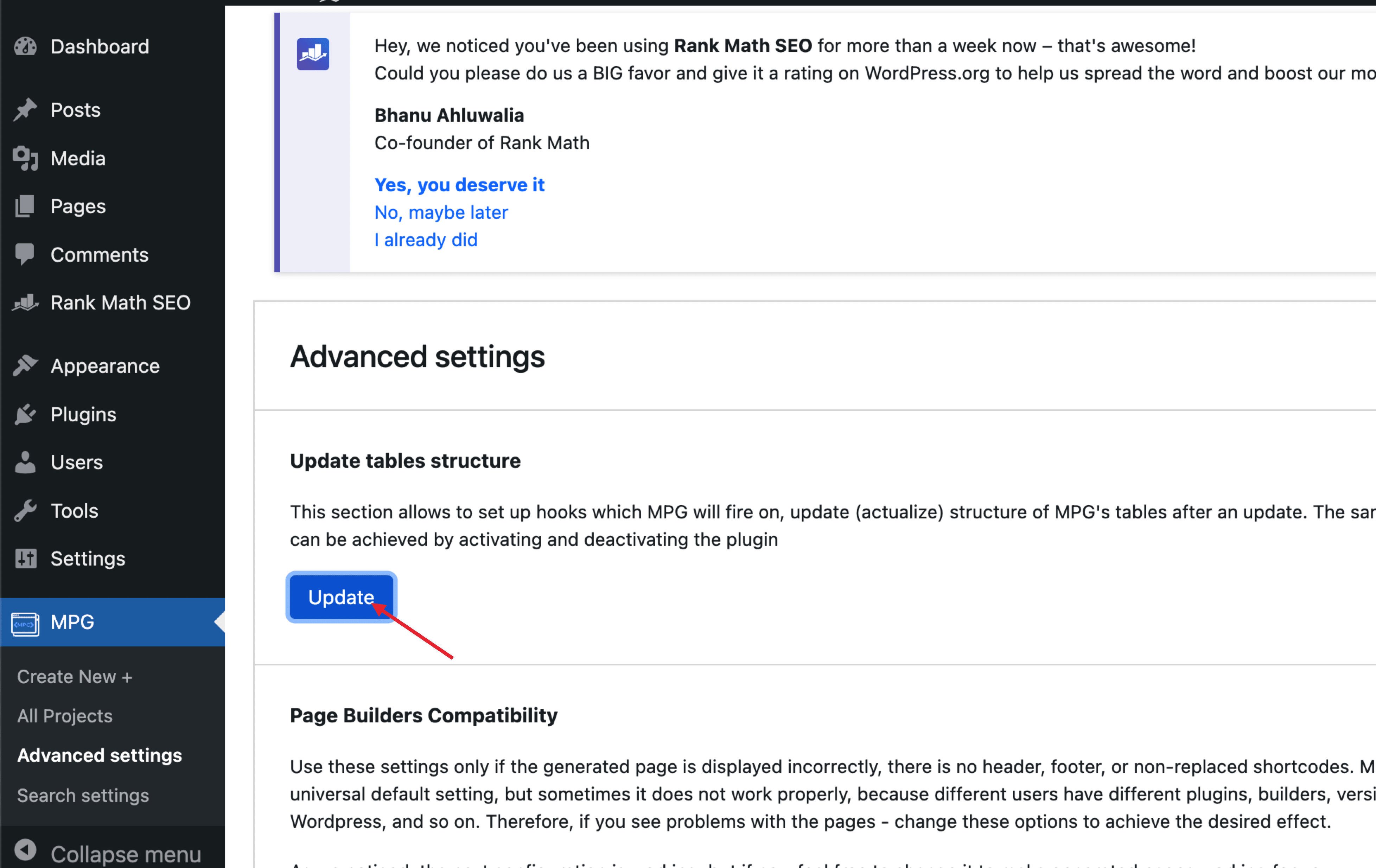
📝 Note: Clicking Update under Update tables structure in MPG > Advanced settings does not clear the rebuild marker. That button only re-creates MPG's database tables.
Saving a large spreadsheet fails with a generic error and the old data returns
If saving shows a generic red error notice and the page reloads with your previous spreadsheet data, the server stopped the rebuild before MPG could report a specific error. This usually means PHP memory or execution-time exhaustion, and it can happen even when the spreadsheet itself is valid.
- Check your PHP error log, or ask your host to check it, and confirm a memory or timeout error at the time of the save. A generic notice can have other causes, so confirm before changing any limits.
- If it is confirmed, raise your PHP limits or split the dataset into several projects. See [MPG] 500 – Internal Server Error for the values to use.
- Wait five minutes before retrying, so the rebuild marker from the interrupted attempt has cleared.
- Re-upload the file, save once, and confirm the new data is still selected and visible in the data preview after a refresh.
Database errors after a plugin update
If URLs disappear and neither case above applies, MPG's database tables may be out of date. Navigate to MPG > Advanced settings and click Update under Update tables structure:
Where can I find the generated pages?
MPG-generated pages are virtual pages, not directly accessible on your Dashboard/editor, so you won't find them under the pages section like normal pages or posts. You can access them through the URLs generated in the MPG Project. More details can be found here.
Update the content of existing pages
To update existing pages, make changes in your source file and click the Fetch and use button in the Project settings.
If Fetch and use does not update the frontend
If your generated URLs still show old template blocks or shortcode output after using Fetch and use, follow our dedicated guide: Generated Pages Show Outdated Content After Updates.
Check these common causes first:
- Test the Page Builders Compatibility setting in MPG > Advanced settings.
- Purge all cache layers (plugin, server/hosting, CDN, and browser cache), then retest in an incognito/private window.
- Confirm your source file does not use
urlas a column header, becauseurlis reserved by MPG. - Review your source values and template content for invalid or unclosed HTML, which can break frontend rendering and make updates appear stale.
MPG keeps loading the first worksheet tab
If your Google Sheet has several tabs and MPG always generates pages from the first one, check the Worksheet ID field in your project's Source settings. MPG picks the tab from that field alone, so a gid= value included in the source link has no effect.
- Open the tab you want to use in Google Sheets and copy the number that follows
gid=in your browser's address bar. - Enter only that number in the Worksheet ID field of your MPG project.
- Click Fetch and use, confirm the Data preview shows the expected rows, and Save the project.
If the project still loads the first tab after saving, update MPG to the latest version and repeat the steps above. Older releases did not always keep the selected worksheet after the first fetch.
Fatal error: Cannot use output buffering in output buffering display handlers
If you see preg_replace(): Cannot use output buffering in output buffering display handlers in your PHP error log (often pointing to MPG Helper.php), your theme or page builder is likely using output buffering in a way that conflicts with MPG search/query-loop injection.
To isolate the conflict:
- Open MPG > All Projects and edit the affected project.
- Disable Include generated pages in your site search results.
- Disable Display generated pages in your site content listings and query loop.
- Save the project.
- Clear all cache layers (plugin, server/hosting, CDN, and browser cache).
- Retest the affected generated URLs and your site search.
If you still need MPG pages in search or query loops
If your site needs one or both options above, re-enable them one at a time and test after each change. Also test with different Page Builders Compatibility values if your theme/page builder supports multiple rendering modes.
If the fatal error returns, keep the conflicting option disabled and collect your PHP error logs before contacting support so the team can confirm the exact conflict on your setup.
How to get the source files of the pre-built projects
- Create the project first, then open it.
- Go to the source accordion and click the Download button next to the file to download a CSV file.
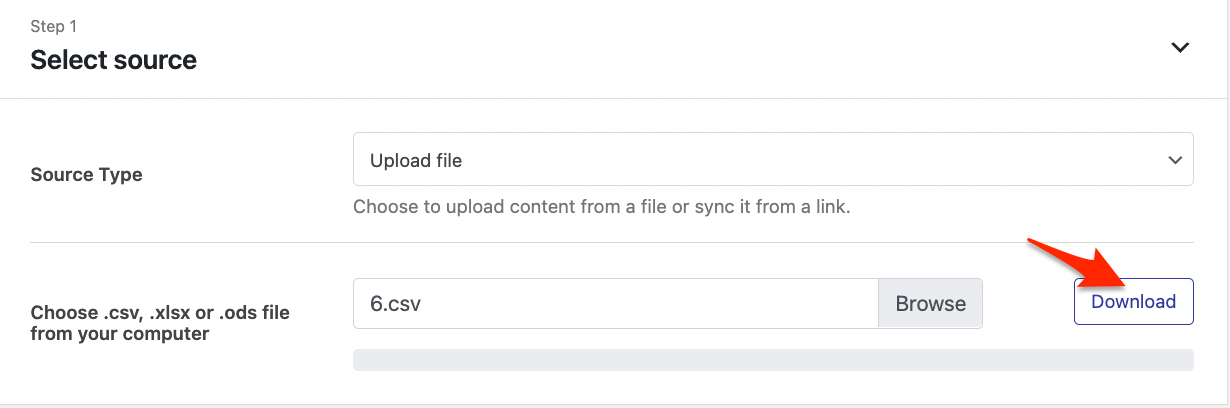 📝 Note: If the download button doesn’t work, access the source file from the
 mpgfolder inside your WordPress uploads directory, usuallywp-content/uploads/mpg/.
Add featured images to MPG pages
Please refer to our dedicated guide.
Use Rankmath/Yoast SEO with MPG
You can use an SEO plugin like Rankmath or Yoast SEO with MPG. To generate meta titles and descriptions for MPG pages, edit your template page and add MPG shortcodes like {{mpg_COLUMN-NAME}} under the meta title and description fields, as shown in this screenshot:
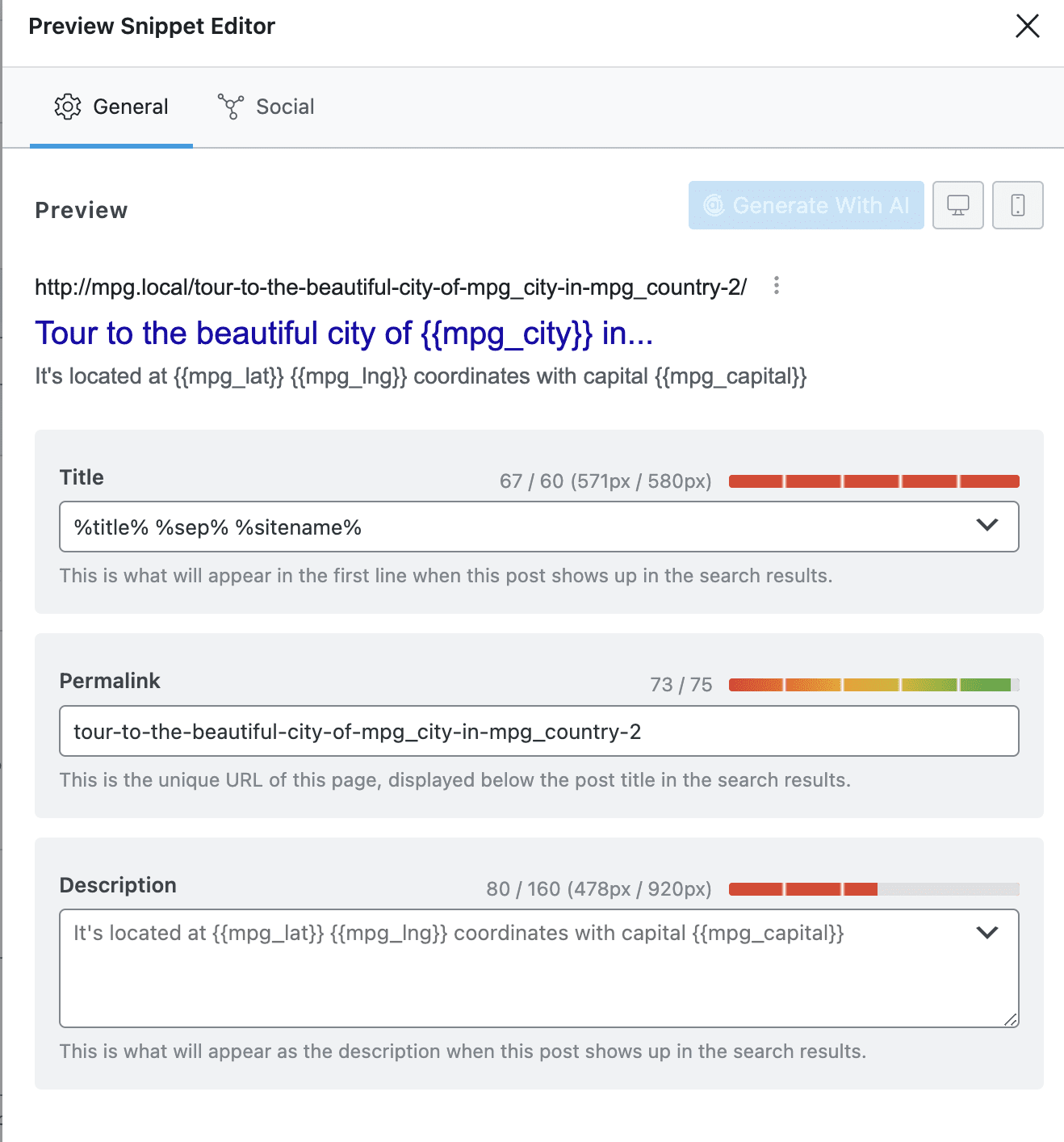
While using SEO plugins, make sure the template page is not marked as "no index" to prevent all generated pages from being indexed.
DataTables warnings on data import/migration
If you see a browser warning similar to “DataTables warning: Requested unknown parameter ‘X’ for row N, column N” after importing or migrating your data source, the column headers stored in the project no longer match the current source file.
Common causes:
- Changing the columns in the source file without clicking Fetch and use afterwards, so the project is still working from the previous column list.
- Removing or renaming a column that placeholders or the URL structure still reference.
- Extra whitespace or special characters in header names that make them appear identical but differ internally.
How to fix it:
- In the MPG project settings, click Fetch and use to reload the source and refresh the column headers stored in the project.
- Open the project Logs tab and look for warnings about columns that are no longer in the source file.
- Update any {{mpg_*}} placeholders and URL parts that still reference a removed or renamed column.
- Preview one of the generated pages to confirm the warning is gone.
📝 Note: You do not need to keep the same column count or column order when you replace a source file. Fetch and use picks up added and reordered columns on its own. Only columns that disappear from the source need attention, because anything referencing them stops rendering.
Generated pages give a 404 error
We have a dedicated guide to debug this issue, which you can find here.
Caching plugin conflicts
MPG keeps its files in an mpg folder inside your WordPress uploads directory, usually wp-content/uploads/mpg/. If your site uses a custom uploads location, the folder follows it. Caching plugins sometimes purge or delete files from that folder. These files contain index data that MPG needs to serve generated pages. When caching removes them, pages that were previously working may start returning 404 errors.
📝 Note: Projects that use Upload file as the source type can automatically rebuild missing index data from the original uploaded source file when a generated URL is requested. This recovery works only if the original uploaded CSV, XLSX, or ODS file is still available on your server.
Symptoms:
- MPG pages return 404 errors after a caching operation (full-site purge, scheduled cleanup, or plugin update).
- The errors disappear temporarily when the MPG project is saved or re-fetched, then return after the next cache purge.
- 404 errors affect multiple projects at once rather than individual pages.
How to fix it:
- Visit one affected generated URL once to let MPG attempt automatic index recovery.
- If the URL still returns 404, open the affected project and confirm the uploaded source file is still available. Re-upload the file and click Fetch and use if needed.
- Open your caching plugin settings (for example, WP Rocket, W3 Total Cache, LiteSpeed Cache, or WP Super Cache). Note that the exact menu location and option names vary between plugins — consult your caching plugin's documentation if you are unsure where to find these settings.
- Find the file or directory exclusion settings for cache purge or cleanup rules.
- Add your uploads directory path ending in
/mpg/, usuallywp-content/uploads/mpg/, to the exclusion list so the caching plugin does not delete files in that folder again. - Save the settings and perform a manual cache purge.
- Visit one of the affected MPG pages to confirm it loads correctly.
⚠️ Important: The exact location of the exclusion setting varies by caching plugin. Look for options labeled Never cache the following pages, Excluded files, or Purge exclusions. Consult your caching plugin's documentation if you cannot locate this setting.
Project data missing after site migration
If MPG shows an error like could not open ... .csv for reading! file does not exist after moving or restoring your site, the source files for one or more projects were not transferred.
MPG stores uploaded CSV, XLSX, and ODS source files in an mpg folder inside your WordPress uploads directory, usually wp-content/uploads/mpg/. Because this folder sits inside the standard uploads directory, migration and backup tools that copy your media library normally include it. Project data is most often missing because the tool was set to skip uploads, or because the site was last used with an older version of MPG that stored these files in wp-content/mpg-uploads/ instead.
📝 Note: If you see wp-content/mpg-uploads/ in an error message or find that folder on your server, it is left over from an older MPG version. MPG moves those files into the uploads directory automatically when it updates, and can still read them from the old location in the meantime. Copy that folder along with the rest of the site if you are migrating from a server that was last running an older version.
How to recover project data:
- Copy the
mpgfolder from your old host's uploads directory to the same path on the new host. If the old site predates the move to the uploads directory, copywp-content/mpg-uploads/as well. - If the old host is unavailable, restore those folders from a full-site backup.
- If you do not have a backup, ask your previous host for a server snapshot that includes your uploads directory.
- If recovery is not possible, re-upload the original source file in each affected MPG project and click Fetch and use.
Before migrating an MPG site
- Verify your migration or backup tool includes the WordPress uploads directory, and that the
mpgfolder inside it is not excluded. - If your migration plugin has a custom include/exclude list, explicitly include the
mpgfolder in your uploads directory. - Keep a separate backup copy of that folder before you start the migration.
After migration
- Confirm the
mpgfolder exists in the uploads directory on the new server and contains your project source files. - Open each MPG project and make sure the source file is still attached.
- Click Fetch and use to refresh project data after the move.
- Test a few generated URLs to confirm they load correctly.
Generated pages have missing or broken styles when using Divi
If MPG-generated pages show incorrect fonts or colors, a broken hero section, or layout differences between logged-in and logged-out visitors, Divi's CSS optimization settings may be stripping required styles from the virtual pages.
Symptoms:
- The template looks correct in the Divi editor, but generated URLs render with different fonts, colors, or hero section styling.
- Styling appears correct when logged in but breaks for logged-out visitors.
How to fix it:
- In Divi's performance settings, locate the CSS optimization options and disable Static CSS File Generation, Dynamic CSS File Generation, and Critical CSS Generation. Test disabling them one at a time to identify which setting is causing the conflict.
- After each change, clear Divi's cached CSS files using the built-in clear or purge option in Divi's performance settings.
- Clear all other cache layers: your caching plugin, server or hosting cache, and any CDN cache.
- Open a generated MPG URL in an incognito or private browsing window to confirm the styling is restored.
Generated URLs redirect to the homepage
- Ensure no redirection plugins are active in your dashboard.
- Check that generated URLs don’t contain special characters.
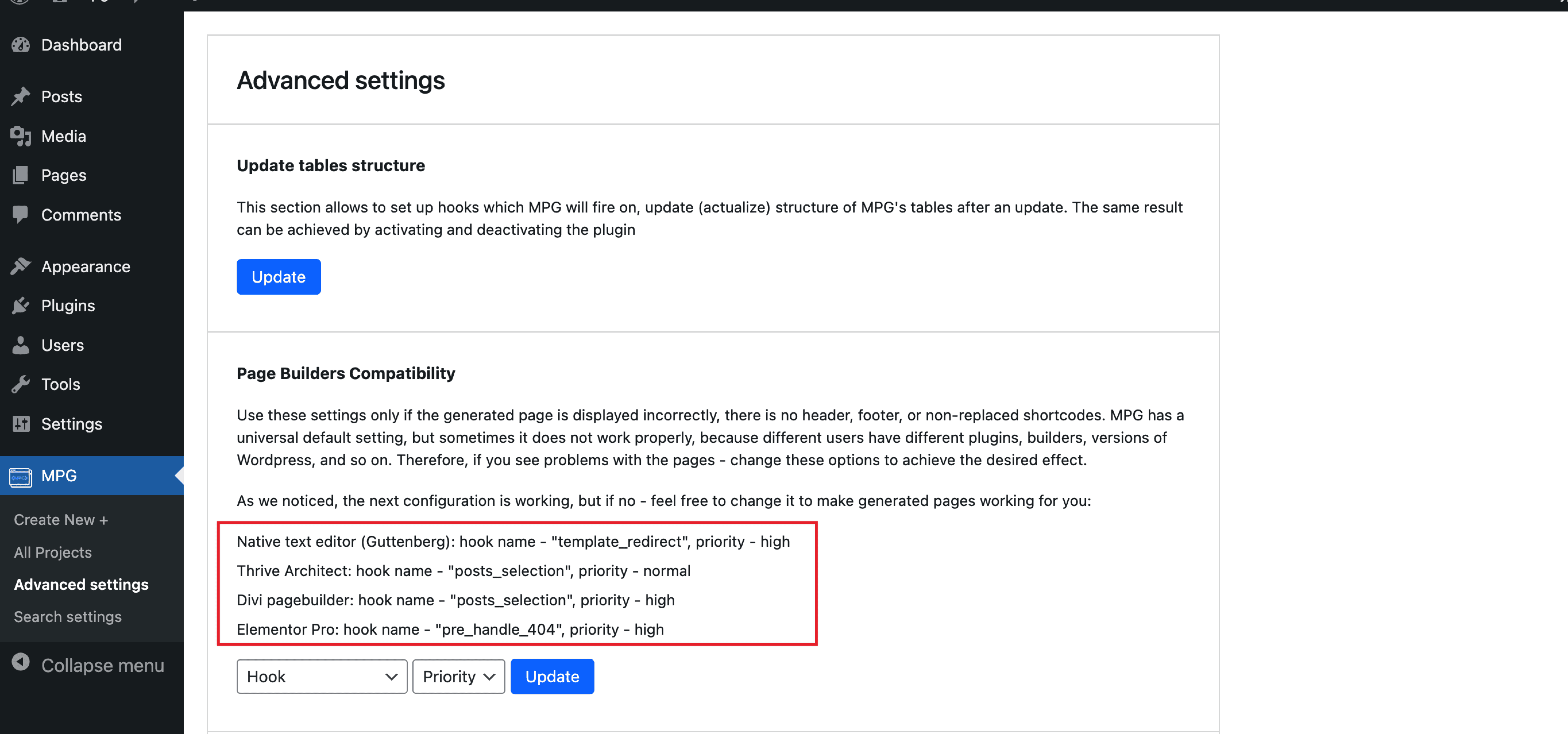
- If using page builder plugins, try the page builder compatibility options available under MPG > Advanced settings. Refer to this screenshot:
Sitemap not generated
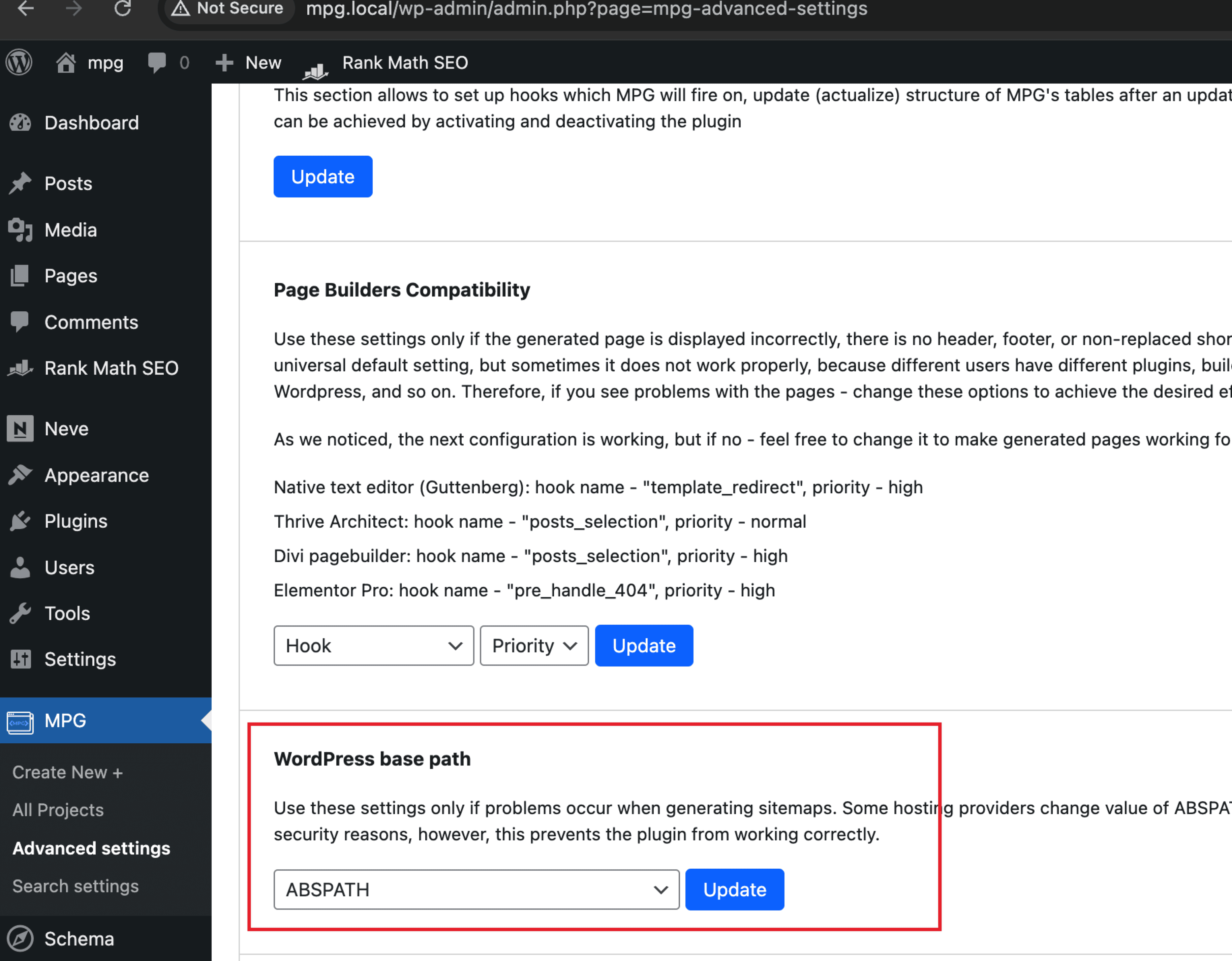
We have a dedicated guide for creating a sitemap that you can check here. If issues persist, check the WordPress base path settings under MPG Advanced settings. See this screenshot for reference:
MPG pages not indexed
It's important to understand that search engines manage the indexing process, which involves various factors beyond the direct control of our plugin. While our plugin facilitates the creation of SEO-friendly pages and sitemaps, the final indexing relies on search engines like Google.
📝 Note: If you still need help, feel free to contact our support team - pro users/free users.