
Generated Pages Show Outdated Content After Updates
This guide helps you fix situations where MPG-generated pages still show old content after you have updated your source file and clicked Fetch and use.
In this article
If your project uses Live refresh
Live sync does not re-check your source on every page view. It checks at most once every 15 minutes, so for a short time after you change your source, generated pages can still show the previous values. This is normal, and switching to a different Sync frequency does not make the new values arrive sooner — every scheduled option checks less often than Live.
If you do not want to wait for the next check, pull the data yourself:
- In your WordPress dashboard, go to MPG > All Projects and open the affected project.
- Click Fetch and use to pull the latest source data right away.
You can also shorten the interval MPG uses for Live projects — see How to set custom frequency for MPG data fetch.
⚠️ Important: Keep MPG updated to the latest version. Older releases could keep using the previous data index after a Live refresh, which left outdated values on generated pages no matter how long you waited.
If your pages are still wrong after you have run Fetch and use, continue with the checks below.
Rebuild the MPG table/index manually
- In your WordPress dashboard, go to MPG > Advanced settings.
- In Update tables structure, click Update.
- Wait for the process to complete, then open your MPG project and run Fetch and use one more time.
This forces MPG to refresh its internal tables/index data and helps when stale content appears right after project or source changes.
Clear caches and retest generated URLs
- Save your WordPress permalink settings by going to Settings > Permalinks and clicking Save Changes (no permalink edits required).
- Clear all cache layers you use: caching plugins, server/hosting cache, CDN cache, and your browser cache.
- Open one of the affected generated URLs in a private/incognito window and verify the latest values are now visible.
- If needed, test a second affected URL to confirm the refresh is consistent across pages.
Step 1: Adjust Page Builders Compatibility
The most common cause of stale content on generated pages is a mismatch between MPG's rendering mode and the page builder or theme active on your site. Different plugin combinations require different compatibility settings.
- In your WordPress dashboard, go to MPG > Advanced settings.
- Locate the Page Builders Compatibility option.
- Try each available option one at a time, saving between attempts.
- After changing the option, visit one of the affected generated pages to see whether the content has updated.
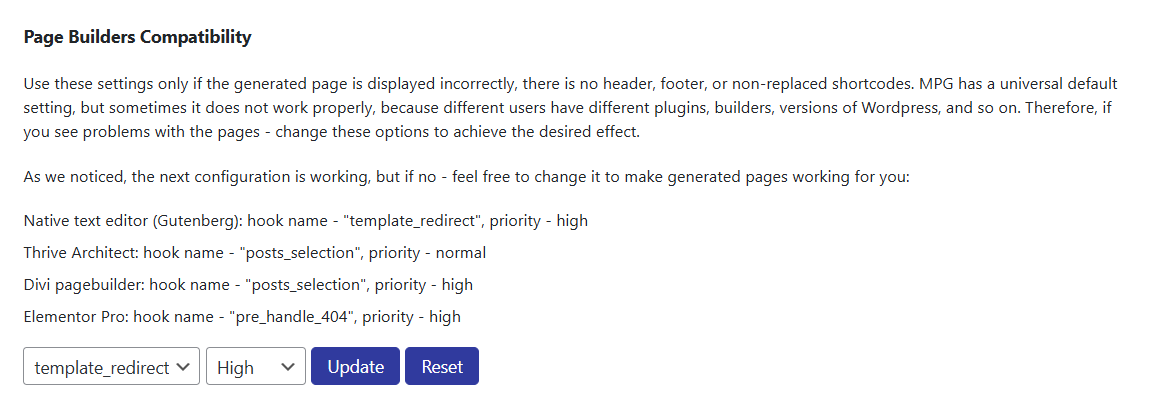
💡 Tip: There is no single correct value for Page Builders Compatibility — the right setting depends on which themes and plugins are active on your site. Work through the options systematically until the pages display the correct content.
Step 2: Purge Server-Level Cache
Even after clicking Fetch and use, a server-level caching layer (such as LiteSpeed Cache, Nginx FastCGI Cache, or a hosting control panel cache) may continue serving a cached version of the page, making it appear as though the content has not changed.
- Log in to your hosting control panel or caching plugin settings.
- Perform a full cache purge or flush for your site.
- If your host provides a Purge All or Clear Cache button in the dashboard, use it.
- After purging, visit the affected generated pages directly in a browser to confirm they now show the updated content.
📝 Note: Plugin-level caches (for example, WP Rocket or W3 Total Cache) are separate from server-level caches. Purge both if you are unsure which layer is responsible.
Step 3: Validate Your CSV Headers
Certain column header names in your source file can cause MPG to fail silently when processing updates.
- Do not use
urlas a column header. MPG reserves this name internally, and using it can prevent content from being processed correctly. - Avoid spaces and underscores (
_) in header names. Use hyphens (-) or camelCase instead. - Do not wrap headers in brackets such as {{title}} or [[title]]. Plain header names are required — MPG adds the
mpg_prefix automatically.
After correcting your headers, re-upload or re-link the source file and click Fetch and use again.
Step 4: Check for theme-builder or global template overrides
Some theme builders can apply a global/default page template that overrides the normal page content output. When this happens, MPG can refresh correctly in the background, but generated URLs may still show an older or static layout from the theme template.
If you already tested Page Builders Compatibility in Step 1, keep in mind that compatibility hook/priority changes do not override an intentional global template assignment.
YOOtheme Builder: MPG source page assigned as the default page template
If the MPG source/template page is set as the default/global page template in YOOtheme Builder, generated pages can inherit that fixed template instead of showing newly added MPG sections.
To fix this, use one of these options:
- Add the missing section directly inside the YOOtheme default template if that content should appear on all affected pages.
- Create or assign a dedicated custom YOOtheme page template for the MPG project so generated pages can render their own MPG template content.
How to verify the fix
After changing the template assignment:
- Clear YOOtheme/theme cache (if enabled).
- Clear your site/server cache and any CDN cache in use.
- Open an affected generated URL in a private/incognito window.
- Confirm the newly added MPG section now appears on the frontend.
Still Seeing Outdated Content?
If the content still appears stale after completing all steps above:
- Disable any third-party optimization or minification plugins temporarily and test again.
- Check whether your theme or page builder has its own built-in caching or fragment caching, and clear it.
- If you recently changed the URL slug for a generated page, the old cached URL may still be served. Allow the cache TTL to expire or force a purge.
📝 Note: If you still need help, feel free to contact our support team — pro users / free users.