
How to Add a Google Map to Generated Pages (in bulk)
MPG WordPress plugin is a mass page generator that lets you generate pages in bulk. The free version processes up to 50 rows from your source file, while the Pro version removes that limit for unlimited row processing. You can make these pages as unique and dynamic as you’d like, with images, videos, and maps!
Embedding a Google map in your location pages not only enhances the customer experience of your visitors but also helps you improve the Local SEO for your website.
The following short video shows how easy MPG makes it to add a Google Map to thousands of pages:
In this article
Step 1: Generate a Google Maps API key
Go to the Google Developers website and click the Go to the Credentials page button.
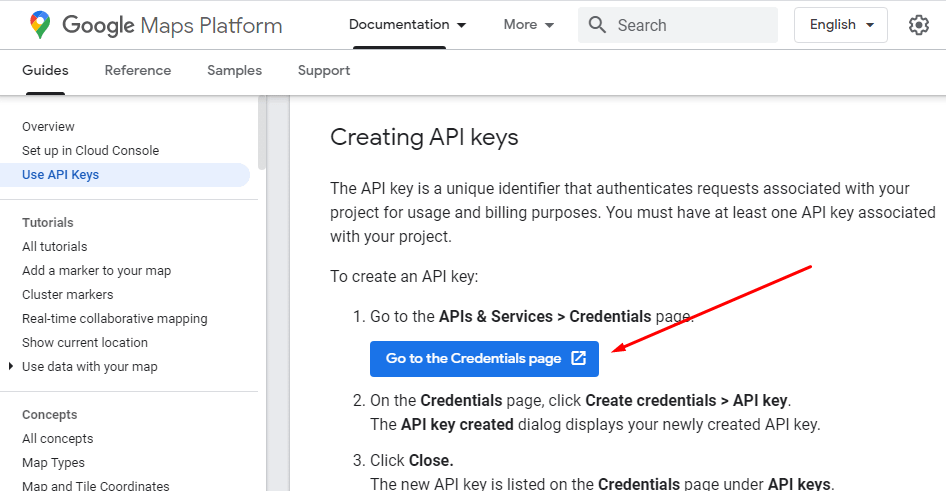
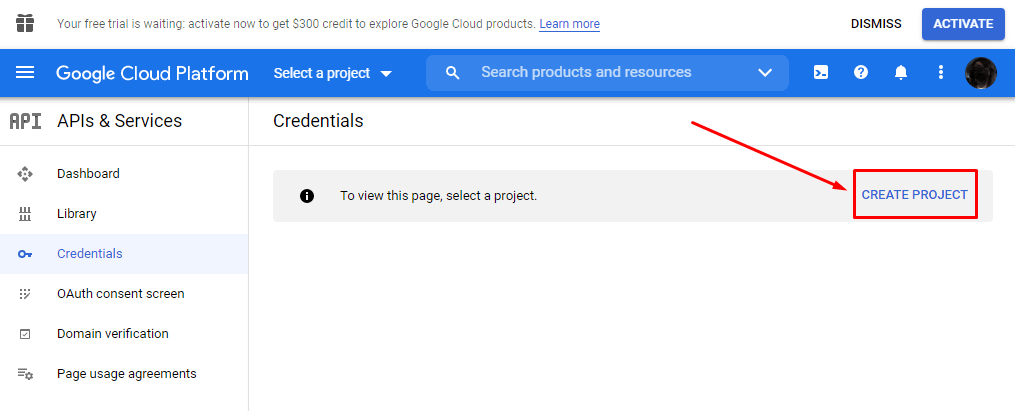
Select an existing project, or click Create a New Project at the upper right-hand corner. Name your project and click Create.
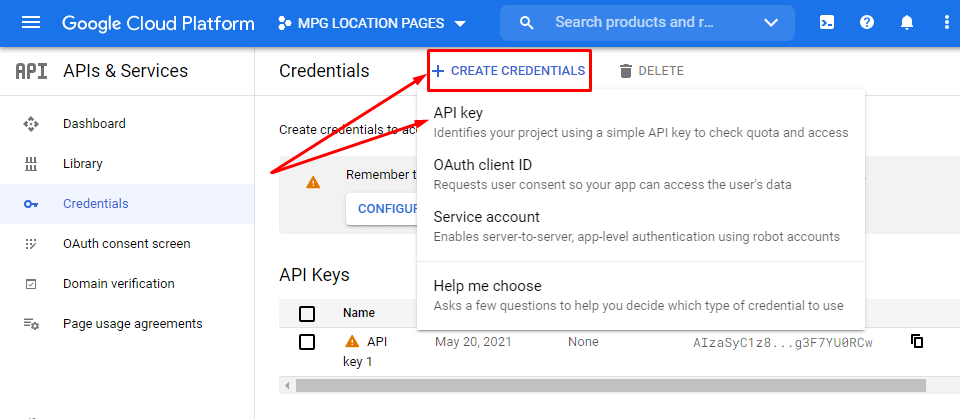
Click the Create Credentials tab and select API Key from the dropdown menu.
Copy the generated Google Maps API key using the Copy button.
Important: Restrict the key to the Maps JavaScript API and your website's HTTP referrers in Google Cloud Console. This key is used in browser code, so do not use an unrestricted key.
Step 2: Add the API key to a code snippet
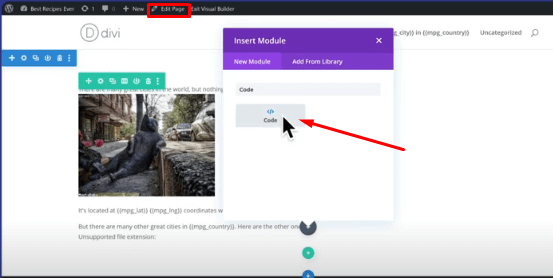
Go to your WordPress page and click the Edit tab from the top bar.
Select Add a code snippet from the menu.
Use a local or private code editor you control to prepare the snippet below. Replace
YOUR_API_KEYwith your restricted key. Do not paste the key into a publicly shared editor or publish it in a public code snippet.html<div id="map" style="height: 300px"></div> <script> let map; function initMap() { const latitude = parseFloat("{{mpg_lat}}".replace(",", ".")); const longitude = parseFloat("{{mpg_lng}}".replace(",", ".")); map = new google.maps.Map(document.getElementById("map"), { center: { lat: latitude, lng: longitude }, zoom: 15 }); } </script> <script async src="https://maps.googleapis.com/maps/api/js?key=YOUR_API_KEY&callback=initMap"></script>Make sure the latitude and longitude shortcodes are the same as the source file for each location.
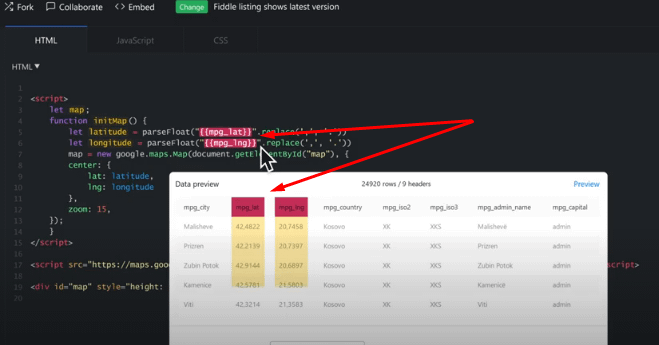
Customize the zoom parameter for your map, and the map container itself to define its style.
Note: MPG works with any WordPress page builder. In the example shown, Divi is being used.
Step 3: Copy the code snippet to the template page
Copy the code snippet you created, paste it into your template page, and click the Save button.
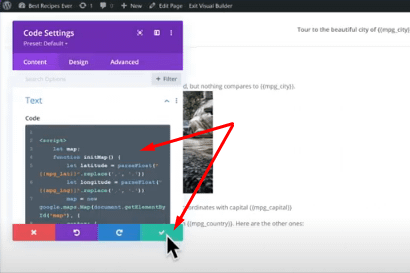
Preview your MPG-generated pages to see how each embedded Google map looks. You can always go back to the code snippet and edit its settings if needed.