
How to Generate a Sitemap?
MPG requires its sitemap to be generated since the generated pages aren't your typical WordPress entities. MPG entities are kept as 'virtual'. Though it has no negative SEO effect, since most frameworks and systems generate 'virtual' pages as well, it is an important differentiation for WordPress sites, as WordPress generates its sitemap from entities registered in its database.
In this article
Prerequisite: Verify Your Page Count
Before generating a sitemap, confirm that your MPG project is showing a page count greater than zero.
- Go to your MPG project in the WordPress dashboard.
- Check the page count displayed in the project overview.
📝 Important: If the page count shows 0, the sitemap will fail. See Troubleshooting Zero Pages below before proceeding.
Steps to Generate a Sitemap
1. Go to your MPG project.
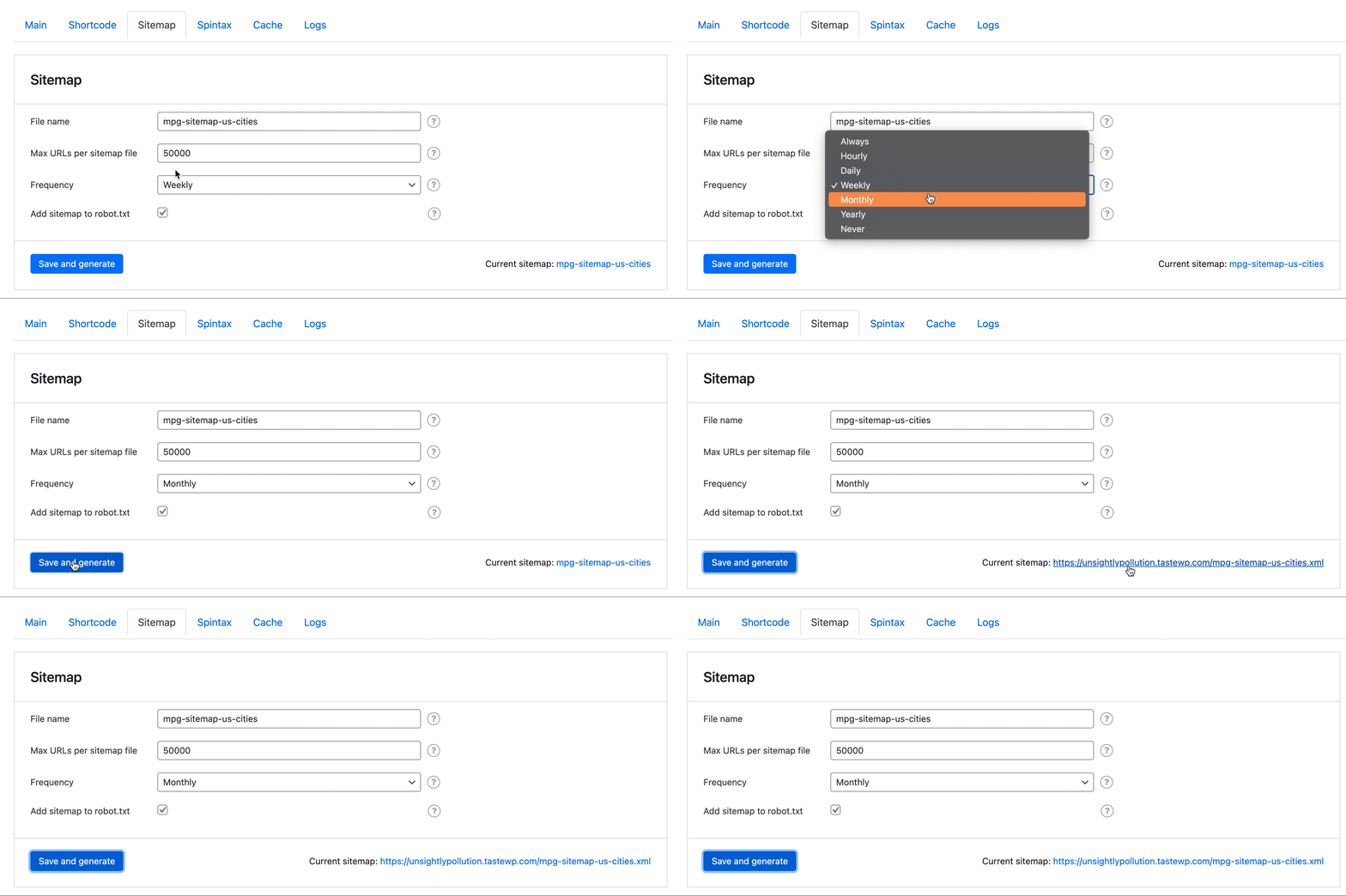
2. At the very top of the page, select the Sitemap tab.
3. Give your sitemap a name, preferably without spaces. Example: mpg-sitemap.
4. Unless you have a specific goal, leave the rest of the settings as they are and press the Save and generate button.
5. Copy the Current sitemap URL shown in the save changes area at the bottom of the Sitemap settings. Add the MPG sitemap as an additional sitemap in Google Search Console.
Keep the same sitemap File name and the same submitted URL in Google Search Console. When you regenerate the sitemap, MPG rewrites that same file, so you do not need to submit a new sitemap each time you add pages:
- If your source is a direct link with a Sync frequency other than Manual, MPG regenerates the sitemap automatically on each sync.
- If you upload a file or use Manual sync, click Save and generate on the Sitemap tab after you update your source.
⚠️ Important: Saving with a different File name deletes the previous sitemap file. Remove the old sitemap from Google Search Console > Sitemaps, then submit the new Current sitemap URL. Otherwise, Google keeps reporting the old entry as Couldn't fetch.
6. Manually check a couple of URLs through Google Search Console to confirm indexability. You can also watch the short tutorial video below for a step-by-step walkthrough:
📝 Note: If you open the XML sitemap, you may get a warning that the file doesn't contain "styles". That is OK, as this file is for search engines only.
Troubleshooting Zero Pages
If your project shows 0 pages, it usually means the data source connection has been lost or the source file has not been loaded correctly. Follow these steps to restore it:
1. Open your MPG project and, under the Main tab, go to Select source.
2. Check which source type you are using:
- Uploaded file (CSV/XLSX/ODS): Re-upload your file by clicking Click to browse and selecting the file again.
- Direct link (Google Sheets or remote CSV): Verify the link is still publicly accessible, then click Fetch and use to re-sync the data.
3. Once the data loads, click Save (or Save and generate on the Sitemap tab) to regenerate the project pages.
4. Return to the project overview and confirm the page count is now greater than zero before attempting to generate the sitemap again.
If you are using a Google Sheets link, make sure the sheet is set to Anyone with the link can view before fetching. Private sheets will return no data.
Common Error: "To create sitemap, call addUrl or addUrls function first"
This error appears when the sitemap generator runs but finds no URLs to include — which happens when the project page count is zero.
How to fix it:
- Follow the Troubleshooting Zero Pages steps above to restore your data source.
- Once your page count is greater than zero, go to the Sitemap tab and click Save and generate again.
If the page count is correct but the error persists, check the WordPress base path settings under MPG → Advanced settings and ensure the base path matches your site URL.
Troubleshooting: sitemap has fewer URLs than expected
If your sitemap is generated but shows fewer URLs than your MPG project page count, use this checklist:
- Confirm the project page count first in your MPG project overview. If the count is lower than expected, fix your source data before checking the sitemap.
- If you updated the source file or source link, open Select source under the Main tab and sync it again:
- Uploaded file (CSV/XLSX/ODS): Upload the latest file version.
- Direct link (Google Sheets or remote CSV): Click Fetch and use to pull the latest rows.
- If you changed URL-related project settings (for example, the URL Format Template or base path), go to the Sitemap tab and click Save and generate again.
- If you use multiple MPG projects, make sure you are checking the Current sitemap URL from the correct project and that each project uses a different sitemap File name.
- If the XML still shows an older count, clear plugin/server/CDN/browser cache and recheck in an incognito window.
Check whether the sitemap was split into multiple files
The Max URLs per sitemap file setting controls how many URLs MPG puts in one XML file. If your total generated URLs are higher than this limit, MPG creates:
- one sitemap index file, and
- multiple child sitemap files.
In this case, do not count only the first file. Open the sitemap index and check all child sitemap files to verify the full URL total.
Verify the generated URL list before regenerating the sitemap
Before regenerating the sitemap, verify that MPG is generating the expected unique URL list:
- Open your MPG project and review See all URLs (URL preview) for the generated list.
- Compare those URLs with your source rows, especially the columns used in the URL Format Template.
- Fix rows with empty values, duplicate values, or non-unique value combinations that can produce duplicate URLs.
- Save your project updates, then return to Sitemap and click Save and generate.
Troubleshooting Sitemap URLs
Sitemap URLs show an IP address instead of your domain name
If your MPG sitemap URLs show a server IP address (e.g., http://123.45.67.89/your-page/) instead of your domain, Google Search Console may report indexing errors. This is not an MPG bug — MPG reads the site URL from WordPress and does not rewrite it. The issue is typically caused by a misconfigured WordPress Site Address, a stale cache, or a reverse proxy on the server.
To fix it, work through these steps in order:
- Check your WordPress Site Address: Go to Settings > General and make sure both the WordPress Address (URL) and Site Address (URL) fields show your domain name, not an IP. Update if needed and click Save Changes.
⚠️ Important: Changing these URL fields can affect logins and redirects. Verify both values carefully before saving.
Regenerate the sitemap: In your MPG project, open the Sitemap tab and click Save and generate so MPG picks up the correct URL.
Clear all caches: Purge your caching plugin (WP Rocket, LiteSpeed Cache, etc.), any server-level cache (Nginx, Varnish), and your CDN cache (Cloudflare, BunnyCDN) to remove any stale sitemap copies.
Still seeing an IP? A reverse proxy or server rewrite rule may be replacing your domain. Contact your hosting provider and ask them to check their server configuration.
Once the issue is resolved, open the sitemap in a browser to confirm domain names appear, then re-submit it in Google Search Console > Sitemaps and monitor the Coverage report.
💡 Tip: To find your sitemap URL, go to the Sitemap tab in your MPG project and copy the Current sitemap link shown at the bottom of the Sitemap settings.
Google Search Console shows "Couldn't fetch" or "Sitemap could not be read"
Google Search Console can show Couldn't fetch or Sitemap could not be read right after you submit a sitemap, even when the sitemap works. Check the sitemap first:
- Make sure the URL you submitted matches the Current sitemap URL on the Sitemap tab of your MPG project.
- Open that URL in a private browser window. It should load without a login and show the XML list of your page URLs. A warning that the file has no styles is normal.
- Make sure you submitted the sitemap under the Google Search Console property for the same domain version as the sitemap URL (for example,
https://www.orhttps://withoutwww).
If any of these checks fail, fix that problem first. For example, if the URL no longer opens, click Save and generate and submit the new Current sitemap URL.
If all checks pass, the status is usually a temporary Google processing result, not an MPG error. Leave the sitemap submitted and wait a few days. Google retries the fetch automatically, and the status typically changes to Success. Deleting and re-adding the sitemap repeatedly does not speed this up.
A successful sitemap status means Google can read the file. It does not guarantee that every page will be indexed. See Why Are My Pages Not Being Indexed? if pages stay unindexed.