
How do I add images to my MPG generated pages?
📝 Note: Adding images to your generated pages works in both the free and Pro versions of MPG. If you want to learn more about the plugin, check out our dedicated doc.
MPG allows you to add images dynamically to your generated pages using data from your source file. Images can be loaded from two different sources.
In this article
Option A: Images hosted in the WordPress Media Library (recommended)
If your images are uploaded to Media → Library, the value stored in your MPG source file must match the image filename used by WordPress, or be the full Media Library URL.
Example Media Library URL:
https://example.com/wp-content/uploads/2024/07/tokyo.jpegValid source file values:
tokyo.jpeg⚠️ Important: MPG does not upload or fetch images automatically.
The image file must already exist in your Media Library, and the filename (including the extension) must match exactly.
Option B: External image URLs
You can also use images hosted externally (for example, CDN links or placeholder services like Picsum).
Example database value:
https://picsum.photos/600/400📝 Note: External images must be publicly accessible and allow hotlinking. If an external image does not load, we recommend switching to Media Library images instead.
1. Add the image file names ( or URLs ) to your source file (database).
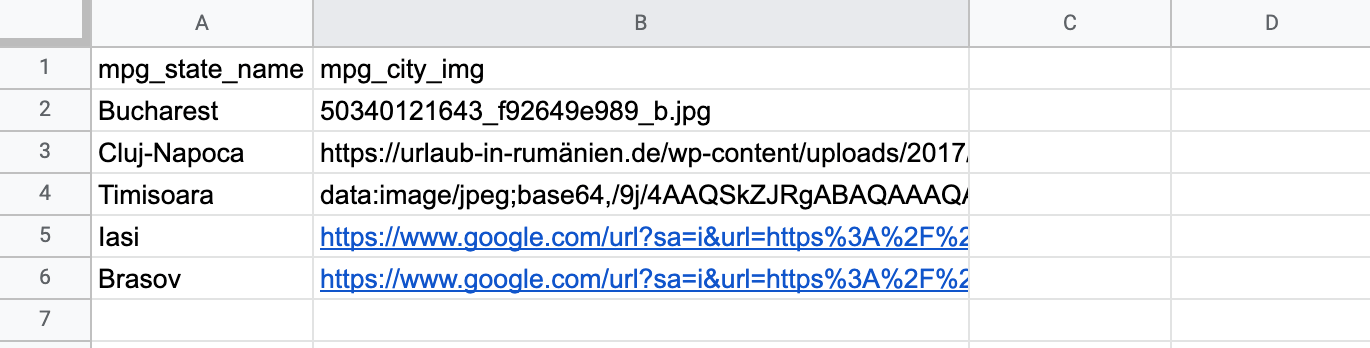
In this doc, we will approach the case of the uploaded files.
2. Upload images to your WordPress Media Library folder.
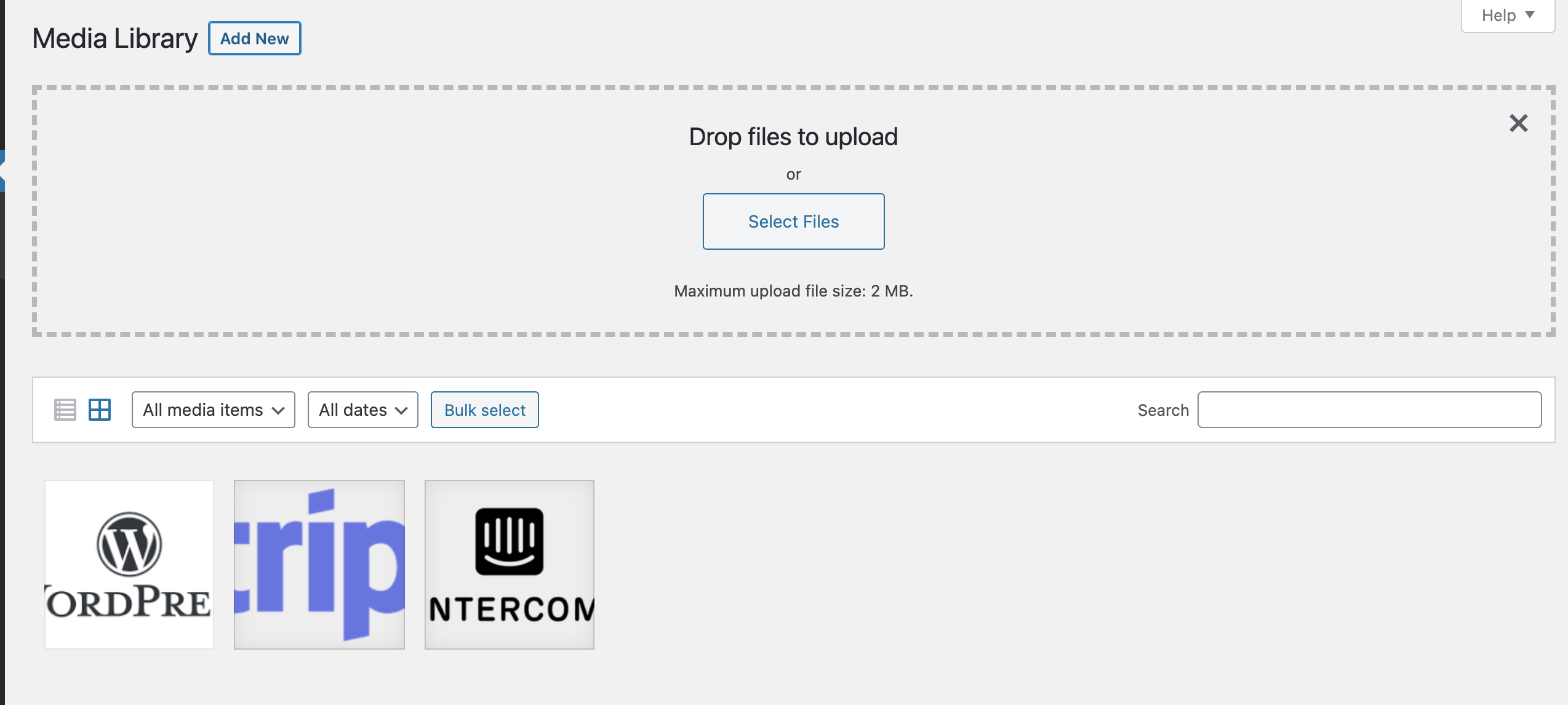
3. Click on your image to read the full image path. Copy the URL to the clipboard to use on the template page.

4. Go to the template page where you want to display images and add an image block.
5. Click on the three dots button and the Edit as HTML.
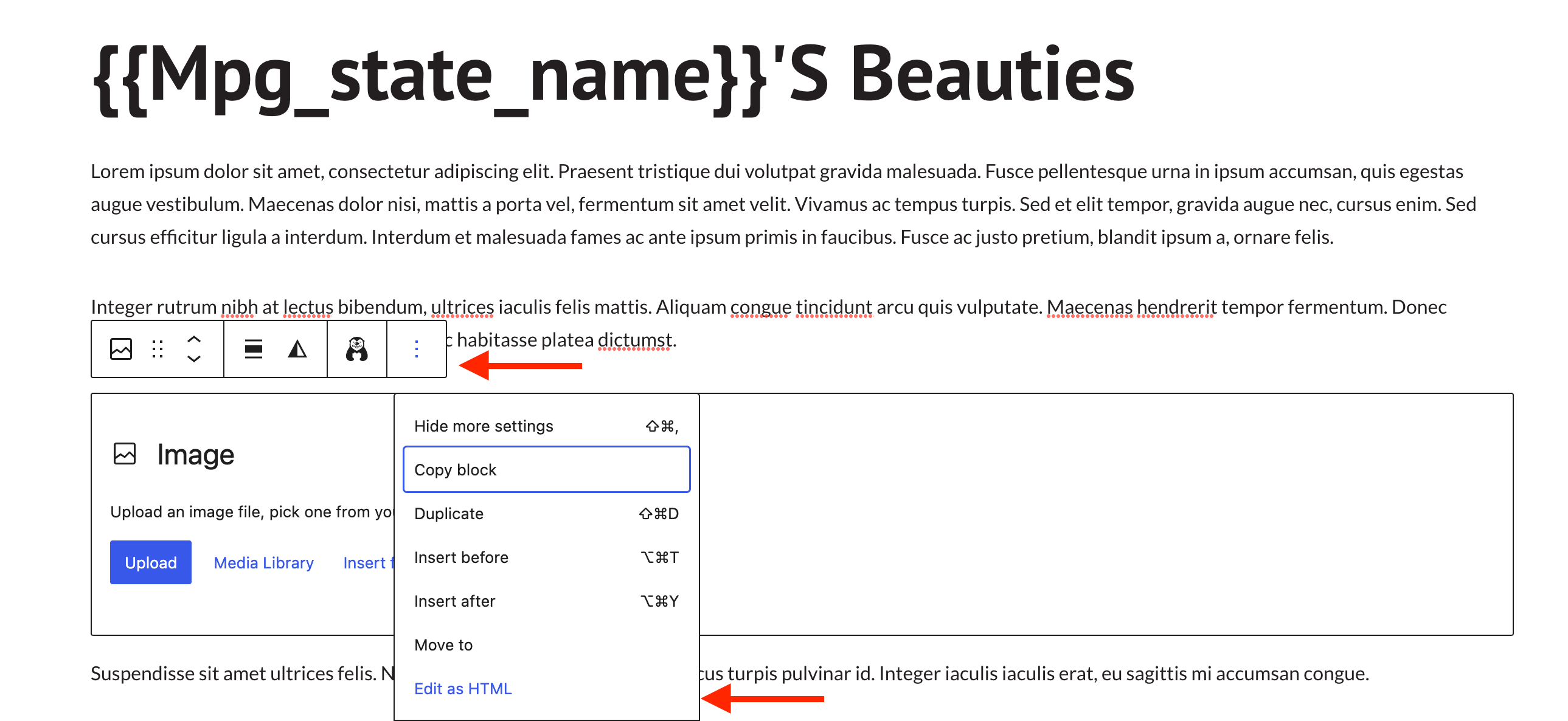
4
Replace the image source URL with the file URL path and replace the filename with the MPG image shortcode from the data source file.
Example using a Media Library filename
<img src="https://example.com/wp-content/uploads/2024/07/{{mpg_city_img}}">Example using a full image URL
<img src="{{mpg_city_img}}" alt="Dynamic image">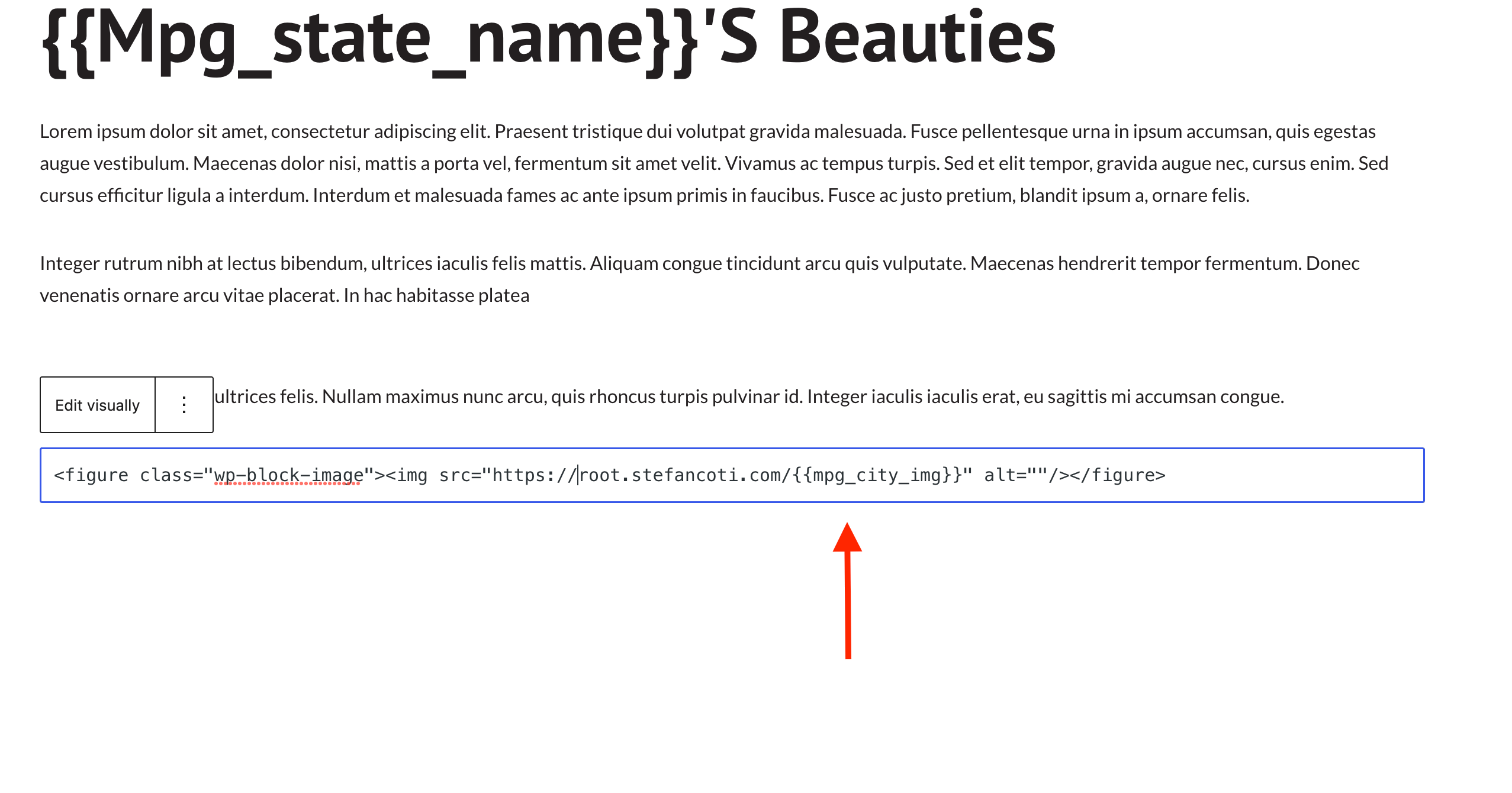
Result
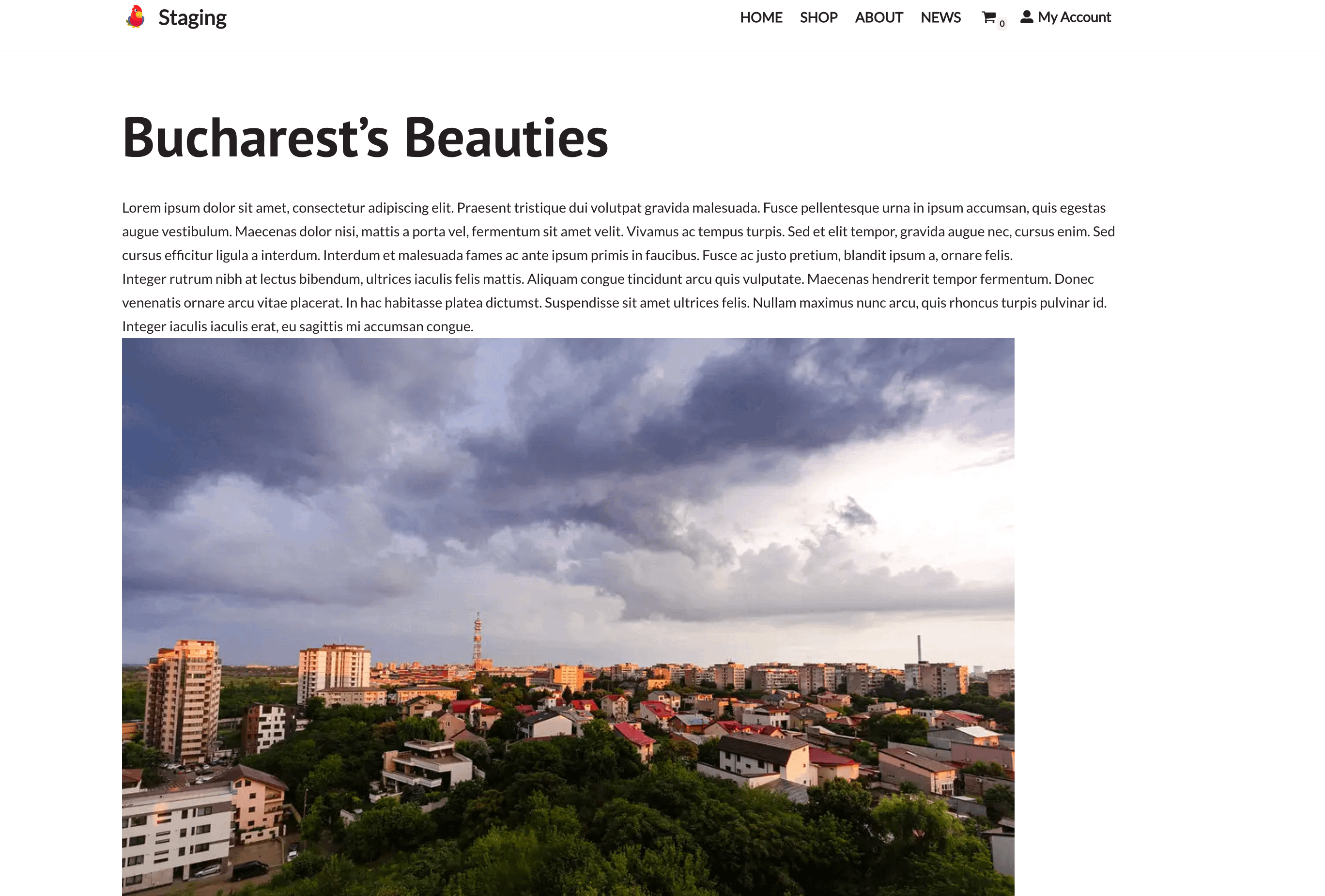
📝 Note: You can add any img HTML parameters such as alt , class or utilize the Picsum random image generator if you don't have actual pictures.
If a page builder's image field doesn't accept placeholders
MPG replaces a placeholder only when the placeholder text itself is saved in your template's content. Some page-builder image and background controls — for example, Avada's native image and background selectors — save a WordPress Media Library selection instead of the text you type, so there is no placeholder text left for MPG to replace. In that case, leave the builder's native image or background selector empty and use one of the methods below.
Dynamic background image in an Avada container
1. Edit the container and open its custom HTML attribute settings.
2. Add an attribute named style.
3. Enter the following as the attribute value:
background-image:url('{{mpg_hero_image}}');background-size:cover;background-position:center;mpg_hero_image is an example — replace it with the placeholder generated from your own image URL column. Keep Avada's own background image selector empty.
Dynamic regular image in Avada
Instead of Avada's native Image element, add the element that renders custom HTML/code, and insert:
<img src="{{mpg_card_image}}" alt="{{mpg_card_image_alt}}">Both placeholders are examples — replace them with the placeholders generated from your own source columns. Make sure the option that allows the code element to render its HTML is enabled in Avada's settings.
💡 Tip: If your page builder or theme can use the WordPress featured image dynamically (for example, Elementor can pull the featured image as a dynamic background), you can set a featured image from your source file instead — see How to set featured image for generated posts.
Troubleshooting
If the image does not appear on generated pages, make sure that:
- The image exists in Media → Library
- The filename in the database matches exactly
- The image URL opens directly in the browser
- There are no extra spaces in the database cell
- The image is publicly accessible
- If a page builder field only opens the Media Library or keeps a static image selected, do not edit the builder's generated shortcode by hand — that can damage the saved layout. Use the HTML and CSS methods described above instead.
Video - How to add images to MPG pages?
For further help, you can watch this short tutorial video on How to Add Images to Multiple Pages in Bulk: