
How to Create Your Own Data Source File?
This guide explains how to create, format, and source a data file for your MPG project, whether you are building a CSV from scratch, adapting an existing location list, or generating partner pages.
In this article
Creating a list from scratch
The most effective MPG projects use a significant amount of unique data that users manually upload. In the beginning, you may have a simple starter CSV file where you keep data from which MPG will generate content. But over time you may easily add additional data to the source file and keep expanding your pages with more unique useful information for the best organic rankings.
CSV Formatting Best Practices
Before uploading a CSV file to your MPG project, make sure it is correctly structured. A poorly formatted file is the most common reason for misaligned columns in the MPG preview, especially after you add a new header to an existing file.
Follow these guidelines when creating or editing your CSV:
- Use Excel or Google Sheets to create and edit CSV files. Both tools provide an easy-to-use grid interface that helps keep column alignment consistent.
- Save as CSV UTF-8. In Excel, choose File > Save As and select CSV UTF-8 (Comma delimited) from the format dropdown. In Google Sheets, choose File > Download > Comma-separated values (.csv). Using other encodings can cause characters to display incorrectly and break column mapping.
- Make sure every row has the same number of columns as the header row. Missing or extra commas cause data to shift into the wrong columns in the MPG preview. Open your file in a plain text editor after saving to spot any rows that look different from the others.
- Trim leading and trailing spaces from header names and cell values. Extra spaces around a value are invisible in a spreadsheet but can prevent MPG from matching columns correctly.
- Escape commas inside cell values by wrapping the entire value in double quotes — for example,
"New York, NY". Without quotes, the comma will be treated as a column separator and shift the remaining data.
⚠️ Header naming rules: MPG automatically replaces spaces and other non-alphanumeric characters in your header names with underscores, so a header like City Name becomes the {{mpg_city_name}} shortcode. Keep this in mind so the shortcodes in your template match the generated names. The mpg_ prefix is also added automatically — do not include it in your header names.
These rules are also covered in the MPG Troubleshooting Guide.
Location Pages
Getting an existing location list off the internet
If you are generating location pages, it is often enough to google the list of your desired data sets and download what’s available. For example, if you need cities in Australia, simply googling “Australia cities CSV” will return many usable free resources to get started with. You can combine data from multiple resources for the most effective database, using Excel or Google Sheets (free). Some of the most effective location pages would use unique images and maps in the generated pages. Though generating corresponding images is an advanced process, generating maps requires only latitude and longitude information and a Google API account.
Using the Template Library
You can also import one of our location templates from the New Project screen, which you open via MPG > Create New +. Once you import a template, you can download the source file and make any necessary modifications.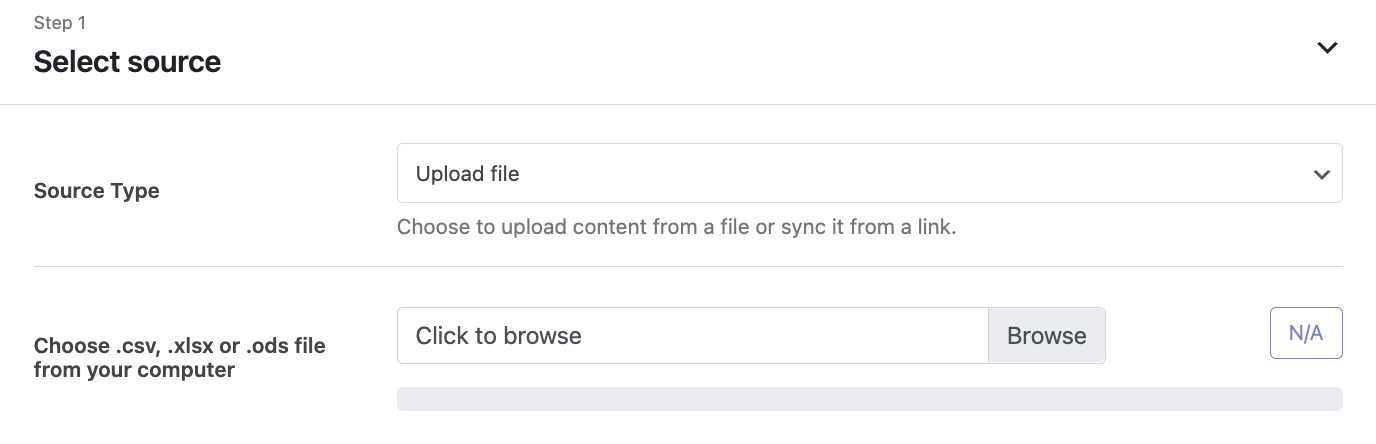 Creating a list from scratch
You can of course simply type out your list of locations if you have that data. Then simply export it as a CSV file and load it into MPG.
Here's a quick short tutorial video showing how to use your own data as the source file to generate multiple pages:
Partner Pages
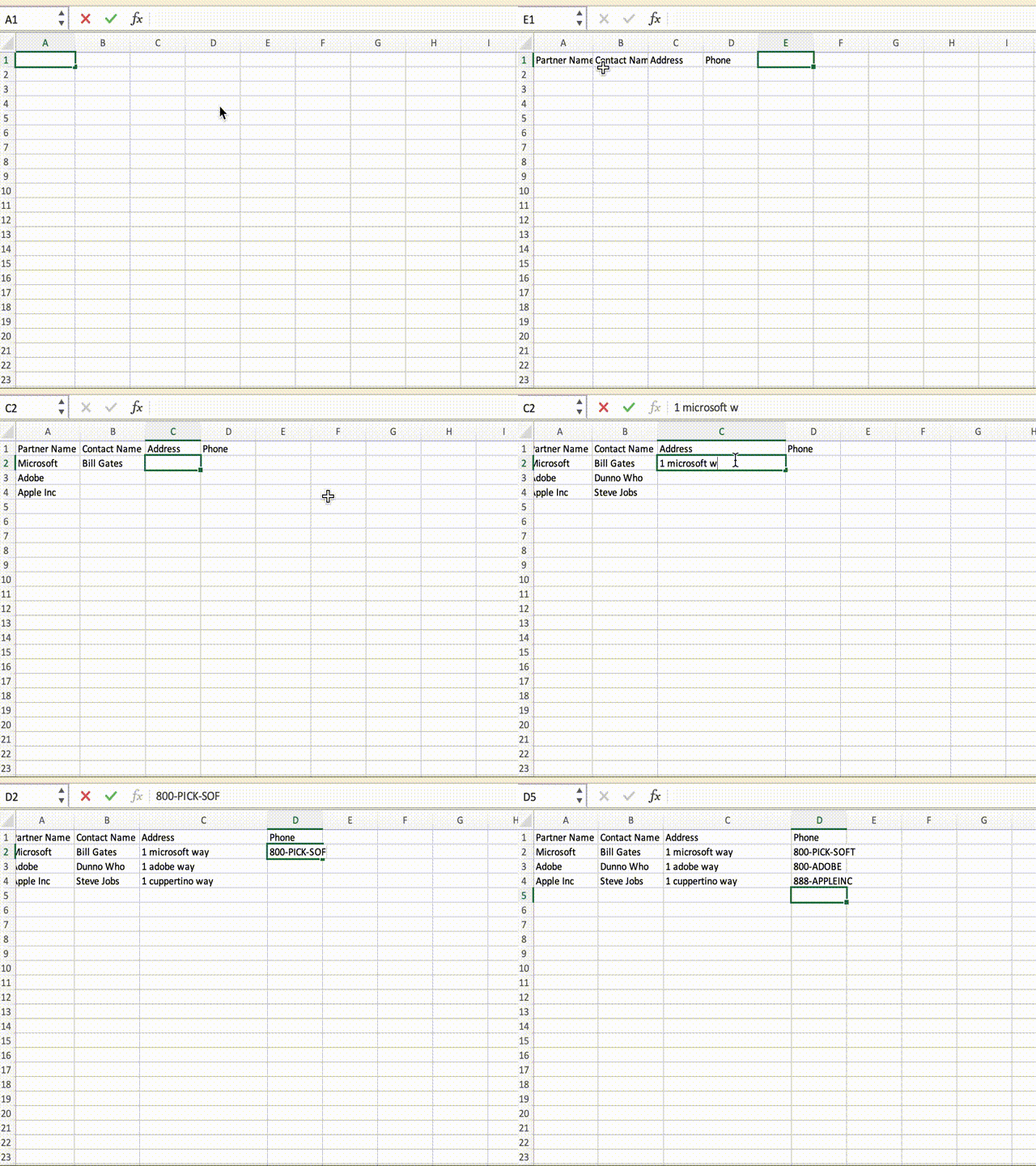
Partner Pages are useful when you need to create an individual page for each and every client or partner that you have. Let’s say that you have a number of vendors who work with your organization. Generating a page for each of your partners is fast and easy. Type out a list of your partners in Excel or Google Sheets or any other spreadsheet program and save it as a CSV file. Upload it to your MPG project and follow the instructions to set up your partner pages.
Other Source Files
You may also always find data source files related to your industry online or through paid catalogs to create your MPG project. Another good way to get a data file is to use web scraping services. One of our clients has created dozens of super-successful websites by simply scraping sites and creating entire industry-specific portals. As an example, he scrapped a government website that listed all lawyers in the region and generated a unique page for each local lawyer with their profile. As you may know, legal ads are extremely expensive and by running ads on those generated pages, this user was able to make a profit within this niche.
Troubleshooting Column Mapping Issues
After you add a new header (for example, url_slug) to an existing CSV file, the MPG column mapping preview may show misaligned or shifted data if the file is not properly formatted. Work through the steps below to identify and fix the problem.
💡 Tip: Open your CSV in a plain text editor (such as Notepad on Windows or TextEdit on Mac) before re-uploading. You can see the raw commas and quotes that a spreadsheet normally hides, which makes it much easier to spot formatting problems.
- Check row consistency. Open the CSV in a plain text editor and count the comma-separated values in the header row. Verify that every data row has exactly the same number of values. Any row with fewer or more commas than the header will cause columns to misalign.
- Verify UTF-8 encoding. Confirm the file is saved as UTF-8. In Excel, use File > Save As and select CSV UTF-8 (Comma delimited). In Google Sheets, use File > Download > Comma-separated values (.csv).
- Account for header normalization. MPG replaces spaces and other non-alphanumeric characters in header names with underscores. This does not misalign columns, but it changes the shortcode name, so make sure the shortcodes in your template match the normalized names (for example,
City Namebecomes {{mpg_city_name}}). - Remove trailing spaces and hidden characters. Inspect each header name for spaces at the start or end. These are invisible in a spreadsheet but can prevent MPG from recognizing the column.
- Re-upload the corrected file. In your MPG project, open Select source, make sure Upload file is selected, and use Click to browse to upload the corrected file. MPG refreshes the column mapping automatically once the upload finishes.
- Confirm in the MPG preview. Open the MPG preview and check that each column now aligns with the correct header. If columns are still misaligned, repeat the steps above and pay close attention to any row that contains a comma inside a cell value (wrap those values in double quotes).
⚠️ Important: If your source is a Direct link rather than an uploaded file, click Fetch and use after updating the source. Otherwise MPG will continue using the previously cached version of the file and the mapping will not update.