
Use Media Library Organizer with AI Assistants
Connect a compatible AI assistant to the WordPress Abilities API to organize folders and assign media to them. These abilities manage folder and attachment assignments, not general plugin settings.
In this article
Requirements
- Media Library Organizer with AI assistant support installed and active.
- WordPress 6.9 or later, or a WordPress environment that provides the Abilities API. Without the API, Media Library Organizer does not register these abilities.
- A compatible, authenticated AI client and a connector that exposes WordPress abilities, such as Easy MCP AI.
- A connected WordPress user with the
manage_categoriescapability (permission) for all five abilities. To categorize media, the user also needs permission to assign terms in the selected taxonomy and edit each attachment.
Use the abilities in Easy MCP AI
- Install and activate Easy MCP AI, then open Easy MCP AI > Dashboard in your WordPress dashboard. Under Connect your AI client, choose your assistant and follow its on-screen connection instructions. For detailed setup steps, see Getting Started with Easy MCP AI. If you use another compatible connector, follow its instructions instead.
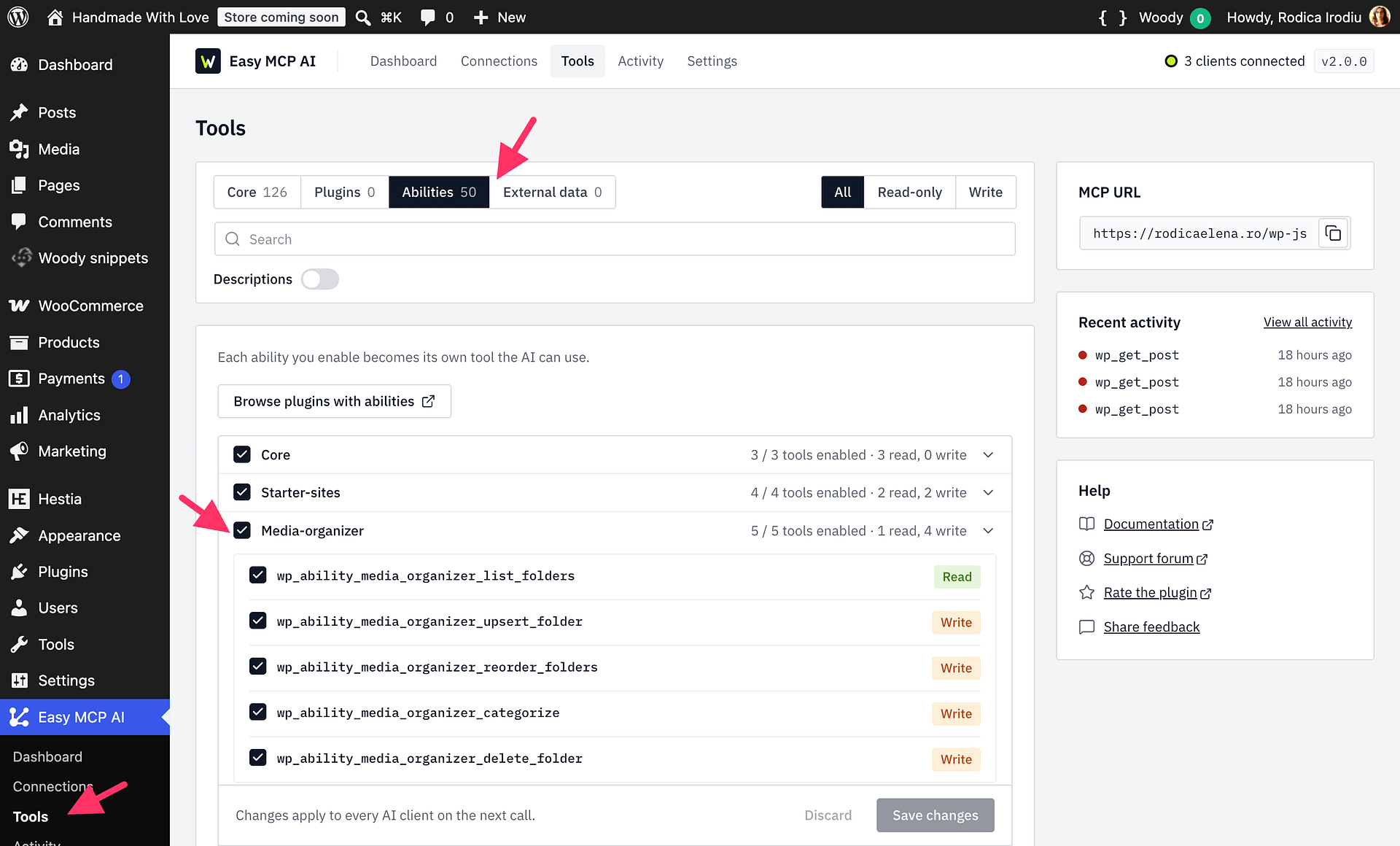
- Go to Easy MCP AI > Tools and select Abilities. Find the Media-Organizer group and enable the abilities you want your assistant to use.
- Click Save changes, then refresh the tool list in your AI client so the newly enabled abilities appear.
Available abilities
media-organizer/list-folderslists folders as a nested tree or a flat list. You can narrow the results by parent folder or search by name. Each call returns at most 1,000 folders and indicates whether the results were truncated.media-organizer/upsert-foldercreates a folder whenfolder_idis omitted. Supplyfolder_idto rename a folder or move it under another folder or to the top level. It rejects moves that would place a folder inside itself or one of its children.media-organizer/reorder-folderschanges the order of folders that have the same parent. Each call accepts up to 100 folder IDs.media-organizer/categorizeadds, replaces, or removes folder or taxonomy terms for up to 100 attachment IDs per call. Adding keeps existing assignments; replacing or removing with no term IDs clears the attachment's terms in the selected taxonomy.media-organizer/delete-folderdeletes up to 100 folders per call. The media files themselves are not deleted: they lose their assignment to the deleted folder, and child folders move up one level.
Folders are virtual taxonomy terms, not directories on the server. Deleting a folder or changing assignments does not move or delete the underlying files or change their URLs. See Defining Media Categories for more about virtual folders.
The optional taxonomy input accepts only attachment taxonomies registered by Media Library Organizer. If you omit it, the abilities use the plugin's folder taxonomy. A taxonomy is a way to group media using terms, such as folders. Selecting another taxonomy changes assignments only in that taxonomy.
Recommended workflow
- Ask the assistant to list folders and show their IDs before making changes. A folder ID identifies the exact folder to update.
- Check the folder IDs, attachment IDs (the numeric identifiers of media files), and selected taxonomy before asking for a change.
- Ask the assistant to create, move, reorder, or categorize only the items you selected, then list the folders again to check the result.
- Before deleting folders or clearing assignments, ask the assistant to show the exact IDs and wait for your confirmation. Deleting a folder removes its folder assignment even though it keeps the files.
Example prompts
- “List my Media Library Organizer folders as a nested tree and show their IDs.”
- “Create top-level folders named Logos, Product Photos, and Blog Images.”
- “Move folder 24 below folder 10.”
- “Reorder folders 10, 12, and 24 under the same parent.”
- “Add attachments 101, 102, and 103 to folder 12 without removing their current folders.”
- “Show me the IDs of the folders I want to delete, and ask for confirmation before deleting them.”