
MLO Gallery Block
The MLO Gallery block lets you display dynamic image galleries on your pages or posts using images from your Media Library Organizer categories and folders. Unlike the shortcode-based galleries, this block works directly in the WordPress block editor (Gutenberg) with a visual interface for configuration.
In this article
Prerequisites and Setup
- Media Library Organizer
- WordPress 5.0 or higher (block editor support)
📝 Note: The MLO Gallery block is available in both the free and Pro versions of Media Library Organizer. The free version includes the Grid layout. The Masonry, Carousel, and Justified layouts require a Pro license.
Adding the Block
- Open the page or post where you want to add the gallery.
- Click the + (Toggle block inserter) button in the editor toolbar.
- Search for MLO Gallery in the block search field.
- Click the block to insert it into your content.
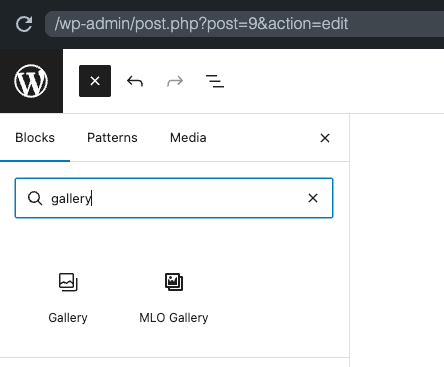
Once added, the block displays a preview of your gallery directly in the editor. Use the block settings in the right-hand sidebar to configure the gallery.
Source
The Source section controls which images appear in your gallery and how they are queried.
Category/Folder Selector
- Select the MLO Gallery block in the editor.
- In the Block Settings sidebar on the right, locate the Category/Folder Selector.
- Use the search field to find specific categories, or browse the list and check the categories or folders you want to include. The number next to each category shows how many images it contains.
- Use Select All or Deselect All to quickly manage your selections.
Include Subcategories
Toggle Include Subcategories to also include images from child categories or subfolders of your selected categories.
💡 Tip: Organize your media into categories before creating a gallery. See Defining Media Categories and Assigning Media Categories to Media for help with media categorization.
Image Limit
Set the maximum number of images to display in the gallery. Set to 0 for unlimited.
Order By
Control how images are sorted in the gallery. Options include:
- Date (Newest) — Shows the most recently uploaded images first.
- Date (Oldest) — Shows the oldest images first.
- Title (A-Z) — Sorts images alphabetically by their title.
- Title (Z-A) — Sorts images reverse-alphabetically by their title.
- Random — Displays images in a random order each time the page loads.
Layout
The Layout section controls the visual arrangement of images in the gallery.
Layout Style
Choose from four distinct layout styles:
- Grid — A standard grid layout with fixed columns. All images are displayed at the same size. Available in the free version.
- Masonry (Pro) — A waterfall-style layout that preserves each image's original aspect ratio. Images are arranged in columns with varying heights.
- Carousel (Pro) — A sliding horizontal gallery that visitors can scroll through.
- Justified (Pro) — Images are scaled to fill each row at a consistent height while maintaining their original aspect ratios.
To change the layout, select the block and choose a style from the Layout Style option in the block settings sidebar.
Columns
Set the number of columns in the gallery grid. Available for the Grid and Masonry layouts.
Gap
Set the spacing between images in pixels. A higher value adds more space between images.
Aspect Ratio
Available for the Grid layout. Choose a consistent aspect ratio for all images in the grid, such as:
- Original
- Square (1:1)
- Classic (3:2)
- 4:3
- 16:9
Lightbox
The Lightbox section controls the full-screen image preview that opens when a visitor clicks a gallery image.
Enable Lightbox
Toggle this option to allow visitors to click on any gallery image and view it in a full-size preview overlay.
When the lightbox is enabled, the following additional settings are available:
- Show Caption — Display the image caption or alt text in the lightbox.
- Show Counter — Display an image counter in the lightbox header (e.g., "3 of 24").
📝 Note: The lightbox supports keyboard navigation. Visitors can use the ← and → arrow keys or the Previous/Next arrows to browse images.
Filter Bar
The Filter Bar section lets you add interactive category-based filters above the gallery so visitors can sort images on the front end.
Enable Category Filter
Toggle this option to show a clickable category filter bar above the gallery. The filter bar only appears on the front end when more than one category is selected as the gallery source.
When enabled, the following additional settings are available:
- Filter Style — Choose how the filter buttons appear. Options include Buttons (Pills) and Dropdown.
- "All" Button — Toggle whether to show an All option as the first filter, which displays all images regardless of category.
- Animation — Choose the animation effect when filtering images, such as Fade, Slide, or None.
Style
The Style section controls the visual appearance of gallery images.
Border Radius
Set rounded corners for images in pixels. A higher value creates more rounded corners.
Hover Effect
Choose an effect that plays when a visitor hovers over a gallery image. Options include Zoom.
Caption Position
Control where image captions appear in the gallery. Options include Hidden (captions are not displayed on the gallery grid).
Image Size
Select which WordPress registered image size to use for gallery images. Options include standard sizes such as Thumbnail, Medium, Medium Large, Large, and Full.
💡 Tip: Using a smaller image size like Medium Large can improve page load times, especially for galleries with many images. Use Full only when you need maximum image quality.
Verifying Your Gallery
After configuring the gallery block:
- Check the block preview in the editor to confirm it displays the expected images.
- Click Preview or Publish to view the gallery on the front end.
- Verify that the layout, image count, and sorting match your settings.
- If lightbox is enabled, click an image to confirm the overlay opens correctly.
📝 Note: The gallery dynamically pulls images based on your selected categories. When you add or remove images from a category, the gallery updates automatically — no need to edit the block.
Troubleshooting
The block does not appear in the inserter
Make sure Media Library Organizer is installed and activated. If the block still does not appear, deactivate and reactivate the plugin, then try again.
No images are displayed
- Confirm that the selected categories or folders contain images. See Assigning Media Categories to Media.
- Check that the Image Limit is not set to zero.
- If using Include Subcategories, verify that child categories have images assigned.
Pro layouts are not available
The Masonry, Carousel, and Justified layouts require a Media Library Organizer Pro license. These layouts appear with a PRO label in the block settings. Upgrade to Pro to unlock them.
Layout does not look correct on the front end
- Clear any page or site caching and reload the page.
- Check that your theme does not have CSS that conflicts with the gallery styles.
- Try switching to a different layout to narrow down the issue.