
Replacing Media
Media Library Organizer allows you to replace an existing media file with a new one while preserving all of its metadata, categories, and existing links across your website.
In this article
How to Replace a File
From the Media Grid View
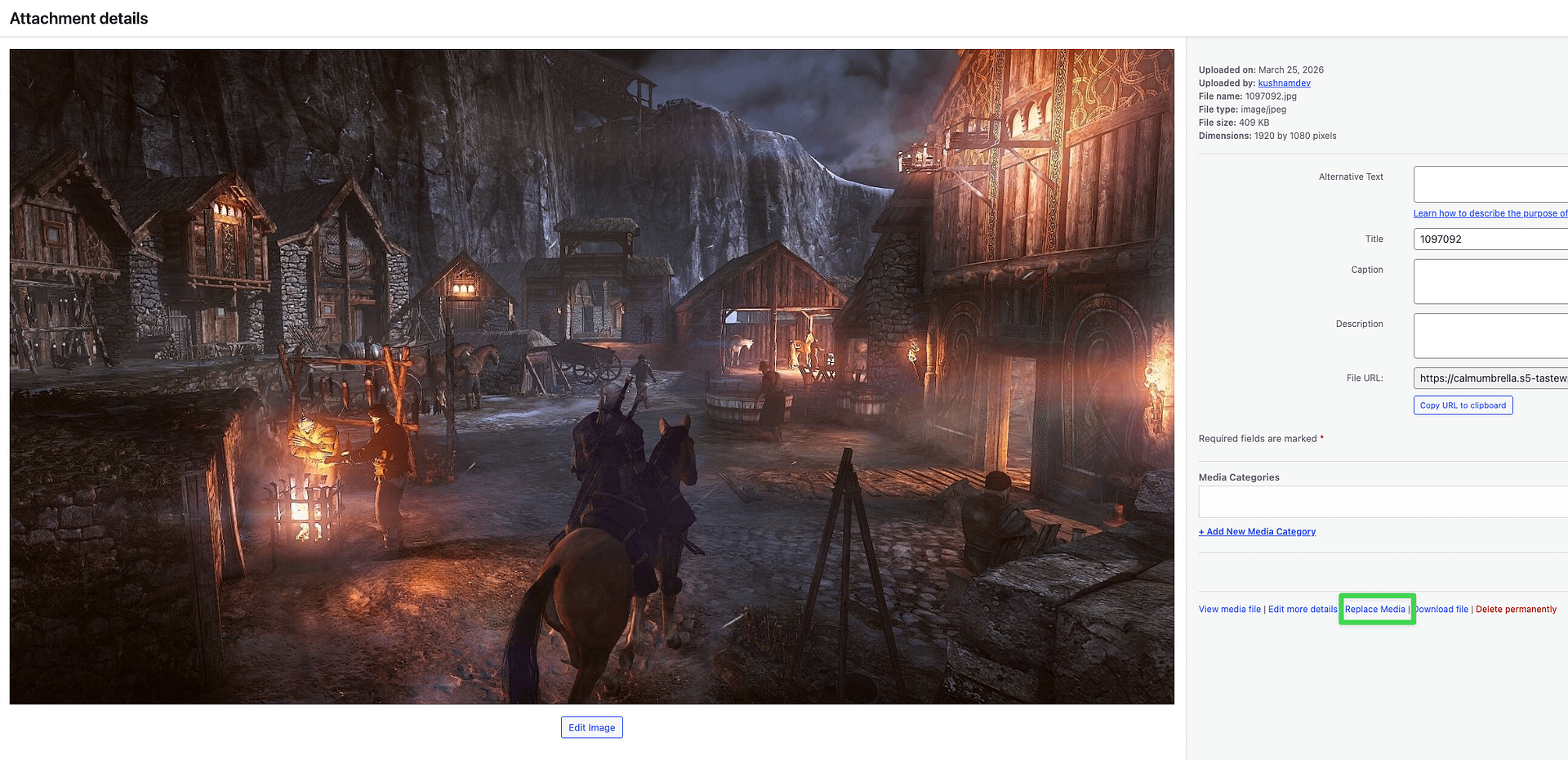
- Navigate to Media > Library.
- Click on the image or file you wish to replace.
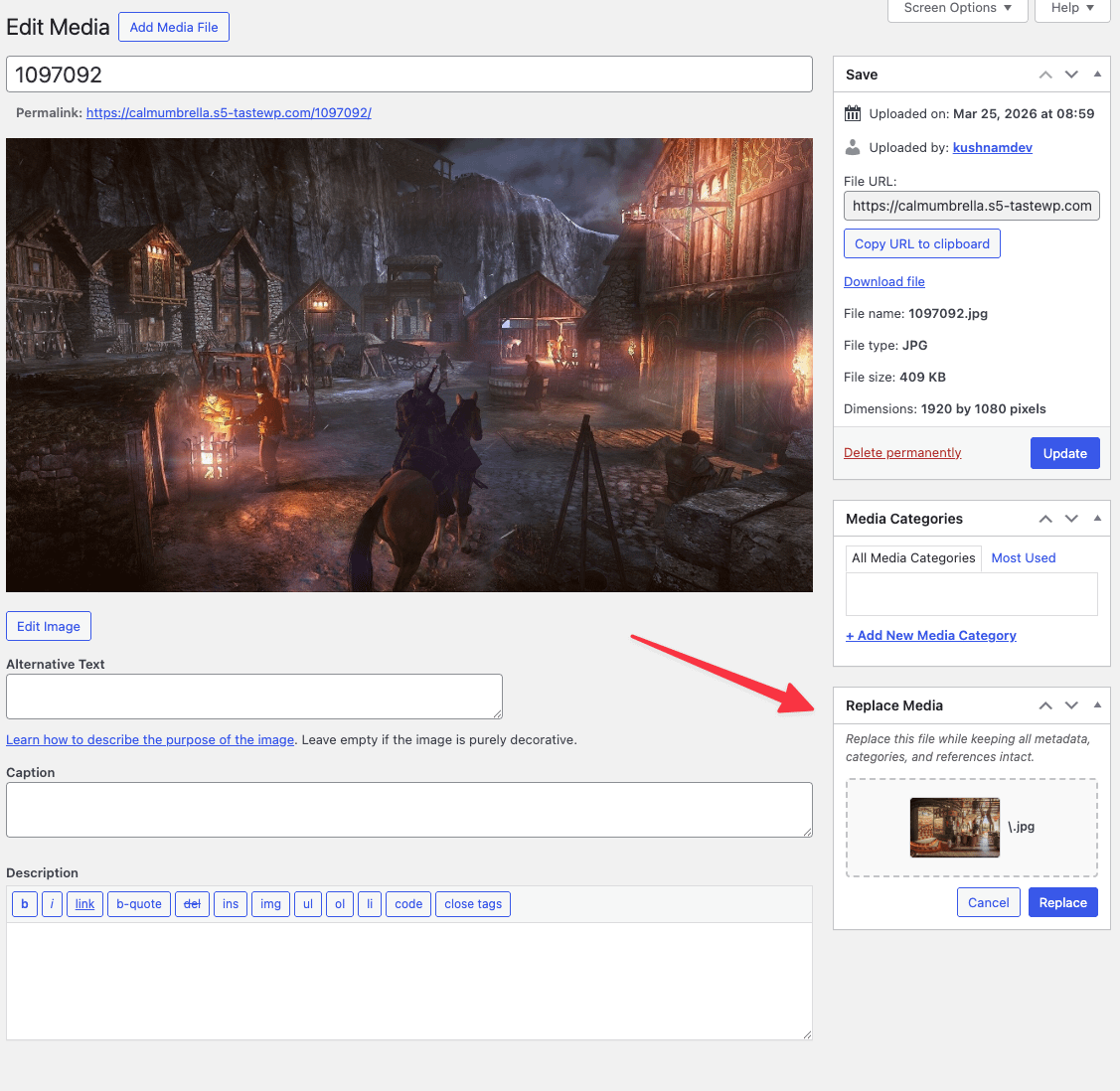
- In the attachment details modal, click the Replace Media link.
- Select and upload the new file.
From the Media List View
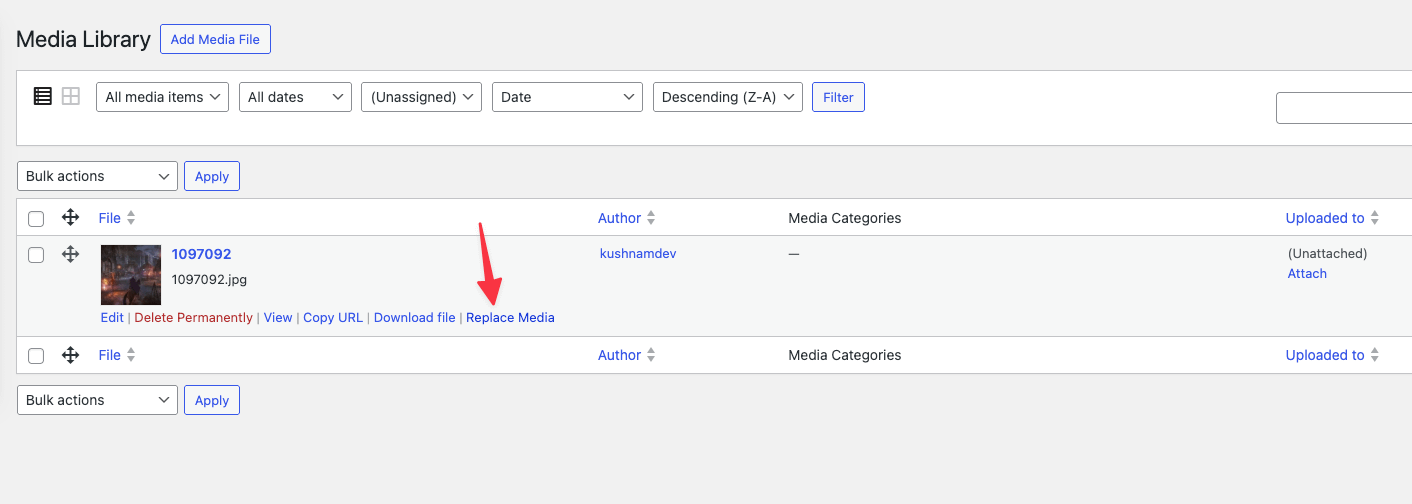
- Navigate to Media > Library and switch to the List View.
- Hover over the item you wish to replace.
- Click the Replace Media link in the action menu that appears below the item name.
- Select and upload the new file.
What Is Preserved
When you replace a file, the following information is kept:
- Metadata: Title, Alt Text, Caption, and Description remain unchanged.
- Categories: The file stays in its assigned Media Library Organizer categories and folders.
- Attachment ID & Links: The Attachment ID is preserved, so all existing references to the file in your posts, pages, and widgets will automatically point to the new file.
- SEO: Since the Alt Text and Title are preserved, your SEO metadata stays consistent after the swap.
📝 Note: Only the file itself is replaced. All metadata, category assignments, and references remain exactly as they were before the swap.