
Importing from other plugins
If you are migrating from another media organization plugin, Media Library Organizer can import your existing categories and folder structures automatically.
In this article
Supported plugins
You can import data from the following third-party plugins:
- Media Library Assistant
- Mediamatic
- WP Real Media Library
- Folders (Premio)
- FileBird
- HappyFiles
- Wicked Folders
- WP Media Folder
- Enhanced Media Library
📝 Note: Media Library Organizer detects existing data directly in your site's database, so the source plugin does not need to be installed or active for its data to appear as an import option.
Before importing
- Back up your site first.
- Make sure WP-Cron, the system WordPress uses to run scheduled tasks, is enabled so Media Library Organizer can process the import in background batches. If you are unsure, ask your hosting provider or site administrator to confirm that WP-Cron is enabled.
How to import
- In your WordPress dashboard, navigate to Media Library Organizer > Import & Export.
- Select the plugin you are migrating from in the list of available sources.
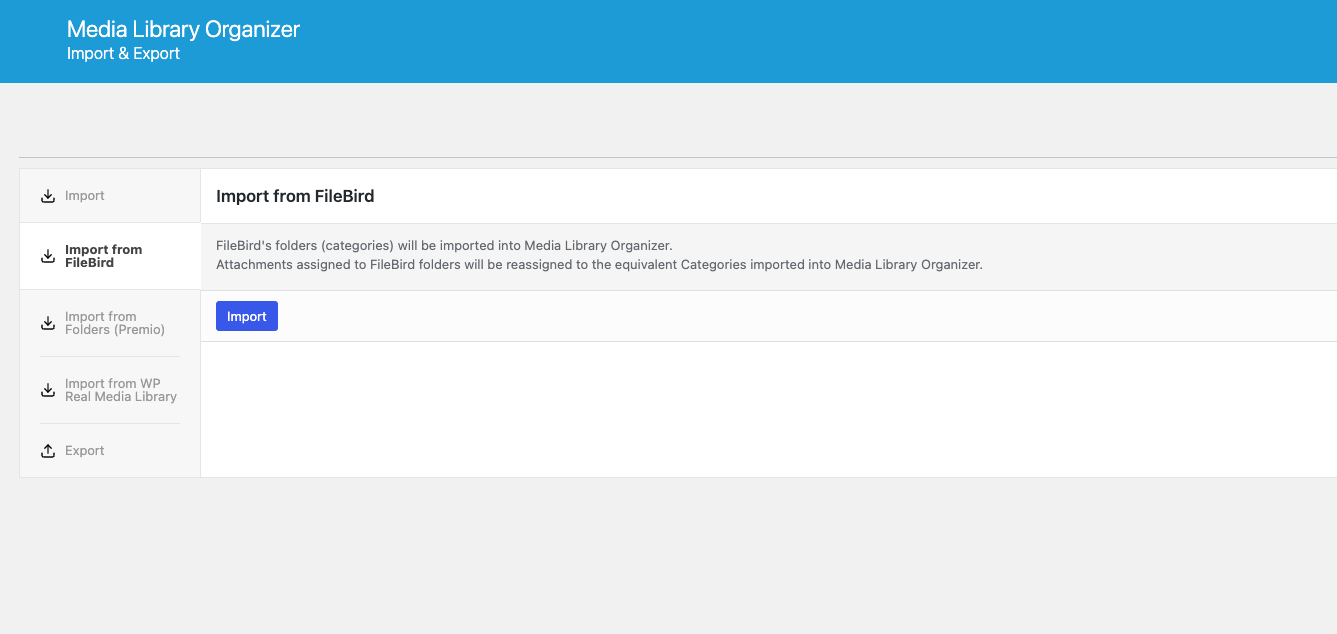
Click the Import button.
Monitor the status message and progress bar while Media Library Organizer imports folders and assigns media files in background batches. You can leave this page while the import runs. When you return to Media Library Organizer > Import & Export, the saved progress appears.
Wait for the completion message, then review any skipped items or errors listed below the progress bar.
To stop a running import, click Cancel. Folders and media assignments completed before cancellation are kept. If you start the import again later, Media Library Organizer recognizes existing folders and does not duplicate them.
⚠️ Important: The import process creates new Media Library Organizer categories based on your existing data. It does not delete or modify your original plugin's data.
After the import
Once the import finishes, your media items will be assigned to the corresponding Media Library Organizer categories. You can verify the results by browsing your media library and checking that categories are correctly applied.
If any items were not categorized as expected, you can use the Bulk and Quick Edit tools to reassign categories manually.
If progress stops or items are skipped
If a background batch is interrupted, Media Library Organizer queues it again automatically and continues the import.
If the progress does not continue:
- Reload Media Library Organizer > Import & Export to inspect the saved status.
- Ask your hosting provider or site administrator to confirm that WP-Cron is enabled.
- After WP-Cron is enabled, start the import again. Existing folders are not duplicated.
If the final status lists skipped folders or media files, review the errors shown below the progress bar before starting the import again.