
Assigning Media Categories to Media
Media Categories (folders) can be assigned to Media items in any of WordPress' Media views. You can also upload media directly into a specific folder by selecting that folder before you start the upload.
In this article
Upload Directly into a Folder
If you want newly uploaded files to appear in a specific folder automatically, select that folder in the Media Library before clicking Add New or dragging files to upload. No manual reassignment is needed afterward.
- Go to Media > Library in the WordPress Administration menu.
- In the Media Library Organizer folder tree or sidebar, click the folder you want to upload into.
- Click Add New (or drag and drop files onto the uploader).
- Upload your files in the normal way.
- Once the upload is complete, the new files will be assigned to the folder you selected.
💡 Tip: To confirm the assignment, stay on the folder you selected — the newly uploaded files should appear there immediately.
📝 Note: Folders in Media Library Organizer are virtual taxonomy assignments. Selecting a folder before uploading assigns the file to that folder's category — it does not move the physical file to a different directory on your server. All uploaded files still land in the standard wp-content/uploads/ path.
If you select All Files or Uncategorized before uploading, the new files will not be assigned to any custom folder.
Related options
- Defaults — If you want every upload of a certain file type to be automatically assigned to a folder without manually selecting it first, use the Defaults feature under Media Library Organizer > Settings > Defaults.
- Quick Edit on Upload (Pro) — When the Quick Edit on Upload option is enabled in the plugin settings, metadata fields including folder assignment appear directly in the upload dialog, letting you set folder assignments and other attributes for each file as it uploads.
Drag-and-drop behavior: assign, not replace
When you drag media from one folder to another in the Media Library sidebar, Media Library Organizer assigns the destination folder category to the media item. It does not automatically remove existing folder assignments.
Because folders are taxonomy terms, one media item can belong to multiple folders/categories at the same time.
📝 Note: If an image still appears in the old folder after drag-and-drop, this is expected behavior. The old folder assignment must be removed manually if you want the image to appear only in the new folder.
Move media to a different folder
If you want a true "move" result (item appears only in the destination folder), use this two-step process:
- Assign the destination folder (for example, with drag-and-drop in the sidebar).
- Open the media item in List View or Grid View.
- In Media Categories, remove the old folder/category assignment and keep only the destination assignment.
- Save the change (click Update in List View; in Grid View, the change applies immediately).
Bulk remove a folder/category assignment
If you need to clean up many files after drag-and-drop:
- Go to Media > Library and switch to List View.
- Filter to the old folder/category and select the media items you want to update.
- Choose Bulk actions > Edit, then click Apply.
- In the bulk edit panel, use the available Media Categories controls to remove the old folder/category assignment.
- Click Update to apply your changes.
Important notes about virtual folders
Moving items between folders changes taxonomy assignments only. It does not copy or move physical files on your server, and file URLs stay the same.
For a full explanation, see Defining Media Categories.
Edit Media: List View
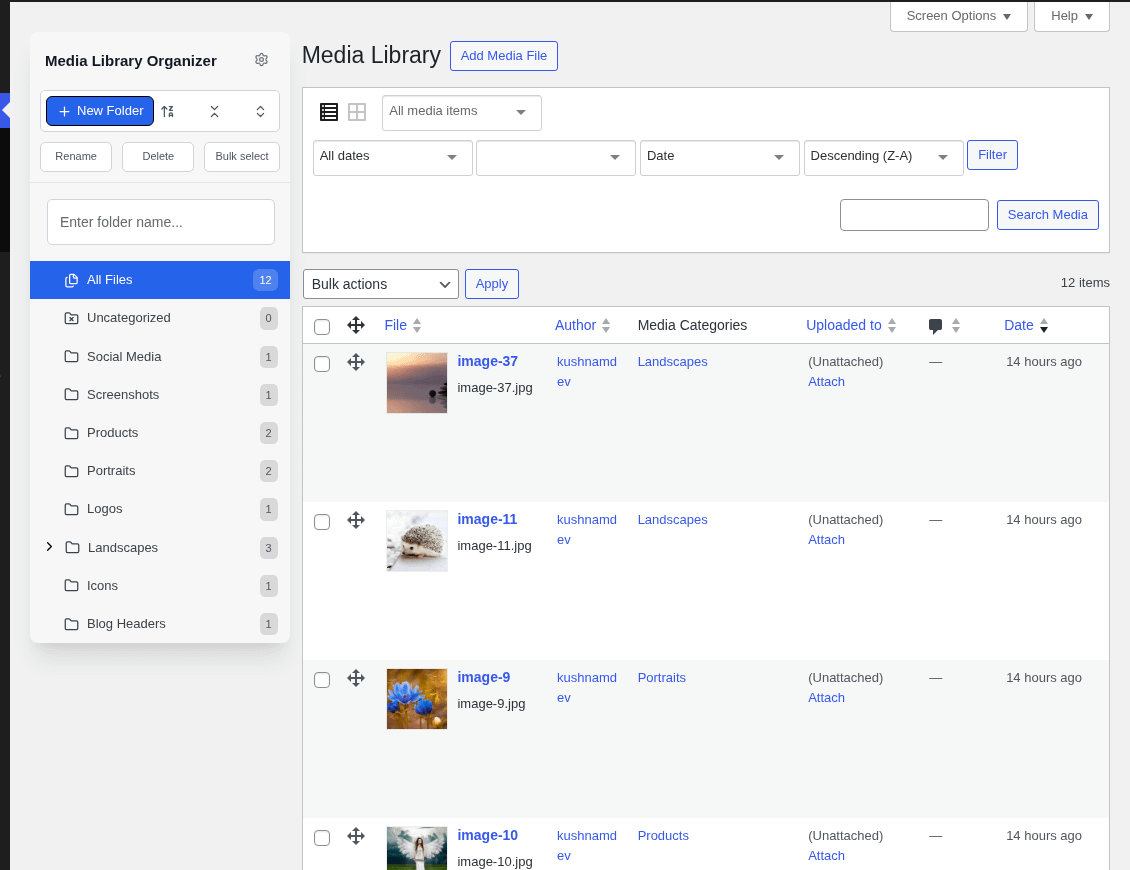
In the WordPress Administration interface:
- Click on Media in the WordPress Administration Menu
- Click on the List icon, towards the top of the screen
To edit the Media Categories for a Media Item, click on the Media Item
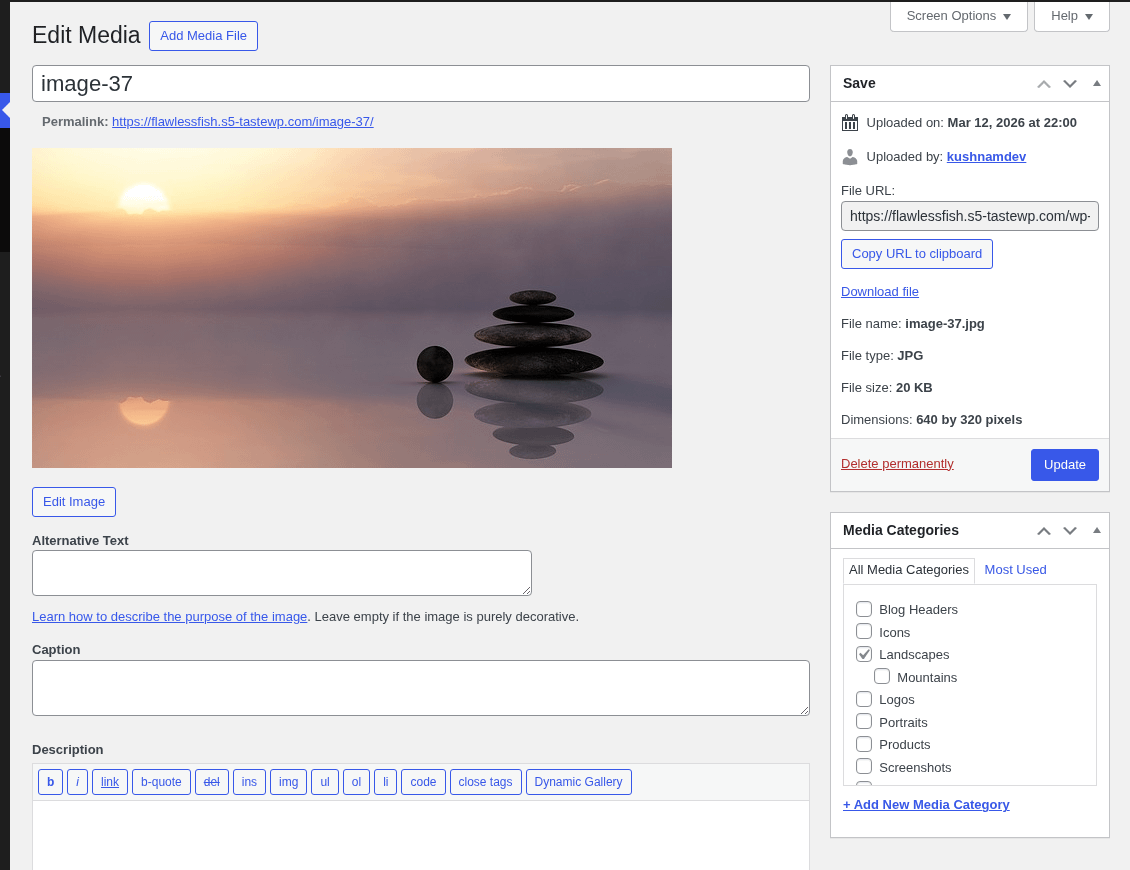
On the edit screen, click the checkboxes next to the Media Categories that you want to apply to this Media item
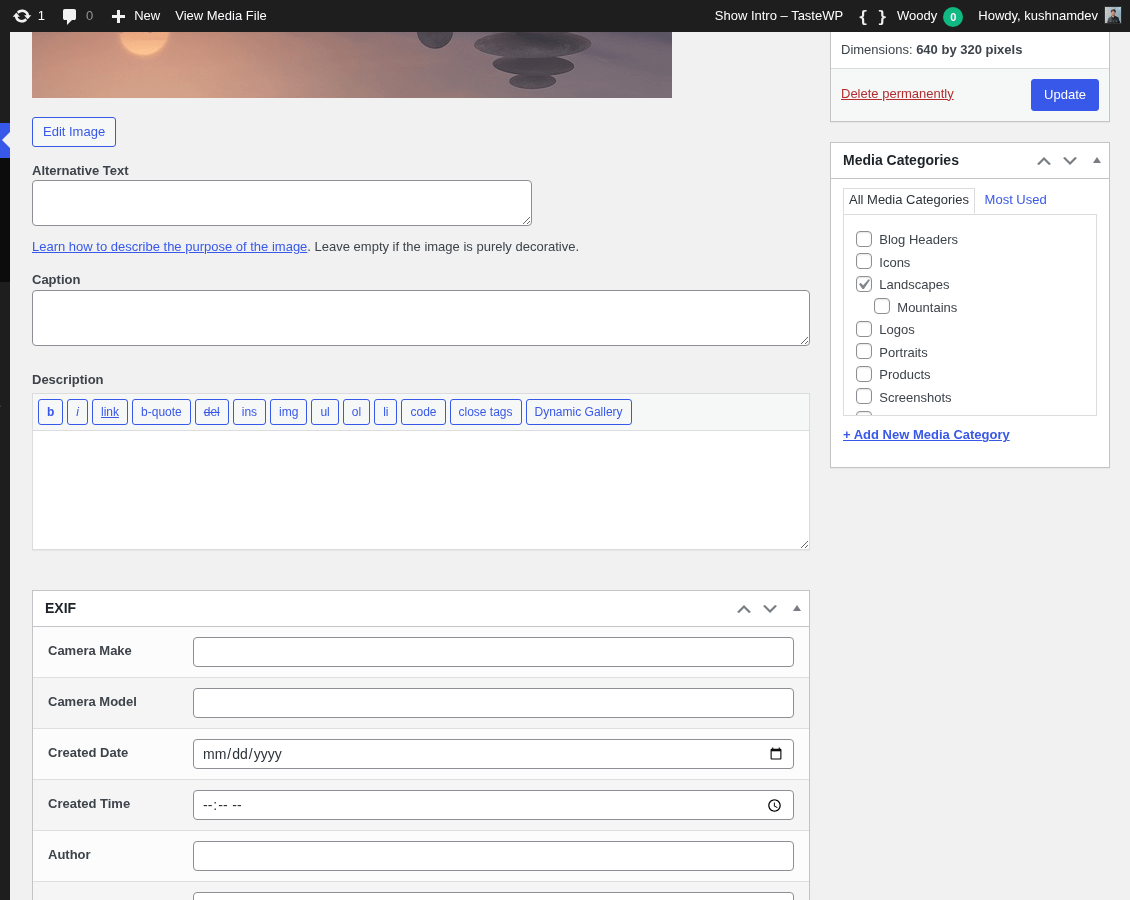
Need to add a new Media Category? Click the Add New Media Category link, define the Media Category and click the Add button.
Click Update when done.
Edit Media: Grid View
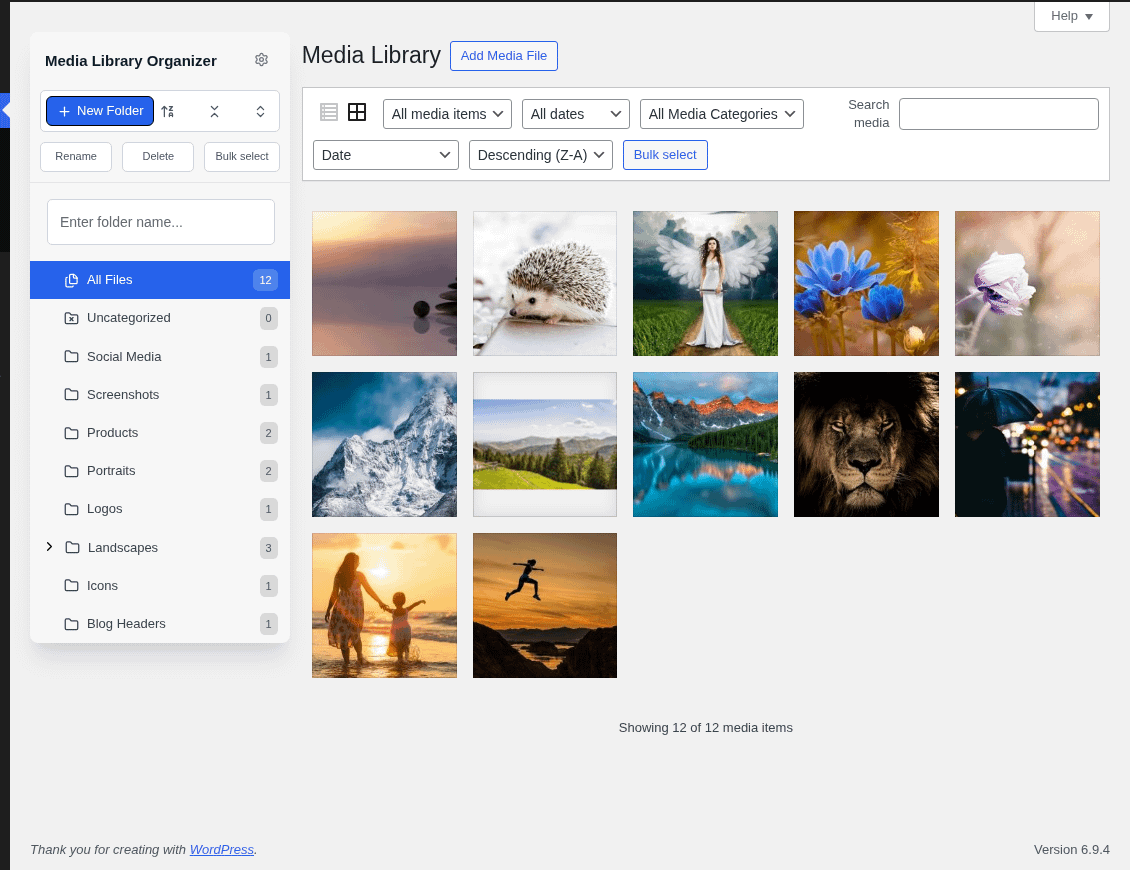
In the WordPress Administration interface:
- Click on Media in the WordPress Administration Menu
- Click on the Grid icon, towards the top of the screen
To edit the Media Categories for a Media Item, click on the Media Item
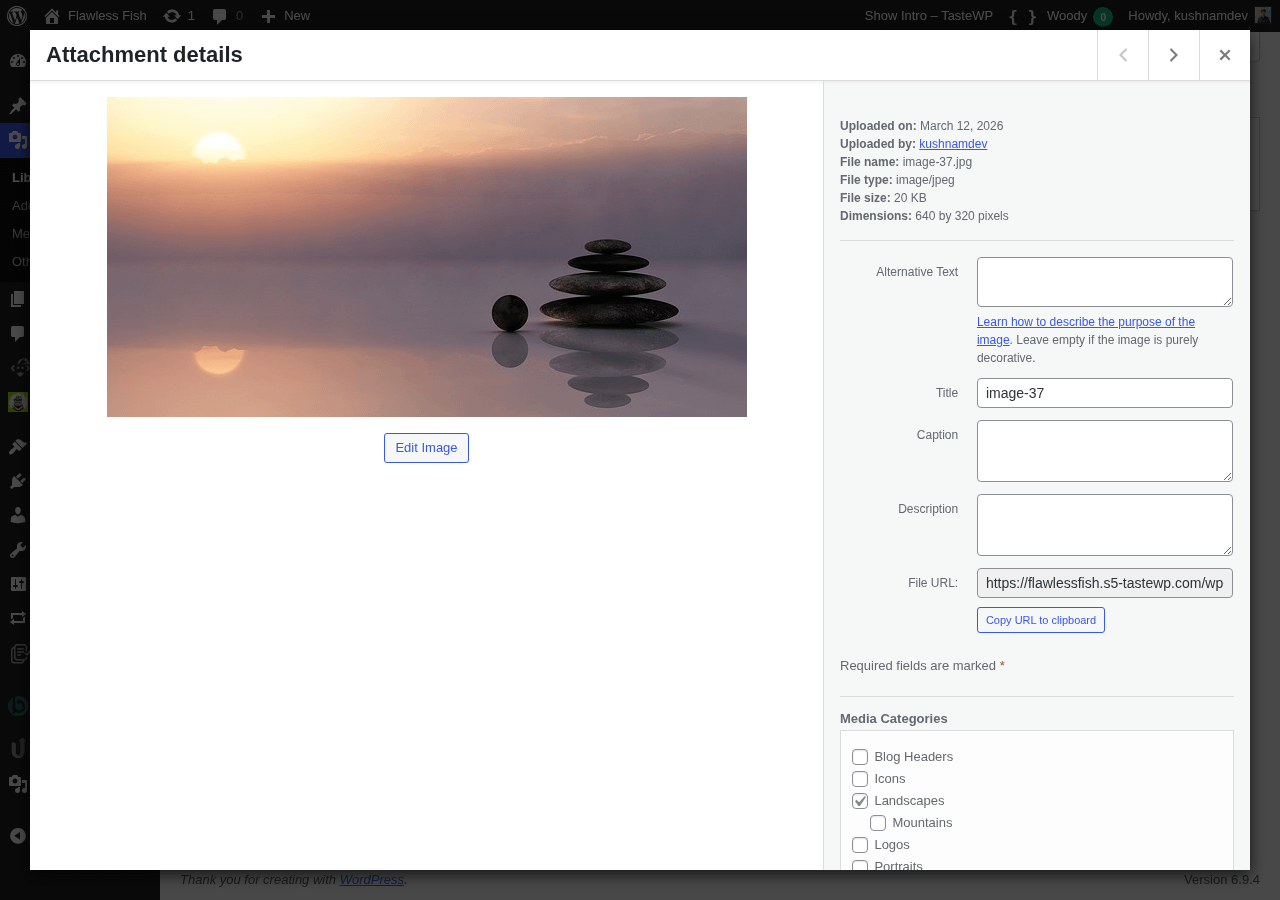
On the edit screen, click the checkboxes next to the Media Categories that you want to apply to this Media item
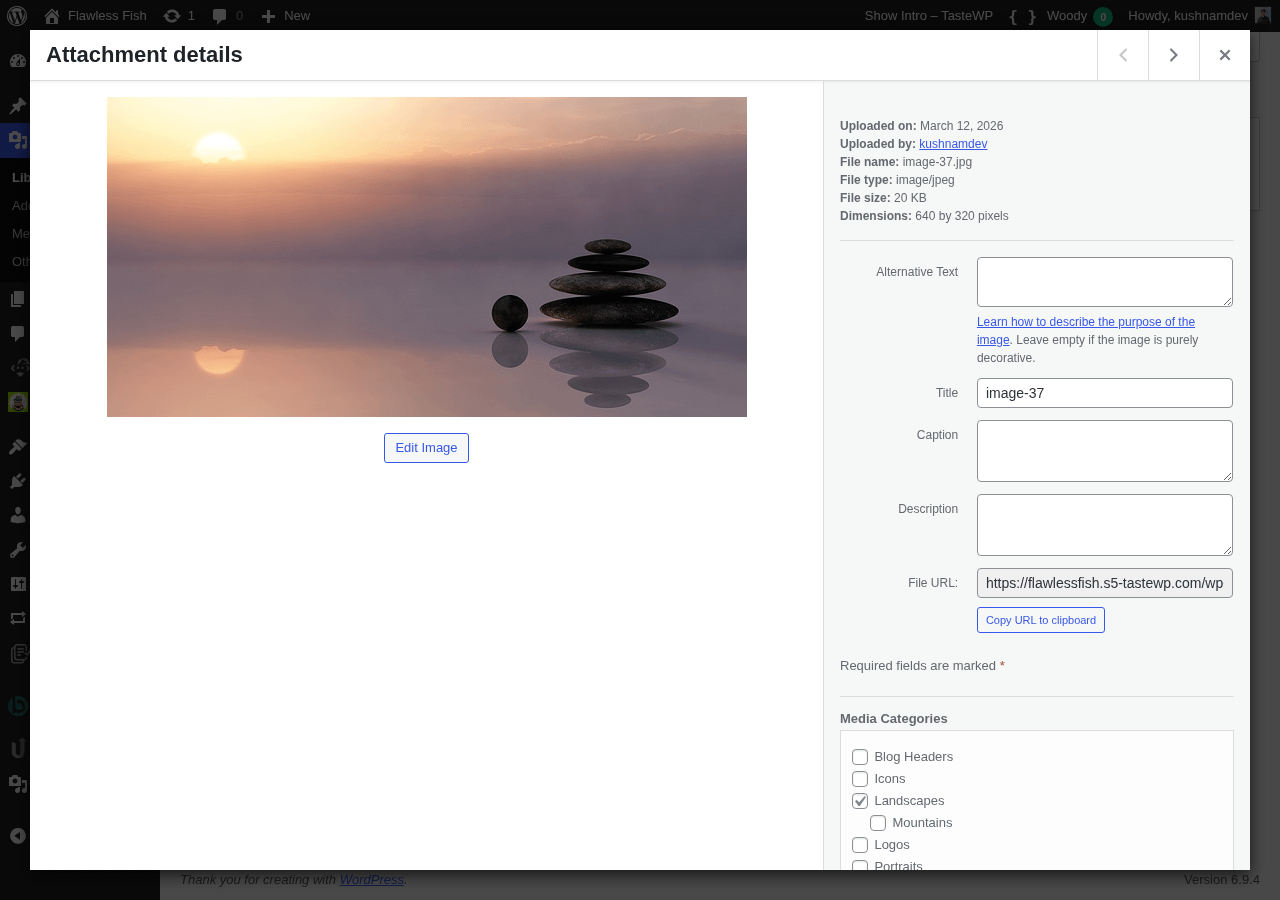
Need to add a new Media Category? Click the Add New Media Category link, define the Media Category and click the Add button.
As soon as you click on a Media Category, it will be assigned / unassigned from the Media item. There's no need to click Save.
Edit Post: Add Media
When editing Posts, Pages or Custom Post Types, Media Library Organizer's Categories are available when WordPress' Media view is presented (for example, when using the Add Media or Set Featured Image options):
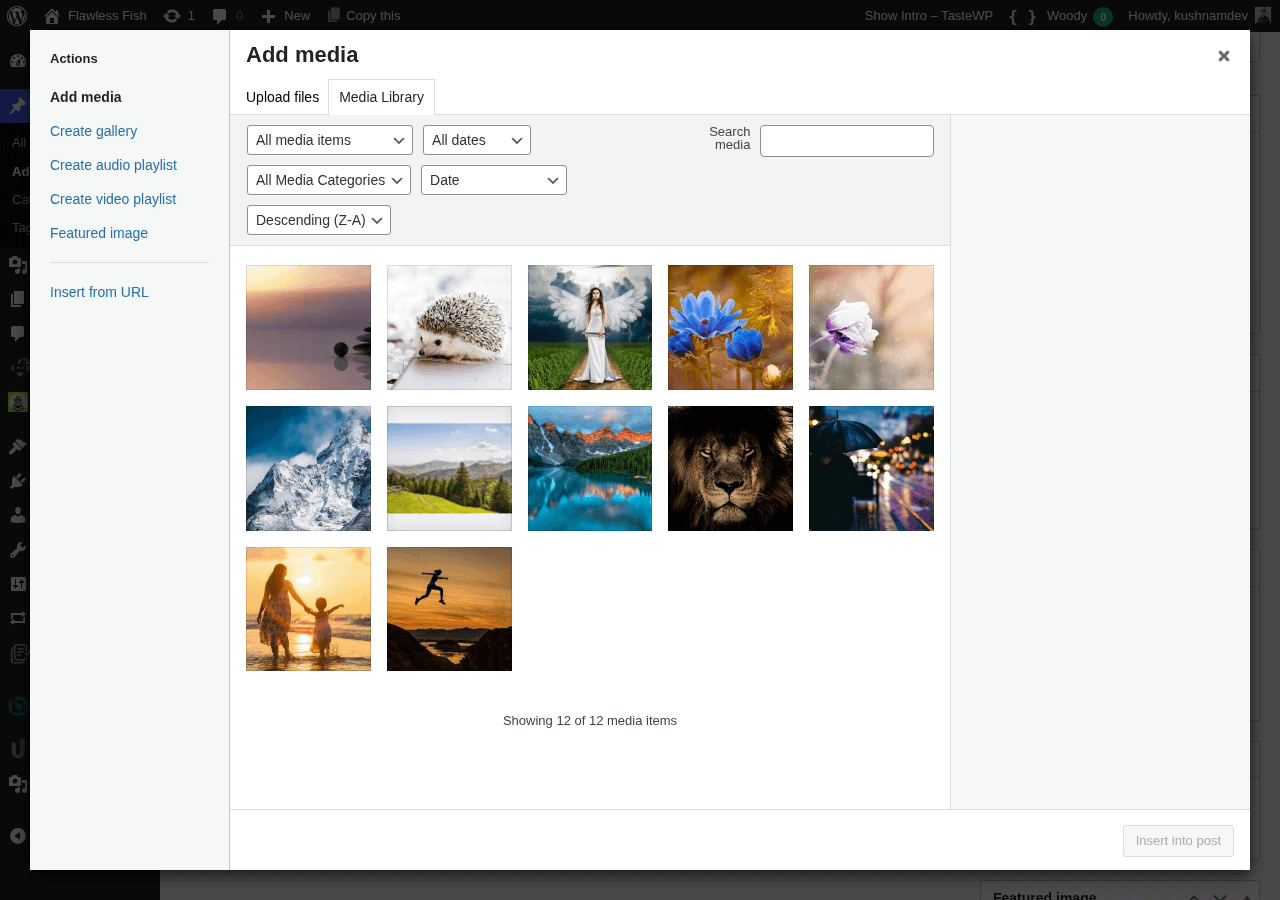
Click the checkboxes next to the Media Categories that you want to apply to this Media item.
Need to add a new Media Category? Click the Add New Media Category link, define the Media Category and click the Add button