
Defining Media Categories
Defining Media Categories Before categorizing the Media in your WordPress Media Library, it's best to define the categories that you think you will need to use. Media Categories are a Taxonomy, so if you're used to defining Post Categories in WordPress, this should feel familiar. To add, edit or delete a Media Category, click on Media > Media Categories in the WordPress Administration menu:

Virtual Folders — No Physical File Movement
Media Categories (folders) are virtual WordPress taxonomies stored in the database. Organizing files into folders does not move them on the server — the physical files stay in wp-content/uploads and their URLs remain unchanged.
In this article
Adding a Media Category
To add a Media Category, use the Add New Media Category form fields:
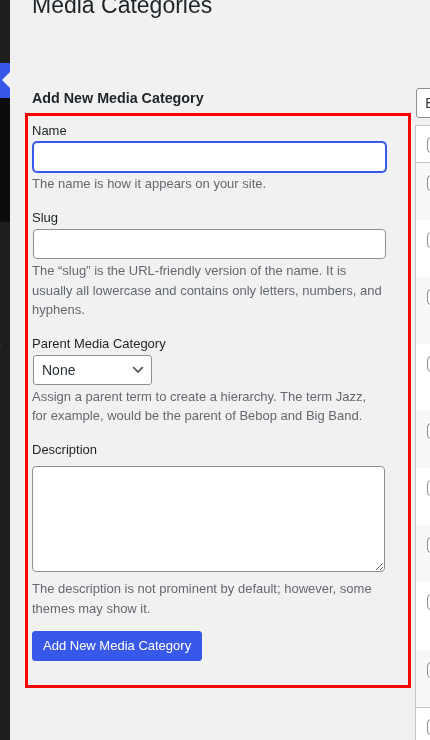
- Name: The name of the Media Category
- Slug: Optional; the slug (permalink) of the Media Category. Media Library Organizer uses the slug for sidebar folder navigation.
- Parent Media Category: Optional; the parent Media Category
- Description: Optional; some text to describe what this Media Category is.
Click Add New Media Category when done.
Editing a Media Category
To edit an existing Media Category, click on the name of the Media Category you wish to edit:
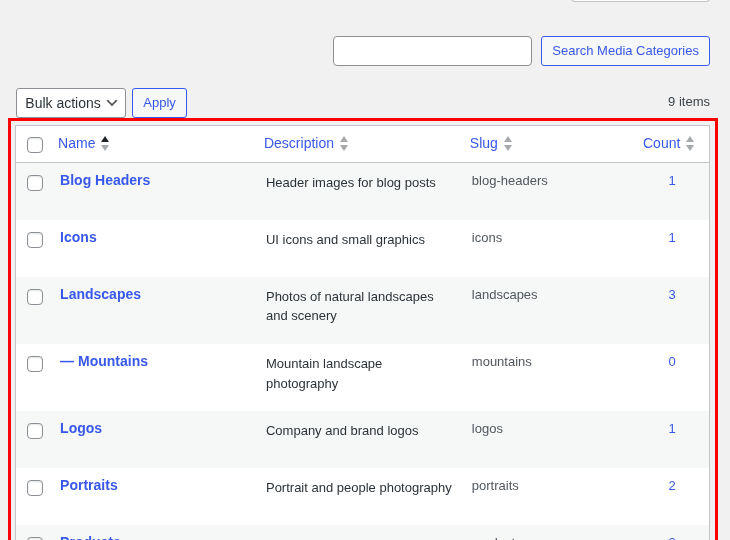
On the next screen that appears, change the following fields:
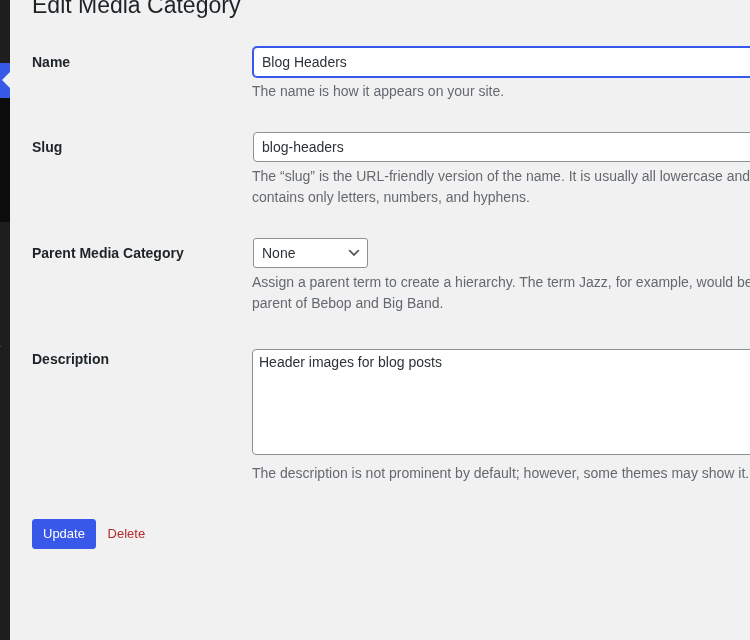
- Name: The name of the Media Category
- Slug: Optional; the slug (permalink) of the Media Category. Media Library Organizer uses the slug for sidebar folder navigation.
- Parent Media Category: Optional; the parent Media Category
- Description: Optional; some text to describe what this Media Category is.
Click the Update button when done.
Deleting a Media Category
To delete an existing Media Category:
- Hover the mouse cursor over the name of the Media Category
- Click the Delete link
Managing Categories in the Sidebar
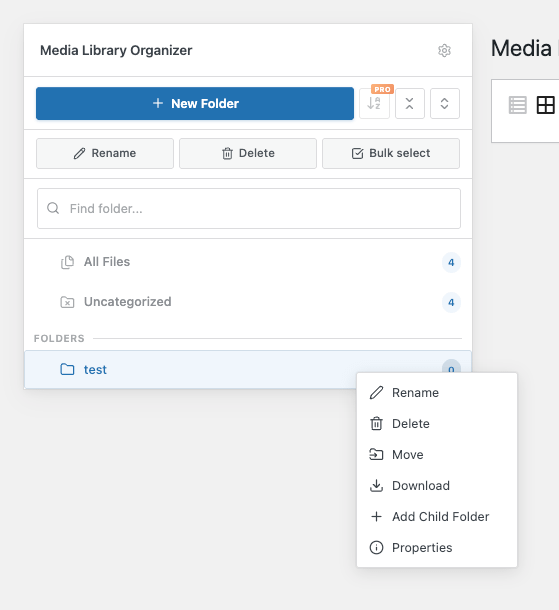
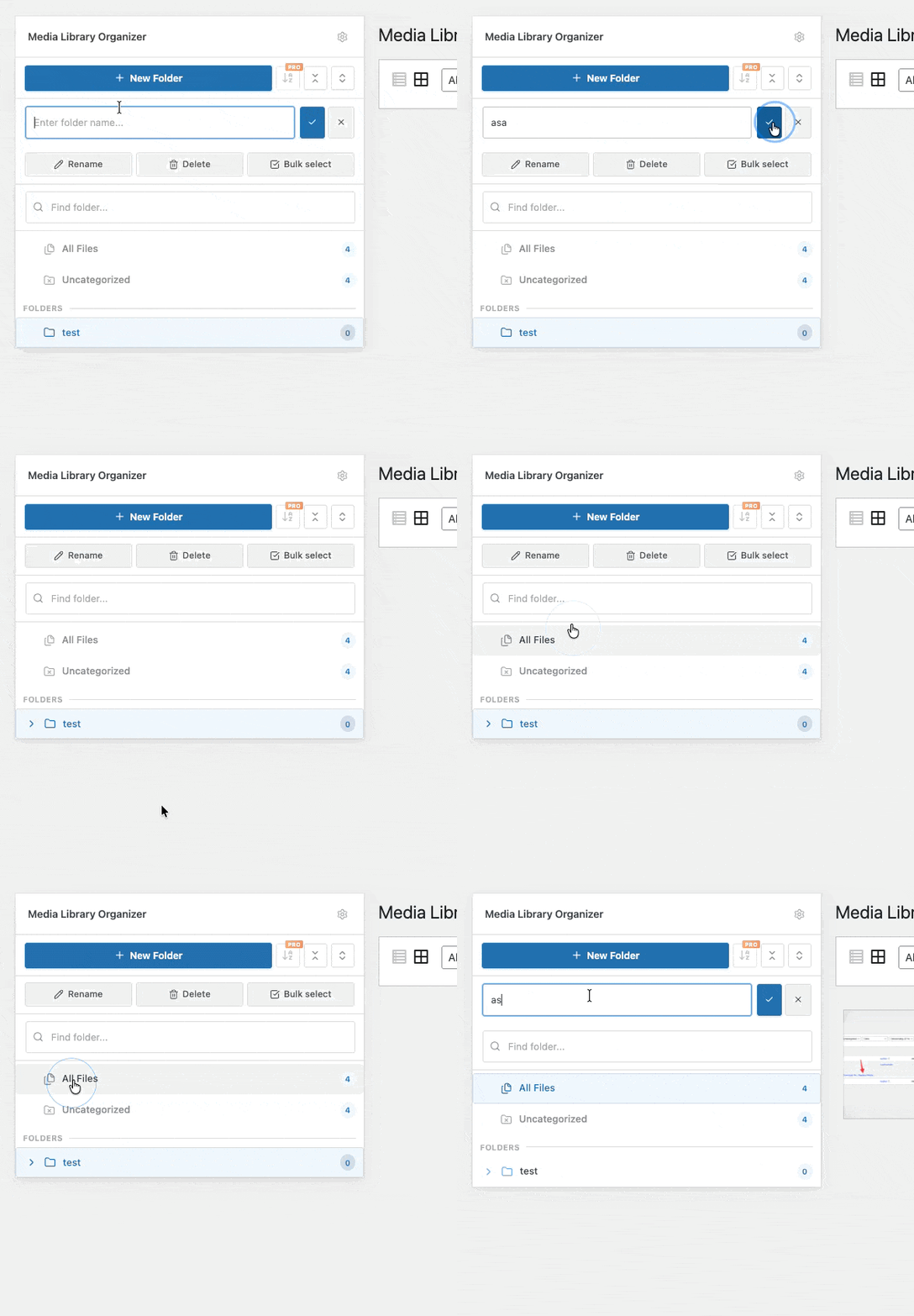
In addition to the standard WordPress category screen, you can manage your folders directly in the Media Library sidebar:
- Reorder: Drag and drop folders to arrange them in any custom order or move them between parent folders.
- Rename: Double-click on a folder name in the sidebar to rename it instantly.
- Move: Right-click a folder to open the context menu and select Move to choose a new parent destination.
- Drag-and-drop files: Assign media files to a folder by dragging them from the grid or list view into the sidebar folders. This assigns the file to the folder taxonomy term but does not alter server file locations.
Physical File Movement
Media Library Organizer organizes files virtually using WordPress taxonomies. It does not rename, copy, or move files in the wp-content/uploads directory. This means:
- File URLs stay the same — existing links and embeds in posts or pages continue to work.
- Server directory structure is unchanged — files remain wherever WordPress originally stored them.
If you need to physically move or rename files on the server, you will need a separate file-management tool. Note that physically relocating files will break existing URLs unless you set up redirects.