
Bulk Edit List View
Bulk Edit List View in Media Library Organizer Pro lets you update Media Categories, alt text, captions, and other attachment fields for multiple files at once from the WordPress Media Library's List View.
In this article
Prerequisites and Setup
- Any Media Library Organizer Pro license
Overview
To Bulk Edit Attachments in the Media Library's List View:
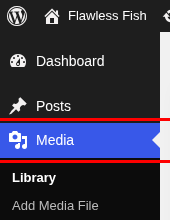
- Click on Media in the WordPress Administration Menu
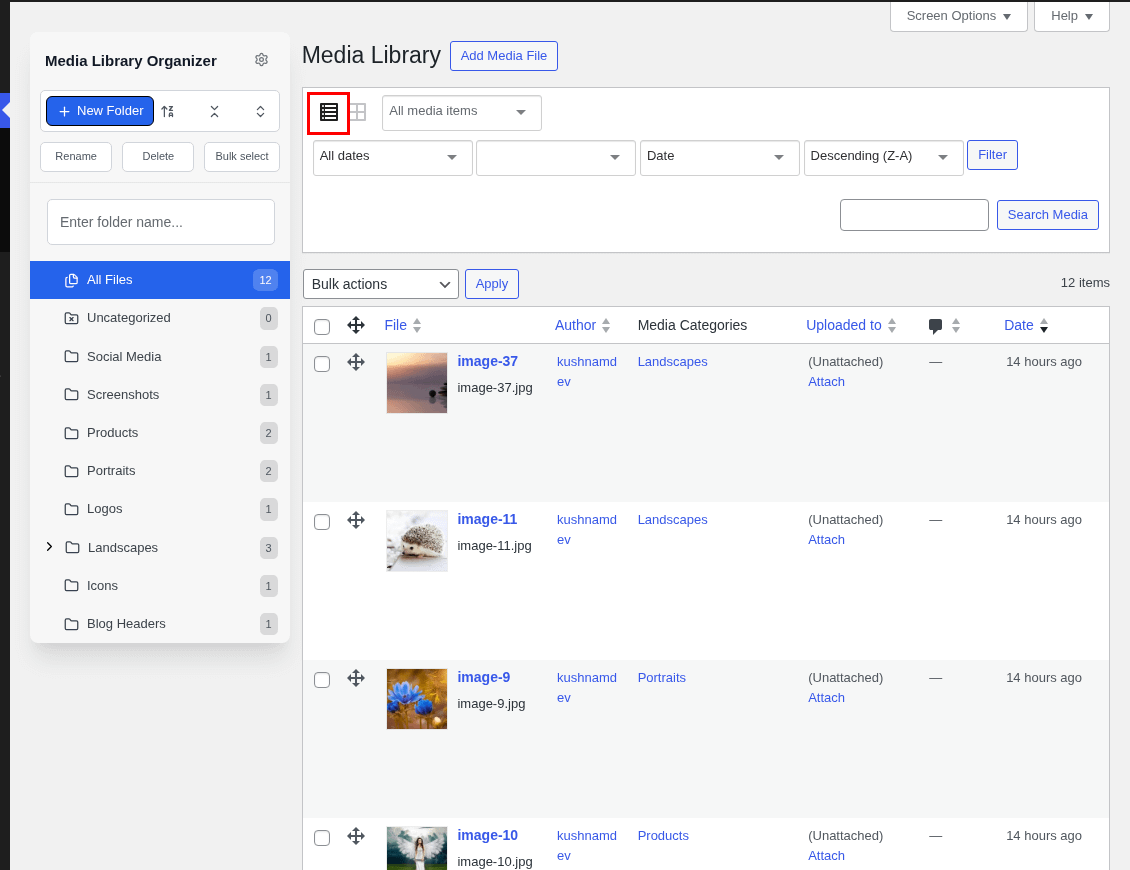
- Click the List Icon
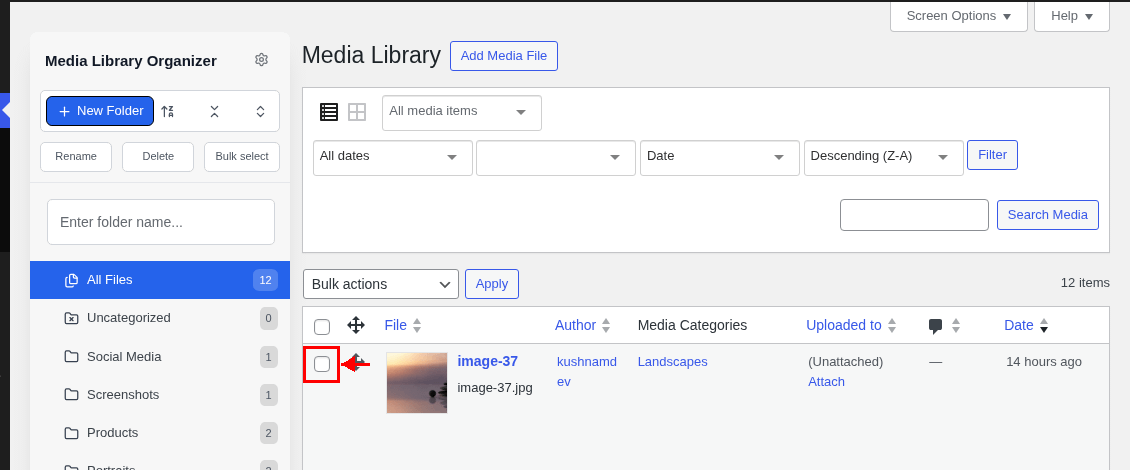
- Tick the checkboxes beside the images that you wish to select
- Click the Bulk Actions dropdown
- Choose the Edit option

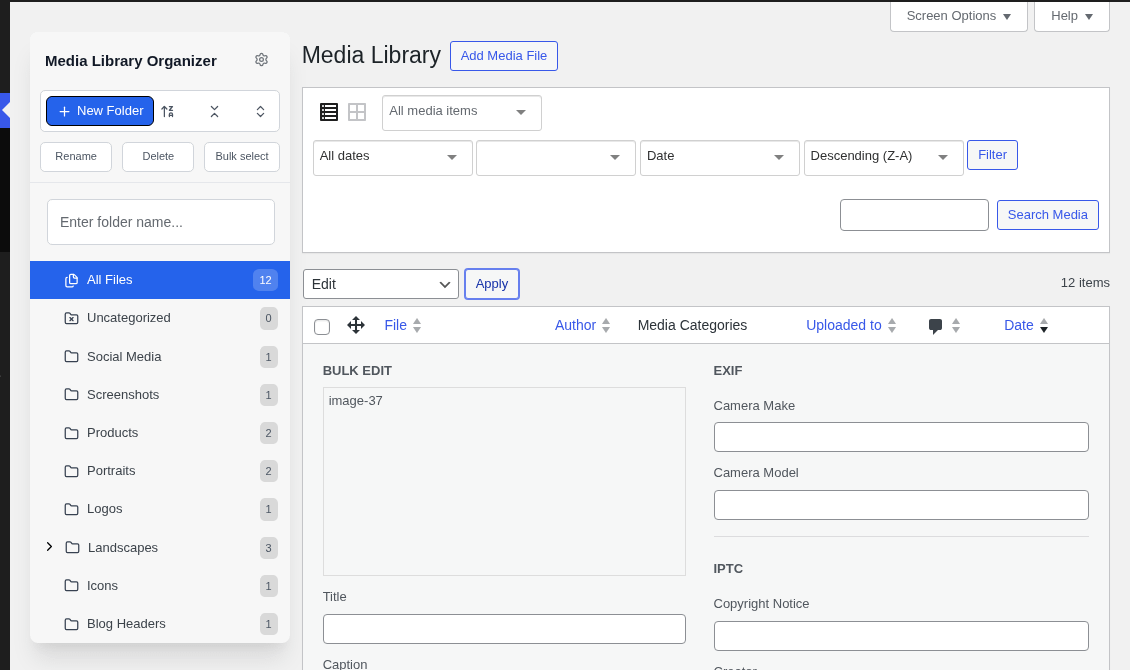
Several fields will be displayed below the Bulk Actions dropdown:
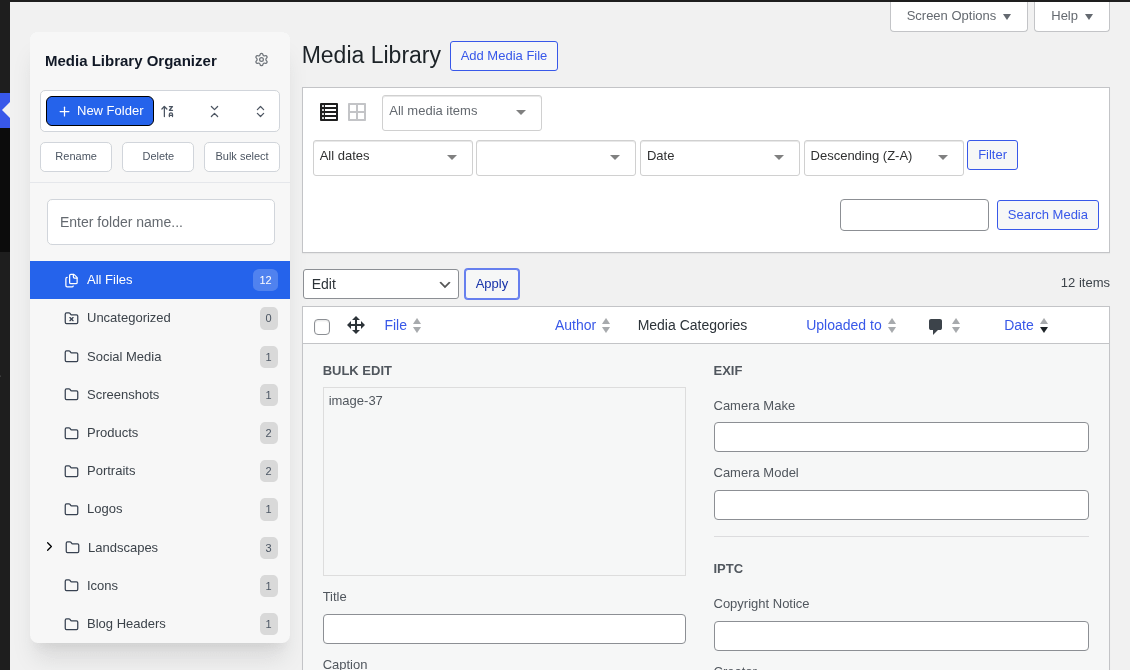
The following can be edited, and will be applied to the selected Attachments:
- Media Categories
- Author
- Title
- Caption
- Alt. Text
- Description
- EXIF data
- IPTC data
The EXIF data and IPTC data fields only appear when they have been configured as editable in the plugin settings.
Don't want to make a change to a field? Leave the field blank or unchecked. For the Author field, you can also select the No Change option.
Click Update when done.
Add Additional Attachment(s) to Bulk Editing
To add an Attachment to the Bulk Editor:
- Tick the checkbox to the left of the Attachment
Remove Attachment(s) from Bulk Editing
To remove an Attachment from the Bulk Edit, either:
- Click the cross icon to the left of the Attachment Title
- Untick the checkbox to the left of the Attachment
Cancel Bulk Editing
To cancel Bulk Editing, click the Cancel button on the bottom left corner of the Bulk Edit form.