
Export Media Library with Media Library Organizer
You can export your WordPress Media Library as a downloadable ZIP file with Media Library Organizer Pro. This guide shows how to export selected files or your full library from both Grid View and List View.
In this article
Before you start
- Any Media Library Organizer Pro license
- The Auto Extract ZIP Files module enabled in plugin settings (this controls whether the ZIP bulk action is available)
To export your full library, clear all media filters first. Then export in batches if your library is large.
Export media as a ZIP archive
Grid View
- In WordPress, go to Media > Library and switch to Grid View.
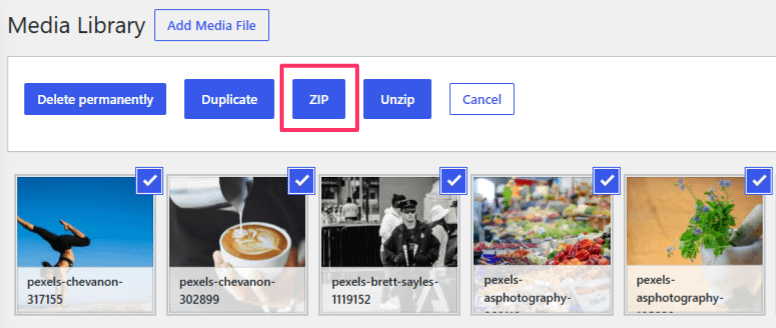
- Click Bulk Select.
- Select the files you want to export.
- Click ZIP to download the ZIP archive.
List View
- In WordPress, go to Media > Library and switch to List View.
- Select the files you want to export with the checkboxes.
- Open the Bulk actions dropdown and choose ZIP.
- Click Apply to download the ZIP archive.
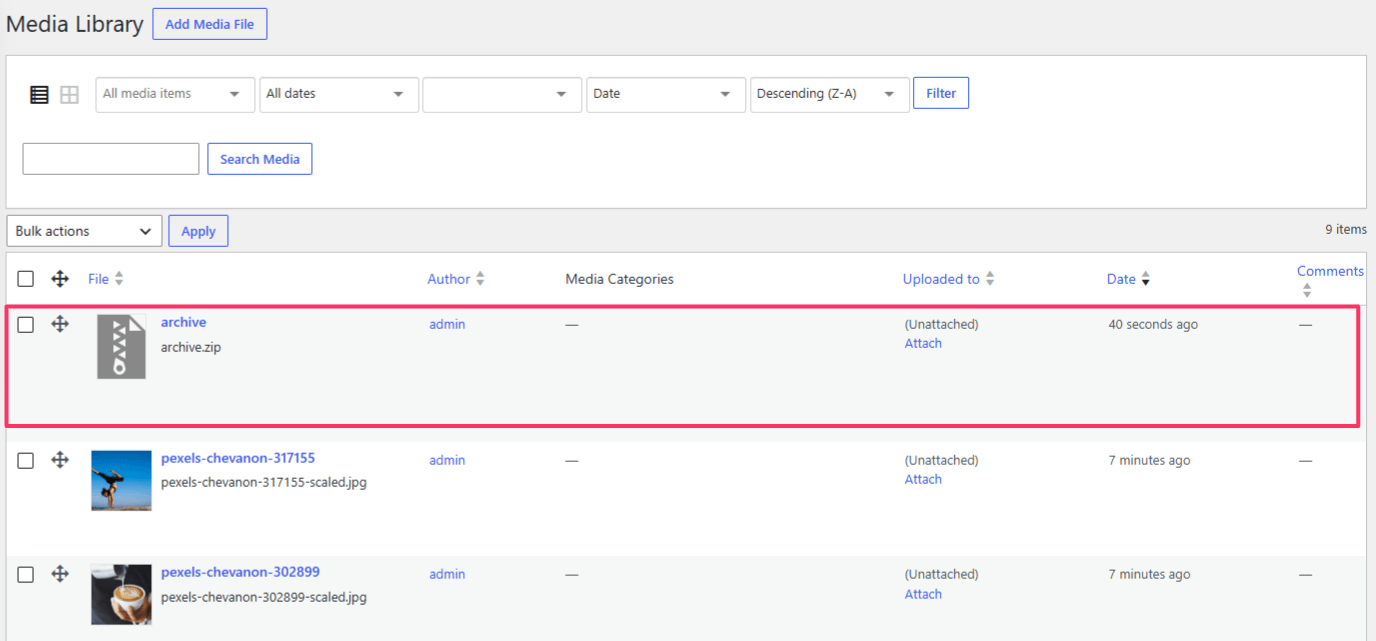
After the ZIP action completes, a ZIP file named archive.zip appears in your Media Library. Open that file and click Download File to save the archive to your computer.
What the export includes
- The ZIP export includes the selected media files.
- Folder/category/taxonomy assignments are not exported as importable metadata.
- Any filtering in your media view affects which files you select for export.
File-size and hosting limits
ZIP creation runs on your hosting server, so very large exports can fail or time out. If that happens:
- Export smaller batches of files.
- Try the export during low-traffic hours.
- Ask your hosting provider to review PHP memory and execution limits.
Related articles
- For the core ZIP workflow details, see ZIP Existing Attachments.
- For ZIP upload/extraction behavior, see ZIP and Unzip Settings.