Filtering and Sorting Media
Filtering and Sorting Media Media can be filtered and sorted in any of WordPress' Media views.
In this article
Edit Media: List View
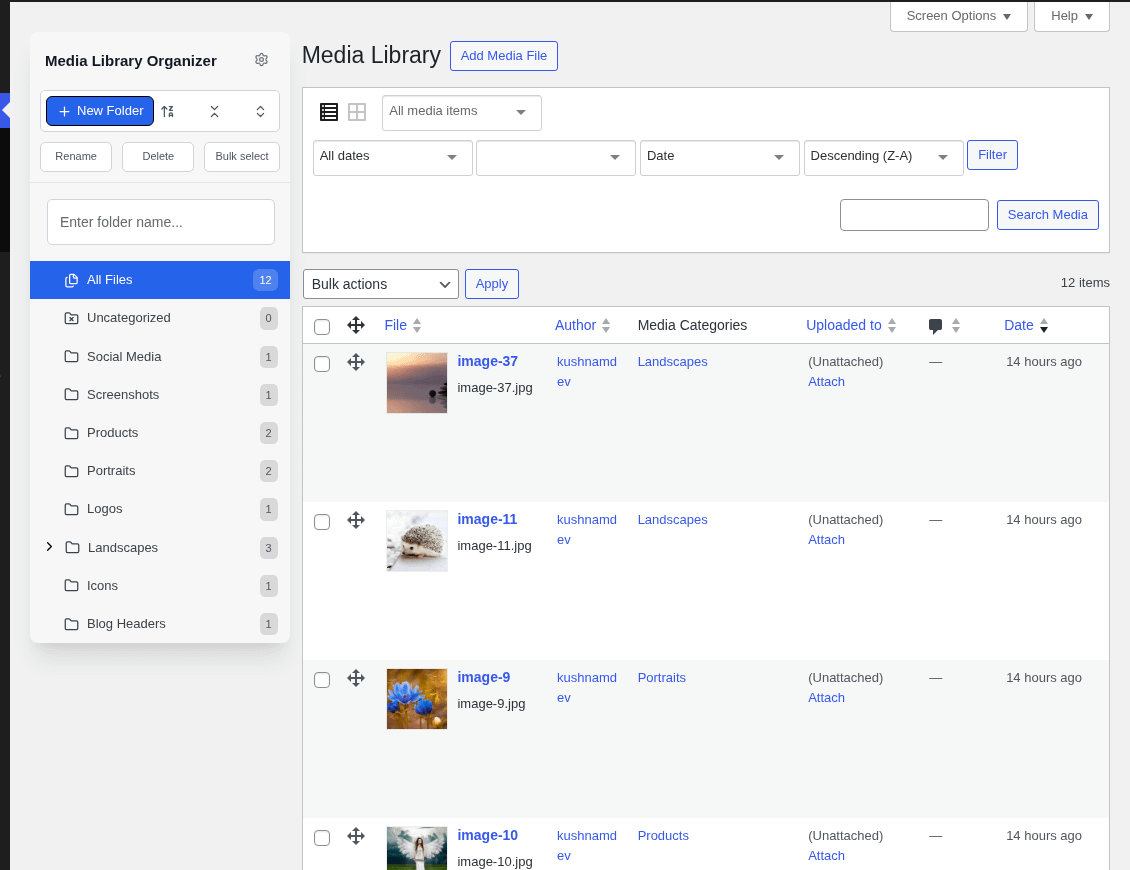
In the WordPress Administration interface:
- Click on Media in the WordPress Administration Menu
- Click on the List icon, towards the top of the screen
Filter by Media Category

To display Media assigned to a specific category:
- Click on the All Media Categories dropdown
- Select the Media Category to view
- Click the Filter button
All Media assigned to the chosen Media Category will then be displayed.
Sort Media

To sort Media:
- Click on the Sort by dropdown (this will be displayed as Date by default)
- Select how you want to sort Media
- Click on the Sort Order dropdown (this will be displayed as Descending (Z-A) by default)
- Select which order to sort the Media (ascending or descending)
- Click the Filter button
Media will then be displayed, sorted by the chosen option, either ascending or descending (e.g. newest to oldest date, or A-Z by title).
To display files in a numbered sequence, name them with numbered prefixes, such as 01-cover.jpg, 02-intro.jpg, and 03-gallery.jpg, then:
- Select Filename from the Sort by dropdown.
- Select Ascending (A-Z) from the Sort Order dropdown.
- Click the Filter button.
Filenames are sorted alphabetically, character by character, not as numbers. Give every prefix the same number of digits (for example, 01 to 12 rather than 1 to 12); otherwise 10 and 11 appear before 2.
Sorting by filename changes only the order in which files are displayed in the Media Library. It does not change the files' upload dates, so this is not a chronological sort.
If the Sort by or Sort Order dropdowns are not visible, enable them in Filter and Sort Settings.
Edit Media: Grid View
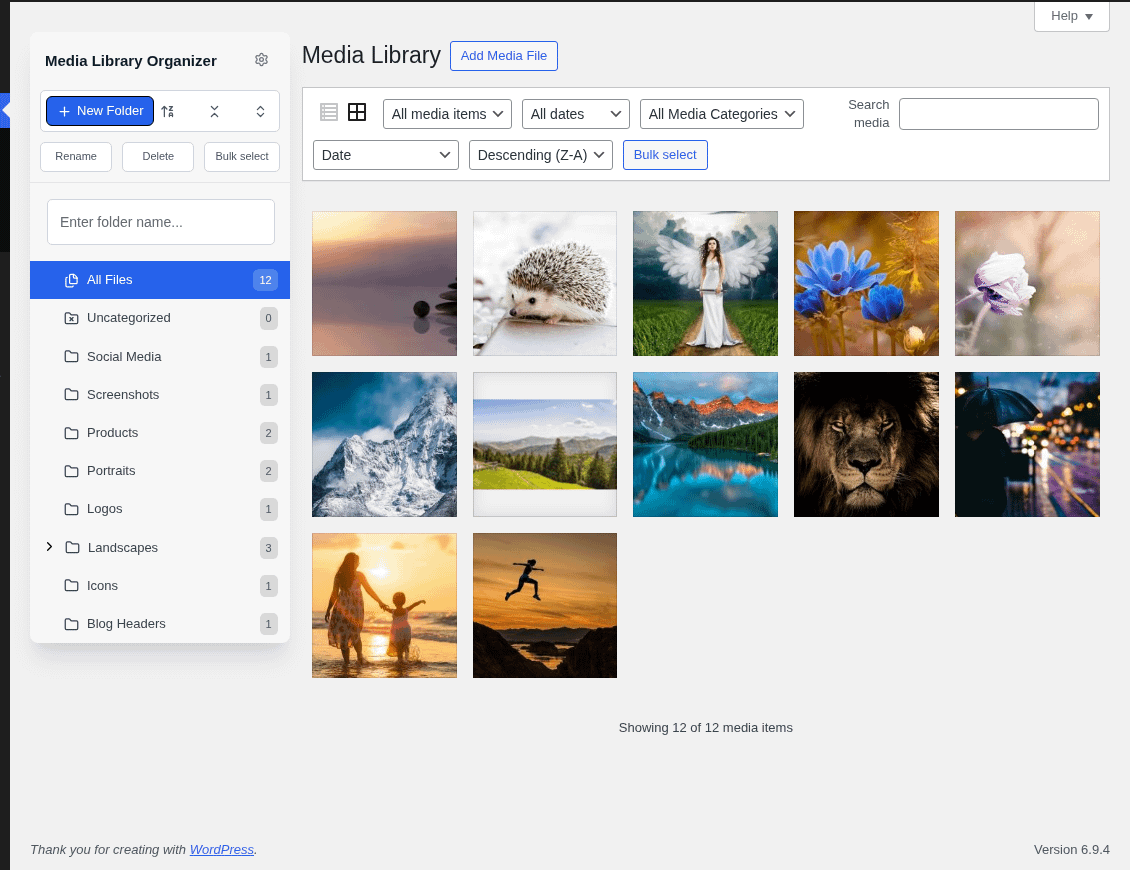
In the WordPress Administration interface:
- Click on Media in the WordPress Administration Menu
- Click on the Grid icon, towards the top of the screen
Filter by Media Category

To display Media assigned to a specific category:
- Click on the All Media Categories dropdown
- Select the Media Category to view
All Media assigned to the chosen Media Category will then be displayed.
Sort Media

To sort Media:
- Click on the Sort by dropdown (this will be displayed as Date by default)
- Select how you want to sort Media
- Click on the Sort Order dropdown (this will be displayed as Descending (Z-A) by default)
- Select which order to sort the Media (ascending or descending)
Media will then be displayed, sorted by the chosen option, either ascending or descending (e.g. newest to oldest date, or A-Z by title).
Edit Post
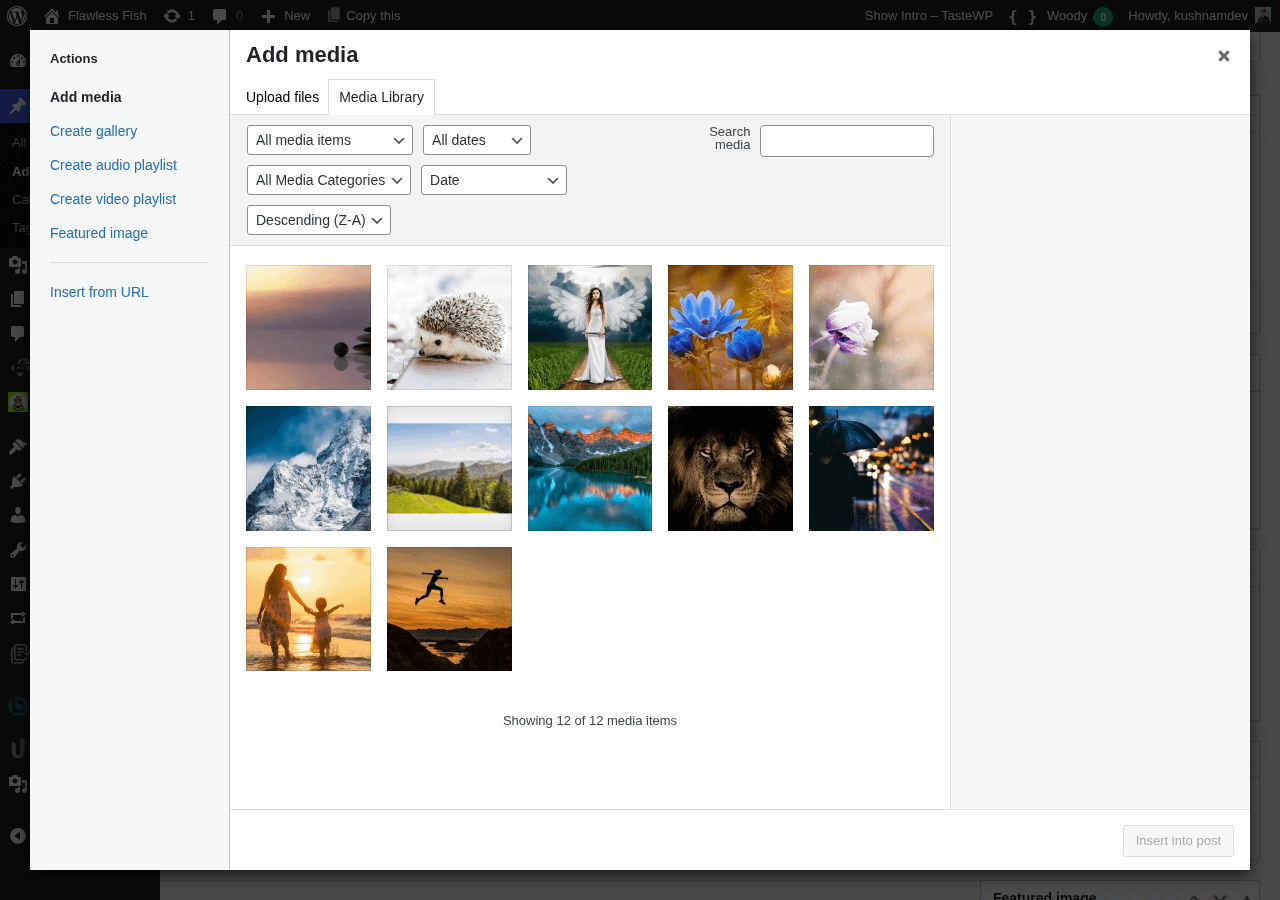
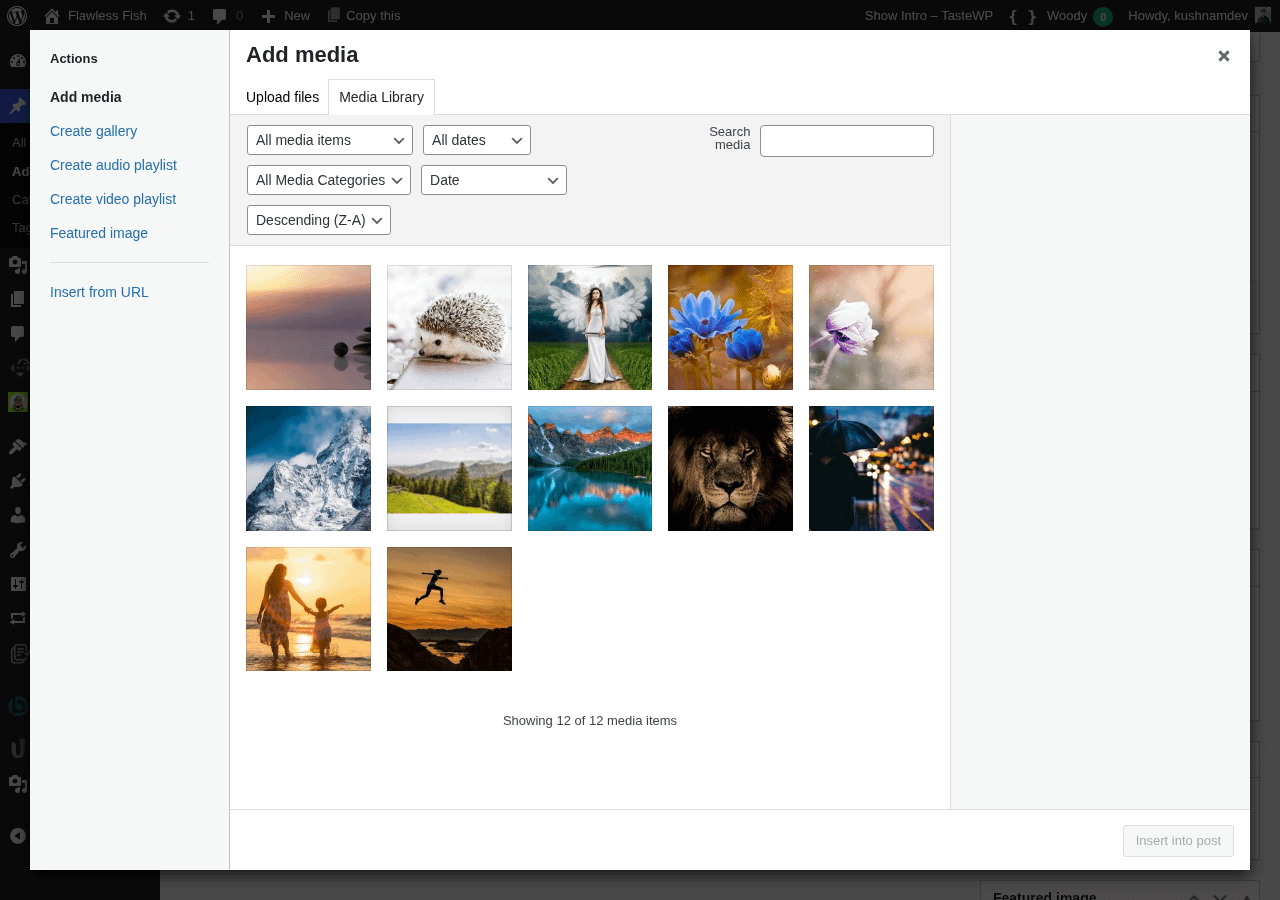
When editing Posts, Pages or Custom Post Types, Media Library Organizer's Filter and Sorting options are available when WordPress' Media view is presented (for example, when using the Add Media or Set Featured Image options):
Filter by Media Category
To display Media assigned to a specific category:
- Click on the All Media Categories dropdown
- Select the Media Category to view
- Click the Filter button
All Media assigned to the chosen Media Category will then be displayed:
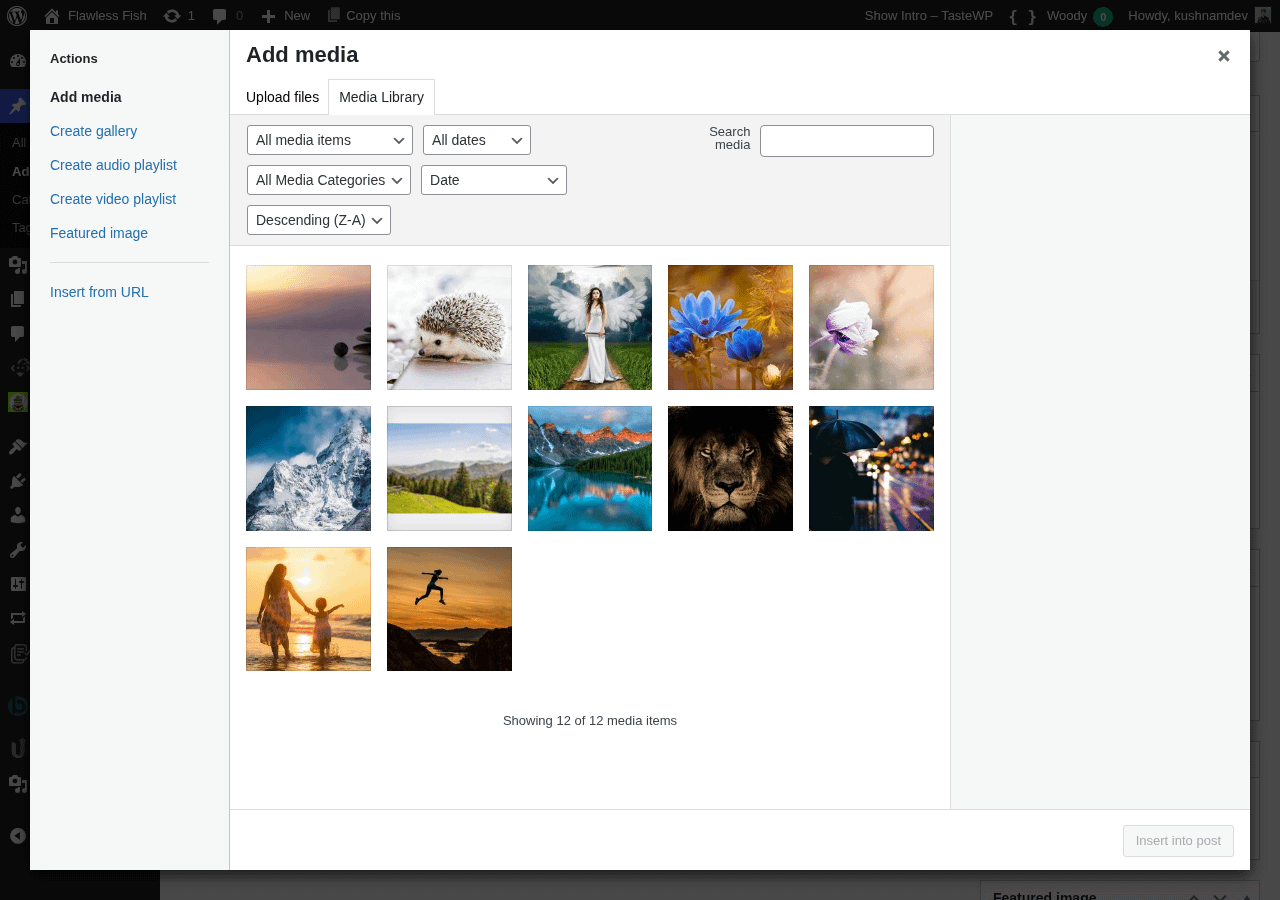
Sort Media
To sort Media:
- Click on the Sort by dropdown (this will be displayed as Date by default)
- Select how you want to sort Media
- Click on the Sort Order dropdown (this will be displayed as Descending (Z-A) by default)
- Select which order to sort the Media (ascending or descending)
- Click the Filter button
Media will then be displayed, sorted by the chosen option, either ascending or descending (e.g. newest to oldest date, or A-Z by title):