
How to use the Asset Manager
The Asset Manager in Super Page Cache gives you fine-grained control over which CSS and JavaScript files load on each page of your WordPress site.
In this article
Overview
The Asset Manager is a powerful new feature in Super Page Cache that gives you surgical control over CSS and JavaScript loading on your WordPress site. You can selectively disable specific files only where they're not needed - improving performance while maintaining functionality.
Key Features
- Complete Asset Visibility - See all CSS/JS files loading on any page, including hidden inline content
- Context-Aware Rules - Disable assets on specific page types (categories, posts, archives, etc.)
- User State Filtering - Apply different rules for logged-in vs. non-logged-in visitors
- Real-time Interface - Visual modal shows exactly what's loading and where
How to Enable
- Go to Super Page Cache Settings → Files tab
- Toggle "Enable assets manager" on and update the settings.
- Click "Manage assets" button to launch the interface
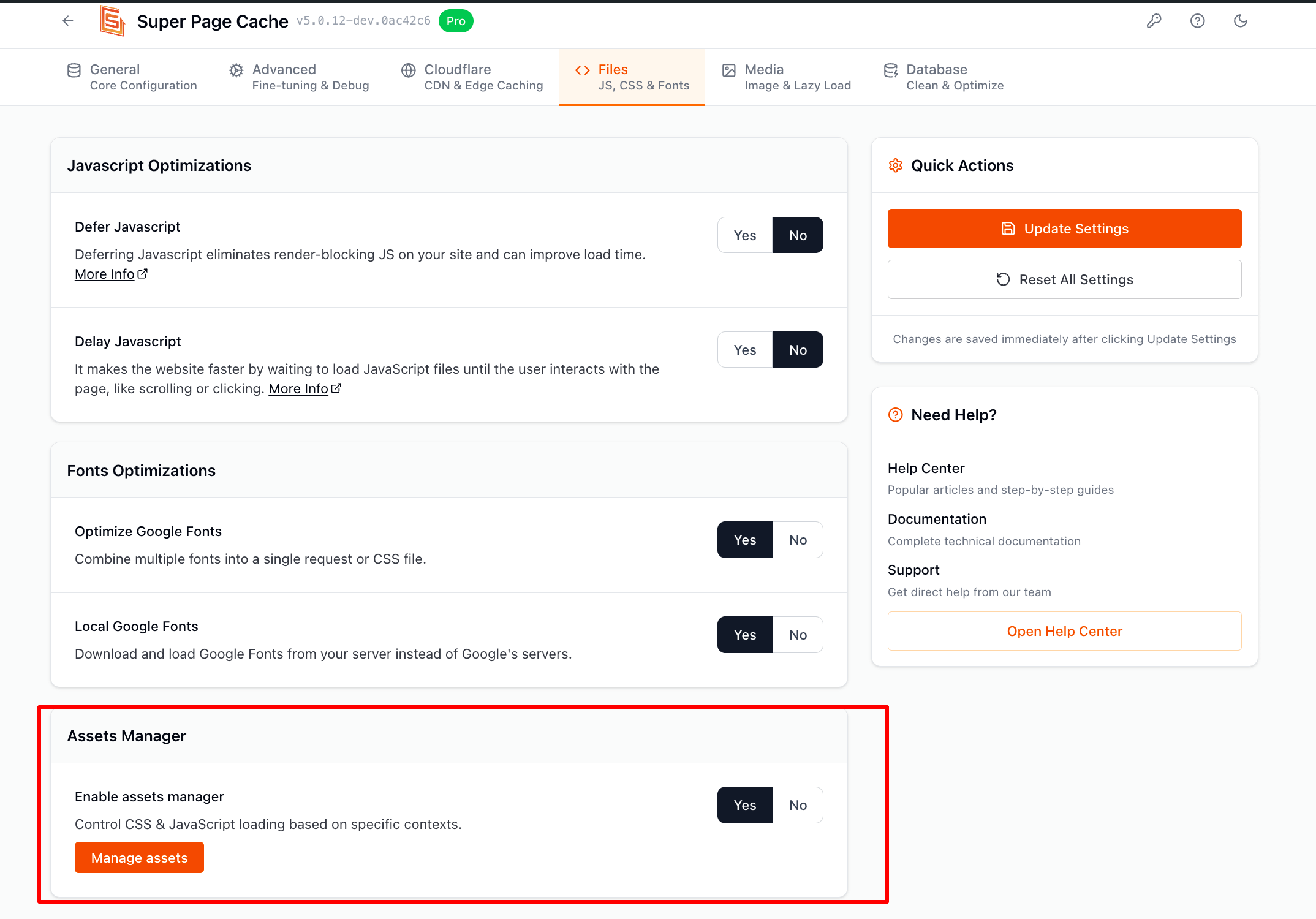
Assets manager option in SPC settings
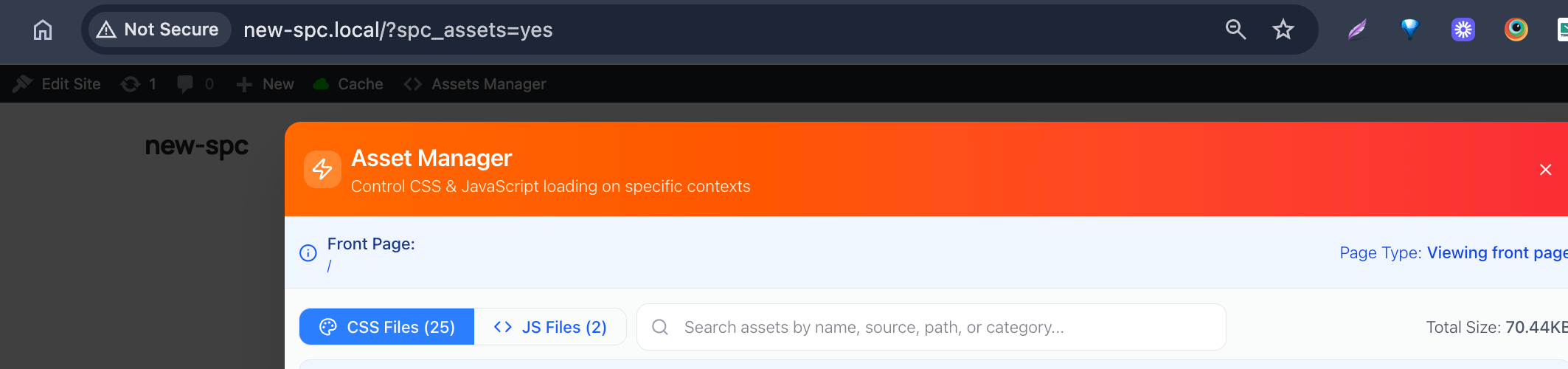
Accessing the Asset Manager
Method 1: Admin Bar (Recommended)
- When logged in as admin, click "Assets Manager" in the WordPress admin bar

Method 2: URL Parameter
- Add
?spc_assets=yesto any page URL to open the modal
Using the Asset Manager
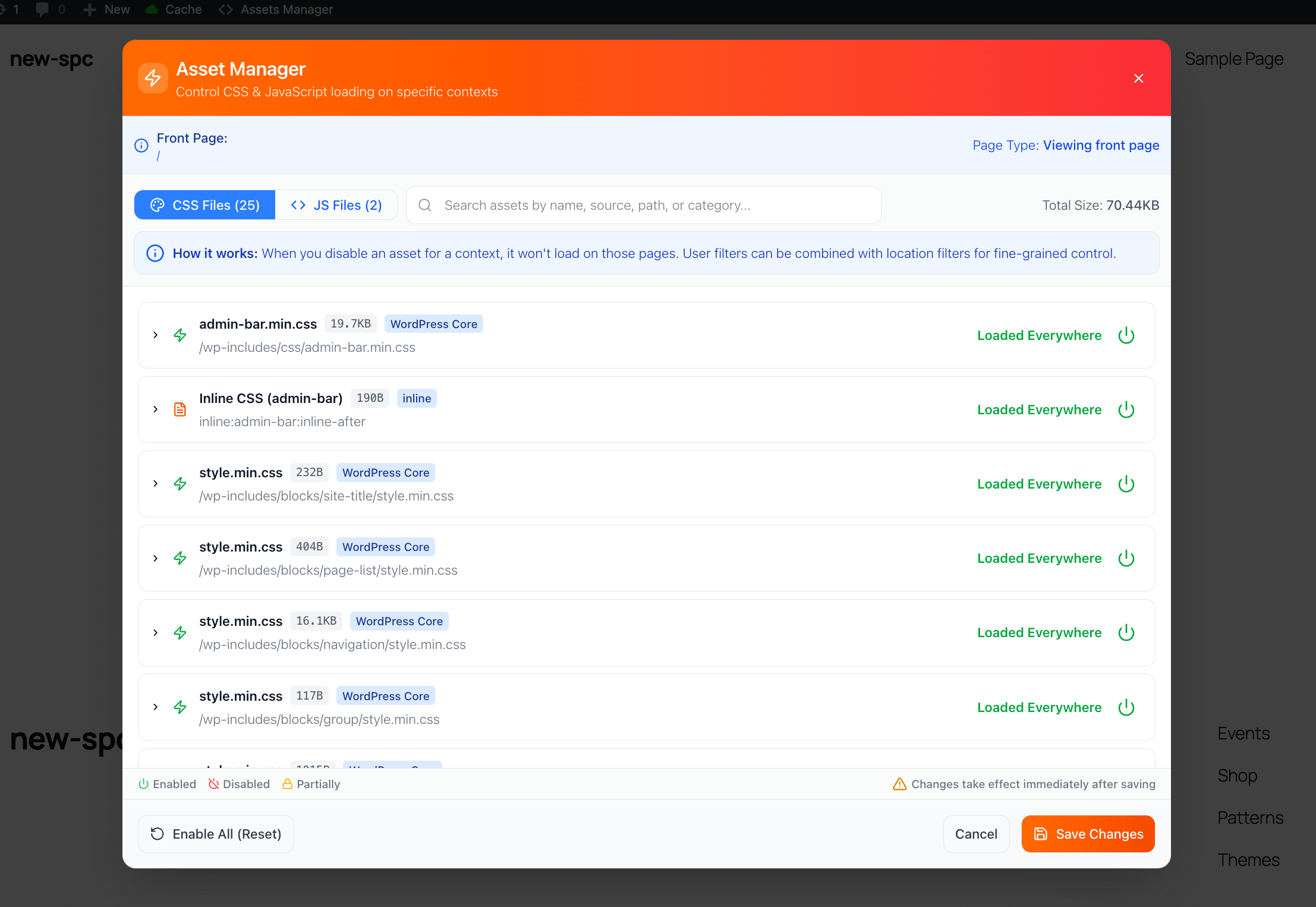
1. Asset Detection
The modal automatically detects:
- External CSS/JS files (theme, plugins, WordPress core)
- Inline CSS/JS code (custom styles, scripts, localized data)
- Asset origins (which plugin/theme each file comes from)
- File sizes and dependencies
2. Search & Filter
- Use the search bar to quickly find specific assets (e.g., "woocommerce", "contact-form")
- Switch between CSS and JS tabs
- Asset count shows total files vs. filtered results
3. Disable Rules
Each asset has a switch you toggle per context. A colored status indicator next to each asset shows its current state:
- Enabled (green) — the asset is loading normally. No disable rule is active.
- Disabled (red) — a disable rule is active. The asset is blocked and will not load in the selected context.
- Partially (amber) — the asset is disabled in some contexts but still loads in others.
💡 Tip: If you are unsure whether a rule is causing a problem, switch the asset back to Enabled to allow it to load again without deleting the rule entirely.
Location Rules
- Entire Website - Disable everywhere (use carefully!)
- This Category/Post/Page - Disable only on current page
- All Categories/Posts/Pages - Disable on all pages of this type
- Archive Pages - Disable on category, tag, author, or date archives
⚠️ Important: Selecting Entire Website applies the rule globally across your whole site. When a global rule is active, adding extra location filters (such as "This Page" or "All Posts") or user-state filters has no additional effect — the asset is already blocked everywhere. Remove the global rule first if you want to apply more targeted rules instead.
User State Filters
- Non-Logged In Users - Apply rules only to visitors (not admins)
- Combine with location rules for fine-grained control
4. Reset all
The Enable All (Reset) button resets all disable rules in bulk, re-enabling every asset that was previously blocked. Use this if you want to start fresh or quickly restore your site to its default loading behavior.
Troubleshooting Asset Manager Issues
The modal is unresponsive or non-interactive
If the Asset Manager modal opens but you cannot click anything inside it, a JavaScript conflict on the page is most likely preventing the interface from working.
A common cause is JS optimization or deferral performed by other performance plugins (for example, Perfmatters). To resolve this:
- Temporarily deactivate the conflicting plugin (e.g., Perfmatters).
- Reload the page and re-open the Asset Manager.
- Once you have finished configuring your rules, re-activate the plugin.
💡 Tip: If you use Perfmatters or a similar plugin, consider excluding the Asset Manager scripts from JS optimization rather than deactivating the plugin entirely.
The admin bar link or URL parameter does not open the modal
If clicking Assets Manager in the admin bar or appending ?spc_assets=yes to a URL does not open the modal:
- Clear your site cache — a stale cached page may not include the Asset Manager scripts. Clear the Super Page Cache and any other caching layers (CDN, hosting cache, browser cache), then try again.
- Make sure you are accessing the page while logged in as an administrator.
Best practices for accessing the Asset Manager
- Always open the Asset Manager in a standard browser tab while logged in as an administrator.
- Avoid using incognito or private browsing windows — these can block the cookies needed to recognize your admin session, which may prevent the modal from loading.
- Do not rely on cached pages when managing assets; always view a freshly loaded page to ensure the asset list is accurate.
The Asset Manager gives you the precision tools professional developers use to optimize WordPress performance - now with a user-friendly interface that anyone can master.