
Improve PageSpeed Insights Scores with Super Page Cache
Super Page Cache can significantly improve your site's speed, but it does not optimize every performance issue on its own. This guide shows you which settings to review for poor TTFB, LCP, FCP, and CLS results in PageSpeed Insights.
In this article
What Super Page Cache can and cannot fix
Super Page Cache improves how quickly cached pages are delivered from your server and Cloudflare edge cache. This usually reduces server load and improves repeat-visit speed.
PageSpeed Insights can still report problems when performance bottlenecks are outside the cache layer, such as:
- uncached first visits before the cache is warm
- large or unoptimized images
- render-blocking CSS/JavaScript
- layout shifts (CLS) caused by page structure
- slow third-party scripts (ads, widgets, analytics)
📝 Info: Treat Super Page Cache as one part of your performance stack. You may still need image optimization, script cleanup, and theme/layout fixes for best Core Web Vitals results.
First verify that caching is working
- In your WordPress dashboard, go to Super Page Cache > Dashboard.
- Run the plugin's Test Cache check and confirm it reports success.
- Open your site in an incognito/private window.
- Open browser DevTools, go to Network, reload the page, and inspect the main document request.
- Confirm caching headers like:
CF-Cache-Status: HITX-Wp-Spc-Disk-Cache: HIT
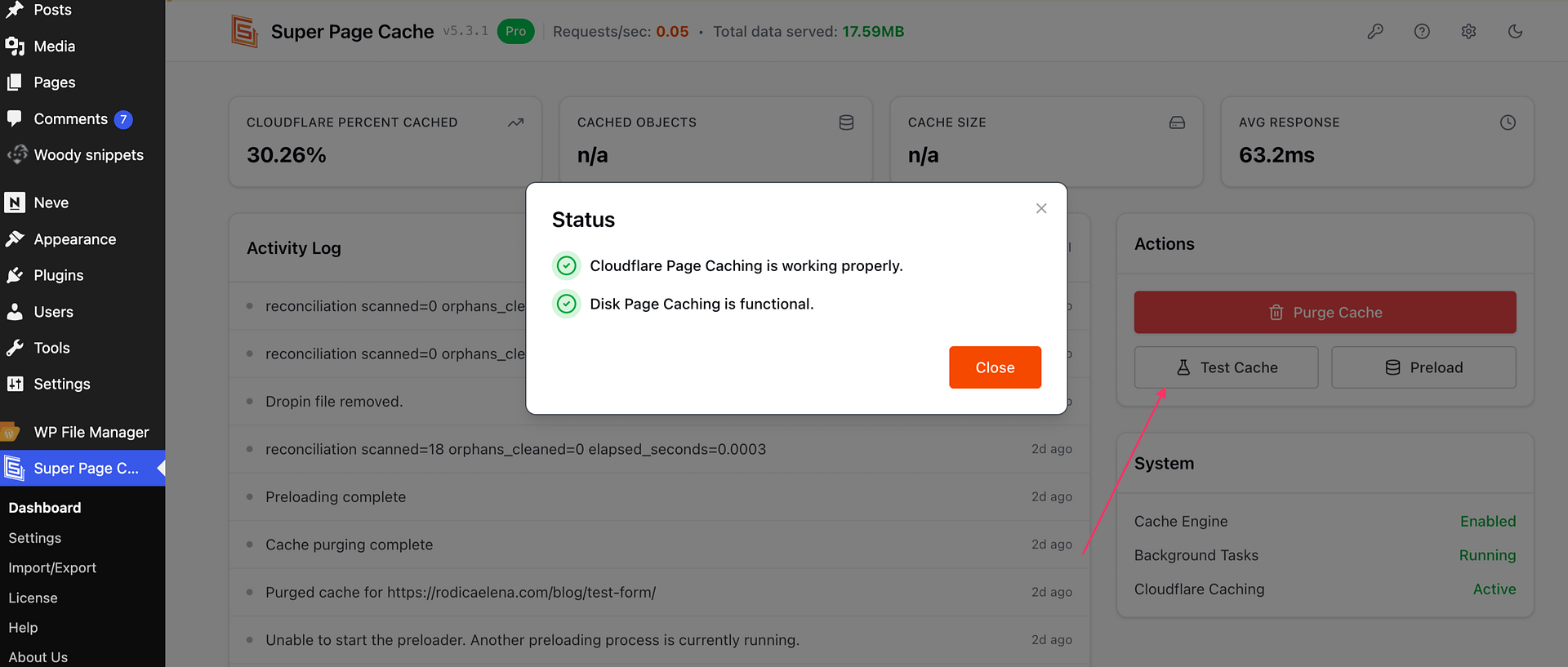
⚠️ Warning: Right after a purge, Cloudflare may briefly return MISS or EXPIRED. Reload once or twice before concluding cache is not working.
Reduce TTFB with cache preloading and Cloudflare edge caching
If TTFB is high, check whether pages are being warmed before visitors hit them.
- Go to Super Page Cache > Settings > General and enable Show advanced settings.
- Open the Advanced tab.
- In Preloader, enable Enable preloader.
- Optionally enable Automatically preload the pages you have purged from cache.
- In Preloader Operation, choose menu links and/or recent content so important URLs are preloaded.
- If needed, add sitemap paths in Preload all URLs into the following sitemaps.
After saving, purge cache and let the preloader run before retesting.
Improve LCP by not lazy-loading above-the-fold images
Lazy loading your hero (LCP) image can delay the most important visual element and hurt LCP.
- Go to Super Page Cache > Settings > Media.
- In Lazy load behavior for images, avoid using Lazy load all images on pages with a hero image.
- Use one of these options instead:
- Skip Lazy Loading for First Images
- Skip Lazy Loading for Initial Viewport (Pro)
- If your hero, logo, or banner still lazy loads, add keywords in Media Lazy Load Exclusions (for example,
hero,logo, or a specific image class/URL pattern).
Improve FCP and render delays with file optimization settings
Go to Super Page Cache > Settings > Files and review these options:
- HTML Optimizations > Minify HTML
- Javascript Optimizations > Defer Javascript (Pro)
- Javascript Optimizations > Delay Javascript (Pro)
- Javascript Optimizations > Exclude JS (Pro) (if delayed scripts break features)
- CSS Optimizations > Remove Unused CSS (Pro)
- Assets Manager > Enable Assets Manager
- Fonts Optimizations options for Google Fonts
Enable one feature at a time, then test your forms, cart, menus, sliders, and other interactive elements.
⚠️ Warning: Defer/Delay JS and Remove Unused CSS can break front-end functionality on some themes or plugins. Use exclusions for affected files or pages.
Fix CLS issues outside the cache layer
Super Page Cache can improve delivery speed, but it cannot automatically fix all layout shift causes.
Common CLS fixes include:
- adding explicit width/height for images and iframes
- reserving space for ad slots and embeds
- stabilizing font loading
- adjusting theme or custom code that injects content late
If CLS remains high after cache and file optimizations, this usually needs theme/plugin-level adjustments.
Audit third-party scripts and external resources
Third-party scripts can heavily affect LCP, FCP, and Total Blocking Time even when caching is configured correctly.
Review and reduce non-essential:
- analytics tags
- ad networks
- social widgets
- chat, booking, or popup scripts
In Super Page Cache, you can use:
- Assets Manager to disable non-essential assets on specific pages
- Advanced > Prefetch & Preconnect > DNS Prefetch domains
- Advanced > Prefetch & Preconnect > Preconnect domains (use sparingly)
Optimize images with a dedicated image tool
If PageSpeed flags large images, use an image optimization solution alongside Super Page Cache.
Good practices:
- compress and resize oversized images
- serve next-gen formats like WebP or AVIF when possible
- use CDN-based image delivery for media-heavy pages
You can use Optimole or another dedicated image optimization tool based on your workflow.
Retest correctly and set expectations
After each optimization change:
- Purge cache.
- Let preloading complete.
- Retest in PageSpeed Insights (mobile and desktop separately).
- Compare several runs, not just one result.
- Prioritize the largest audit opportunities first.
PageSpeed scores can vary between tests. Focus on consistent Core Web Vitals improvements instead of expecting one toggle to fix every metric.
PageSpeed Insights shows two kinds of results. The section at the top of the report uses data collected from real visitors over the previous 28 days, sometimes for your whole site (origin) rather than the single URL you tested. The performance score and the diagnostics below it come from a test run at the moment you click Analyze. After an optimization change, compare the current test results. The 28-day real-visitor data, including LCP, updates gradually as new visits replace older ones, so an unchanged value there does not mean caching is broken or that your change failed.
Video Resource
Here's a video showing how to reach a 90+ PageSpeed score in WordPress for free with Super Page Cache and Optimole: