
Super Page Cache for Cloudflare - FAQ Documentation
This FAQ covers the most common questions and issues with Super Page Cache for Cloudflare, from basic setup and authentication errors to advanced configuration using PHP constants and hooks.
In this article
Common Questions
How it works?
Super Page Cache generates static HTML versions of the webpages inside your site. This is a great option and can increase your site speed dramatically.
Our page cache system works way better than any other disk cache system and plugins out there in the market. In short, now you don't need to install any other caching plugin in conjunction with Super Page Cache, as the plugin can now handle Cloudflare caching and disk caching.
Can I use this plugin to take advantage of Cloudflare's Cache Everything rule, bypassing the cache for logged in users even if I'm using the free plan?
Yes. This is the main purpose of this plugin.
Can I restore all Cloudflare settings as before the plugin activation?
Yes you can by clicking on the Reset all button.
Why do all the pages have "BYPASS" as the cf-cache-status?
Cloudflare does not add pages with cookies to cache because they can have dynamic contents. If you want to force this behavior, strip out cookies by enabling the option Strip response cookies.
What is Preloader and how it works?
The preloader is a simple crawler that is started in the background and aims to preload pages so that they are cached immediately.
Once the preloader is enabled, you need to specify which preloading logic among those available to use. You can choose a combination of options (sitemaps, WordPress menus, recent published posts, etc.).
It is also possible to automatically start the preloader when the cache is cleared.
In order to avoid overloading the server, only one preloader will be started at once. It is therefore not possible to start more than one preloader at the same time. Furthermore, between one preload and the other there will be a waiting time of 2 seconds.
If you want to run the preloader at middle of the night when you have low users, you can run the preloader over CRON job as well.
What is the difference between Purge Cache and Force purge everything actions?
If the Purge HTML pages only option is enabled, clicking on the PURGE CACHE button only HTML pages already in cache will be deleted.
If for some reason you need to delete static files (such as CSS, images and scripts) from Cloudflare's cache, you can do so by clicking on Force purge everything.
Common Issues
Error: Invalid request headers (err code: 6003)
This is a Cloudflare authentication error. If you chose the API Key as the authentication mode, make sure you have entered the correct email address associated with your Cloudflare account and the correct Global API key (not your Cloudflare password!).
If you chose the API Token as the authentication mode, make sure you have entered the correct token, with all the required permissions, and the domain name exactly as it appears in your Cloudflare account.
Also make sure you haven't entered the API Token instead of the API key or vice versa.
Error: Page Rule validation failed: See messages for details. (err code: 1004)
Current versions of Super Page Cache use a Cloudflare Cache Rule and no longer create a Page Rule. This error points to a leftover or manually created Cache Everything Page Rule in your Cloudflare account. Log in to Cloudflare, click on your domain, and go to Rules → Page Rules. If a Cache Everything Page Rule exists, delete it. Then, from the settings page of Super Page Cache, disable and re-enable the cache.
Error: Actor 'com.cloudflare.api.token.' requires permission 'com.cloudflare.api.account.zone.list' to list zones (err code: 0)
If you are using an API Token, check that you entered the domain name exactly as on Cloudflare.
PHP Warning: Cannot modify header information - headers already sent in /wp-content/advanced-cache.php
Maybe you have some extra newline or space in other PHP files executed before advanced-cache.php such as must-use plugins or wp-config.php.
Check those files. Try the following:
- If you have any code inside mu-plugin take them out of that folder. Check your server error log and test to see if you are getting the header errors still.
- If not then check the codes inside the PHP files and see if any of them has an extra newline or space at the end of the script. If they have delete those new lines and spaces and test.
- If still doesn't work check if any of the scripts inside mu-plugins have print, echo, printf, vprintf etc. in the code.
In short, the problem is not coming from this plugin but some mu-plugin is sending the header before advanced-cache.php can. That's causing the issue.
Custom login page does not redirect when you login
Exclude the custom login URL by adding it into the textarea near the option Prevent the following URIs to be cached, then save, purge the cache, wait 30 seconds and retry.
Third-party Integrations
Does it work with Litespeed Server?
Yes but if you are using a LiteSpeed Server version lower than 6.0RC1, disable the option Overwrite the cache-control header for WordPress's pages using web server rules. You can keep this option enabled for Litespeed Server versions equal or higher than 6.0RC1.
How does this plugin work with Kinsta Cache?
If you are using Kinsta hosting, you can integrate this plugin to work with Kinsta Server Level Caching and to ensure when you Purge Cache via this plugin, it not only purges the cache on Cloudflare but also on Kinsta Cache. You can enable this feature by going to the "Compatibilities" tab of the plugin settings and enabling the "Automatically purge the Kinsta cache when Cloudflare cache is purged" option. It is also recommended that if you are taking advantage of the Kinsta Server Caching (Recommended), please ensure that the Fallback Cache system provided by this plugin is turned OFF.
Can I use this plugin together with Litespeed Cache?
Yes you can! You have only to disable its page caching functionality. To do this:
- Go to Litespeed Cache > Cache
- Click on OFF near Enable Cache
- Click on Save Changes button
Then:
- Enter to the settings page of this plugin
- Click on Compatibilities tab
- Scroll to LiteSpeed Cache settings section
- Enable the option Automatically purge the cache when LiteSpeed Cache flushes all caches
- Purge the cache
Can I use this plugin together with other page caching plugins such as Cache Enabler, WP Super Cache and WP Fastest Cache?
No. The support for these plugins was removed because you can use the fallback cache option of this plugin if you want to use a standard page cache behind Cloudflare.
In order to avoid conflicts, it is strongly recommended to use only this plugin as page caching system.
Can I use this plugin together with Varnish Cache?
Yes but you don't need it. If you want to use a standard page cache behind Cloudflare, enable the fallback cache option of this plugin.
In order to avoid conflicts, it is strongly recommended to use only this plugin as page caching system.
Cache Questions and Issues
WP Admin or WP Admin Bar is being cached
This should never happen. If it happens, it is because the value of the Cache-Control response header is different from that of the X-WP-CF-Super-Cache-Cache-Control response header (make sure it is the same).
If you are using LiteSpeed Server version lower than 6.0RC1, make sure the Overwrite the cache-control header for WordPress's pages using web server rules option is disabled. If not, disable it, clear your cache and try again. You can keep this option enabled for Litespeed Server versions equal or higher than 6.0RC1.
If you are not using LiteSpeed Server and you are using this plugin together with other performance plugins, enable the Overwrite the cache-control header for WordPress's pages using web server rules option, clear the cache and try again.
If this doesn't work, you can always choose to activate the Force cache bypassing for backend with an additional Cloudflare page rule option.
Why changes are never shown when visiting the website?
First of all enable the log mode and check if in the log file, after clicking on the update button on the edit page, you see the information about the cache purging.
If so, good news: the plugin is working correctly. If not, open a ticket on the support forum.
If you have enabled the Page cache, make sure you have also enabled the option Automatically purge the Page cache when Cloudflare cache is purged.
If you are using Varnish cache, make sure you have also enabled the option Automatically purge Varnish cache when the cache is purged.
Disable any other page caching plugins or services. Only use this plugin to cache HTML pages.
If you still don't see the changes despite everything, the problem is to be found elsewhere. For example wrong configuration of wp-config.php.
URLs with swcfpc=1 parameter getting indexed
In very rare cases, it may happen that some third-party plugin stores the cache buster parameter in the database, and therefore this is then also displayed to users who are not logged in and therefore to search engine bots.
If this happened on your site, enable the SEO redirect inside the plugin settings page under the Advanced tab. This will auto redirect any URLs which has swcfpc=1 in it to its normal URL when any non-logged in user clicks on that link, avoiding duplicate content problems.
I am seeing ?swcfpc=1 at the front end URLs even when I'm not logged in
Some page builders might copy the admin side links and show that on the front end for all users. This happens because these page builders do not follow the standard WordPress coding guidelines to fetch URLs and instead copy hard code URLs. If you are facing this issue, you can easily fix this by enabling the SEO redirect option inside the plugin settings page under the Advanced tab.
Even after enabling the plugin I'm seeing CF Cache Status DYNAMIC for all the pages
There are a couple of things that can cause this issue and tell Cloudflare not to cache everything. If you are facing this issue, please check the following:
- Make sure that Development Mode is NOT enabled for your domain inside Cloudflare.
- Make sure you have the orange cloud icon enabled inside the Cloudflare DNS settings for your main domain A record and WWW record.
- Make sure you do not have any leftover Cloudflare Page Rules that might conflict with the Cache Rule created by Super Page Cache
- Make sure you do not have any Cloudflare Worker code deployed that might overwrite the normal cache policies
- Make sure you don't have any plugins which might be adding a lot of unnecessary Cookies in your request header for no reason. If you have any cookie consent plugin or any similar things, try disabling those plugins and check again. You can also enable the Strip response cookies option under the Cache tab to see if this resolves your issue.
How long do cached pages stay cached? (Cache Lifespan)
To configure how long pages stay in the plugin's disk cache:
- Open Super Page Cache → General.
- Enable Show advanced settings.
- Open Advanced → Cache.
- Set Cache Lifespan (seconds).
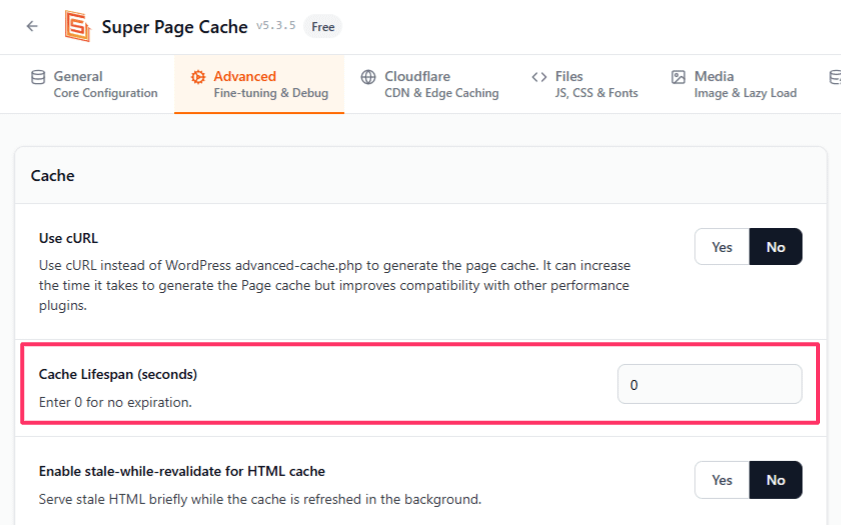
This field appears only when Enable Disk Page Cache is enabled.
Cache Lifespan (seconds) controls how long pages stay in your server's disk cache before they expire. The default value is 0, which means pages do not expire automatically and stay cached until they are purged. When you save a new Cache Lifespan value, the cache is cleared so the new expiration behavior can apply immediately.
If Enable stale-while-revalidate for HTML cache is enabled, an expired page can still be served during the Stale window (seconds) while Super Page Cache rebuilds the page in the background.
The three cache duration settings control different cache layers:
- Cache Lifespan (seconds) controls your site server's disk cache in Super Page Cache.
- Cache-Control max-age controls how long Cloudflare can keep a page cached at the edge.
- Browser Cache-Control max-age controls how long a visitor's browser can reuse a cached page response.
Should I enable the cURL mode for Disk Cache?
In most cases you don't need to enable the cURL mode for fallback cache. If you don't enable the cURL mode, the plugin will use the standard WordPress advanced-cache.php method to generate the Page cache. This system works well in almost all the cases, also this cache generation mechanism is very fast and doesn't eat much server resource.
The cURL mode is useful in some edge cases where the advanced-cache.php mode of fallback cache is unable to generate proper HTML for the page. This is rare, but the cURL option is given just for these edge cases.
One of the benefits of the cURL mode is that as it uses server level cURL instead of advanced-cache.php to generate the page cache, the cache files come out very stable and without any issues. But if you enable the cURL mode, that means cURL will fetch every page of your website (which are not excluded from fallback cache) to generate the Page cache and each cURL request is going to increase some server load.
Advanced Questions
How to use the Remove Cache Buster Query Parameter option?
That is a super advanced option to use Cache Everything Cloudflare page rules without the swcfpc cache buster query parameter. This option is only for super advanced users who are comfortable adding custom rules in their Cloudflare dashboard. If you are not that person, this option probably will not be a good fit for you.
Also when using this option please keep in mind that some rules can only be implemented in Cloudflare Business and Enterprise account users. So, if you are a Cloudflare Free or Pro plan user, you might not be able to implement some rules.
Please check this implementation guide which covers all types of Cloudflare accounts before enabling this option.
Without implementing these rules properly if you enable this option, it will break the cache functionality of your website.
Can I change swcfpc with another parameter name?
Yes you can by adding the PHP constant SWCFPC_CACHE_BUSTER to your wp-config.php
Can I configure this plugin using PHP constants?
Yes you can use the following PHP constants:
- SWCFPC_CACHE_BUSTER - cache buster name. Default: swcfpc
- SWCFPC_CF_API_ZONE_ID - Cloudflare zone ID
- SWCFPC_CF_API_KEY - API Key to use
- SWCFPC_CF_API_EMAIL - Cloudflare email to use (API Key authentication mode)
- SWCFPC_CF_API_TOKEN - API Token to use
- SWCFPC_PRELOADER_MAX_POST_NUMBER - max pages to preload. Default: 50
- SWCFPC_CURL_TIMEOUT - timeout in seconds for cURL calls. Default: 10
- SWCFPC_PURGE_CACHE_LOCK_SECONDS - time in seconds for cache purge lock. Default: 10
- SWCFPC_PURGE_CACHE_CRON_INTERVAL - time interval in seconds for the purge cache cronjob. Default: 10
- SWCFPC_HOME_PAGE_SHOWS_POSTS - if the front page a.k.a. the home page of the website showing latest posts. Default: true (bool)
What hooks can I use?
Actions:
- swcfpc_purge_all - no arguments. Fired when whole caches are purged.
- swcfpc_purge_urls - 1 argument: $urls. Fired when caches for specific URLs are purged.
- swcfpc_cf_purge_whole_cache_before - no arguments. Fired before purging the Cloudflare whole cache.
- swcfpc_cf_purge_whole_cache_after - no arguments. Fired after the Cloudflare whole cache is purged.
- swcfpc_cf_purge_cache_by_urls_before - 1 argument: $urls. Fired before purging the Cloudflare cache for specific URLs only.
- swcfpc_cf_purge_cache_by_urls_after - 1 argument: $urls. Fired after the Cloudflare cache for specific URLs only is purged.
Filters:
- swcfpc_bypass_cache_metabox_post_types - $allowed_post_types (Array). You can use this filter to ensure that the bypass cache metabox is also shown for your own custom post types.
- swcfpc_fc_modify_current_url - $current_uri (string). You can use this filter to modify the url that will be used by the fallback cache. Please note that this filter will return the URL without the trailing slash.
- swcfpc_cache_bypass - one argument. Return true to bypass the cache.
- swcfpc_post_related_url_init - $listofurls (array), $postId. Fired when creating the initial array that holds the list of related urls to be purged when a post is updated. Should return array of full URLs that you want to include in the related purge list.
- swcfpc_normal_fallback_cache_html - $html. This filter is fired before storing the page HTML to fallback cache. This gives you the ability to make changes to the HTML that gets saved within the fallback cache. This filter is fired when the fallback cache is generated normally via the advanced-cache.php file.
- swcfpc_curl_fallback_cache_html - $html. This filter is fired before storing the page HTML to fallback cache. This gives you the ability to make changes to the HTML that gets saved within the fallback cache. This filter is fired when the fallback cache is generated via cURL method.
Can I purge the cache programmatically?
Yes. To purge the whole cache use the following PHP command:
do_action( 'swcfpc_purge_cache' );To purge the cache for a subset of URLs use the following PHP command:
do_action( 'swcfpc_purge_cache', array( 'https://example.com/some-page/', 'https://example.com/other-page/' ) );⚠️ Important: If you trigger swcfpc_purge_cache from a custom PHP script and see errors related to wp-content/advanced-cache.php, set WordPress's DONOTCACHEPAGE constant before calling the purge action.
if ( ! defined( 'DONOTCACHEPAGE' ) ) {
	define( 'DONOTCACHEPAGE', true );
}

do_action( 'swcfpc_purge_cache' );