
Database Optimization
The Database Optimization feature in Super Page Cache lets you automatically or manually remove unnecessary data from your WordPress database, such as post revisions, spam comments, and transients, to improve site performance.
In this article
Overview
The Database Optimization feature in Super Page Cache allows you to automatically or manually clean up unnecessary data from your WordPress database, improving performance and reducing overhead. You can activate the feature, execute cleanups manually, or schedule them to run at regular intervals.
How to Enable Database Optimization
- Navigate to Super Page Cache → Settings → Database.
- Turn the Enable Database Optimization option on.
- Configure the available cleanup operations based on your preferences.
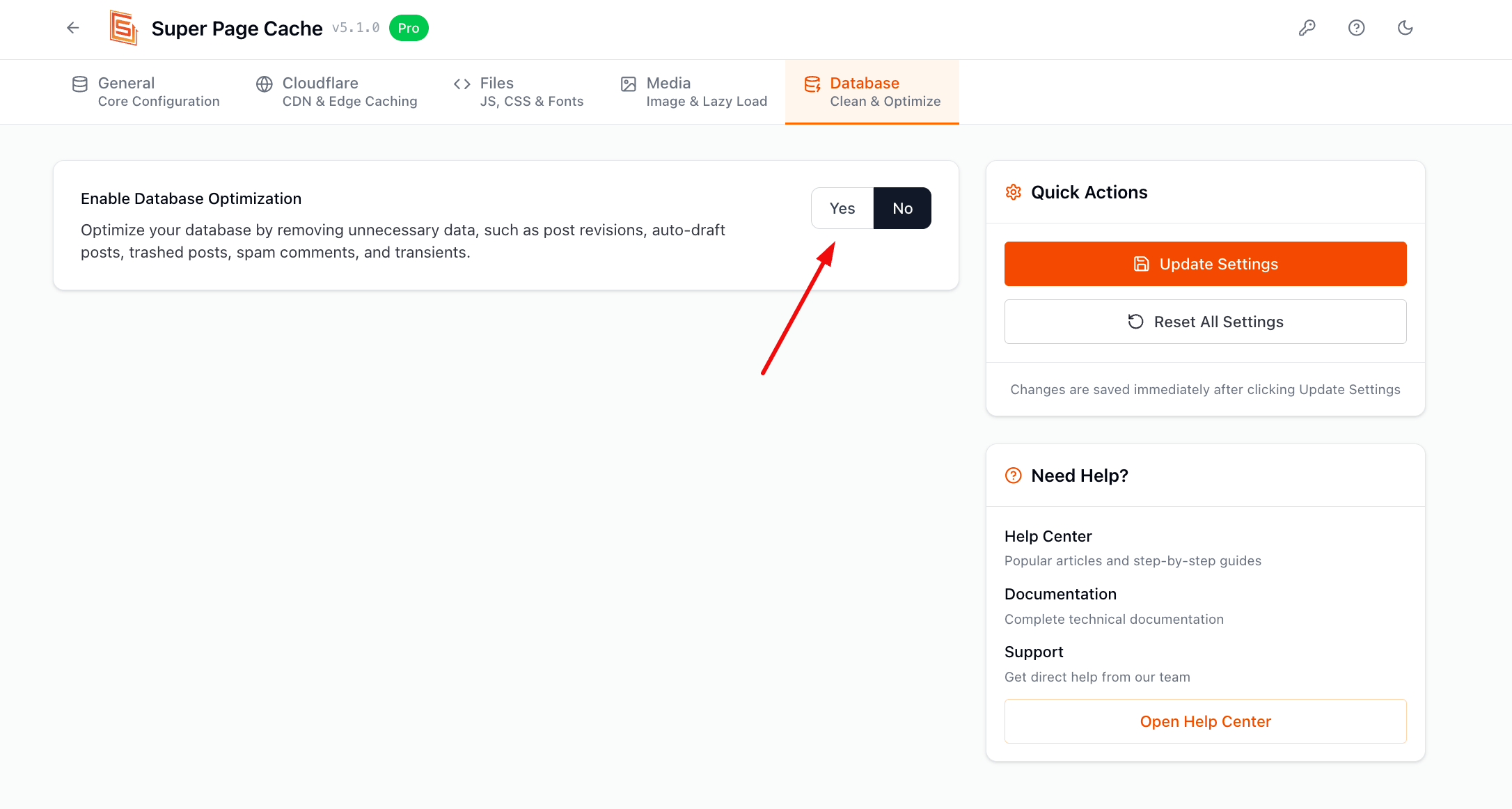
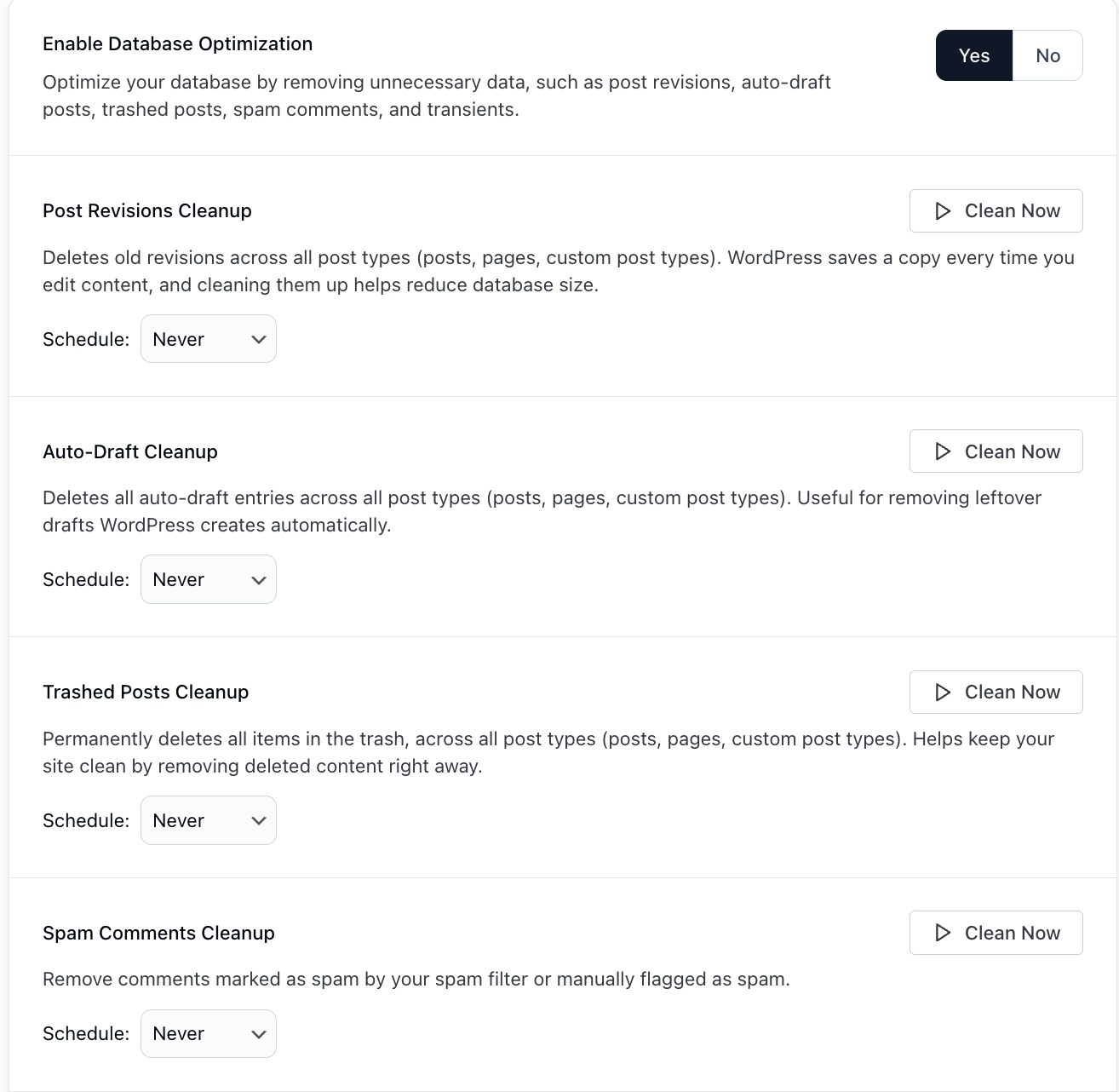
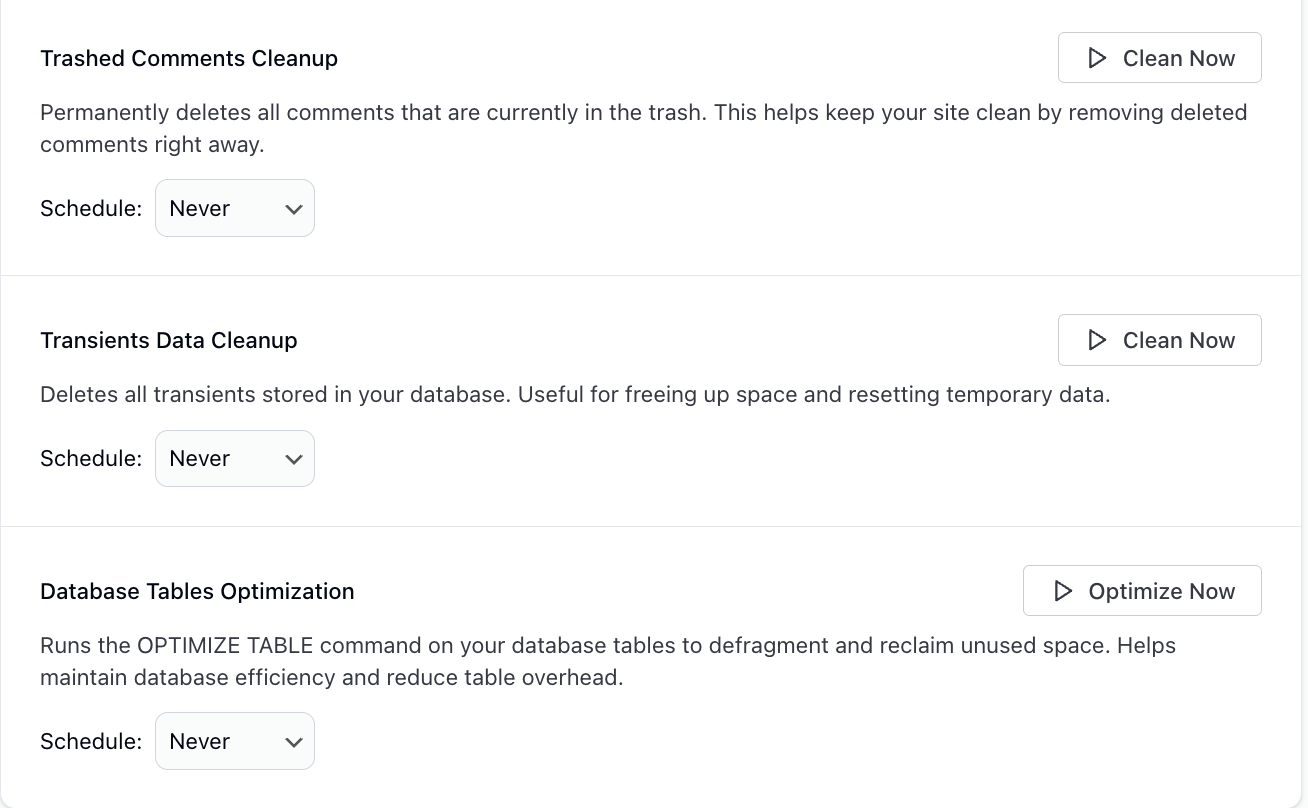
Once enabled, you'll be able to perform the following optimizations either manually (using the Clean Now button) or on a scheduled basis.
Available Optimization Options
Each cleanup option includes:
- A manual trigger (Clean Now or Optimize Now)
- A schedule (choose Never or a predefined interval like Daily/Weekly/Monthly)
1. Post Revisions Cleanup
Description: Deletes all post revisions (pages, posts, and custom post types).
Why: Reduces database bloat caused by WordPress auto-saving content versions.
2. Auto-Draft Cleanup
Description: Removes automatically generated drafts that are no longer needed.
Why: Clears stale data created when editing new posts/pages.
3. Trashed Posts Cleanup
Description: Permanently deletes posts, pages, and custom types in the trash.
Why: Frees up space by removing deleted content from the database.
4. Spam Comments Cleanup
Description: Deletes comments flagged as spam (manually or by anti-spam plugins).
Why: Prevents spam data from accumulating in your database.
5. Trashed Comments Cleanup
Description: Permanently removes trashed comments from the database.
Why: Ensures your site is not storing unnecessary deleted comments.
6. Transients Data Cleanup
Description: Deletes all transients (temporary cached data) stored in your database, not only the expired ones.
Why: Clears transients that are no longer needed and reclaims storage. Plugins and themes rebuild the transients they still use the next time they need them.
7. Database Tables Optimization
Description: Runs the SQL OPTIMIZE TABLE command on non-InnoDB tables that have reclaimable free space.
Why: Helps defragment tables and reclaim unused space, improving query performance.
Scheduling Cleanup Tasks
Each cleanup task supports a scheduling option. You can choose:
- Never (default – only runs on manual trigger)
- Daily / Weekly / Monthly
Scheduled tasks run automatically based on your configuration and require no manual intervention.
Does purging the cache delete transients?
No. Purging the Super Page Cache page cache does not delete the transients stored in your database. The page cache stores finished HTML for your pages, and purging it removes those cached pages only.
Super Page Cache deletes transients only when you ask it to:
- You click Clean Now for Transients Data Cleanup, or
- You set that task's schedule to Daily, Weekly, or Monthly.
Enable Database Optimization is off by default and every cleanup schedule starts at Never, so a new installation does not remove any transients on its own.
If your site uses a persistent object cache such as Redis or Memcached, there is one more setting to check. A persistent object cache stores data for WordPress, including transients, outside your database. Enable Show advanced settings on the General tab, then go to Super Page Cache → Settings → Advanced → Other Settings and look at Automatically Purge the Object Cache When Cache Is Purged. While that option is on, every cache purge also clears your object cache, including the transients kept there. It is off by default, and it works separately from Transients Data Cleanup.
📝 Note: Transients Data Cleanup removes transients only. It does not change your other WordPress settings, such as which themes and plugins you selected for automatic updates.
Benefits of Regular Database Optimization
- Faster database queries and reduced latency
- Smaller database size and backups
- Better overall site performance, especially on high-traffic websites
- Cleaner WordPress admin interface
Congratulations! You've successfully optimized your site's database with the help of Super Page Cache.