Using Contact Form 7 to Mailchimp Integration
The Subscribe to Mailchimp feature from the Redirection for Contact Form 7 (available from the Marketer plan) enables users to automatically subscribe users to Mailchimp from form submissions.
In this article
How to install it
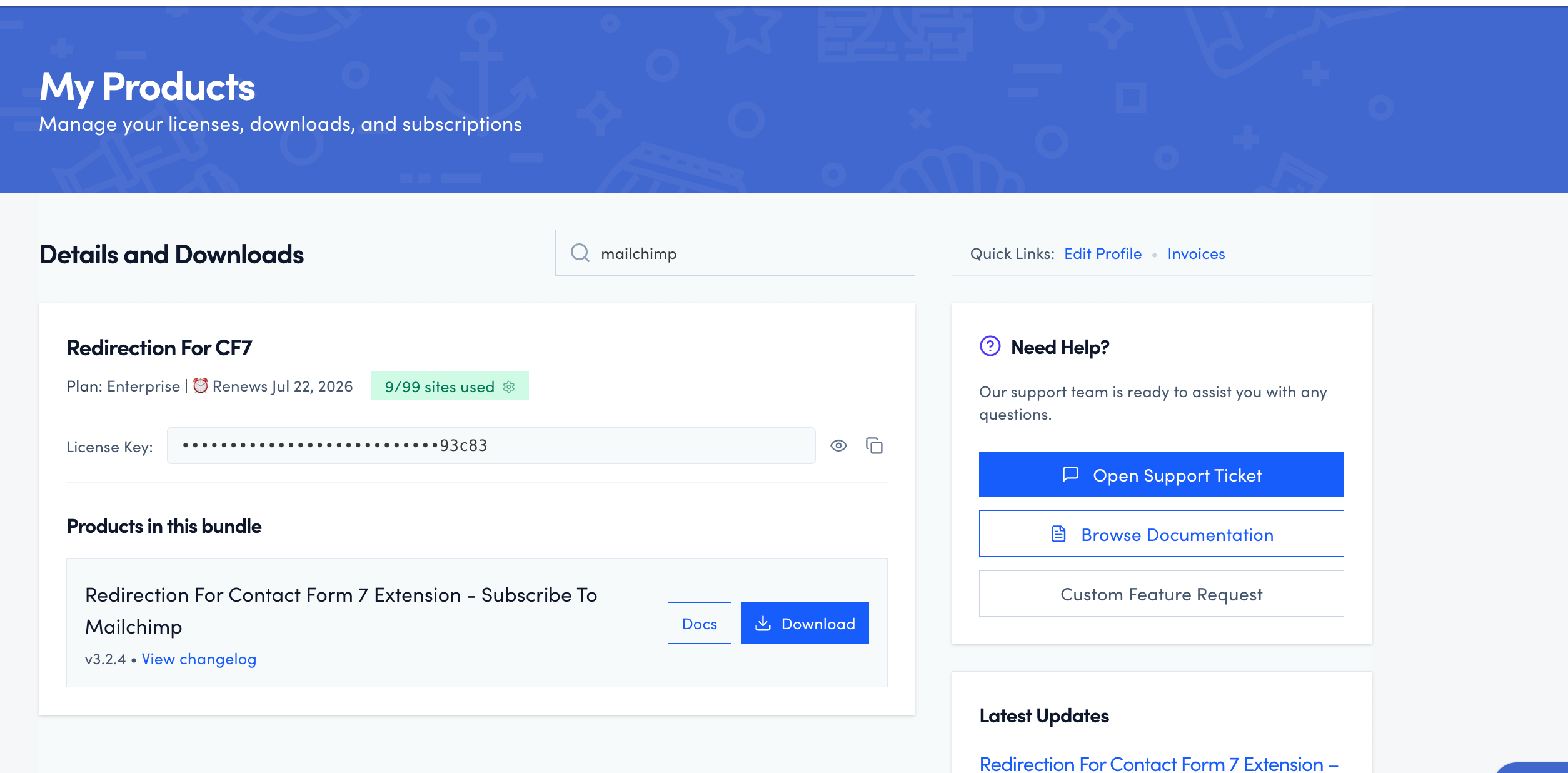
- Download the Redirection For Contact Form 7 Extension - Subscribe To Mailchimp plugin from your purchase history.
- Install the plugin on your site.
Need help installing a plugin? Check this doc for step-by-step details.
- In your WordPress dashboard, navigate to CF7 Redirection > Dashboard > Licenses and activate the license. ( The license is also available in your purchase history ).

How to use it
- Edit the CF7 contact form of your choice.
- Navigate to the Actions tab.
- Click on the Add Action button and choose the Mailchimp action.

- Enter your Mailchimp API Key and click on the Get lists button to fetch the lists you have set up in Mailchimp. Choose the list you want the form submission to be saved in.

If you are not sure how to retrieve your Mailchimp API key, make sure to follow their official documentation.
📝 Note: Subscribers are added to the selected Audience/List only. Tags are not supported by this integration. If you need to segment subscribers, use Mailchimp Groups within your Audience instead.
Supported Features and Limitations
What this integration supports
- Automatically subscribing form submitters to a Mailchimp Audience (List) on form submission.
- Connecting via a Mailchimp API Key.
- Selecting which Mailchimp Audience/List receives the subscriber.
- Mapping form fields to Mailchimp merge fields (such as first name, last name, and other audience fields).
What this integration does not support
- Tags: Adding Mailchimp tags to subscribers on form submission is not supported. Tags must be managed manually inside Mailchimp or via Mailchimp automations after the subscriber is added.
Workaround for subscriber segmentation
If you need to group or segment subscribers, use Mailchimp Groups within your Audience. Groups are a built-in Mailchimp feature that let you organize subscribers without requiring tags. You can learn more in the Mailchimp Groups documentation.
Alternatively, you can create separate Mailchimp Audiences for different segments and select the appropriate Audience in each CF7 form action.
Logging and Debugging
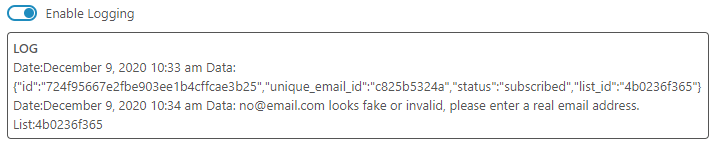
If, for some reason, the form submissions are not being sent to Mailchimp, you can check the Enable Logging option to see the logs.