
How to create PDF from Contact form submissions
The Create PDF feature from the Redirection for Contact Form 7 (available in the Starter plan) enables users to automatically create PDF documents from form submissions.
In this article
How to install it
- Download the Redirection For Contact Form 7 Extension - Create PDF plugin from your purchase history.
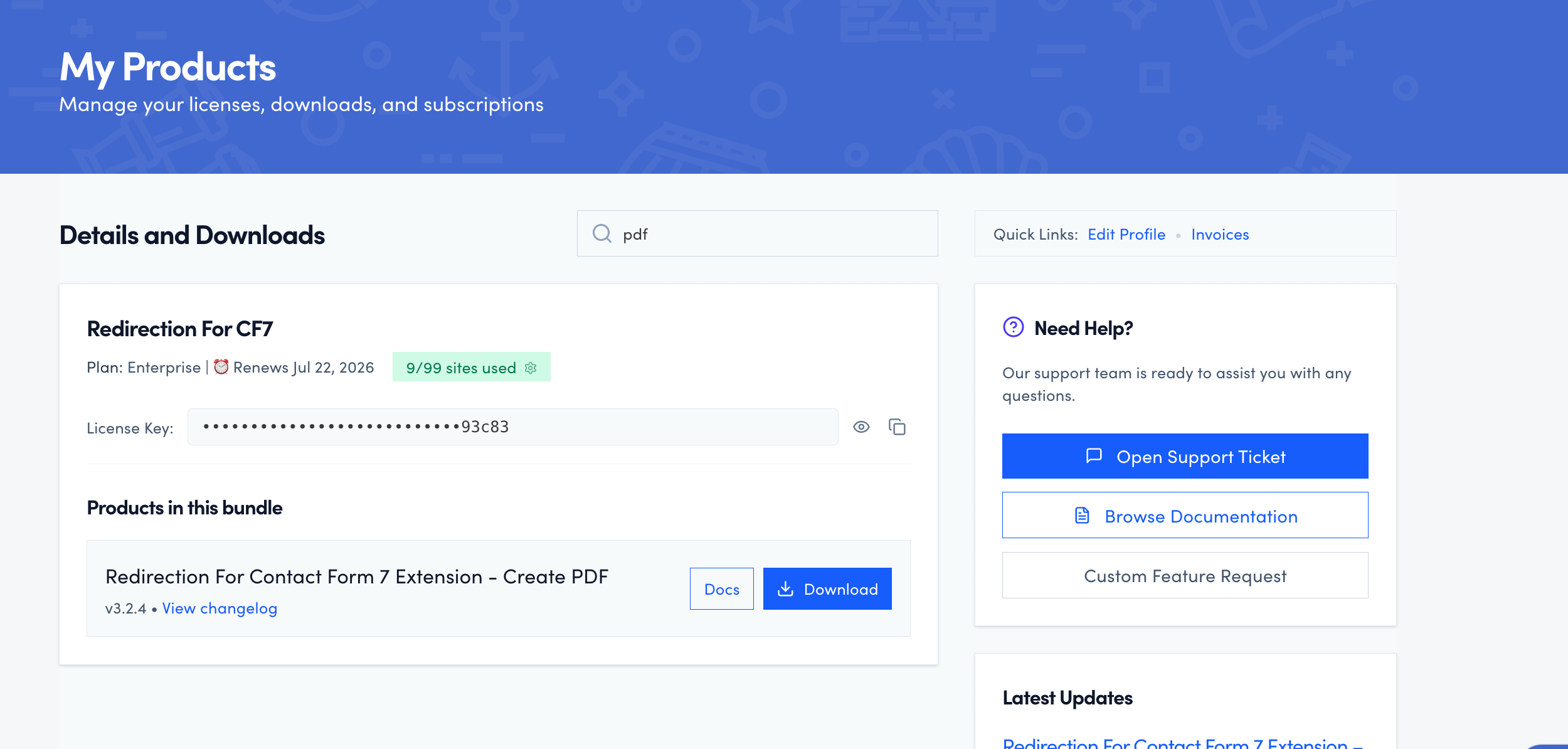
- Install the plugin on your site.
Need help installing a plugin? Check this doc for step-by-step details.
- In your WordPress dashboard, navigate to CF7 Redirection > Dashboard > Licenses and activate the license. ( The license is also available in your purchase history ).

How to use it
- Edit the CF7 contact form of your choice.
- Navigate to the Actions tab.
- Click on the Add Action button and choose the Create PDF action.

- Customize the PDF using the extensive options provided by the plugin (content, colors, watermark, footer, and header information).

- Click on the Reload PDF button to preview the changes.

- Enable the Download pdf after submission option.

- Test the form.

- Once the form is submitted, a new PDF is automatically created and downloaded for the user.
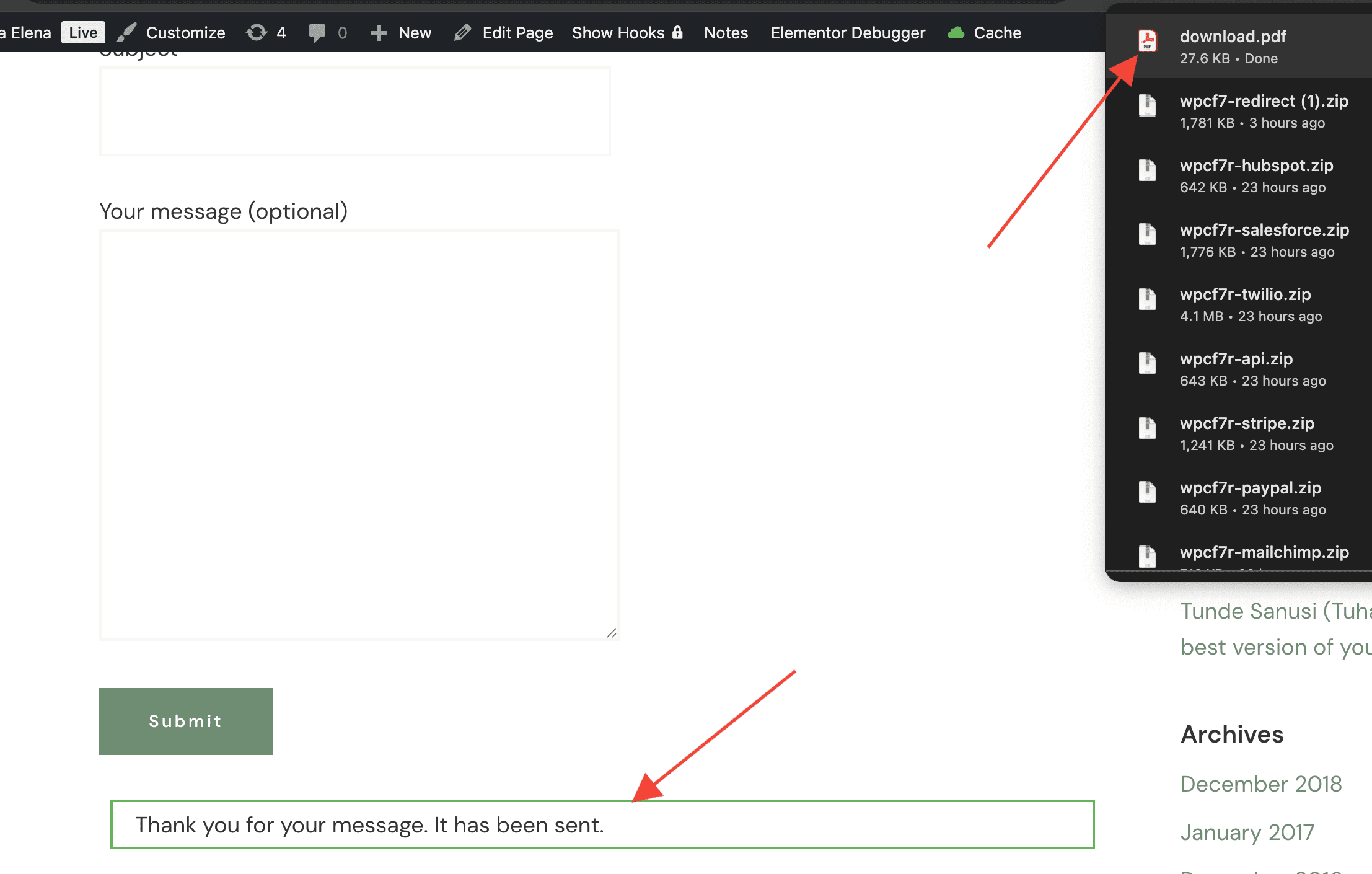
- The final PDF downloaded by the user.

Use a custom font in the PDF
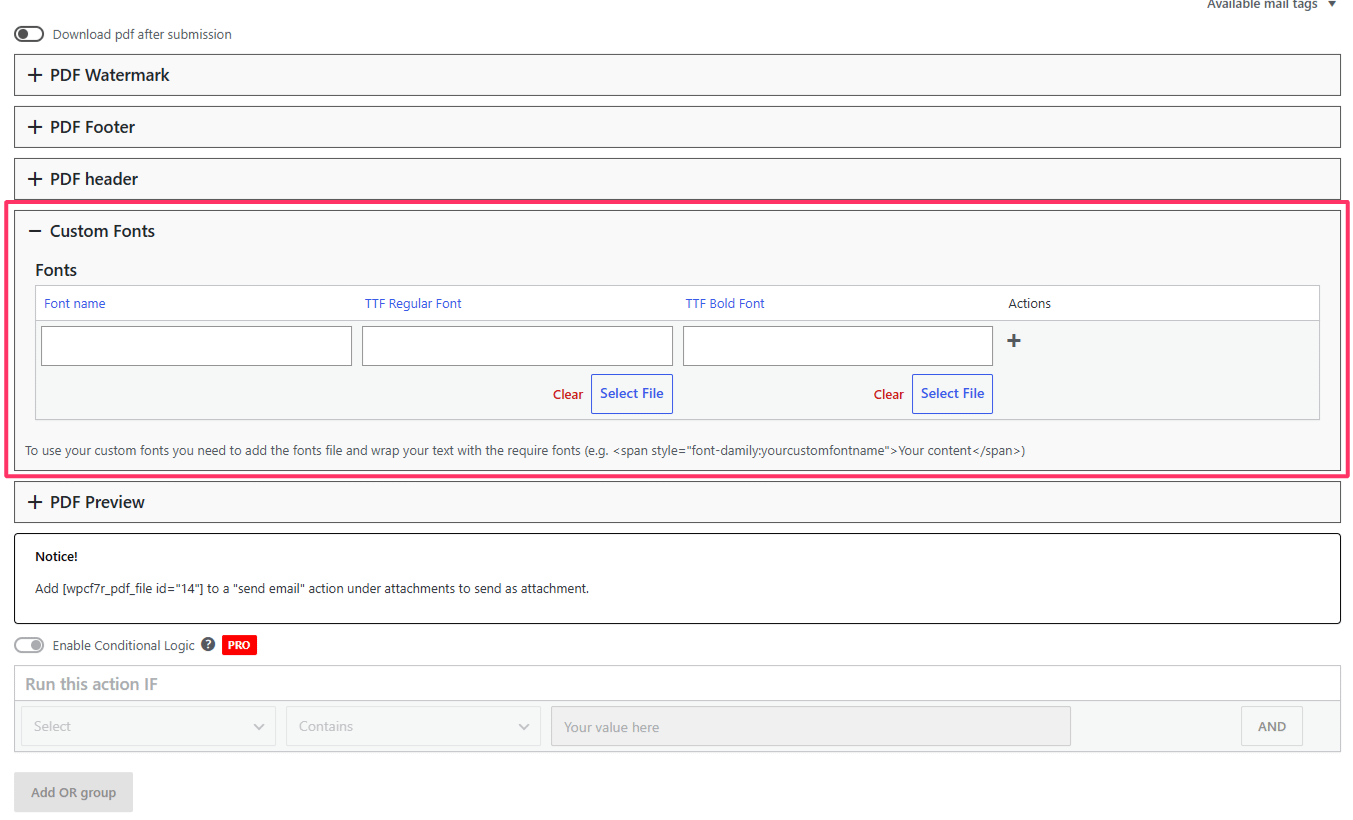
- In the Create PDF action, open Custom Fonts and add a row with:
- Font name — use lowercase letters, for example
roboto. - TTF Regular Font — upload the regular
.ttffile. - TTF Bold Font — upload the bold
.ttffile.
- Font name — use lowercase letters, for example
- In Pdf structure to create, wrap the text that should use your custom font with the correct
font-familystyle:
html
<span style="font-family:roboto">Your text here</span>- Click Reload PDF to preview the updated font in the PDF output.
Only .ttf files are supported in this section, and only regular and bold variants are available. Any text that does not use your custom font-family continues to use the default PDF font.