
Send Contact Form 7 Submissions to Slack
Get a Slack notification every time someone submits your Contact Form 7 form. This is useful for sales teams who want instant lead alerts, support teams monitoring incoming requests, or anyone who wants submissions to appear directly in a channel without checking their email.
This integration uses the Webhook Integration feature in Redirection for Contact Form 7 (available from the Marketer plan).
The simplest approach is a direct connection using Slack's own Incoming Webhooks feature — no third-party automation platform needed. If you are already using an automation platform such as Zapier, Make, or n8n, those options are covered at the end of this page.
In this article
What You'll Need
- Redirection for Contact Form 7 on the Marketer plan or higher
- A Slack workspace where you have permission to add apps
How It Works
CF7 Form Submission → RCF7 Webhook → Slack Incoming Webhook URL → Slack MessageOption A – Connect Directly via Slack Incoming Webhooks (Recommended)
Slack provides a built-in Incoming Webhooks feature that gives you a URL you can POST messages to directly. This is free, requires no third-party account, and takes about five minutes to set up.
Step 1 – Create a Slack Incoming Webhook
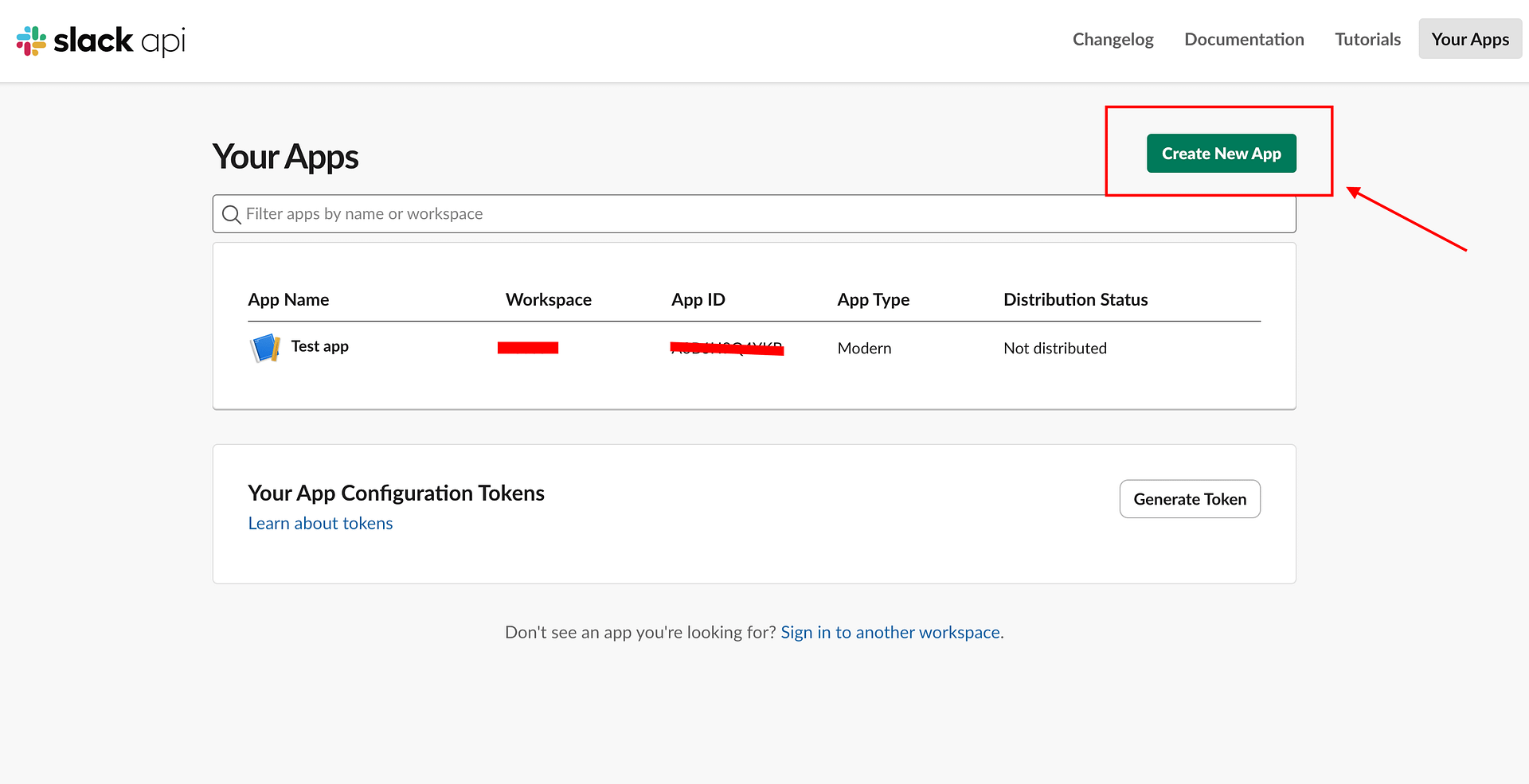
- Go to api.slack.com/apps and click Create New App.
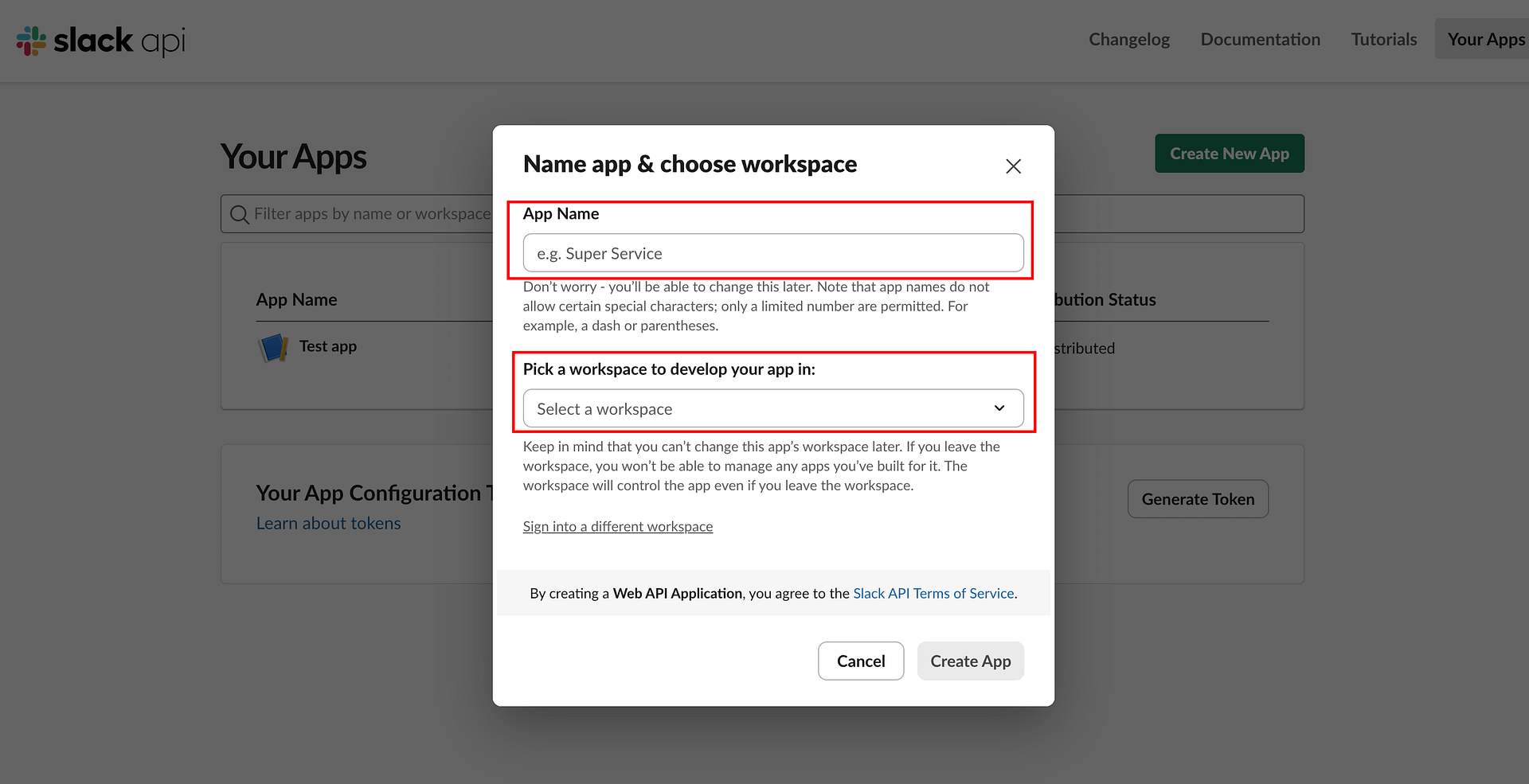
- Choose From Scratch, give your app a name (e.g., CF7 Notifications), and select your workspace.
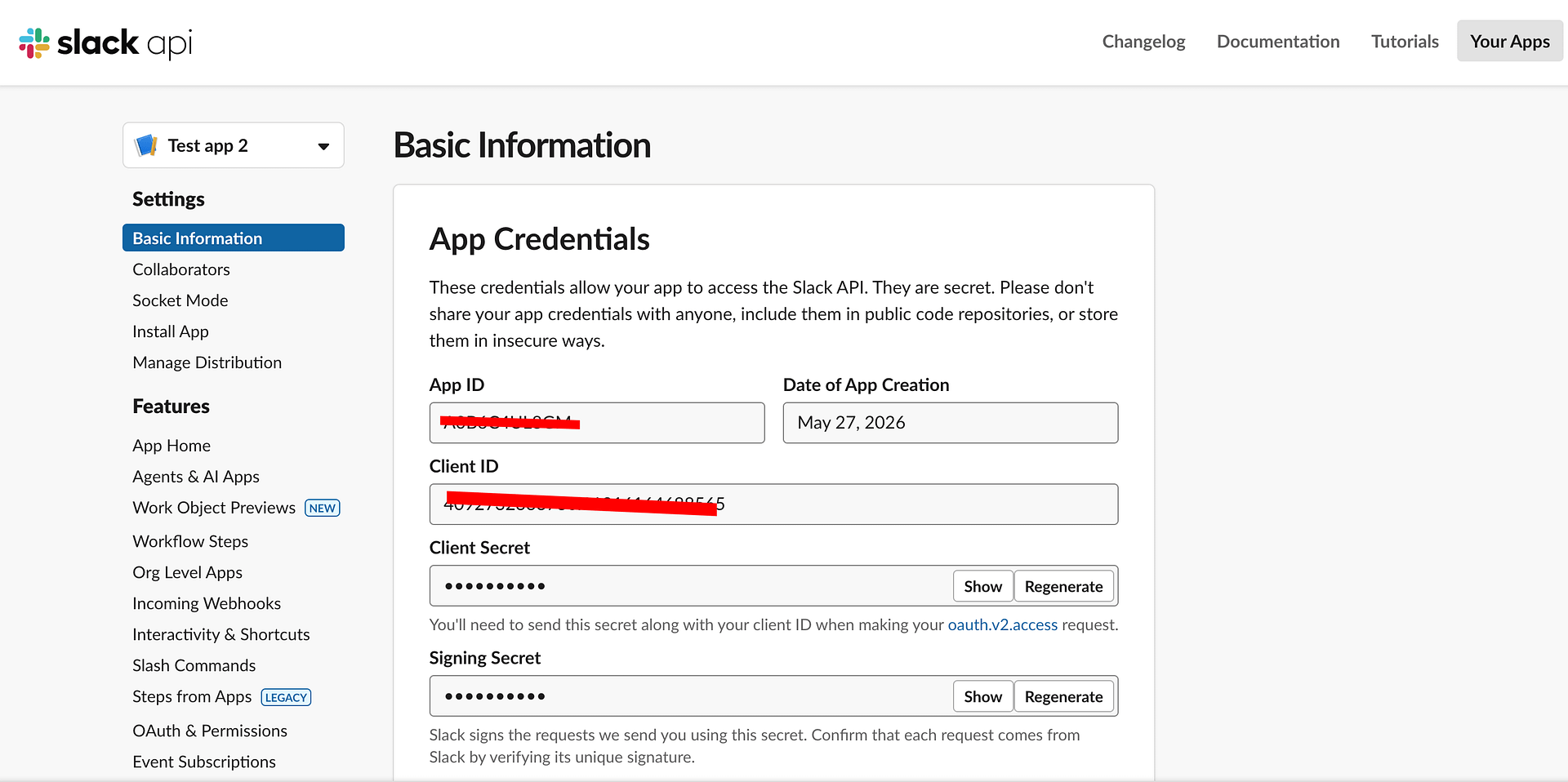
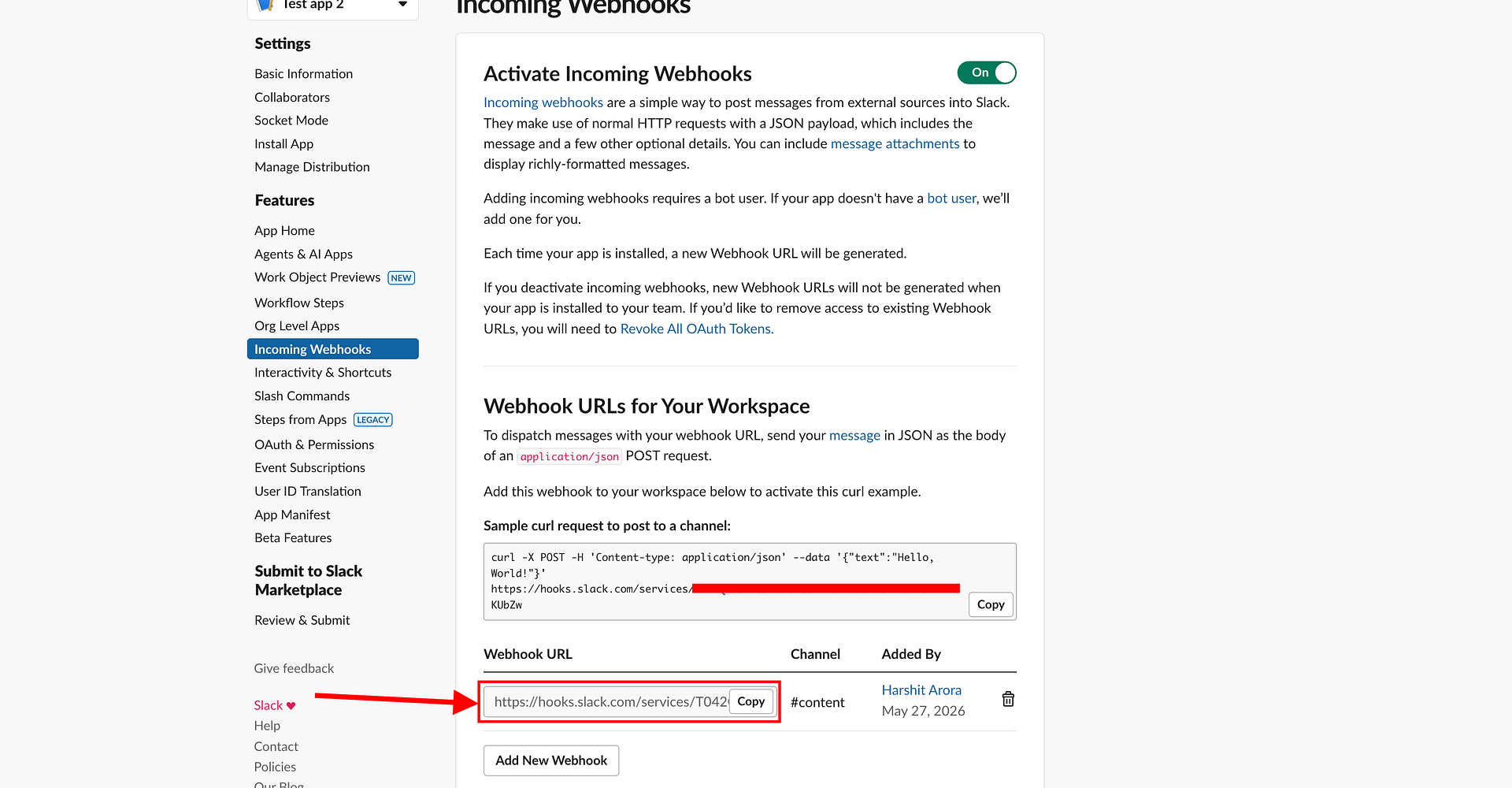
- In the app settings, click Incoming Webhooks in the left sidebar.
- Toggle Activate Incoming Webhooks to On.
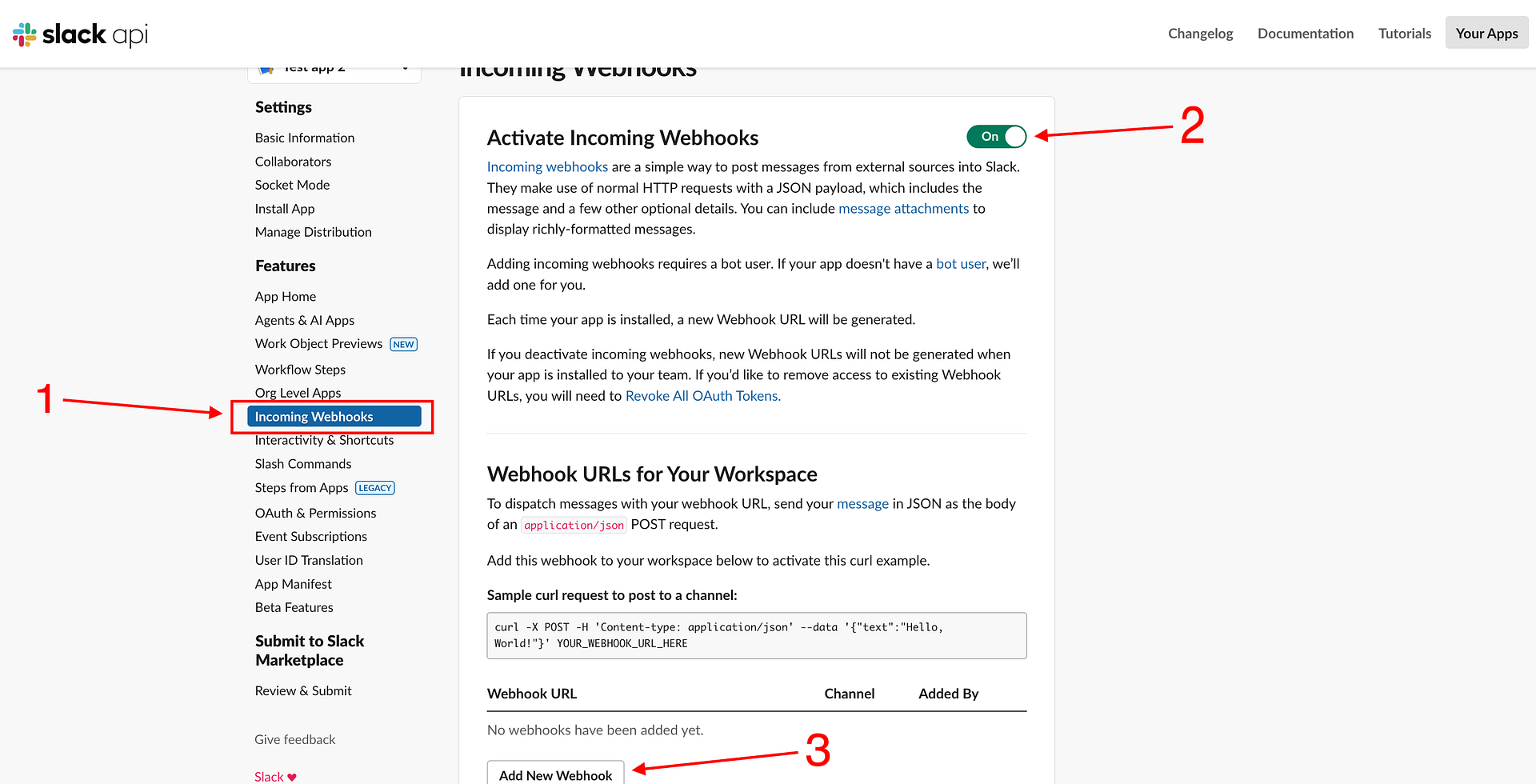
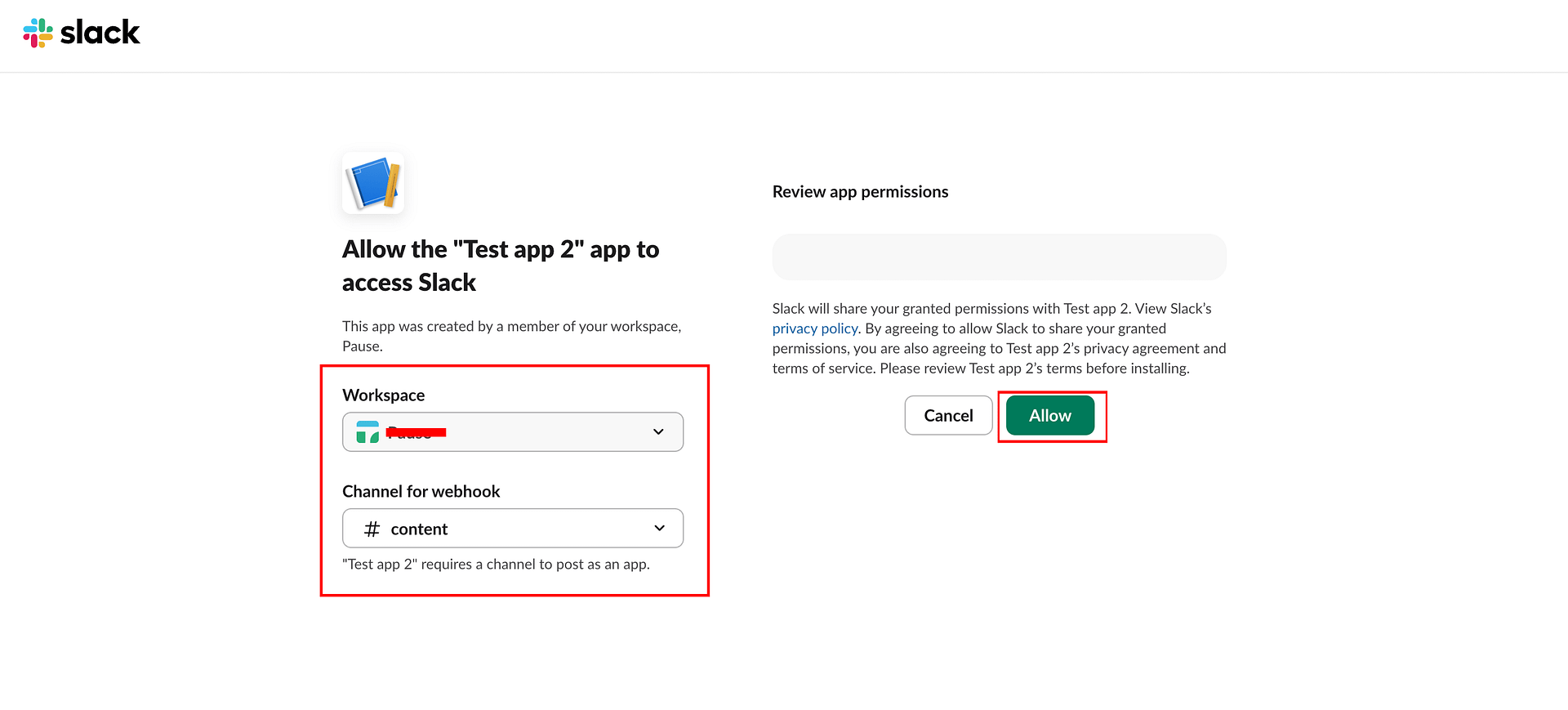
- Click Add New Webhook to Workspace.
- Select the Slack channel where notifications should be posted (e.g.,
#leadsor#contact-forms), then click Allow.
- Slack will generate a webhook URL that looks like:
https://hooks.slack.com/services/XXXXXXXXX/XXXXXXXXX/XXXXXXXXXXXXXXXXXXXXXXXX - Copy this URL — you will paste it into RCF7 in the next step.
Step 2 – Configure the Webhook Action in RCF7
- In your WordPress dashboard, go to Contact → Contact Forms and edit the form you want to connect.
- Click the Actions tab.
- Click Add Action and select Webhook - XML/JSON.
- In the action settings:
- Base API Url: Paste the Slack webhook URL you copied in Step 1
- HTTP Method: Set to POST
- Record type: Set to JSON
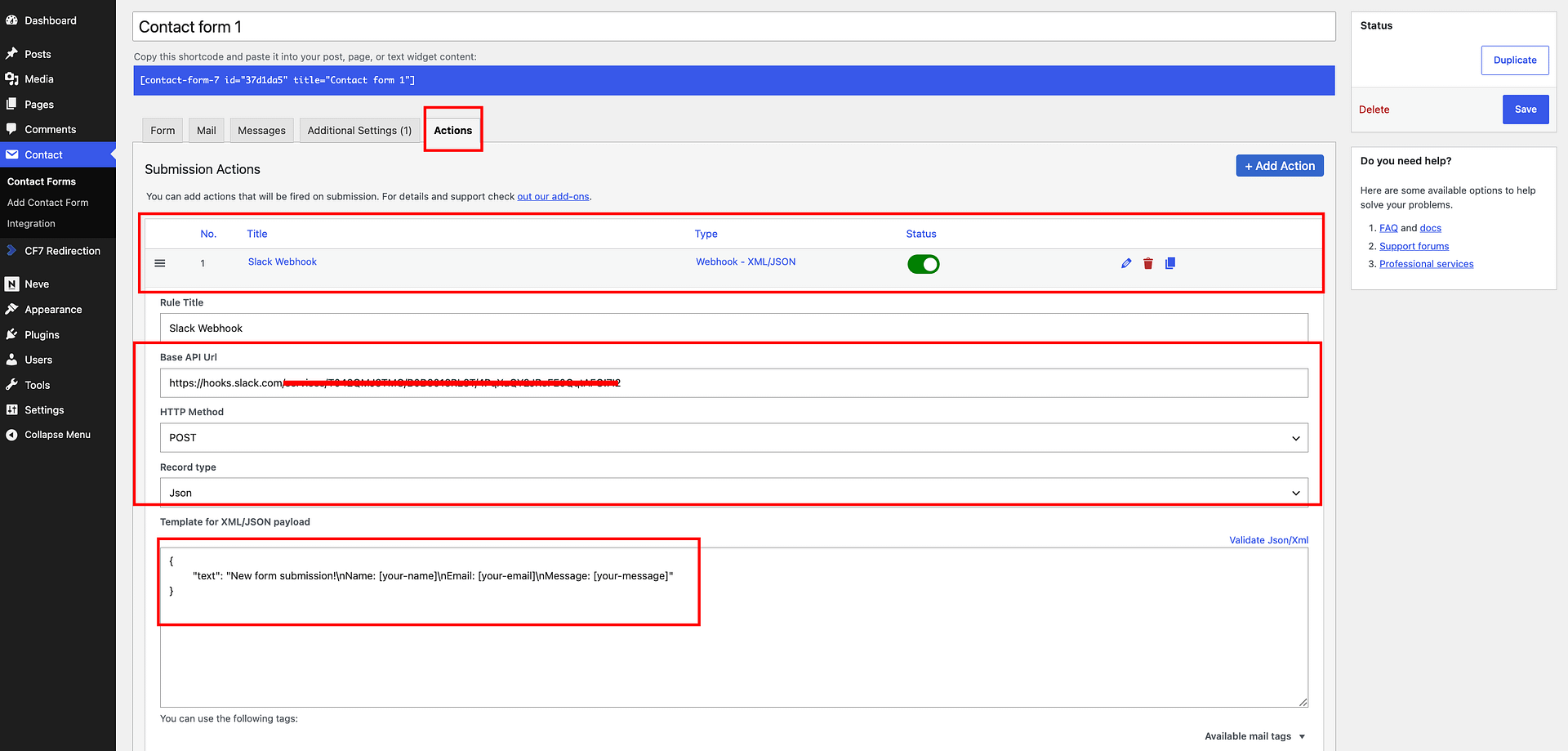
- In the Template for XML/JSON payload field, enter your message. Slack accepts a simple
textfield:jsonReplace the field tags with the actual CF7 shortcodes from your form. Use the Available mail tags dropdown to find the correct tag names.{ "text": "New form submission!\nName: [your-name]\nEmail: [your-email]\nMessage: [your-message]" } - Click Save on the contact form.
Step 3 – Test the Connection
Submit your Contact Form 7 form with test data. The notification should appear in your chosen Slack channel within a few seconds.
Option B – Connect via an Automation Platform
If you are already using Zapier, Make, or n8n and want to route the submission through an existing workflow — for example, to post to Slack and also log to a spreadsheet in the same automation — you can use those platforms instead.
Note: Zapier requires a paid plan for webhook triggers. Make and n8n support webhooks on their free plans.
Follow the relevant guide to set up the RCF7 webhook trigger, then add a Slack action in your chosen platform:
- Integrate Contact Form 7 with Zapier — add a Slack → Send Channel Message action
- Integrate Contact Form 7 with Make — add a Slack → Create a Message module
- Integrate Contact Form 7 with n8n — add a Slack → Send Message node
Example Slack Notification
Here is what a typical submission notification looks like in Slack:
New form submission!
Name: Jane Smith
Email: jane@example.com
Message: I'd like to learn more about your services.
You can customize the message format, add emojis, or use Slack's Block Kit format for richer notifications with buttons and structured layouts.
Troubleshooting
No message appeared in Slack after submitting the form Check that the webhook URL in your RCF7 action is correct and that the form was saved after adding the action. You can also use the Payload Test section in the webhook settings to fire a test request without submitting the form.
The message appeared but fields are blank The field tags in your JSON payload must match the CF7 shortcodes in your form exactly (for example, [your-name] not [name]). Use the Available mail tags dropdown in the RCF7 webhook action to confirm the correct tag names.
The webhook URL stopped working Slack webhook URLs can be revoked if the app is removed from the workspace or the channel is deleted. Go back to api.slack.com/apps, open your app, and check the Incoming Webhooks section for the current URL.
The form shows "There was an error trying to send your message" This error comes from CF7's built-in email notification failing and is unrelated to the webhook. Fix it by installing an SMTP plugin such as WP Mail SMTP or Fluent SMTP. Alternatively, add skip_mail: on to your form's Additional Settings tab to bypass email sending during testing.