
Send Contact Form 7 Submissions to Constant Contact
Add new subscribers to your Constant Contact lists automatically every time someone submits your Contact Form 7 form. This is useful for growing your email list from contact forms, lead capture pages, or any CF7 form where visitors opt in to hear from you.
This integration uses the Webhook Integration feature in Redirection for Contact Form 7 (available from the Marketer plan), paired with an automation platform that has a native Constant Contact integration — such as Zapier, Pabbly Connect, or IFTTT.
This guide covers step-by-step instructions for Zapier and Pabbly Connect. The same general approach applies to IFTTT and any other platform with a native Constant Contact action.
In this article
What You'll Need
- Redirection for Contact Form 7 on the Marketer plan or higher
- A Constant Contact account with at least one list set up
- An automation platform with a native Constant Contact integration — such as Zapier, Pabbly Connect, or IFTTT
Tip: Pabbly Connect supports webhooks and has a native Constant Contact integration on its free plan. Zapier requires a paid plan for both webhook triggers and the Constant Contact action.
Before You Start
Make sure you have at least one contact list created in Constant Contact. The integration will add subscribers to a specific list, so the list needs to exist before you connect the automation.
How It Works
CF7 Form Submission → RCF7 Webhook → Zapier / Pabbly Connect / IFTTT → New Contact in Constant ContactOption A – Connect via Zapier
Step 1 – Set Up the RCF7 Webhook
Follow the Zapier integration guide to install the Webhook addon, create a Zap with Webhooks by Zapier → Catch Hook as the trigger, and connect it to your CF7 form. Submit a test entry so Zapier has sample data, then continue below.
Step 2 – Add the Constant Contact Action
- In your Zap, click + to add an Action step.
- Search for and select Constant Contact.
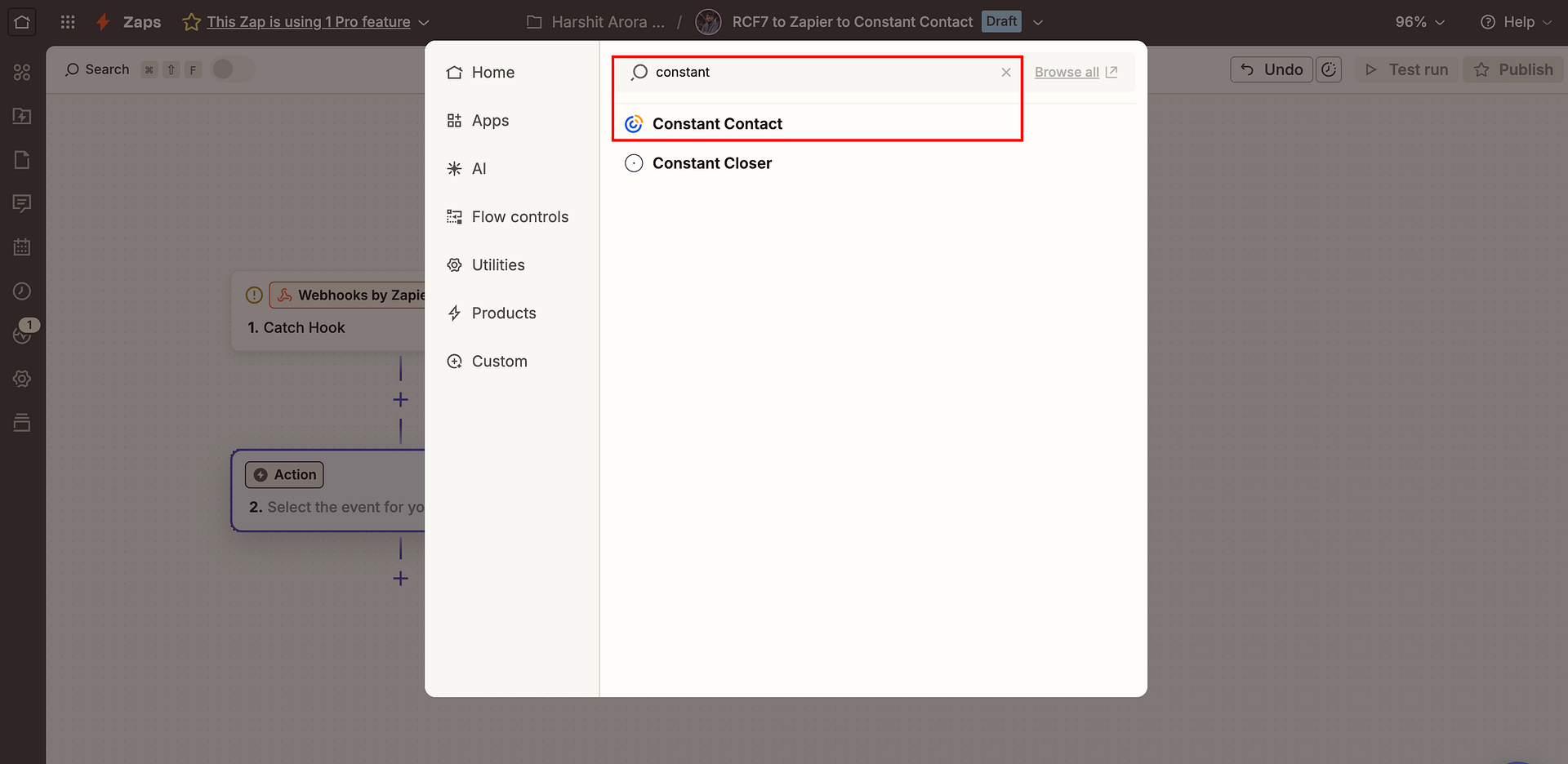
- Choose Create Contact as the action event, then click Continue.
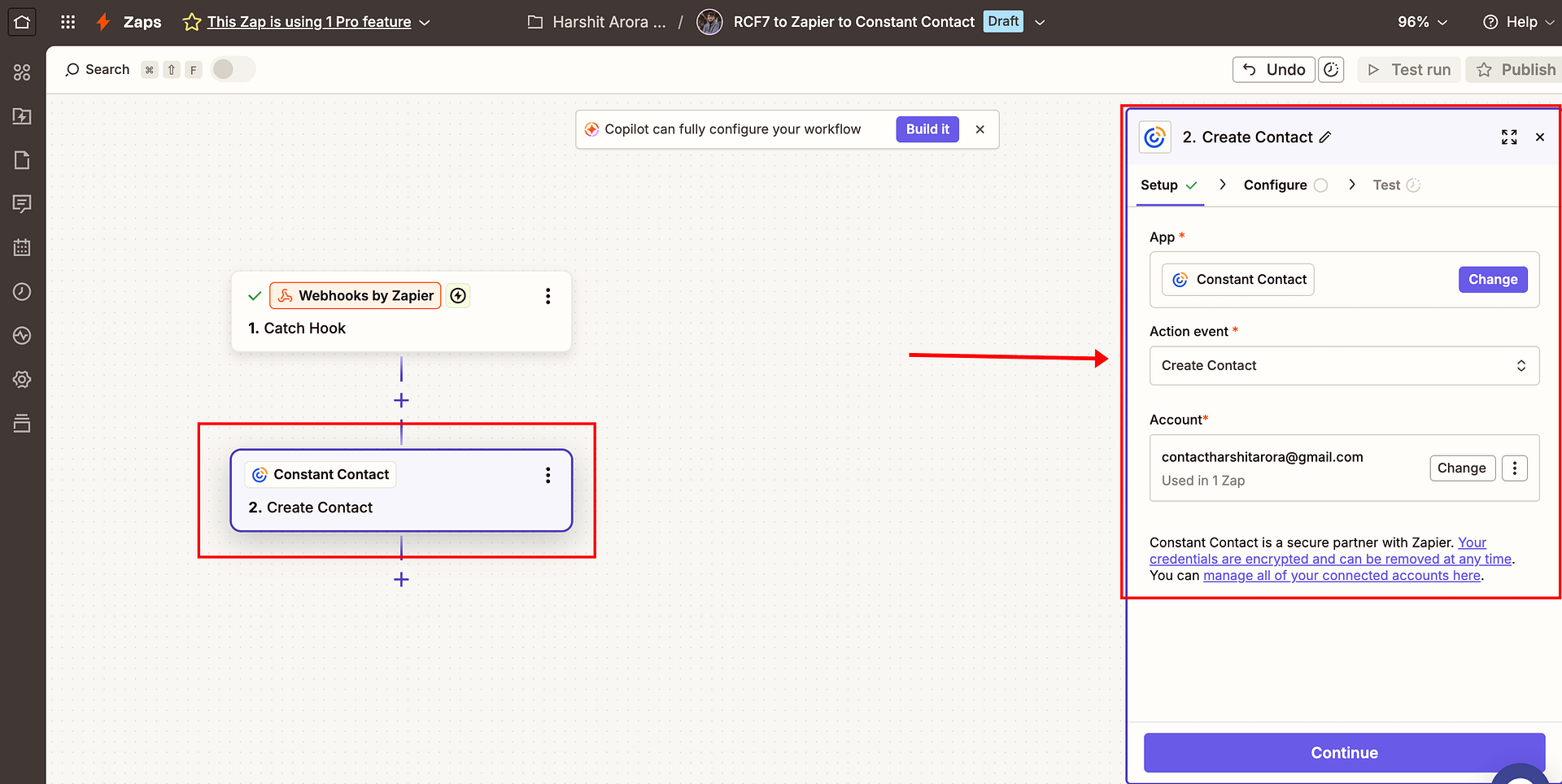
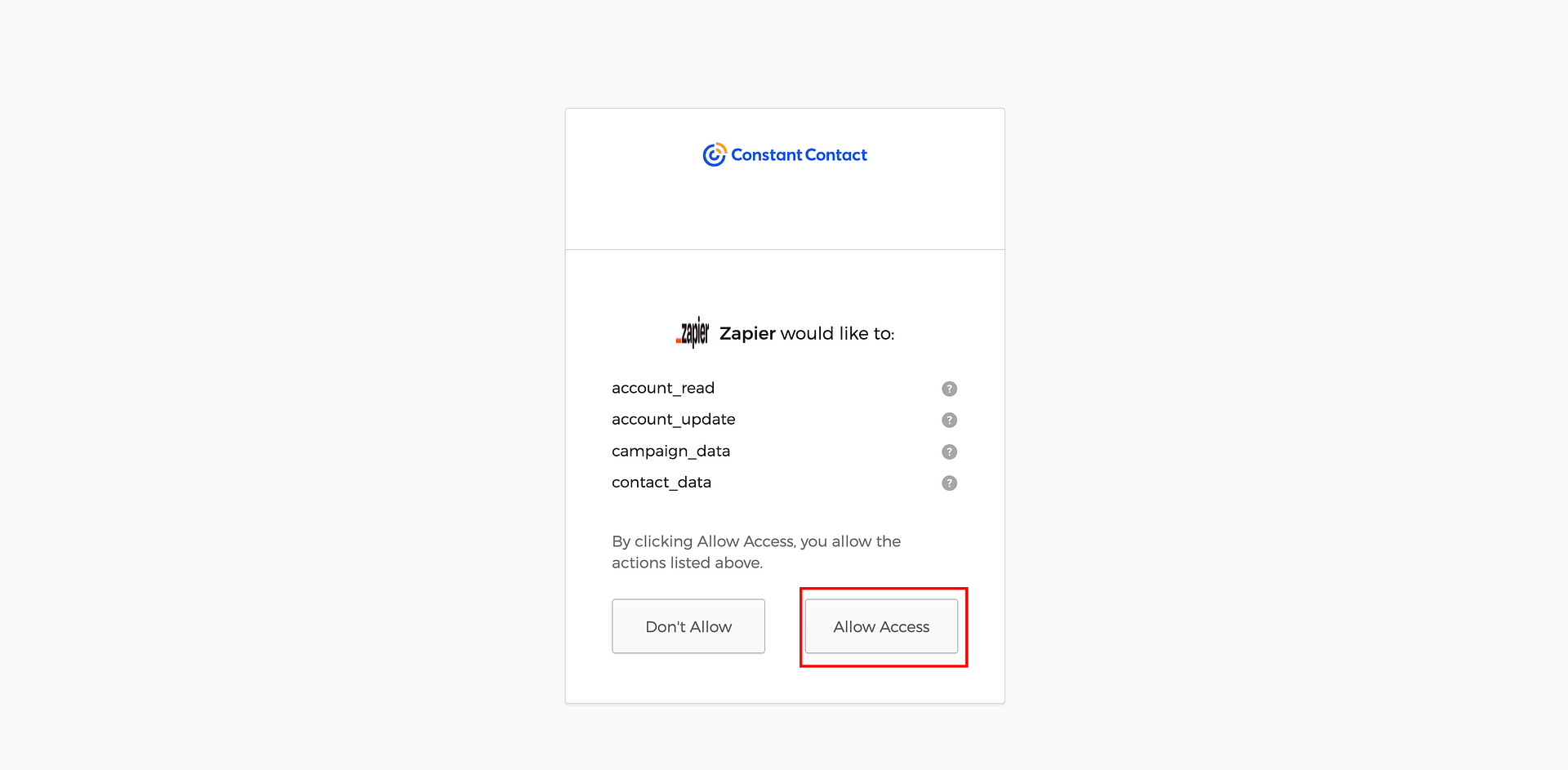
- Connect your Constant Contact account when prompted and authorize access.
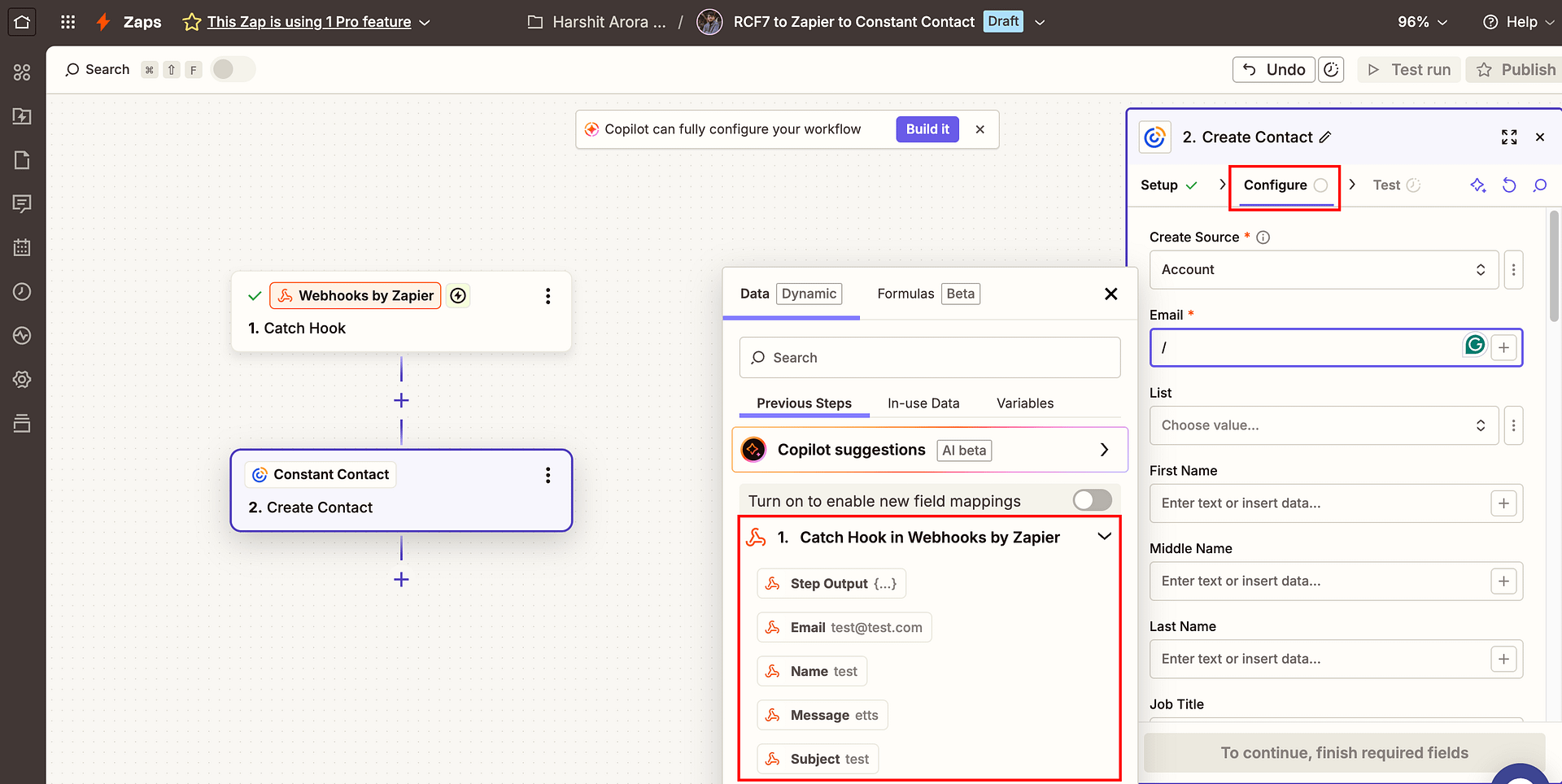
- Configure the action:
- List → Select the contact list where new subscribers should be added
- Email Address →
email - First Name →
name
- Click Test step to create a test contact in Constant Contact.
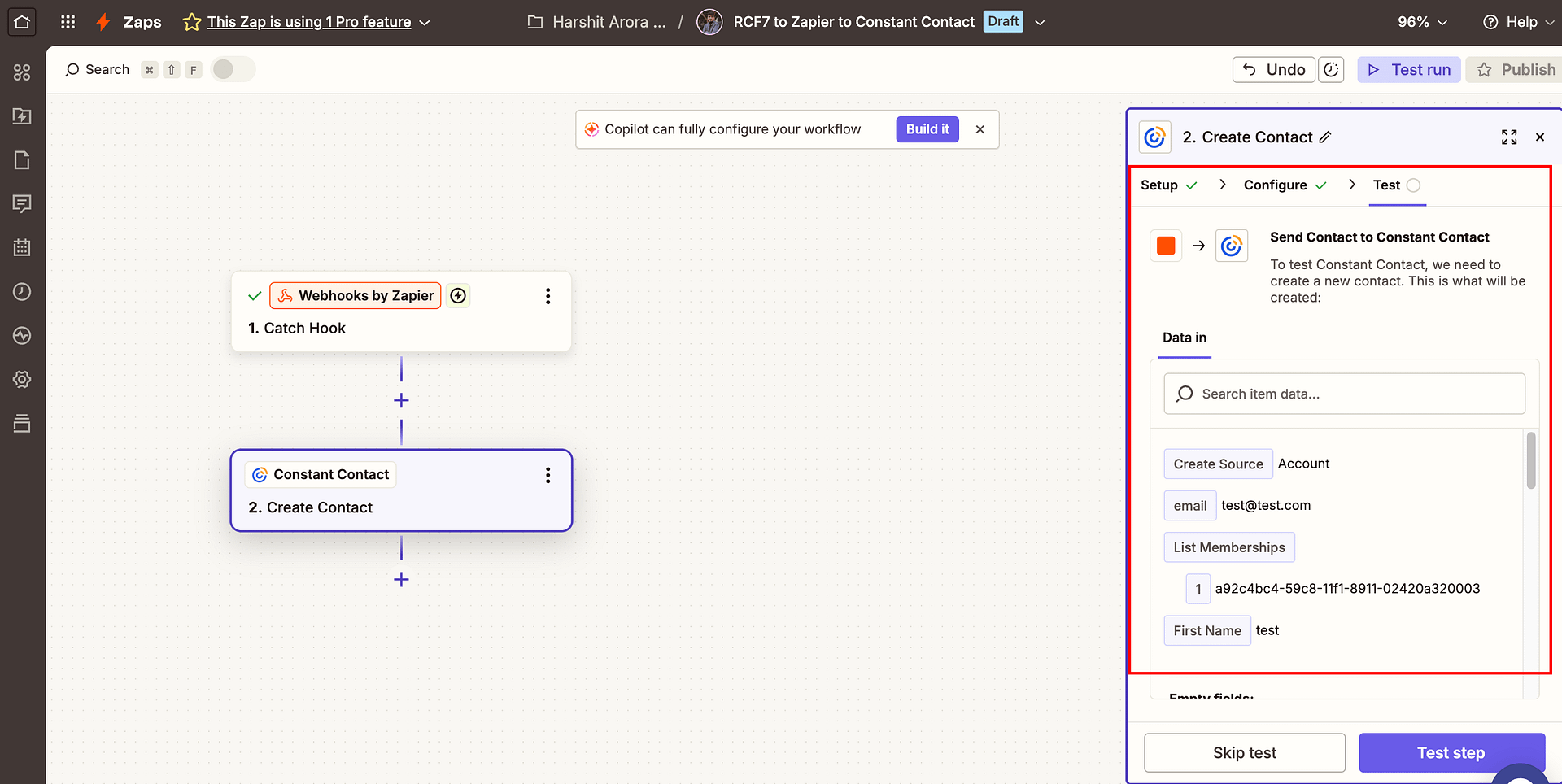
- Open Constant Contact and confirm the contact appeared in the correct list.
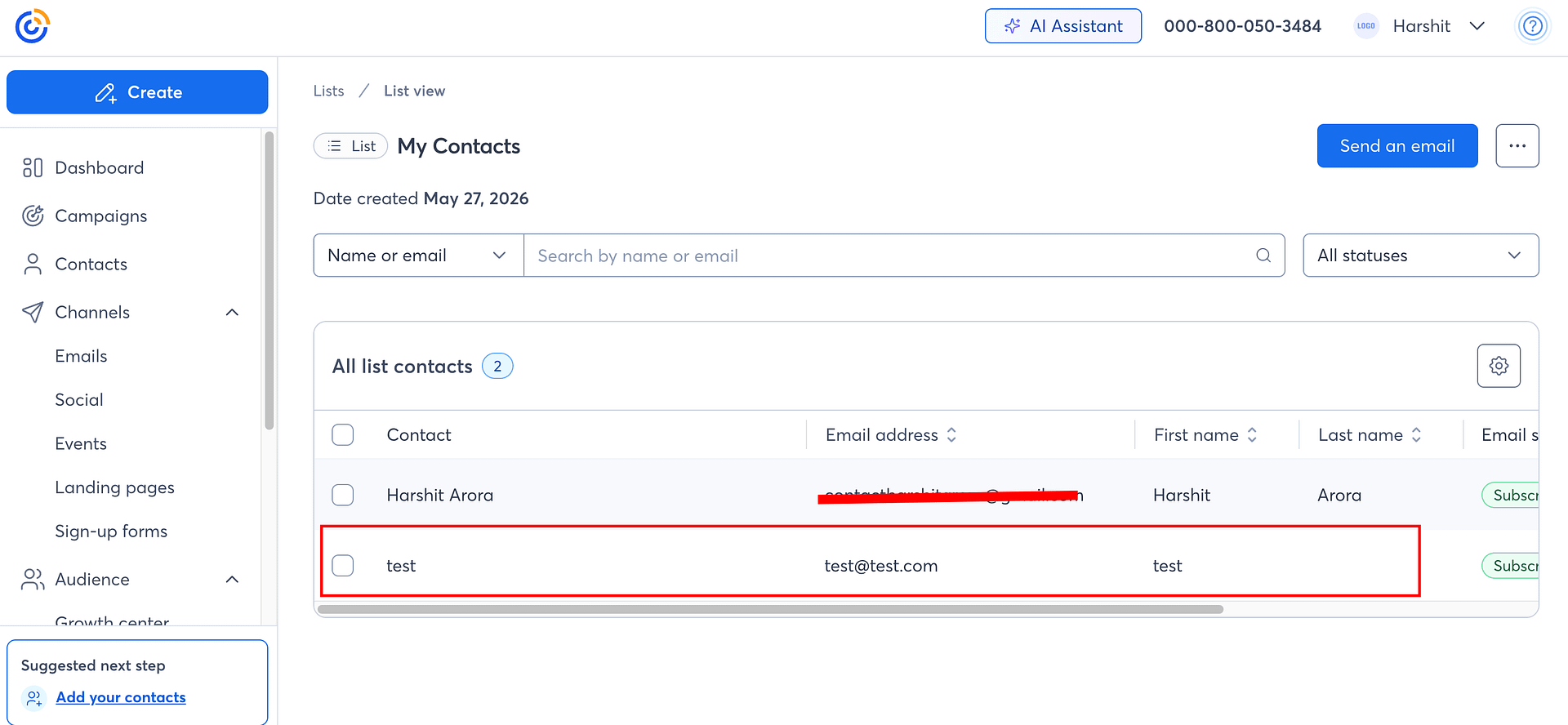
- Click Publish to activate the Zap.
Option B – Connect via Pabbly Connect
Step 1 – Set Up the RCF7 Webhook
Follow the Pabbly Connect integration guide to install the Webhook addon, create a workflow with a Webhook trigger, and connect it to your CF7 form. Submit a test entry so Pabbly Connect has sample data, then continue below.
Step 2 – Add the Constant Contact Action
- In your workflow, click + to add an Action step.
- Search for and select Constant Contact.
- Choose Add Contact as the action event, then click Connect.
- Connect your Constant Contact account when prompted and authorize access.
- Configure the action:
- List → Select the contact list where new subscribers should be added
- Email Address → Map to the
emailfield from the trigger data - First Name → Map to the
namefield from the trigger data
- Click Save and Send Test Request to create a test contact in Constant Contact.
- Open Constant Contact and confirm the contact appeared in the correct list.
- Click Save to activate the workflow.
Troubleshooting
No contact was added after the test submission Check that the automation platform received data from the webhook — look at the Zap history or Pabbly Connect workflow history for the trigger step. If data did not arrive, verify the webhook URL in your RCF7 Webhook action is correct and the form was saved after adding the action.
The contact was added but fields are blank The field names in your RCF7 webhook JSON payload must match the CF7 shortcode tags in your form exactly (for example, [your-name] not [name]). Use the Available mail tags dropdown in the RCF7 webhook action settings to confirm the correct tag names.
The form shows "There was an error trying to send your message" This error comes from CF7's built-in email notification failing and is unrelated to the webhook. Fix it by installing an SMTP plugin such as WP Mail SMTP or Fluent SMTP. Alternatively, add skip_mail: on to your form's Additional Settings tab to bypass email sending during testing.
Duplicate contacts in Constant Contact If the same email is submitted more than once, Constant Contact may create duplicate entries. Check whether your automation platform offers an upsert action (update if exists, create if not) and use that instead of a plain Create action.