
Using Conditional Logic Redirect for Contact Form 7
Conditional Logic is one of the most prominent features in Redirection for Contact Form 7 (available in the Starter plan).
Webmasters often find themselves in need of performing a specific action after the form has been submitted – it can be a simple redirection to a thank you page, emailing to an address of their choice, 3rd party integration, payment requests, and much more.
With our Redirection for Contact Form 7, you can easily perform all these actions. However, imagine a scenario where you need to perform a specific action according to the user’s input in the form. With the Conditional Logic feature, this will be a walk in the park, no coding knowledge needed.
In this article
How to install it
- Download the Redirection For Contact Form 7 Extension - Conditional Logic plugin from your purchase history.

- Install the plugin on your site.
Need help installing a plugin? Check this doc for step-by-step details.
- In your WordPress dashboard, navigate to CF7 Redirection > Dashboard > Licenses and activate the license. ( The license is also available in your purchase history ).

How to use it
- Edit the C7 contact form of your choice.
- Navigate to the Actions tab.
- Click on the Add Action button to add any action of your choice.

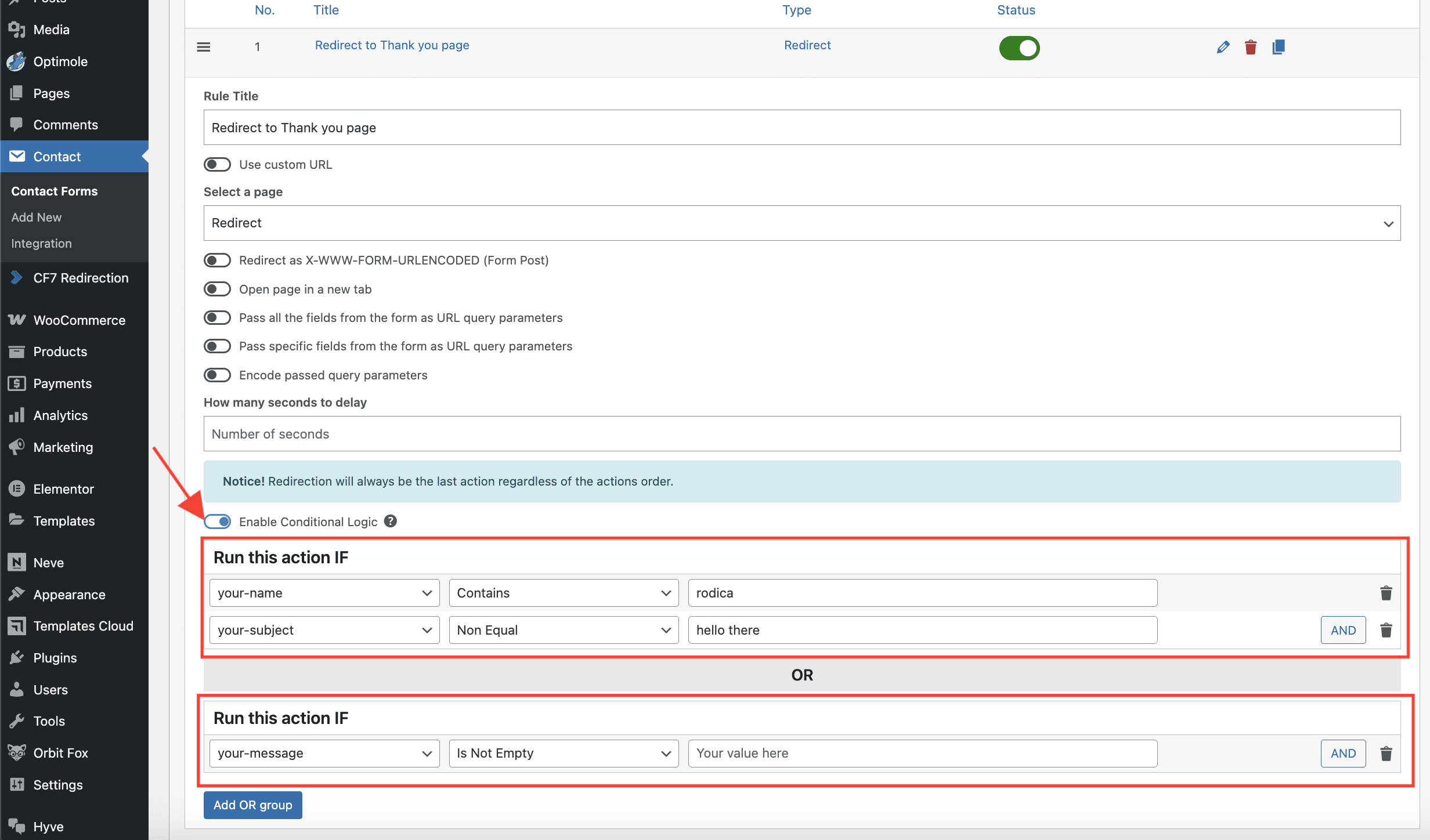
- For that action, click to Enable Conditional Logic.
- Add the rules of your choice.
The plugin allows adding numerous conditions per action, and supports AND/OR relations. Also, the plugin supports a wide range of comparison types: equal, non-equal, contains, does not contain, less than, greater than, is empty, and is not empty.
Troubleshooting Performance Issues
When you use a large number of conditional actions or rules, you may encounter two distinct types of errors depending on when the problem occurs: errors while saving the form configuration and errors while submitting the form. Each has a different cause and a different fix.
Distinguishing Save vs. Submission Errors
| Error type | When it occurs | Cause | Fix |
|---|---|---|---|
| Save error | When you click Save in the form editor | max_input_vars limit too low | Increase max_input_vars |
| Submission error | When a visitor submits the form on the front end | PHP memory limit too low | Increase PHP memory limit |
Symptoms
Save-time errors (occur in the WordPress form editor):
- Saving a form with many conditional redirect actions returns a 500 Internal Server Error.
- After saving, some actions appear disabled or their settings are lost.
- Conditional redirect rules added near the end of a long list are not retained after saving.
Submission-time errors (occur when a visitor submits the form):
- The form submission returns a 500 Internal Server Error.
- The form appears to load or spin for a long time after the user clicks Submit, then fails silently.
- The error occurs only when Conditional Logic is enabled, and disappears when it is disabled.
Configuration Save Errors (max_input_vars Limit)
When a CF7 form has a large number of conditional redirect actions (approximately 89 or more), the form editor sends a large number of fields in a single POST request when you click Save. If your server's max_input_vars PHP setting is below the number of fields being submitted, PHP silently truncates the data. This causes actions to disappear after saving and can result in a 500 Internal Server Error.
The default value for max_input_vars is 1000, which is not enough for forms with many conditional actions. Increasing it to 3000 or higher (10,000 is recommended for large forms) resolves this.
Increase max_input_vars via php.ini
If you manage your own server or your host gives you access to php.ini, add or update the following line:
max_input_vars = 10000After saving, restart your web server or PHP-FPM process. Then re-save the form in WordPress to confirm your actions are no longer lost.
⚠️ Important: If some actions were lost before you increased the limit, you will need to manually re-add those actions after saving the form with the new setting in place.
Increase max_input_vars via .htaccess (Apache)
If your host uses Apache and does not provide a control panel option, you can add the following line to your site's .htaccess file:
php_value max_input_vars 10000📝 Note: The .htaccess method only works if PHP runs as an Apache module (mod_php). It will not work if PHP runs via PHP-FPM or FastCGI. Contact your hosting provider if you are unsure which configuration your server uses.
Increase the PHP memory limit
If the error occurs when a visitor submits the form (not when saving the configuration), the cause is likely an insufficient PHP memory limit. When a form has many conditional rules, the plugin evaluates all of them on every submission. This can exhaust the server's PHP memory limit, causing a 500 Internal Server Error or the form appearing to spin indefinitely.
If your server's PHP memory limit is below 256 MB, it may not be sufficient for complex conditional rule sets. Increasing the limit to 256 MB or higher is recommended when you have more than 10 rules configured.
How you increase the memory limit depends on your hosting provider. Below is an example using Cloudways:
- Log in to your Cloudways account and open your application.
- Navigate to Application Settings.
- Under the PHP FPM section, locate the memory_limit field and set it to
256M(or higher). - Save the changes and submit the form again to confirm the error is resolved.
For other hosting providers, check their documentation for how to adjust the PHP memory_limit setting. Alternatively, you can add the following line to your site's wp-config.php file:
define( 'WP_MEMORY_LIMIT', '256M' );⚠️ Important: If your hosting plan enforces a hard PHP memory cap, editing wp-config.php alone may not be enough. Contact your hosting provider to raise the server-level limit.
Isolate the problem by testing rule subsets
If you are unsure which rules are causing the issue, or if you cannot immediately increase the memory limit, you can test your rules incrementally to identify the problematic set:
- Temporarily disable all but a small group of your conditional rules (for example, the first 5).
- Submit the form and check whether the error still occurs.
- If the form submits successfully, re-enable the next group of rules and test again.
- Repeat until the error reappears — the last group you enabled likely contains the rules consuming the most memory.
- Review those rules for redundancy or opportunities to simplify the logic before re-enabling them.
💡 Tip: Reducing the total number of rules and combining related conditions using AND/OR logic can lower the memory overhead and improve form submission performance.