
Send Contact Form 7 Submissions to Telegram
Get a Telegram message every time someone submits your Contact Form 7 form. This is useful for teams or individuals who want instant form notifications delivered to a Telegram channel, group, or private chat.
This integration uses the Webhook Integration feature in Redirection for Contact Form 7 (available from the Marketer plan).
The simplest approach is a direct connection using Telegram's Bot API — no third-party automation platform needed. If you are already using Zapier, Make, or n8n, those options are covered at the end of this page.
In this article
What You'll Need
- Redirection for Contact Form 7 on the Marketer plan or higher
- A Telegram account
- A Telegram bot and its token — see the setup steps below
How It Works
CF7 Form Submission → RCF7 Webhook → Telegram Bot API → Telegram MessageBefore You Start — Create a Telegram Bot
Telegram does not allow automated messages to be sent from a regular personal account. To send notifications programmatically, you need a Telegram bot — a special account type that Telegram provides specifically for this purpose.
Bots are created through BotFather, which is Telegram's own official tool for managing bots. It is a verified account built and maintained by Telegram, available at t.me/BotFather.
Step 1 – Create a Bot
- Open Telegram and go to t.me/BotFather. You will see a verified blue checkmark next to the name confirming it is the official Telegram account.
- Tap Start, then send the command
/newbot.
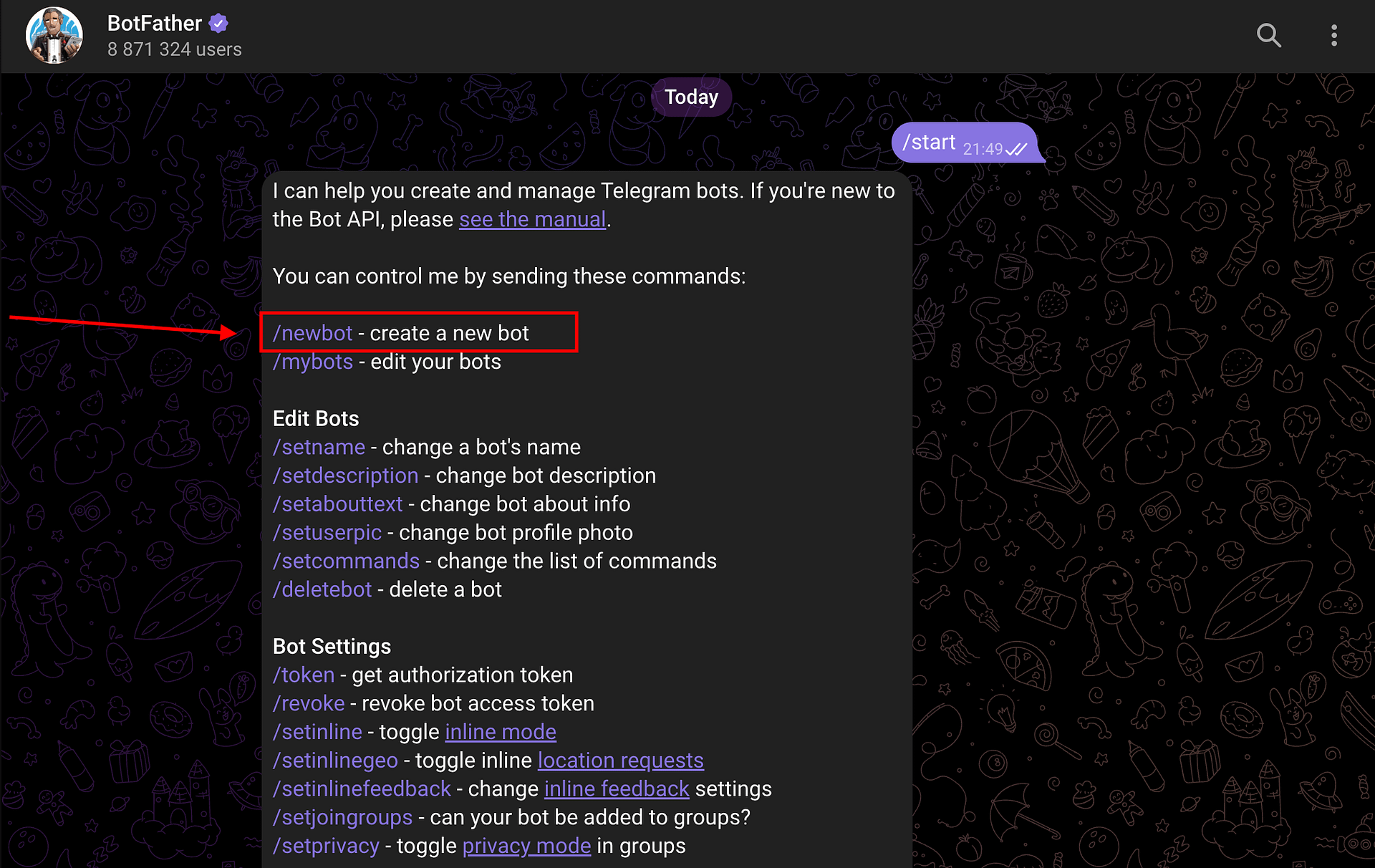
- Follow the prompts — you will be asked to choose a display name and a username for your bot.
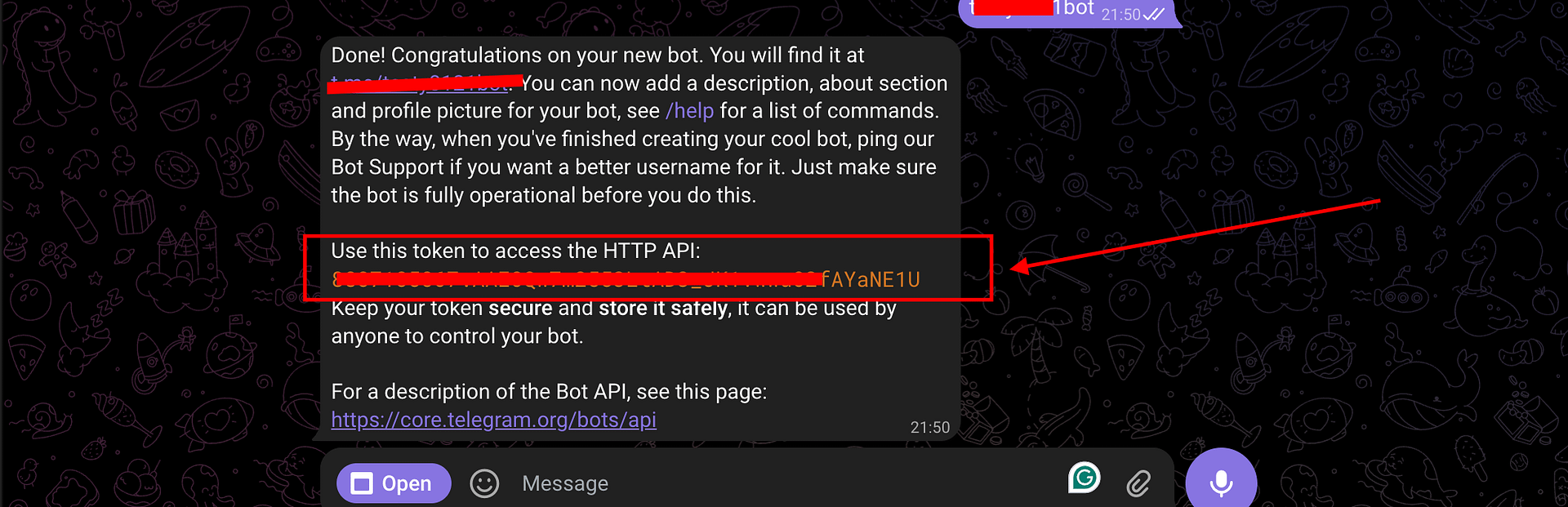
- Once done, BotFather will give you a bot token — a string that looks like
123456789:ABCdef-GHIjkl. Copy and save this.
Step 2 – Get Your Chat ID
The Chat ID tells your bot where to send messages — it can be your personal chat, a group, or a channel.
- Search for your newly created bot by its username in Telegram and tap Start to open a conversation with it.
- Send any message to the bot (for example, "hello").
- Open the following URL in your browser, replacing
YOUR_BOT_TOKENwith the token you copied:https://api.telegram.org/botYOUR_BOT_TOKEN/getUpdates - In the response, find the
"chat"object and copy the"id"value — that is your Chat ID.
Sending to a group or channel? Add your bot as a member first, then send a message in the group or channel, and use the same URL above to retrieve the Chat ID. Group and channel IDs are typically negative numbers (e.g.,
-1001234567890).
Option A – Connect Directly via Telegram Bot API (Recommended)
Once you have your bot token and Chat ID, you can send messages directly from RCF7 without any third-party platform.
Step 1 – Configure the Webhook Action in RCF7
- In your WordPress dashboard, go to Contact → Contact Forms and edit the form you want to connect.
- Click the Actions tab.
- Click Add Action and select Webhook - XML/JSON.
- In the action settings:
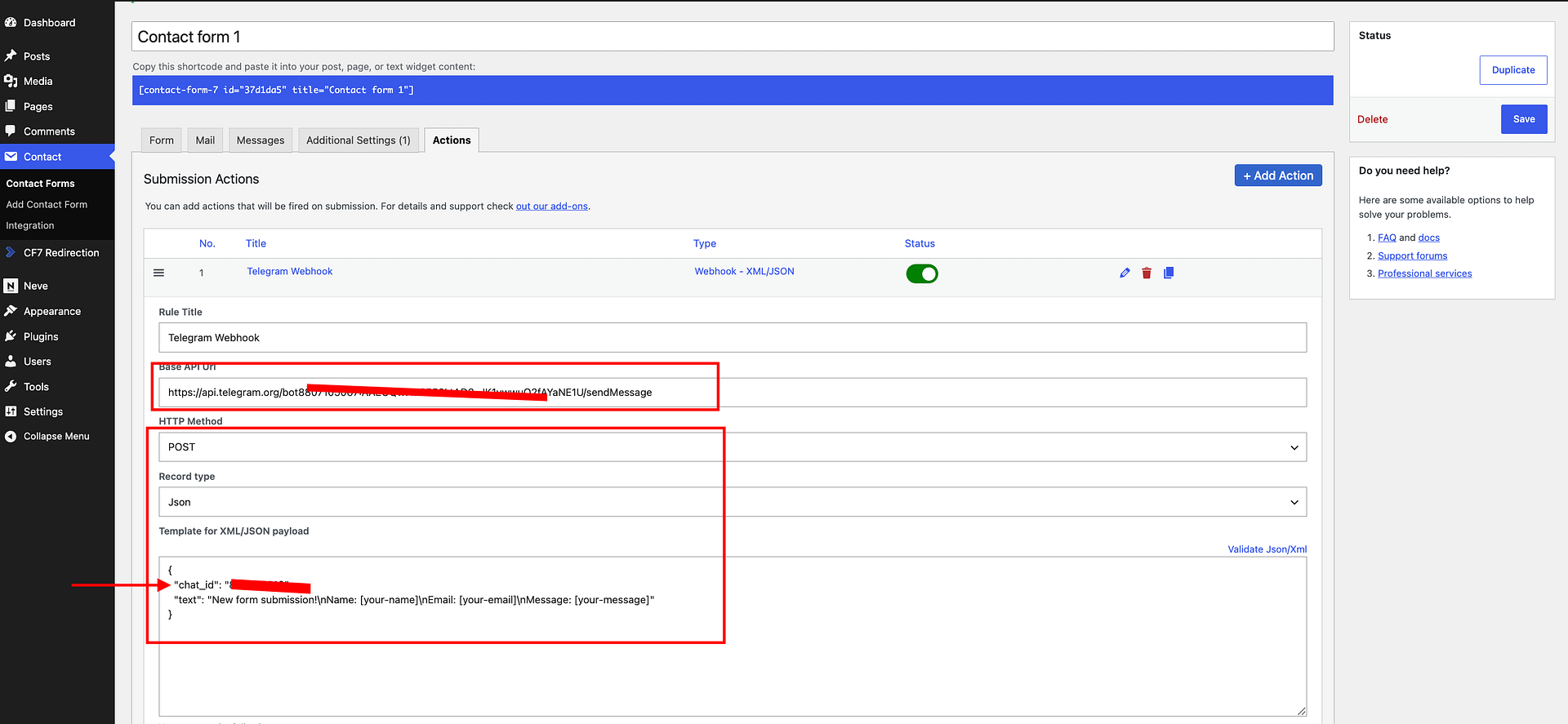
- Base API Url: Enter the following, replacing
YOUR_BOT_TOKENwith your actual token:https://api.telegram.org/botYOUR_BOT_TOKEN/sendMessage - HTTP Method: Set to POST
- Record type: Set to JSON
- In the Template for XML/JSON payload field, enter the following, replacing
YOUR_CHAT_IDwith your actual Chat ID:jsonReplace the field tags with the actual CF7 shortcodes from your form. Use the Available mail tags dropdown to confirm the correct tag names.{ "chat_id": "YOUR_CHAT_ID", "text": "New form submission!\nName: [your-name]\nEmail: [your-email]\nMessage: [your-message]" } - Click Save on the contact form.
Step 2 – Test the Connection
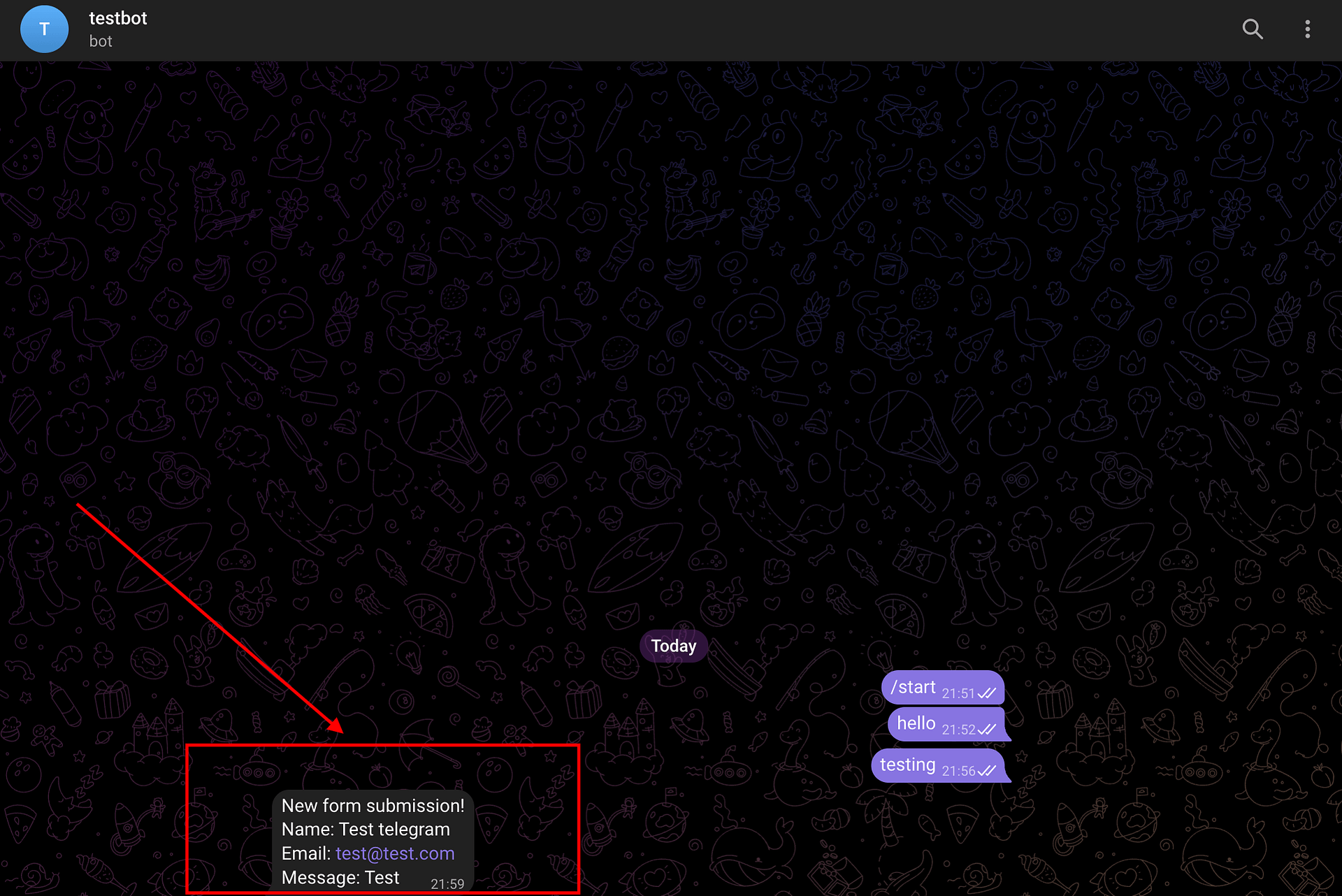
Submit your Contact Form 7 form with test data. The notification should arrive in your Telegram chat within a few seconds.
Option B – Connect via an Automation Platform
If you are already using Zapier, Make, or n8n and want to chain this notification with other actions in an existing workflow, you can route through those platforms instead.
Note: Zapier requires a paid plan for webhook triggers. Make and n8n support webhooks on their free plans.
Follow the relevant guide to set up the RCF7 webhook trigger, then add a Telegram action:
- Integrate Contact Form 7 with Zapier — add a Telegram Bot → Send Message action
- Integrate Contact Form 7 with Make — add a Telegram Bot → Send a Text Message module
- Integrate Contact Form 7 with n8n — add a Telegram → Send Message node
Troubleshooting
No message arrived in Telegram after the test Check that the bot token in the URL is correct and that you started a conversation with the bot in Telegram before testing. Telegram bots cannot send messages to users who have not initiated contact first.
"Bad Request: chat not found" error Double-check the Chat ID in your JSON payload. If you are sending to a group or channel, make sure the bot has been added as a member (and as an admin for channels).
The message arrived but fields are blank The field tags in your JSON payload must match the CF7 shortcodes in your form exactly (for example, [your-name] not [name]). Use the Available mail tags dropdown in the RCF7 webhook action to confirm the correct tag names.
The form shows "There was an error trying to send your message" This error comes from CF7's built-in email notification failing and is unrelated to the webhook. Fix it by installing an SMTP plugin such as WP Mail SMTP or Fluent SMTP. Alternatively, add skip_mail: on to your form's Additional Settings tab to bypass email sending during testing.