
How to Use PPOM Template Library Presets
PPOM includes a template library that can create a complete field group from a preset. Use it when you want to start from a common product customization workflow instead of building every field manually.
In this article
Open the Template Library
- Go to WooCommerce > PPOM Fields.
- Click Add New Group.
- In the Set Up Product Fields window, choose either Start from scratch or one of the available preset cards.
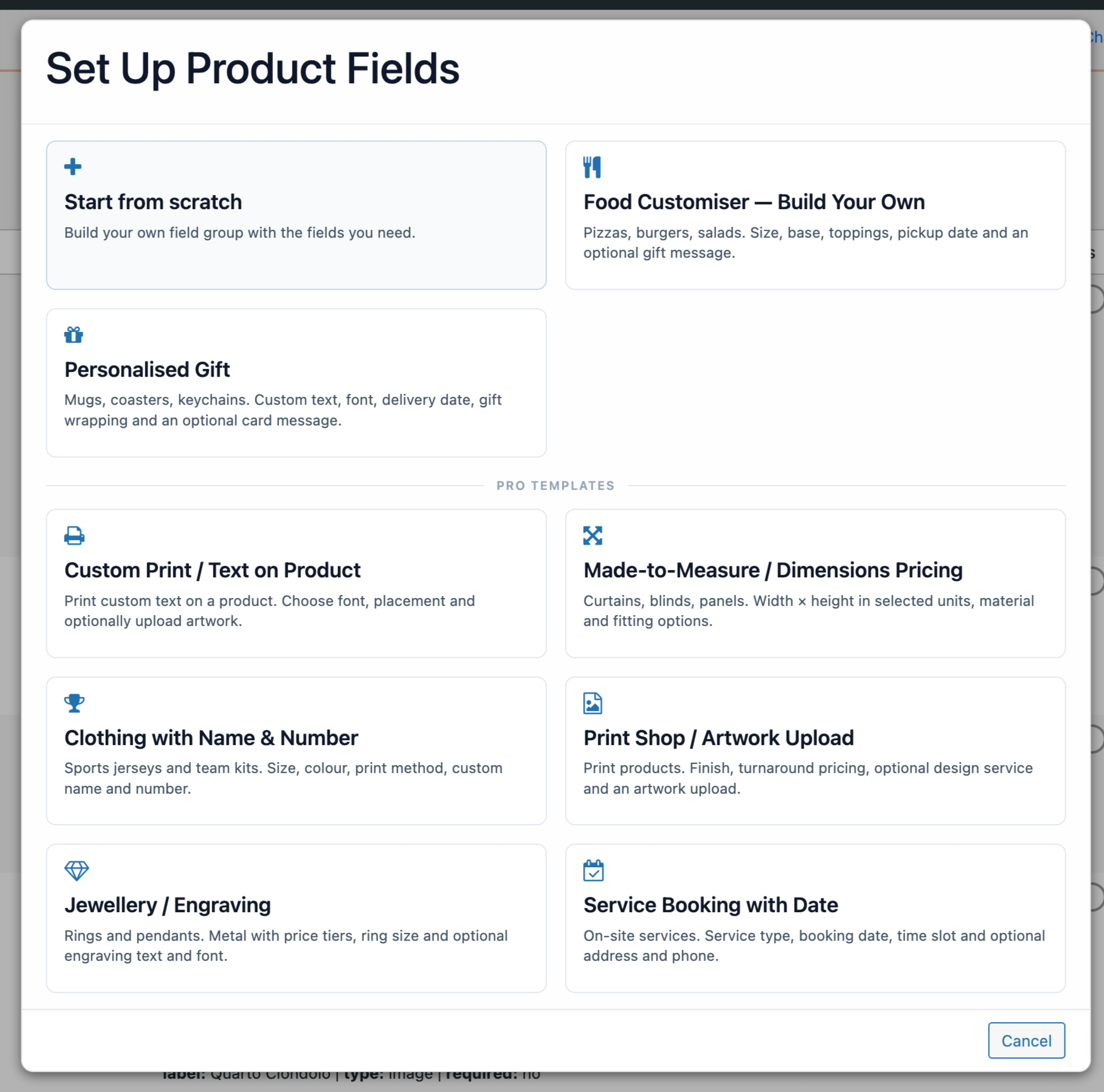
Available Presets
The template library includes presets for common store workflows:
- Food Customiser — Build Your Own: ideal for pizza ordering and similar build-your-own food products.
- Personalised Gift: for gift products that customers personalize with names, messages, or other details.
- Custom Print / Text on Product: for products where customers add custom text or a print to be applied.
- Print Shop / Artwork Upload: for print shops that need customers to upload artwork files.
- Made-to-Measure / Dimensions Pricing: for products that require custom dimensions or measurements.
- Clothing with Name & Number: for sports jerseys, team kits, and similar personalized clothing.
- Jewellery / Engraving: for rings, bracelets, and other items with engraving options.
- Service Booking with Date: for services that customers book for a specific date.
📝 Note: Presets that include Pro-only field types are labeled as Pro templates and require an active PPOM Pro license.
Create a Field Group From a Preset
- In the Set Up Product Fields window, select the preset that best matches your product.
- PPOM automatically creates a new field group with all preset fields and their default settings.
- Review the generated fields and edit labels, prices, required settings, and descriptions as needed.
- In the field group editor, click Attach to Products to assign the group to the relevant product, category, or tag.
- Save the field group and preview it on the product page to confirm the fields appear correctly.
💡 Tip: Preset field groups are fully editable after creation. You can add, remove, reorder, or modify any field generated by the preset.
When to Start From Scratch
Choose Start from scratch when none of the presets match your product flow, or when you only need one or two simple fields. For a full walkthrough of creating fields manually, see PPOM - Personalized Product Option Manager.