
PPOM Field Data Name Requirements
📝 Note: Display Conditions are available in both PPOM free and Pro. Available condition options vary by plan—see What is the Difference between PPOM Free and PPOM PRO?.
The Data name field is a technical identifier assigned to each PPOM field. It must follow strict naming rules for conditional logic (show/hide conditions) and for fields to work correctly on the product page. Invalid characters can cause conditions to fail or interfere with frontend field behavior, including file uploads.
In this article
Data Name Rules
Every PPOM field Data name must use only lowercase letters and underscores. No other characters are allowed.
| ✅ Valid | ❌ Invalid |
|---|---|
field_name | Field Name (uppercase, spaces) |
color_option | color-option (hyphens) |
puoi_fornirci_i_dati | Puoi fornirci i dati? (uppercase, spaces, punctuation) |
size_large | size.large (dot) |
custom_text_1 | Custom Text! (uppercase, space, special character) |
⚠️ Important: A Data name that contains uppercase letters, spaces, hyphens, dots, or any special characters (such as ?, ', !) can break conditional logic or frontend field behavior. For example, a File Input with a hyphenated Data name can show its Upload button but fail to open the file chooser when clicked.
Where to Find the Data Name Field
The Data name is set when you create or edit a PPOM field inside a meta group.
- Navigate to WooCommerce > PPOM Fields.
- Open the meta group that contains the field you want to check or edit.
- Click the edit (✏️) icon next to the field.
- The Data name field is visible in the field editor panel.
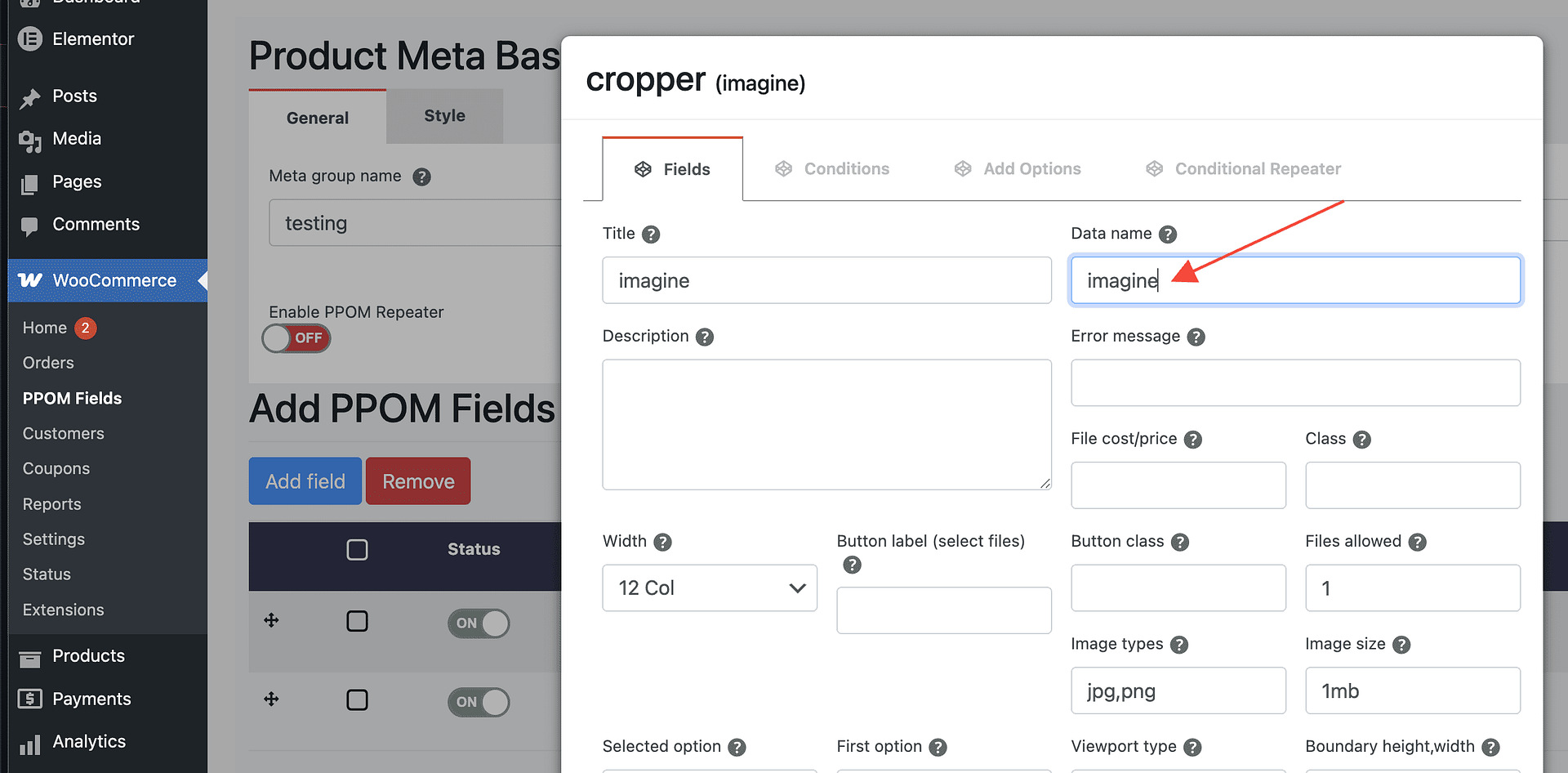
📝 Note: The Data name is different from the field's Title (the label customers see on the product page). The Title can contain any characters — only the Data name has these restrictions.
Common Mistakes and How to Fix Them
Mistake 1 — Spaces in the Data name
Copying a field title directly into the Data name field often introduces spaces.
- Invalid:
delivery date - Valid:
delivery_date
Fix: Replace every space with an underscore (_).
Mistake 2 — Uppercase letters
- Invalid:
DeliveryDate - Valid:
delivery_date
Fix: Convert all characters to lowercase.
Mistake 3 — Special characters and punctuation
Using accented characters, question marks, apostrophes, or other symbols breaks the identifier.
- Invalid:
Puoi fornirci i dati catastali dell'immobile? - Valid:
puoi_fornirci_i_dati_catastali_dell_immobile
Fix: Remove all punctuation and special characters. Replace spaces with underscores and convert to lowercase.
Mistake 4 — Hyphens instead of underscores
A hyphen is not valid in a Data name. For a File Input, it can leave the Upload button visible but prevent it from opening the file chooser.
- Invalid:
field-name - Valid:
field_name
Fix: Replace hyphens (-) with underscores (_).
How to Fix an Existing Data Name
- Navigate to WooCommerce > PPOM Fields.
- Open the meta group that contains the affected field.
- Click the edit (✏️) icon next to the field.
- Clear the current Data name value and enter a corrected one that uses only lowercase letters and underscores.
- Click Save Fields to apply the change.
⚠️ Important: If you change the Data name of a field that is already referenced in a condition on another field, you must update that condition as well. Open the conditional field, go to its Conditions tab, and update the field identifier to match the new Data name.
Testing the Field After Correction
After updating the Data name, verify that your conditions and affected field are working correctly:
- Clear your site cache. If you use a caching plugin (such as WP Rocket or W3 Total Cache), purge the cache after saving the field changes.
- Open the product page that uses the PPOM meta group.
- Interact with the trigger field (the field whose value controls the condition). For example, select an option from a dropdown or radio button.
- Confirm that the conditional field shows or hides as expected.
- If the affected field is a File Input, reload the product page and click its Upload button. Confirm that the browser’s file chooser opens.
💡 Tip: If the condition still does not trigger after correcting the Data name, try testing in an incognito or private browsing window to rule out browser caching. Also double-check that the condition rule in the Conditions tab references the exact corrected Data name.
If conditions remain broken after following these steps, see the PPOM Troubleshooting guide for further diagnosis steps.