
How to Display PPOM Fields in Elementor
PPOM includes an Elementor widget that shows a product's PPOM fields on any Elementor page. This guide explains when you need it, how to add it, and how to check the result.
In this article
Before you begin
Create a PPOM field group and assign it to the WooCommerce product you want to show. For the steps, see Attach meta groups to products.
You don't need the widget on the product's own page. PPOM fields appear automatically above the standard WooCommerce Add to cart button wherever that button is shown. Use the widget or shortcode when you want a product's options on another page, such as a landing page or a custom layout.
⚠️ Important: The widget and the shortcode output a complete order form: the PPOM fields, a quantity box, and an Add to cart button. After a customer adds the product to the cart from this form, they are taken to the cart page. Don't place this form on a page that already shows the same product's standard Add to cart button, or the fields appear twice.
Find the product ID
Both methods need the numeric ID of the WooCommerce product.
- Go to Products > All Products.
- Hover over the product name.
- Note the number shown after ID: below the name.
Display PPOM fields in Elementor
You can use either method. The PPOM widget asks only for the product ID. The shortcode method works in any Elementor area that accepts a shortcode.
Use the PPOM Shortcode widget
- Open the page in Elementor.
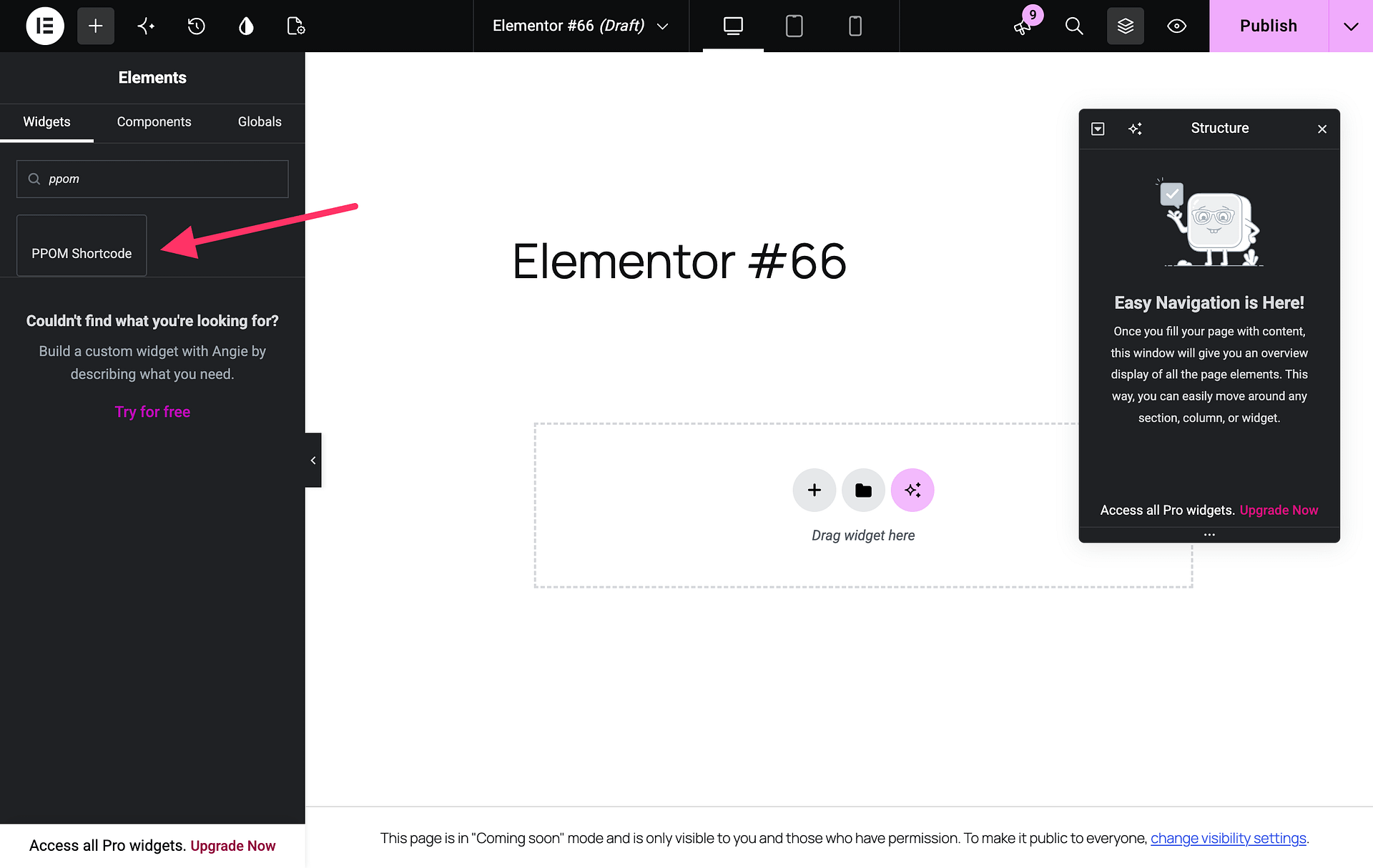
- In the widgets panel, search for PPOM Shortcode. It is listed in the General category.
- Drag the widget onto the page.
- In the widget's Product Details section, enter the product ID in the Product ID field.
- Click Publish or Update.
Use the Elementor Shortcode widget
- Open the page in Elementor.
- Add Elementor's Shortcode widget to the page.
- Enter the PPOM shortcode, replacing
123with your product ID:
[ppom product_id="123"]- Click Publish or Update.
Check the fields on the page
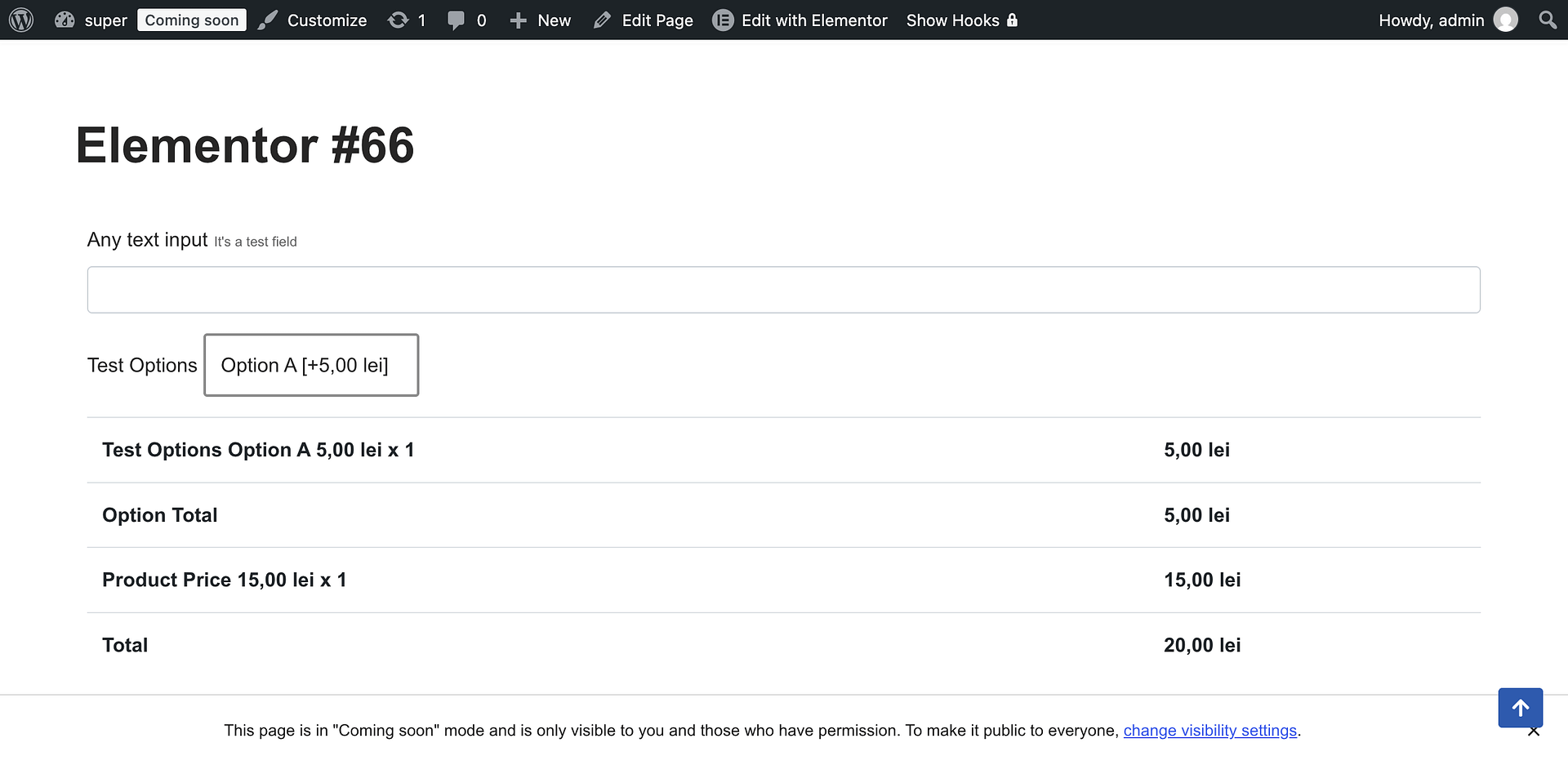
Open the page on the front end and confirm that the fields assigned to the product appear, followed by the quantity box and the Add to cart button. Add the product to the cart once to confirm that the selected options carry over.
Troubleshooting
- The PPOM Shortcode widget is not in the widgets panel: Use the Elementor Shortcode widget method instead.
- The page shows "Product ID is not valid": The ID does not match an existing WooCommerce product. Check the ID again under Products > All Products.
- Only the quantity box and Add to cart button appear: No enabled PPOM field group is assigned to that product. Check the field group's product assignment.
- Nothing appears at all: Make sure the Product ID field or the
product_idvalue is not empty.
If the fields still do not appear, follow PPOM fields are not visible on the product page.