
How to Configure the Field Popup in PPOM?
📝 Note: This feature is available in the premium version of the plugin, which you can get from here.
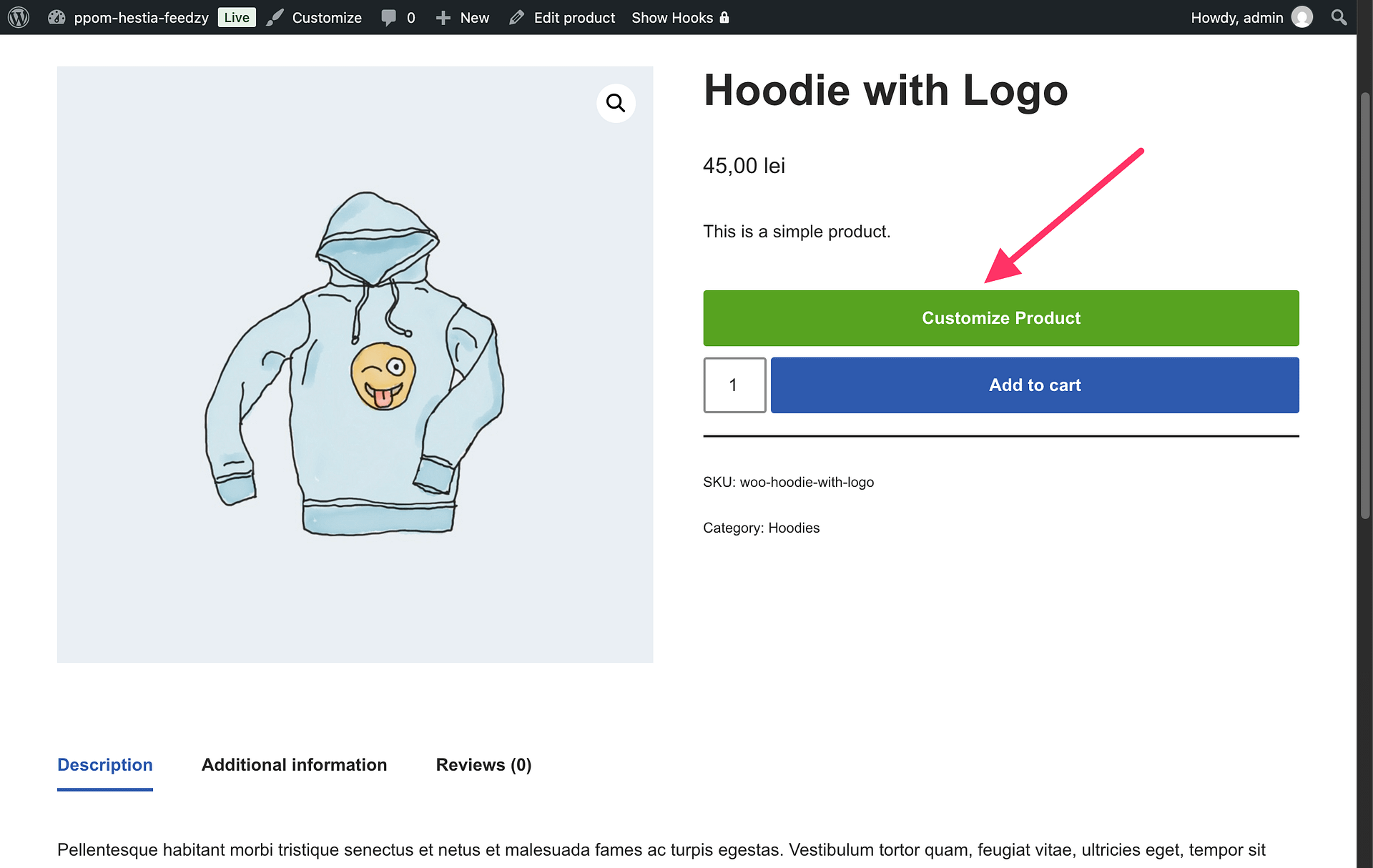
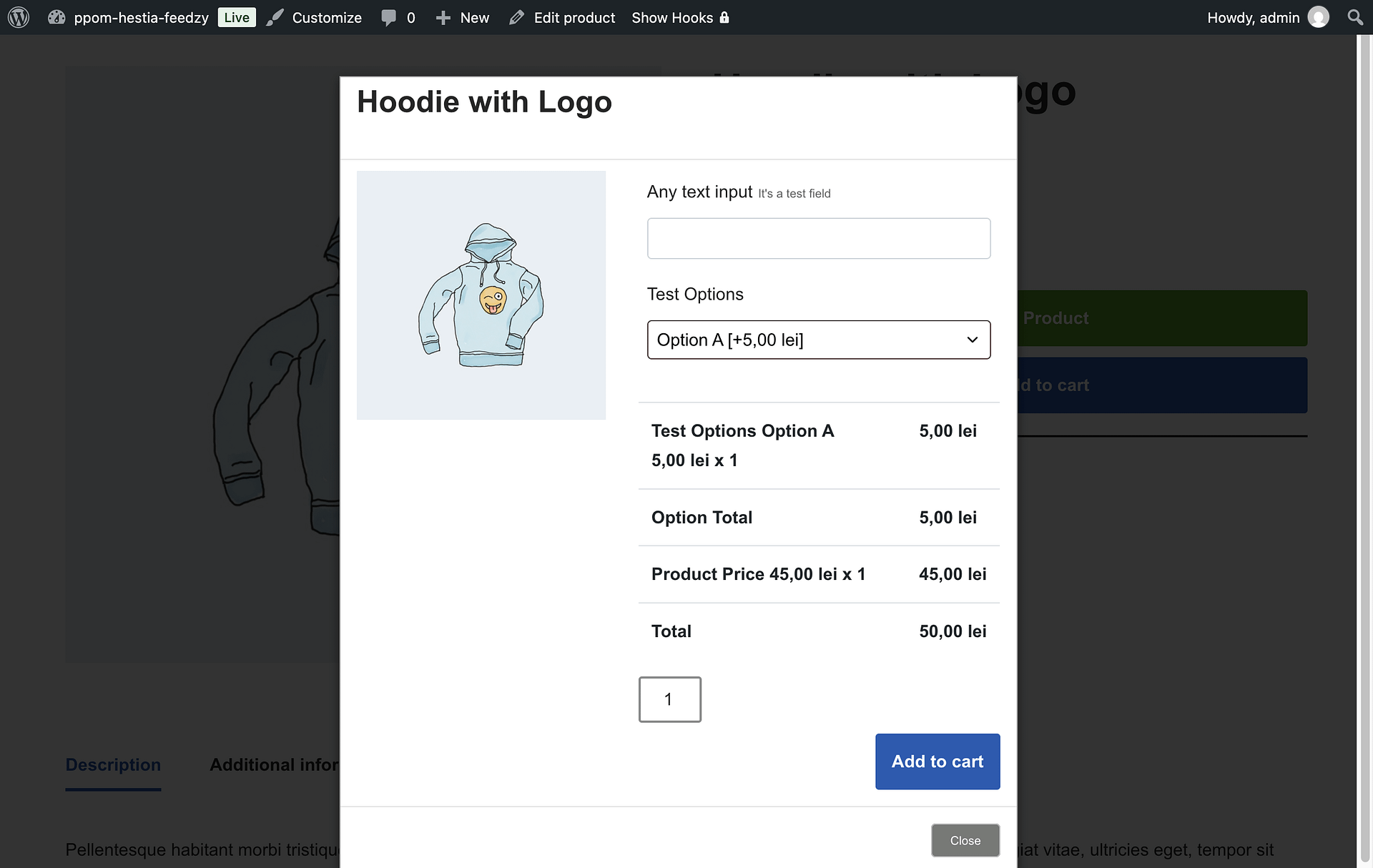
The Fields Popup addon allows the PPOM meta fields to be displayed inside a popup on the product page. The popup appears once the user click on the "Customize Product" button which appears near the "Add to Cart" button. To remove the "Add to Cart" button, and keep just the "Customize Product" button to open the popup follow the last section of this guide.
In this article
Enable it for all PPOM products
To enable this feature for all PPOM products, follow these steps:
1. Navigate to WooCommerce > Settings > PPOM Settings.
2. Open the Fields Settings panel.
3. Tick the Enable Fields Popup option.
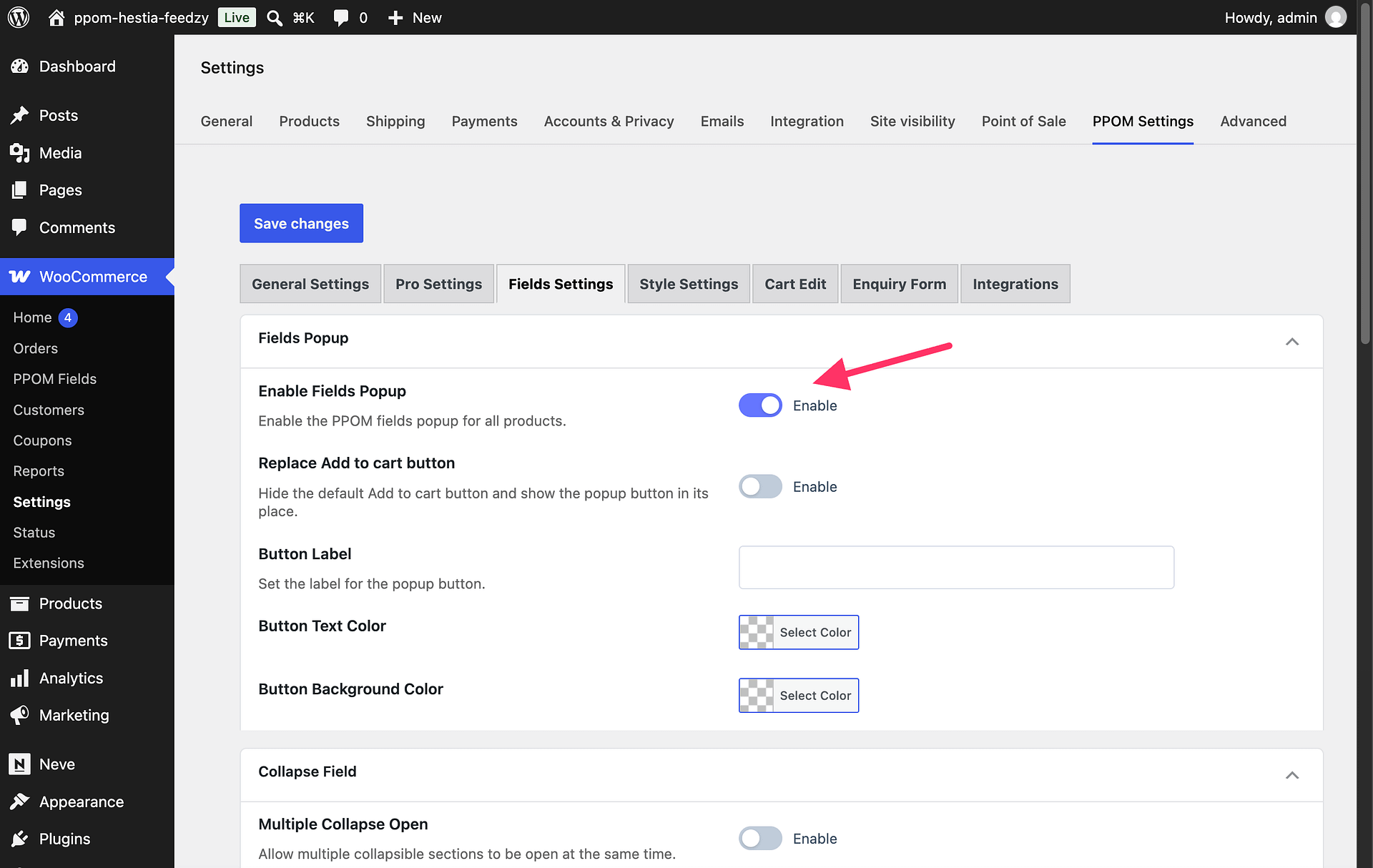
You can also edit the global label of the popup button and change the text and background color to correspond to your website's palette.
Enable it for specific PPOM Products
Alternatively, you can enable the popup for specific products by navigating to Products and editing them individually. Inside the Product Data area, open PPOM Fields and enable the popup:
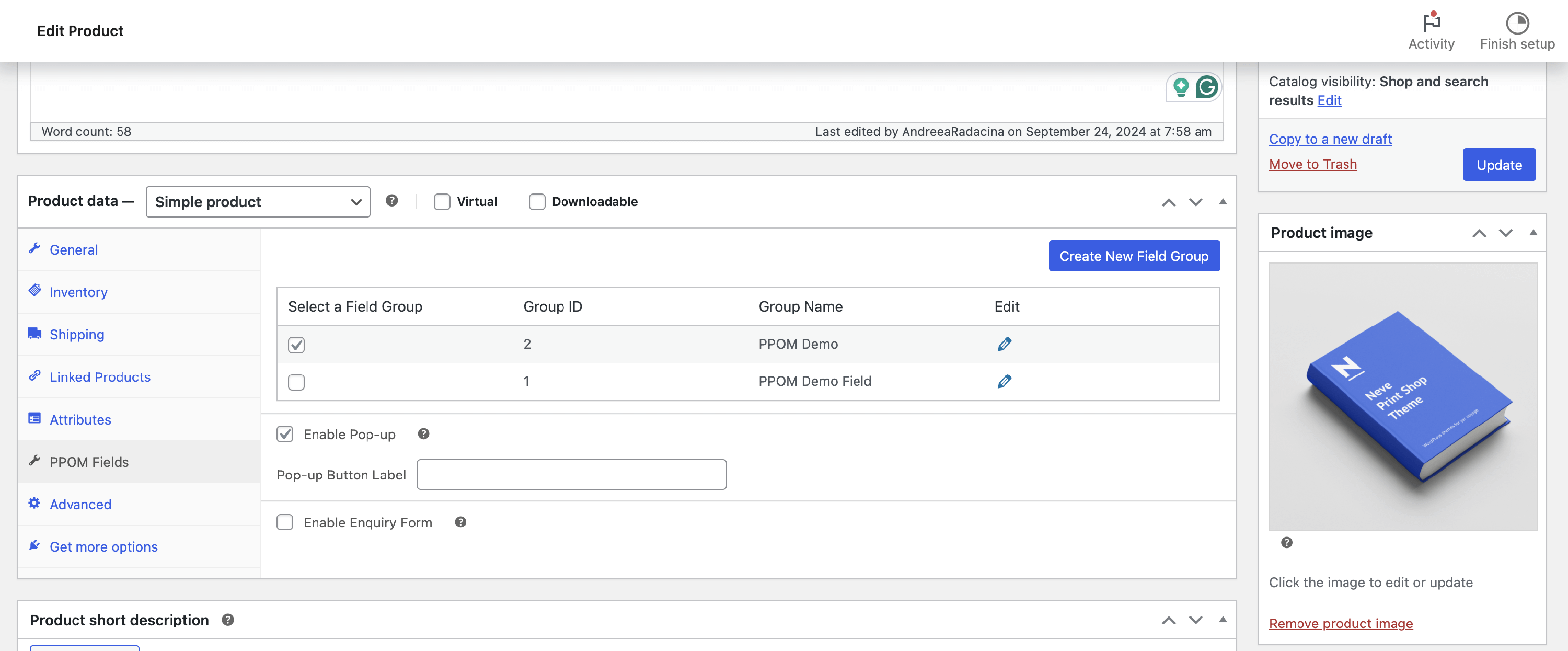
📝 Note: It will be applied only to products with PPOM input fields.
Result
Replace the Add to cart button with the popup button
By default, the popup button appears next to WooCommerce's native Add to cart button. To replace the native button for all products:
1. Go to WooCommerce > Settings > PPOM Settings > Fields Settings.
2. Select Replace Add to cart button. This option is off by default.
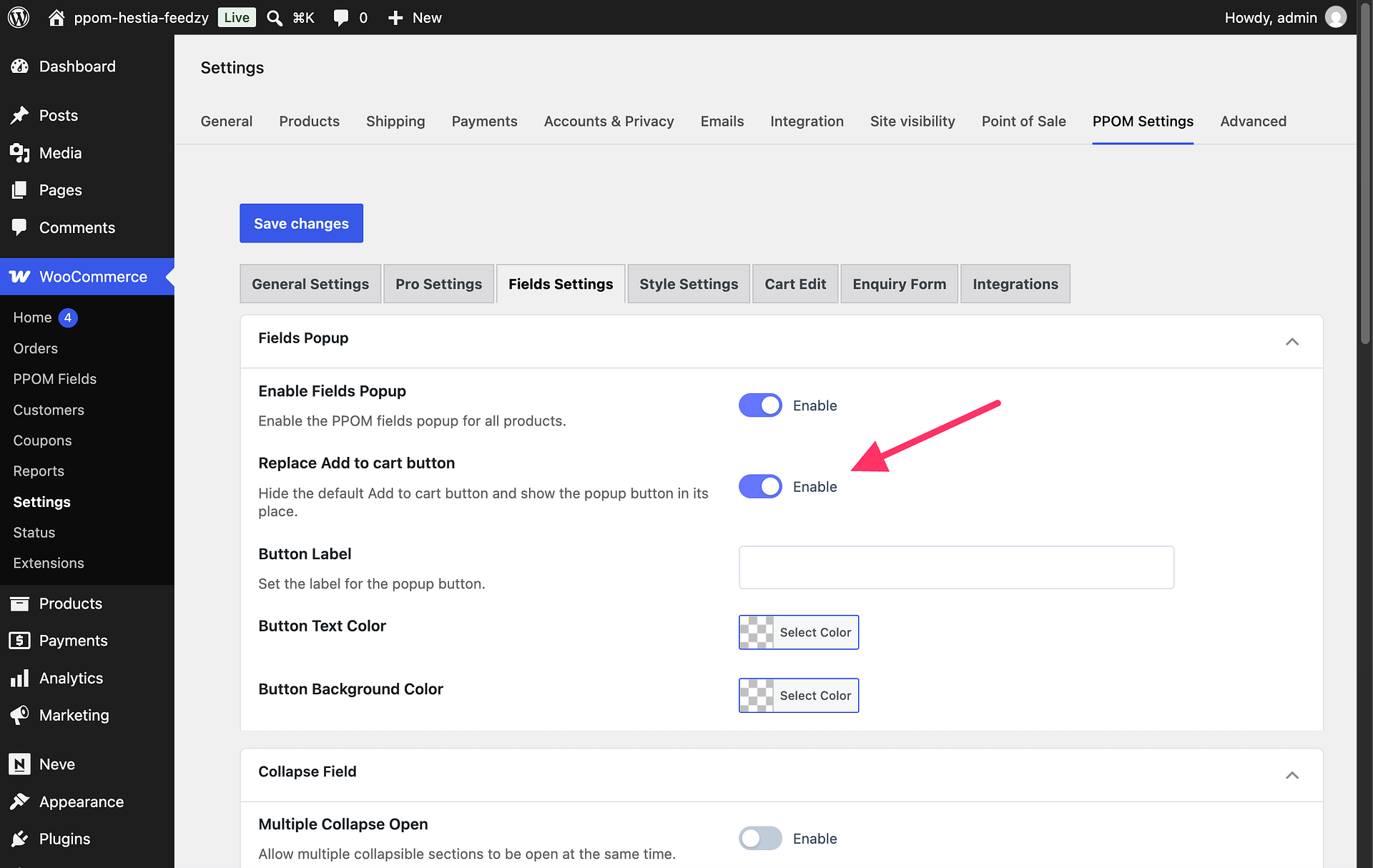
To change this for one product, edit the product and open Product Data > PPOM Fields. If the global option is off, select Replace Add to cart with the pop-up button. If the global option is on, select Keep the default Add to cart button to keep the native button for that product.
When the replacement is enabled, customers can add the product to the cart only through the popup button. Developers can use the ppom_fieldspopup_replace_add_to_cart filter to override this behavior.