
Managing Stock Counts in PPOM Fields
PPOM Pro lets you limit how many times a specific field option can be selected across all orders. This guide explains how to set stock limits per option, how to check remaining stock in the WordPress admin, and what customers experience when an option runs out of stock.
📝 Note: Stock management for PPOM fields requires the Pro version of the plugin. You can get it from themeisle.com/plugins/ppom-pro.
In this article
Viewing and Managing Stock in the Backend
Stock counts for PPOM options are managed entirely inside the WordPress admin — there is no separate stock dashboard. You set and review inventory directly within each field's option settings.
To view or update stock for a field option:
1. Go to WooCommerce > PPOM Fields in the WordPress admin.
2. Find the field group that contains the option you want to manage and click Edit.
3. Click on the field (for example, a Select, Radio, or Checkbox field) to expand its settings.
4. Open the Options tab for that field.
5. For each option row, locate the Stock column. The value shown is the number of remaining purchases available for that option.
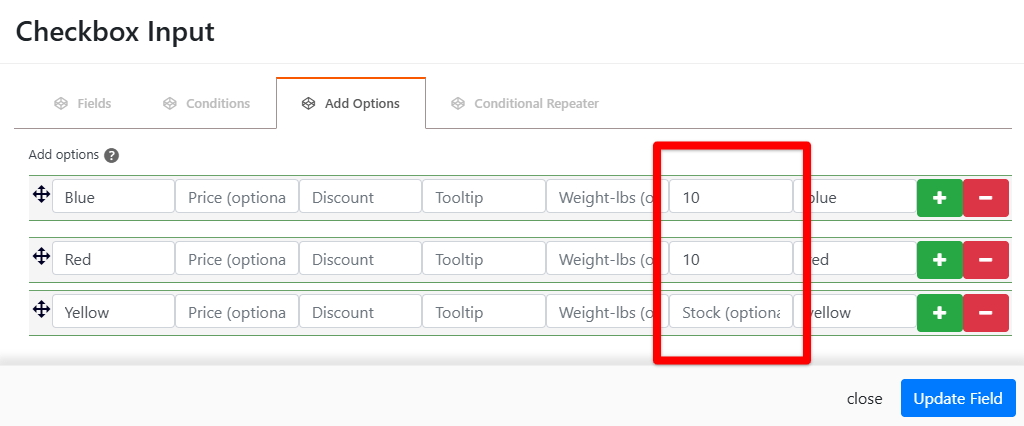
6. Enter or update the stock quantity directly in the Stock field for each option. Leave the field empty if you do not want to limit stock for that option.
7. Click Save to apply the changes.
📝 Note: Stock is tracked at the option level, not at the product level. Each individual option (for example, "Red", "Blue", "Large") has its own independent stock count. PPOM stock counts are separate from WooCommerce's built-in product inventory. Once saved, PPOM automatically decrements the stock count each time a customer completes a purchase that includes the option — you do not need to manually update the count after each sale.
Stock Behavior on the Frontend
For most field types, PPOM Pro does not display a "X items left" counter to customers on the product page. The Quantities field is an exception: its layout shows an "in stock" indicator with the remaining count for each option. Other field types have no built-in front-end indicator of how many units remain.
When a customer browses a product, they see all available options normally — until stock runs out.
What Happens When Stock Reaches Zero
When an option's stock count reaches zero, PPOM marks that option as unavailable. Depending on the field type, the behavior is:
- Select and Radio fields: The out-of-stock option is hidden from the list entirely by default.
- Checkbox fields: The out-of-stock option is disabled so customers cannot check it.
- Image Option fields: The out-of-stock image swatch becomes non-clickable.
- Quantities fields: The remaining stock is shown as an "in stock" count next to each option, and customers cannot order more than the available quantity.
⚠️ Important: There is no built-in front-end message to inform customers why an option is unavailable. If you need to communicate stock status (for example, "Sold out"), you would need to add custom code or use a third-party extension.
Troubleshooting
Stock count did not decrease after a purchase
Check the order status in WooCommerce > Orders. If the order is still Pending or On Hold, the stock has not been decremented yet. PPOM updates stock when the order moves to Processing.
An option is still visible even though stock is zero
Clear your browser and any caching plugin caches (for example, under Settings > your caching plugin > Clear Cache). Some caching setups serve a cached version of the product page that does not reflect the latest stock state.
I need to reset stock for an option
Navigate back to WooCommerce > PPOM Fields, open the relevant field group, and manually update the stock number in the Options tab to the desired value. Click Save to apply.