
How to Configure the Chained Input?
📝 Note: This is part of PPOM pro, which you can get from here.
The chained input is a more complex input field that allows you to create connections between the available options. This guide will present how to configure this input with a practical example.
1. Start by going to WooCommerce > PPOM Fields, and add a new field group.
2. Insert the chained input and configure its Title.
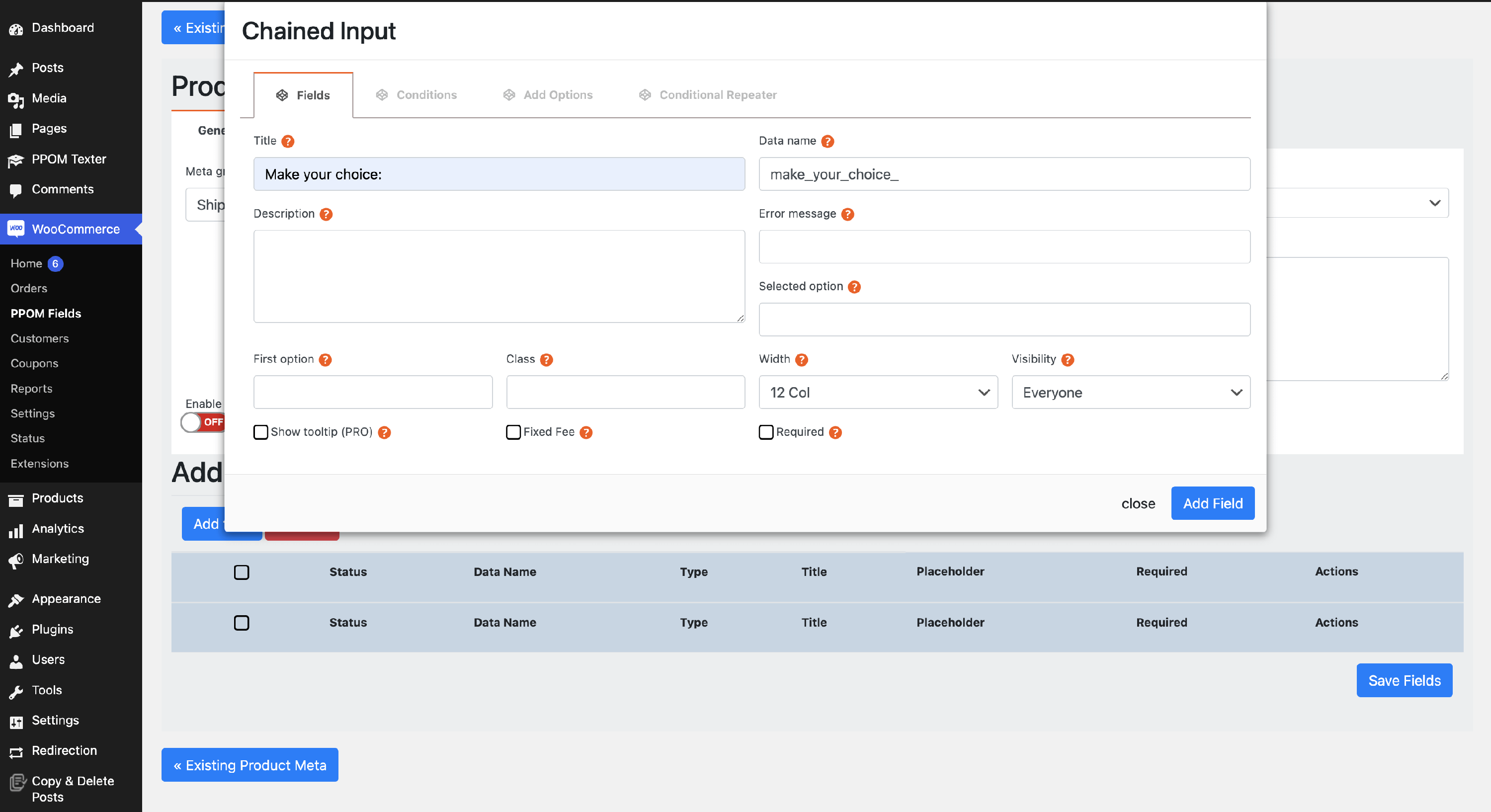
📝 Note: The Title appears above the options. Pick something general.
3. Switch to the Add Options tab to start configuring it.
4. In the first field ( Option ), insert the values you want to display in the dropdown.
5. In the third column ( Sub-Chain ), insert the generic name of the category that represents the options.
6. In the second column ( Chain ), insert the value of the parent option that this option should be linked to.
7. A fourth column, Option ID (placeholder Unique Option ID), lets you assign a unique ID to each option.
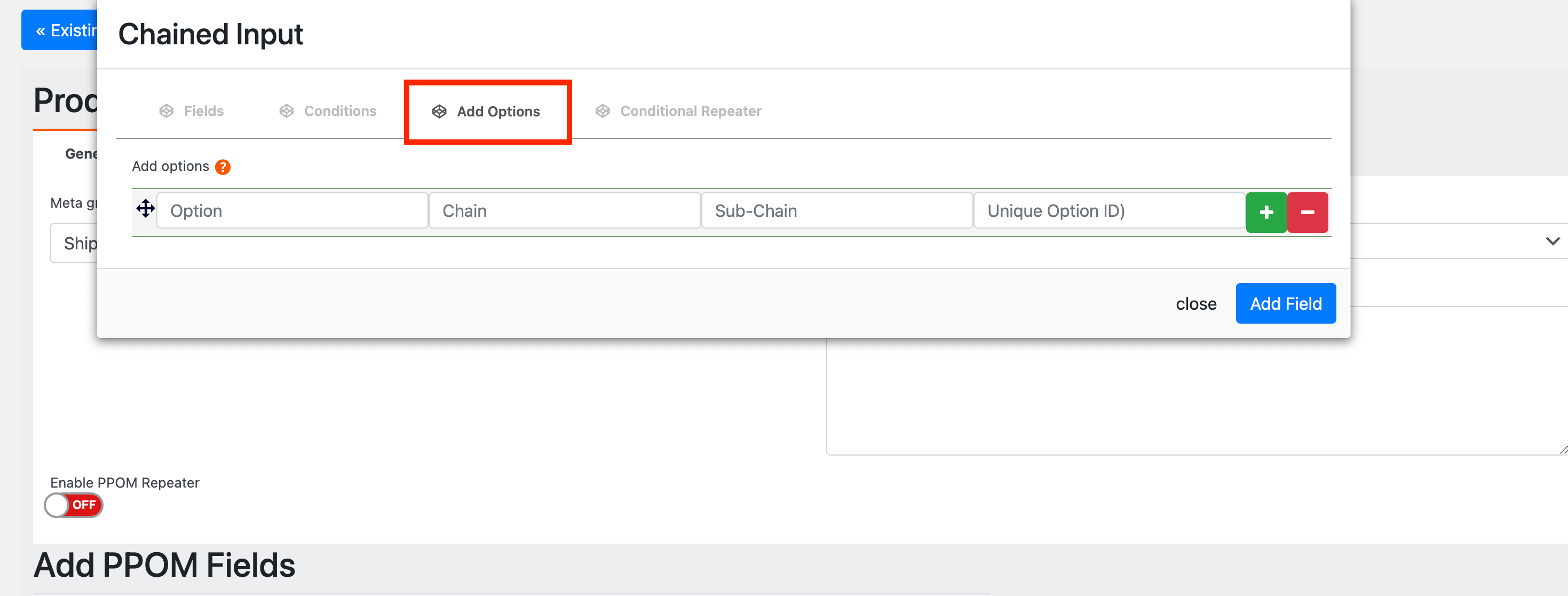
📝 Note: The chained input creates dependent selections, but it does not support assigning a different price to each chained option — its options consist only of Option, Chain, Sub-Chain, and Option ID. If each choice needs its own price, create separate Select or Radio fields instead, add a price to each of their options, and use Display Conditions to reveal each dependent field based on the previous selection.
Example
We wanted to create a field where we will display countries, having a corresponding field with their specific cities.
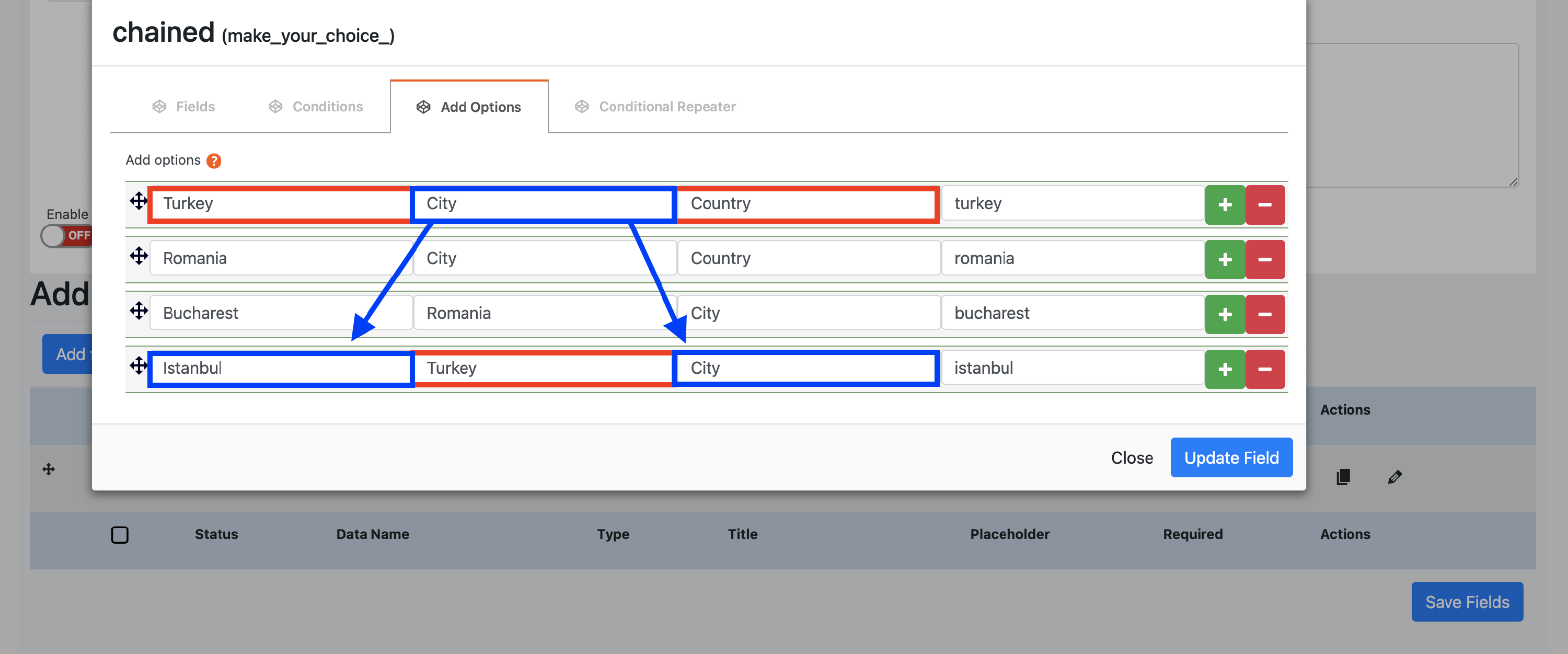
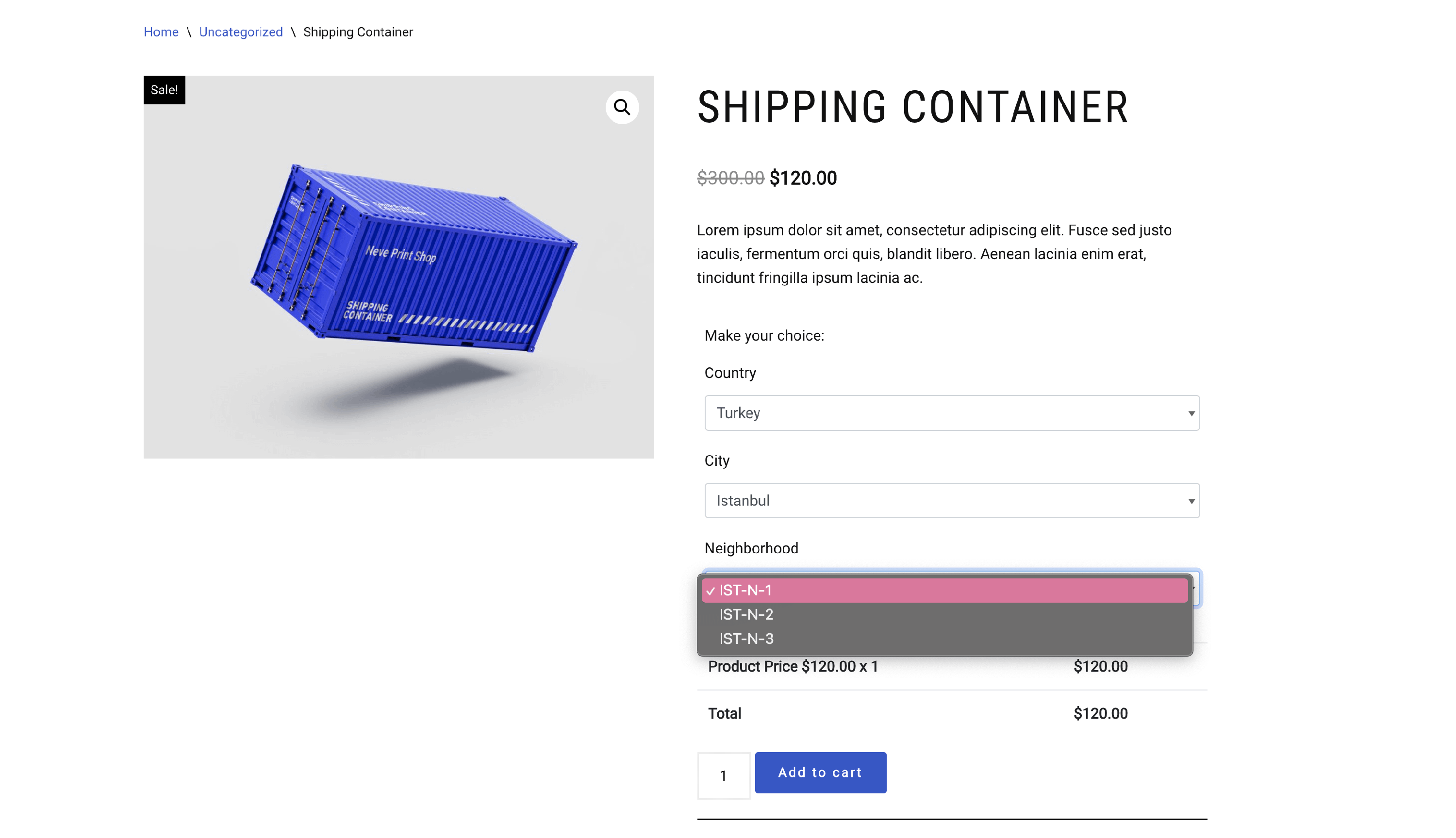
As a result, when a user selects Romania, the corresponding city will be Bucharest, and for Turkey, it will be Istanbul.
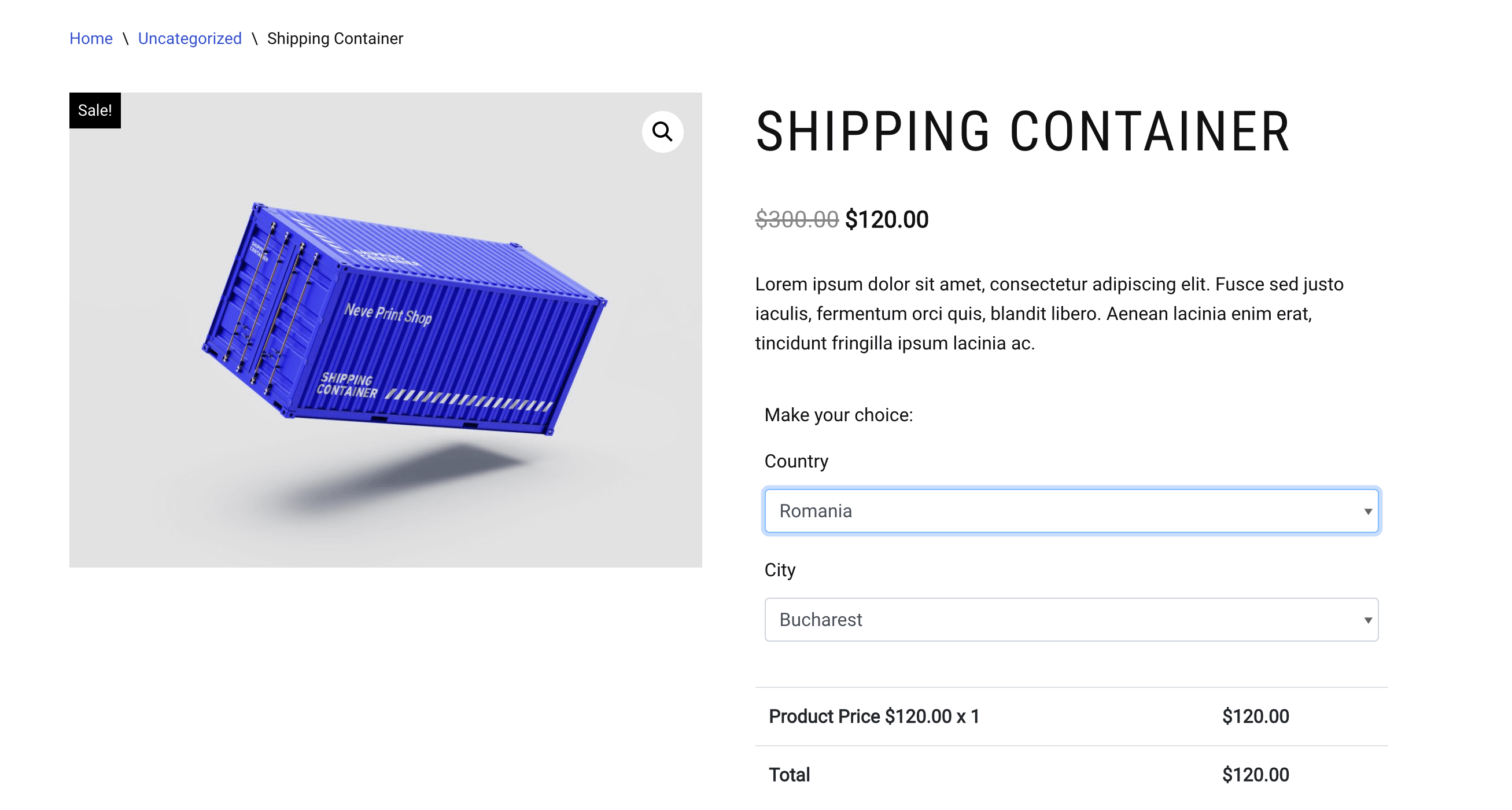
Similarly, you can create a chain for the city. We have added a new option to highlight the neighborhoods, with three values for Istanbul and two for Bucharest:
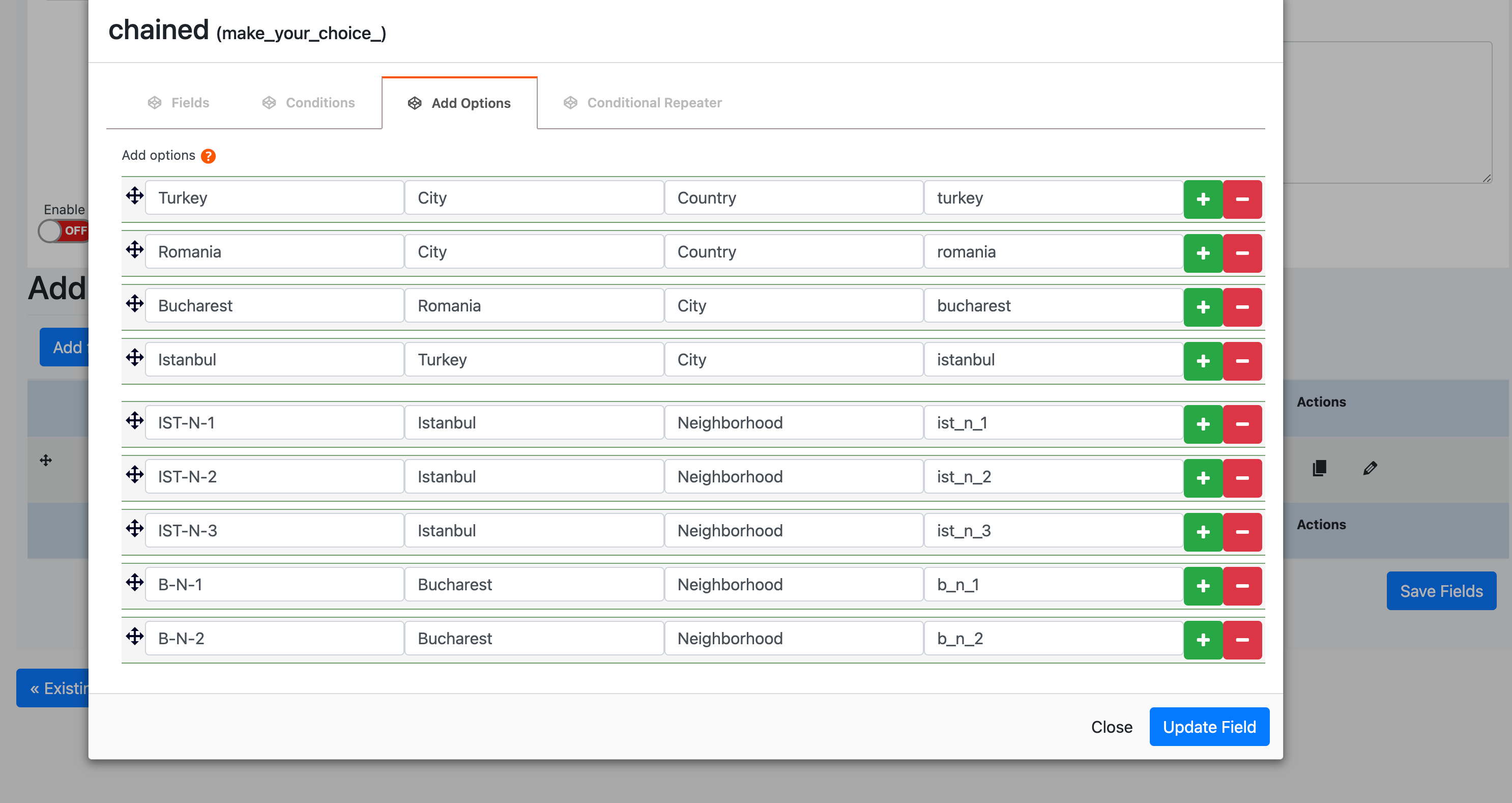
Now, if someone selects Turkey, the inherited value of the city will be Istanbul, and the list of neighborhoods will contain three values:
📝 Note: Check the live behavior of the input using this demo.