
Use Auto Featured Image with AI Assistants
Connect a compatible AI assistant to Auto Featured Image through the WordPress Abilities API. You can ask it to find or generate featured images for posts, or apply a default image.
In this article
Requirements
- A current Auto Featured Image release that supports the WordPress Abilities API. The API lets compatible connectors make specific WordPress actions available to AI assistants.
- A WordPress site where the Abilities API is available.
- An AI or MCP connector connected to your site. Easy MCP AI is one option; see Getting Started with Easy MCP AI for connection instructions.
- A connected WordPress user with the
manage_optionscapability and permission to edit each post you want to process.
Connect your AI client and enable the ability
- In your WordPress dashboard, open Easy MCP AI > Dashboard. In Connect your AI client, choose your AI client and follow the on-screen steps to connect it to your site. If you use another compatible connector, follow its connection instructions.
- Open Easy MCP AI > Tools, then select Abilities.
- Abilities are off by default. Find and enable
featured-image/generate, then click Save changes. - Refresh the available tools in your AI client so it can use the ability.
If you use a different connector, connect your AI client and enable the Auto Featured Image ability using that connector's instructions.
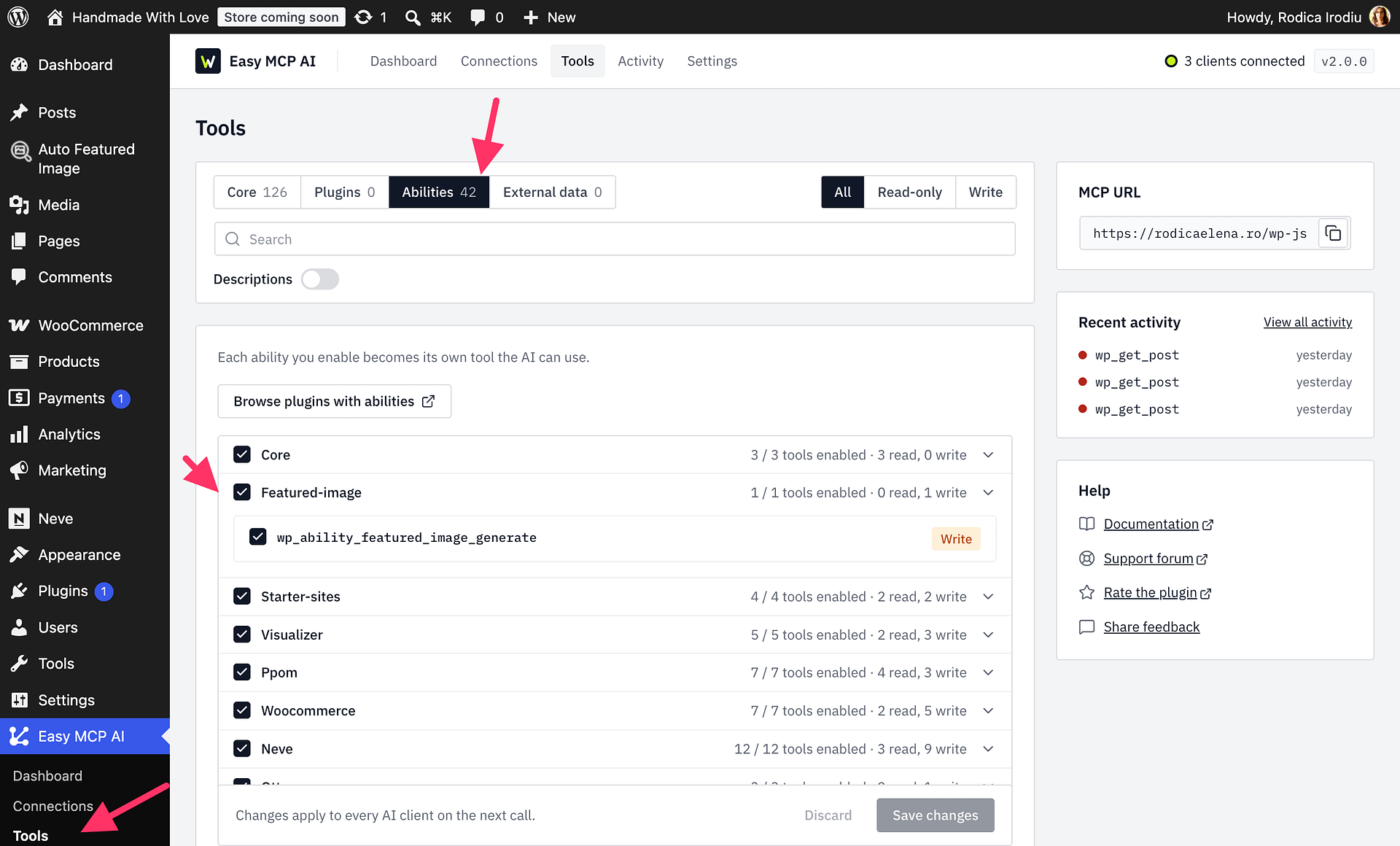
Available ability
Auto Featured Image provides the featured-image/generate ability for finding or assigning featured images to posts. Choose one of these methods in your request:
The ability is available in both Auto Featured Image Free and Pro.
| Method | What it does |
|---|---|
find | Looks for an image in the post content and uses it as the featured image. If needed, it imports a remote image into the Media Library first. |
generate | Generates a featured image from the post title. |
both | Looks for an image in the post content and generates one if none is found. |
use_default | Looks for an image in the post content and uses the configured default image if none is found. |
The ability skips posts that already have a featured image by default. If you explicitly ask it to overwrite an existing image, review that request carefully: the current featured image will be replaced.
Processing limits and continuation
- Each request can process up to 500 posts.
- The default time budget is 20 seconds. If your connector or AI client lets you adjust the tool's time budget, you can increase it up to 60 seconds.
- If a request returns a cursor because more posts remain, continue using that cursor and the same original input. Keep the same method and other request choices while continuing.
Example prompts
After enabling the ability, ask your AI client to:
- Find images in posts that do not have a featured image: “Use
findto set featured images for posts without one.” - Generate missing images: “Use
generatefor posts without a featured image.” - Find an image first, then generate one if needed: “Use
bothfor these posts that do not have a featured image: [identify the posts].” - Apply the configured default image when a post has no image in its content: “Use
use_defaultfor posts without a featured image.” - Process a large batch: “Use
bothto process these posts in batches of up to 500. Continue with the returned cursor and keep the same request options.” - Replace existing images: “Use
generatefor these posts and overwrite their current featured images.” Only use an overwrite request when replacing those images is intended.
Permissions and safe use
The connected WordPress user must have the manage_options capability and permission to edit every target post. Enabling the ability does not grant permission to edit posts the connected user cannot edit.