
How to Install Auto Featured Image Free and Pro
This guide walks you through installing Auto Featured Image on your WordPress site, both the free version from WordPress.org and the Pro version from the Themeisle store, and how to activate your license key.
In this article
How to install the free version
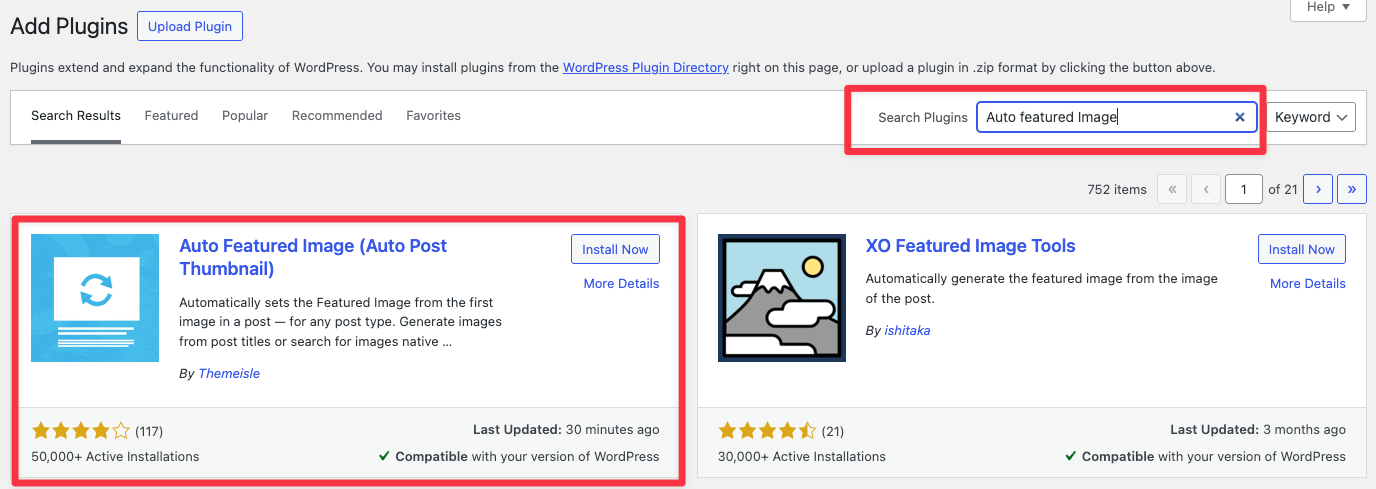
In your WordPress Dashboard, navigate to Plugins > Add New Plugin. Enter the plugin name Auto Featured Image in the search bar.
Click Install now next to the corresponding plugin name. Once the installation is completed, activate Auto Featured Image.
How to install the premium version
- Download Auto Featured Image Pro from your Purchase History. The file should be a .zip
- In your WordPress Dashboard, navigate to Plugins.
- Click on Add New Plugin, upload the .zip file, and click on the Install Now button.
- After the install is done, click on Activate.
Note: The free version will be automatically deactivated once you activate the pro version.
How to activate the license key
Navigate to your account on https://store.themeisle.com/, and copy the license key.
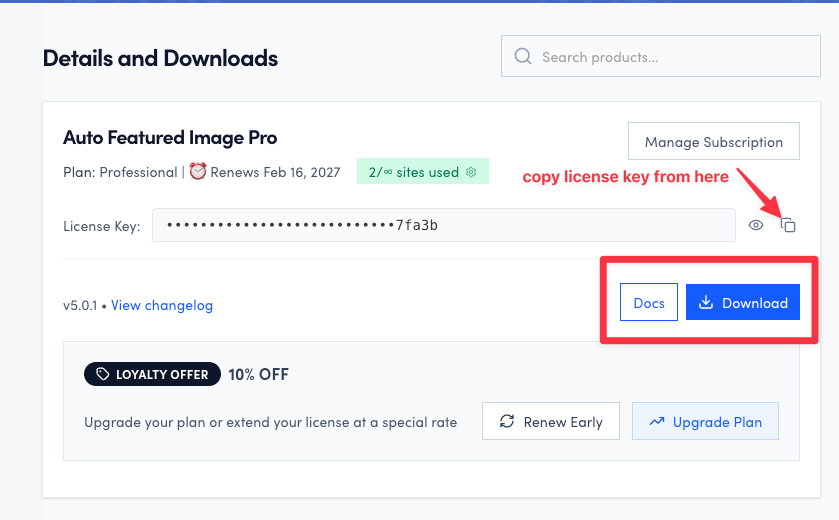
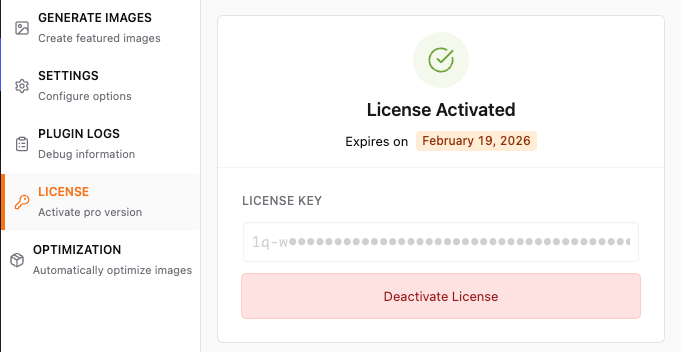
Copy your license key, then open the Auto Featured Image page and select the License tab. Paste the key there and click Activate License.
⚠️ Using a license from before the Themeisle acquisition? If your Pro license key stopped working after updating the plugin, your old key is no longer valid. You need to migrate to a Themeisle license — see Migrating Legacy Licenses below.
Migrating Legacy Licenses (Post-Acquisition)
Auto Featured Image Pro was acquired by Themeisle. As part of this transition, license keys issued by the previous vendor are no longer valid, and the old Auto Featured Image Premium package from the former licensing system no longer works with current releases. If your existing license stopped working after a plugin update, or the old Premium add-on refuses to activate, you need to migrate to a Themeisle license and install the current Pro package.
Steps to migrate your license
- If you purchased Auto Featured Image Pro before the acquisition, contact Themeisle support with all purchase details you have. An old license key can help locate your legacy purchase, but support may still need a matching purchase email, receipt, invoice, or payment proof to verify ownership before migration. For the shared ownership-verification requirements, see Cannot log in / How to access your account.
- Once your account is ready, sign in to the Themeisle store and download the current Auto Featured Image Pro package from Purchase History. Do not reuse the old package from the former Freemius download portal.
- On your WordPress site, deactivate and delete the old Auto Featured Image Premium plugin, then install and activate the current Auto Featured Image Pro package by following How to install the premium version above.
- Activate Pro with the Themeisle license key shown in your store account, following How to activate the license key.
If the product does not appear in your Purchase History after migration, contact support again with your original purchase details rather than using the old Freemius portal.