
Creating Featured Images from Post Titles
Learn how to automatically generate beautiful, branded featured images from your post titles. Perfect for text-based content without images.
In this article
Overview
The "Generate from Title" feature creates custom graphics with your post title overlaid on backgrounds, colors, or images. This ensures every post has a professional-looking featured image, even without content images.

When to Use Title-Based Generation
Ideal Use Cases
✓ Text-Only Content - Opinion pieces - Tutorials without screenshots - Announcements - News articles
✓ Consistent Branding - Podcast episodes - Video posts - Quote posts - Series/columns
✓ Social Media Optimization - Creates share-worthy images - Consistent appearance in feeds - Professional look across platforms
When NOT to Use
✗ Content already has relevant images
✗ Visual/photo-heavy blogs
✗ Product pages with product photos
✗ Gallery or portfolio posts
Setting Up Title-Based Generation
Step 1: Enable the Feature
- Go to Auto Featured Image > Settings > General
- Select "Generate from title" as generation method
Background Configuration
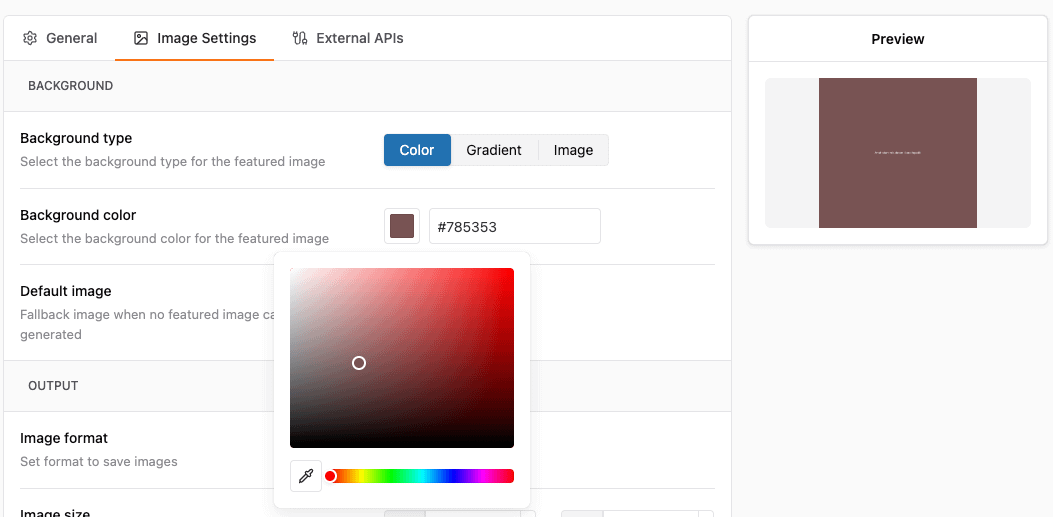
To configure the background you need to go to Auto Featured Image > Settings > Image Settings
Option 1: Solid Color Background
Best for: Clean, minimal design
Configuration:
Background Type: Solid Color Color: #3498db (or use color picker)
Popular Color Schemes:
| Theme | Colors | Use Case |
| Corporate | #2c3e50, #34495e | Professional blogs |
| Vibrant | #e74c3c, #f39c12 | Creative/design blogs |
| Minimal | #ecf0f1, #bdc3c7 | Tech/minimalist |
| Dark Mode | #1a1a1a, #2d2d2d | Modern aesthetic |
Option 2: Gradient Background (Pro)
Best for: Modern, eye-catching design
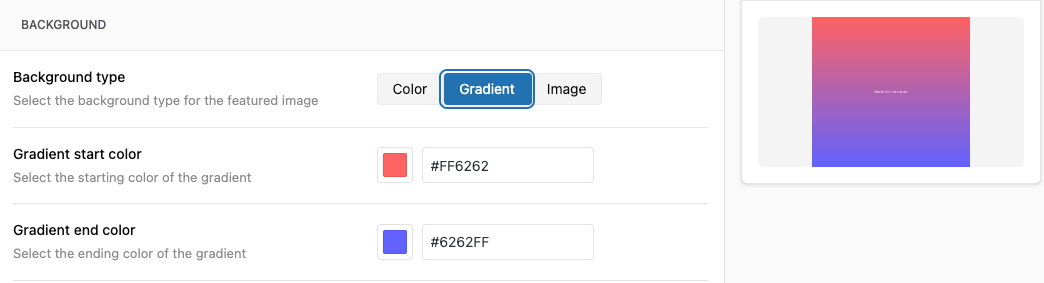
Popular Gradients:
Blue Lagoon: #43e97b → #38f9d7 Bloody Mary: #ff512f → #dd2476 Summer: #fddb92 → #d1fdff Purple Love: #cc2b5e → #753a88
Gradient Tools: - WebGradients - UIGradients
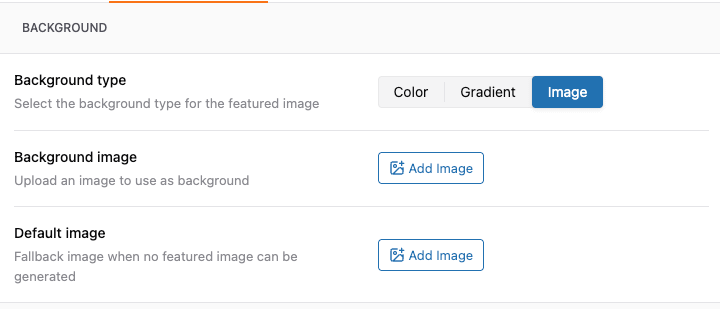
Option 3: Background Image (Pro)
Best for: Branded, custom look
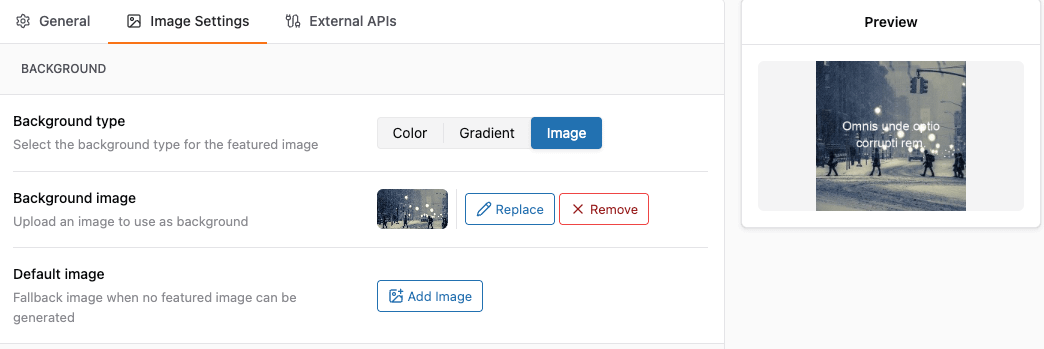
Best Practices for Background Images:
- Use high-resolution images (1920x1080 or larger)
- Choose subtle patterns or blurred images
- Add dark overlay (40-60%) for text readability
- Ensure consistent brand colors
- Test text visibility
Recommended Background Types:
- Blurred photos
- Subtle patterns/textures
- Brand-related imagery
- Abstract designs
Font Selection and Styling
Choosing the Right Font
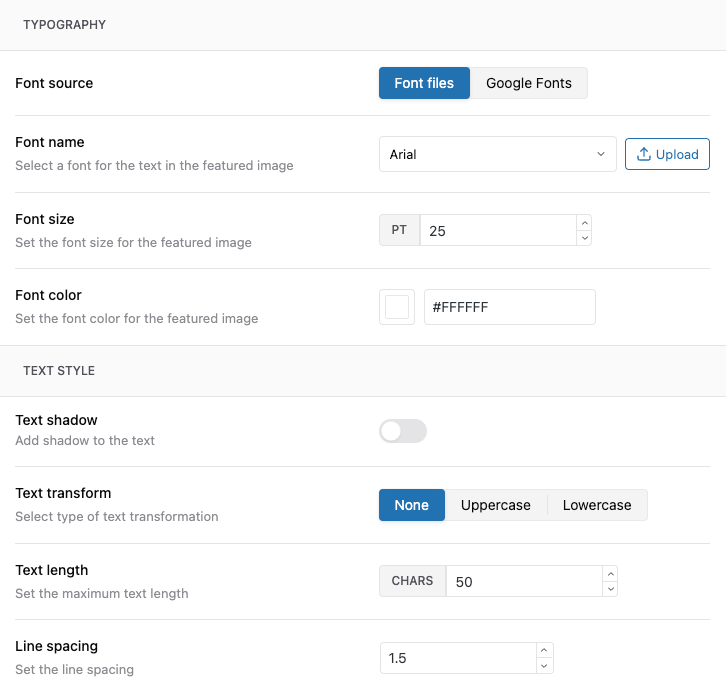
Configuration Location: Auto Featured Image > Settings > Image Settings > Typography
Available Font Options
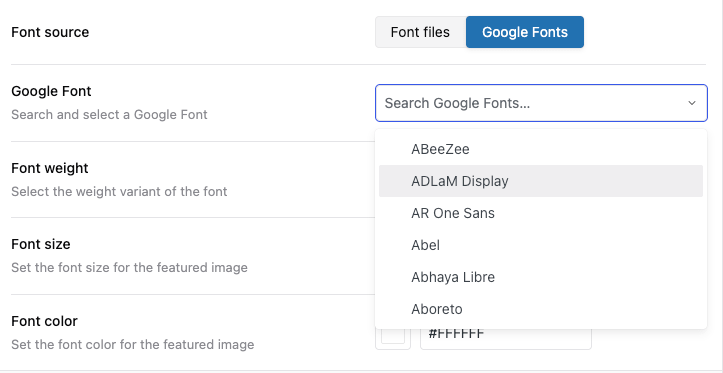
Two font sources are available:
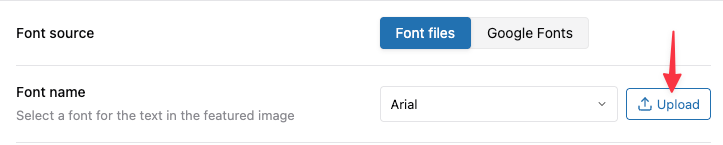
- Font files: choose from the included fonts, or upload your own using the Upload button (Pro)
- Google Fonts (Pro)
Font Styling Options
Font Size
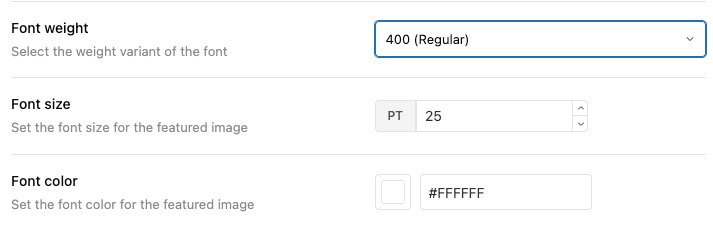
Small Posts: 36-42px Medium Posts: 48-60px Long Posts: 30-36px (auto-adjust)
Font Weight
Light: 300 Regular: 400 Medium: 500 Semi-Bold: 600 Bold: 700 Extra Bold: 800
Font Color
Light Backgrounds: #2c3e50 (dark text) Dark Backgrounds: #ffffff (white text) Colored Backgrounds: Test contrast
Text Positioning Options
These text alignment and padding controls are available in the Pro version.
Horizontal Alignment
Left - For minimal designs Center - Most popular, balanced Right - Unique, artistic
Vertical Positioning
Top - Modern, minimalist Center - Balanced, traditional Bottom - Stable, grounded
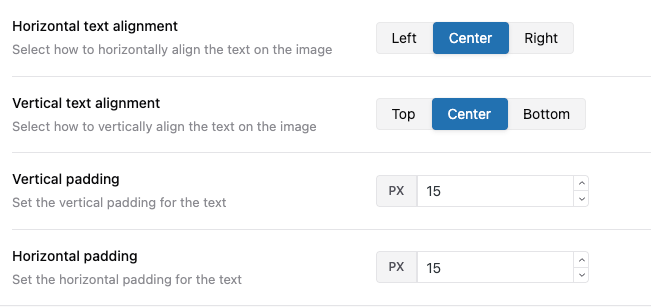
Padding
Configuration:
Vertical Padding: 100px Horizontal Padding: 80px
Safe Zones: - Keep text 60-100px from edges - Prevents cut-off on different displays - Ensures social media compatibility
Text Effects
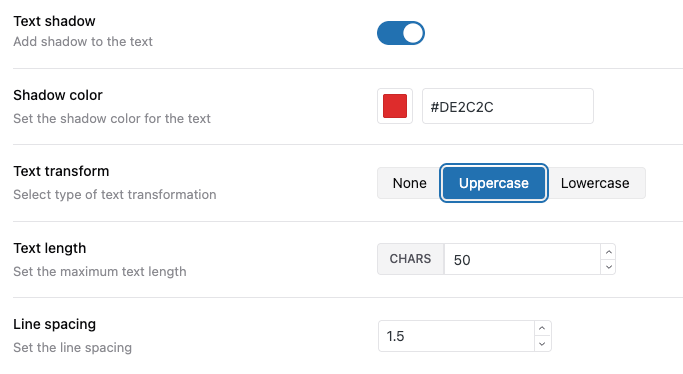
- Text Shadow: Improve readability, add depth
- Text Transform: Transform the text to Uppercase or Lowercase. Without the PHP
mbstringextension, only ASCII letters change case; non-ASCII letters keep their original case. Ask your hosting provider to enablembstringif you need non-ASCII case conversion. - Text Length: Set the maximum Text length
- Line Spacing: Set the line spacing
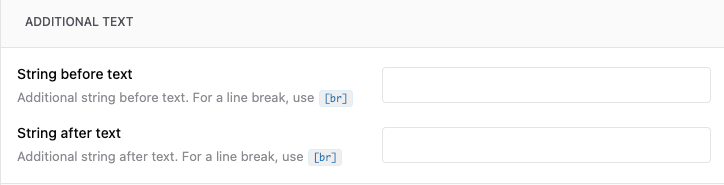
- String before text (Pro): Additional string before text. For a line break, use
[br] - String after text (Pro): Additional string after text. For a line break, use
[br]
SEO and Social Media Optimization
Optimal Image Dimensions
Recommended Size:
1200 x 630 pixels
Why? - Facebook recommended size - Twitter large card size - LinkedIn preview size - 1.91:1 aspect ratio
Alternative Sizes:
1200 x 675 (16:9) - YouTube-style 1080 x 1080 (1:1) - Square for Instagram
Open Graph Preview
Generated images automatically work with: - Facebook sharing - Twitter cards - LinkedIn posts - Pinterest pins - Slack previews
Related Articles
- Quick Start Guide
- Settings Explained: Complete Reference
- Understanding How Auto Featured Image Works
- SEO Best Practices for Auto-Generated Images
- Using Stock Image Search