
Using Default/Fallback Images Effectively
Master the art of setting up default and fallback images to ensure every post has a featured image, no matter what. Essential for professional site appearance.
In this article
Overview
Default/fallback images serve as a safety net when no other image generation method succeeds. This prevents posts from appearing without featured images.
Why Fallback Images Matter:
- Professional appearance
- Consistent layout
- Better social media sharing
- Improved SEO
- Enhanced user experience
Understanding the Fallback Hierarchy
Priority Order
When AFI tries to set a featured image, it follows this priority:
The behavior depends on which generation method you select in Auto Featured Image > Settings > General tab:
- Find in post — Uses first image found in post content
- Generate from title — Creates an image from the post title
- Find or generate — Tries to find an image in content; if none, generates from title
- Find or use default image — Tries to find an image in content; if none, uses the default image
Example: "Find or use default image" method
1. Existing Featured Image (skipped if already set)
   ↓ (if none)
2. First Content Image
   ↓ (if none found)
3. Default/Fallback Image
Key Point: Fallback images only appear when all other methods fail or are unavailable.
Types of Fallback Images
1. Site-Wide Default
Single image for entire site: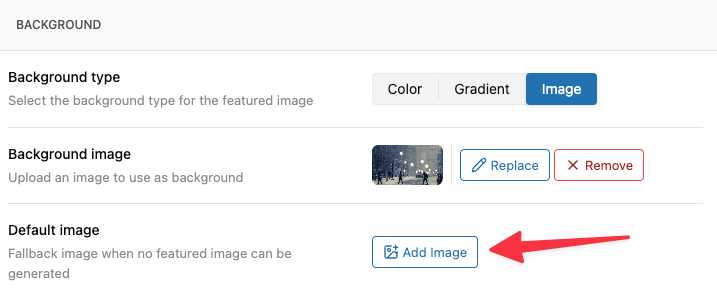
Note: To use the default image, set the generation method to "Find or use default image" in the General tab.
Best for:
- Simple sites
- Consistent branding
- Minimal content variety
Note: Currently, Auto Featured Image supports a single site-wide default image. Category-based, tag-based, and per-post-type defaults are not available in the current version.
Content Ideas for Default Images
Content Ideas for Your Default Image
1. Branded Placeholder
What to include:
- Logo or site name
- Tagline
- Brand colors
- Simple pattern/texture
Example:
┌─────────────────────────────────┐
│                                 │
│      [Your Logo]                │
│                                 │
│   Your Tagline Here             │
│                                 │
│   yoursite.com                  │
│                                 │
└─────────────────────────────────┘
2. Category Icon/Symbol
Design approach:
- Icon representing category
- Category name
- Subtle background
Example for "Technology":
┌─────────────────────────────────┐
│                                 │
│      [Laptop Icon]              │
│                                 │
│      TECHNOLOGY                 │
│                                 │
└─────────────────────────────────┘
3. Generic Stock Photo
Select images that are:
- Professional
- Versatile (fit many topics)
- High quality
- Licensed for use
Examples:
- Blurred background with light overlay
- Abstract patterns
- Geometric designs
- Nature scenes (universal appeal)
4. Solid Color with Text
Minimal approach:
Background: Brand color
Text: Post title or site name
Font: Brand font
Style: Clean, readable

Example:
┌─────────────────────────────────┐
│  (Solid blue background)        │
│                                 │
│  Read More Articles             │
│  YourSite.com                   │
│                                 │
└─────────────────────────────────┘
Tools for Creating Fallback Images
Design Tools:
| Tool | Type | Cost | Best For |
|---|---|---|---|
| Canva | Online | Free/Pro | Quick design, templates |
| Adobe Photoshop | Desktop | Paid | Professional design |
| Figma | Online | Free/Pro | Collaborative design |
| Pixlr | Online | Free | Simple edits |
| GIMP | Desktop | Free | Photoshop alternative |
Template Resources:
- Canva featured image templates
- Creative Market
- Envato Elements
- Custom design by freelancer
Common Mistakes to Avoid
Mistake 1: Low-Quality Images
Problem: Using small, pixelated images
Solution:
Always use:
- Minimum 1200 x 630 px
- High quality (not upscaled)
- Properly compressed
Mistake 2: Too Much Text
Problem: Cluttered default images with too much text
Solution:
Keep it simple:
- Logo + tagline (max)
- Or icon + category name
- Readable at all sizes
Mistake 3: Irrelevant Images
Problem: Generic stock photo that doesn't fit content
Solution:
Make defaults relevant:
- Category-specific
- Brand-related
- Or keep very neutral
Mistake 4: Forgetting Social Media
Problem: Images look bad when shared on social media
Solution:
Test sharing:
- Facebook Sharing Debugger
- Twitter Card Validator
- LinkedIn Post Inspector
Mistake 5: Never Updating
Problem: Using same default for years, becomes stale
Solution:
Regular updates:
- Review quarterly
- Update for rebranding
- Refresh seasonal images
- Keep current with trends
Best Practices Summary
Do's ✓
✓ Create high-quality default images (1200x630+) ✓ Use category-specific defaults for varied content ✓ Keep designs simple and professional ✓ Test social media sharing ✓ Match brand guidelines ✓ Provide site-wide fallback as safety net ✓ Update defaults periodically ✓ Optimize file sizes
Don'ts ✗
✗ Use low-resolution images ✗ Overcomplicate design ✗ Forget to test ✗ Ignore mobile appearance ✗ Use copyrighted images without license ✗ Set defaults and forget them ✗ Make text too small or too much
Related Articles
- Quick Start Guide
- Creating Featured Images from Post Titles
- Settings Explained: Complete Reference
- SEO Best Practices for Auto-Generated Images
- Generating Featured Images from Post Content