
Dashboard Overview
The Titan Anti-Spam Dashboard is your command center for managing spam protection and security on your WordPress site. When you open the Titan plugin, the Dashboard displays a comprehensive overview of your site's spam activity and protection status.
In this article
Understanding Your Dashboard Layout
The Dashboard is organized into two main areas:
Left Sidebar Navigation: Quick access to all Titan plugin modules including Dashboard, Anti-Spam, Backup, Two-Factor, Security, Error Log, and Settings.
Main Content Area: Displays real-time spam statistics for your site.
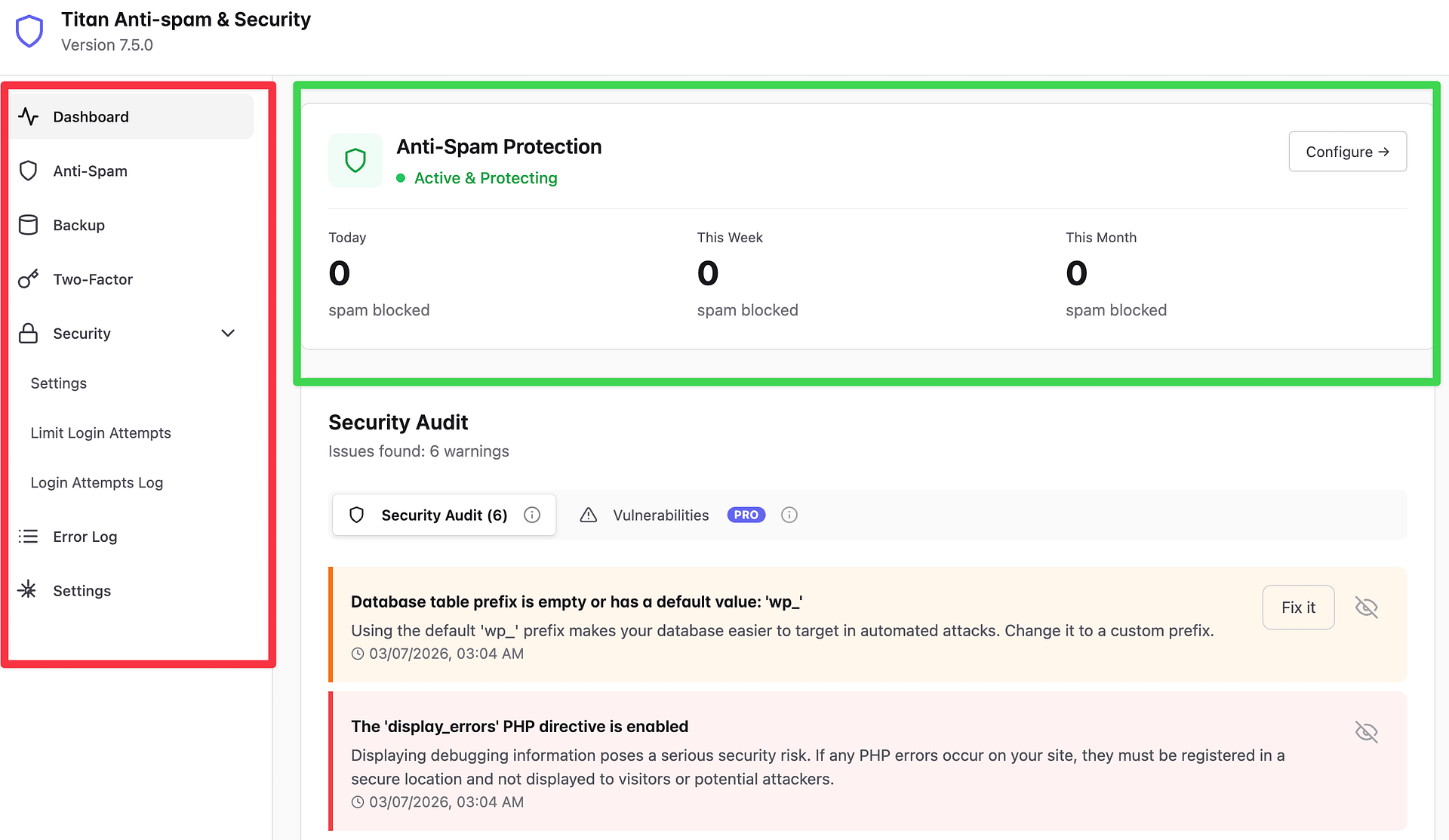
Spam Statistics
The Dashboard prominently displays your spam blocking statistics across three time periods:
Spam Blocked: The count of spam attempts detected and stopped by Titan, shown across three periods: Today, This Week, and This Month. This gives you a snapshot of how active threats are against your site.
Understanding the Numbers
A high number of blocked spam attempts is actually a good sign — it means Titan is actively protecting your site from potential threats. These attempts never reach your visitors or compromise your site.
Navigating to Other Modules
From the Dashboard sidebar, you can quickly navigate to:
- Anti-Spam — Configure spam protection for comments, forms, and registrations
- Backup — Create and manage site backups
- Two-Factor — Set up two-factor authentication for secure logins
- Security — Enable security hardening options with simple toggles
- Error Log - In this section, you can track errors.
- Settings — Access import/export, Advanced settings and license management
Getting Started
New users should start by reviewing the Anti-Spam settings to ensure spam protection is enabled for all relevant forms, then enable Two Factor Authentication for admin accounts and create an initial backup of the site.